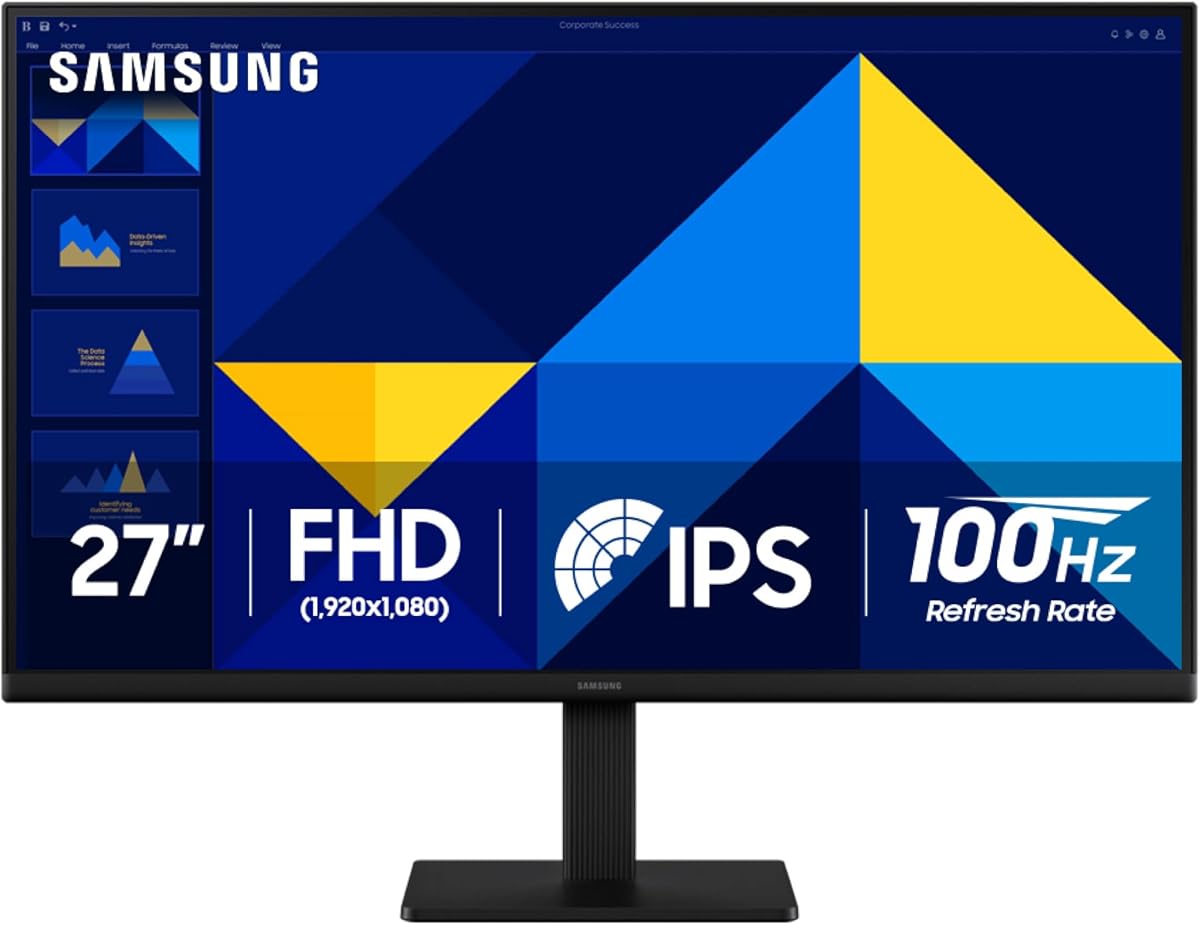
Samsung 27-inch S30GD Essential Monitor
4.5Editor score
27-inch IPS desktop display
100Hz refresh rate
Slim three-sided bezels
Reduced blue-light mode
A monitor for Linux can range from a compact touchscreen intended for a Raspberry Pi workstation to a high-refresh OLED display built for competitive gaming. The right choice depends on your distribution, graphics hardware, desktop environment, and the way you work. Compatibility matters, but resolution, color accuracy, ergonomics, and connection options are equally important.
This guide compares ten monitors using their published specifications, stated operating-system support, display technology, refresh rate, touch capabilities, mounting options, and physical design. It covers portable and traditional desktop displays, including models suited to coding, creative work, single-board computers, gaming, and multi-screen productivity.
Each selection reveals what makes it distinctive, from inexpensive dual-screen extenders to premium OLED performance. Ratings and specifications can change as products evolve, so verify the current listing and your hardware requirements before buying. Prices also fluctuate, and the right value depends on the features you actually use.
4.5Editor score

4.9Editor score

4.6Editor score
As an Amazon Associate we earn from qualifying purchases.
The table below compares the featured monitors by panel type, resolution, refresh rate, and Linux-relevant capabilities, making it easier to identify the right display for desktop, portable, touchscreen, or gaming setups.


The MNN 15.6-inch Portable Monitor combines a familiar Full HD IPS format with a travel-friendly design, making it a practical option for Linux users who want a second screen away from a desk. Its 4.3 rating reflects a generally capable package, although the 60Hz refresh rate and glossy panel place it firmly in the conventional portable-monitor category rather than among specialized high-speed displays.
We may earn a commission when you buy through this link, at no additional cost to you.
Two full-feature USB-C ports are one of its most useful features. A single USB-C cable can handle both display input and power when the connected device supports Thunderbolt 3 or USB 3.1 with DisplayPort Alternate Mode. The display also supports copy, extended, second-screen, and portrait modes, giving a Linux user flexible control over how applications are arranged. HDR support can add impact to supported content, while the stated 178-degree viewing angle helps when the screen is not directly in front of the user.
The main compromises are inherent to a portable Full HD monitor. Its 60Hz rate is sufficient for documents, terminals, web development, and casual games, but it is not intended to rival a dedicated esports panel. The glossy IPS surface may produce reflections in bright environments, and compatibility depends on the source device exposing the required USB-C video mode. The included smart cover adds protection and doubles as a stand, helping offset the screen's travel-oriented construction.
This is a strong recommendation for Linux developers, students, and travelers who want a lightweight secondary display rather than a performance-first gaming monitor. It can be especially useful for keeping documentation, chat, system monitoring, or a terminal visible beside the primary screen. Check your laptop's USB-C capabilities before purchase, and favor the display over a similarly sized 4K unit if sharp text and low cost matter more than maximum pixel density.
The full-feature USB-C arrangement can simplify a mobile Linux workstation by carrying video and power over one cable. Compatibility still depends on DisplayPort Alternate Mode, so check the specifications of the computer, dock, or adapter you plan to use.
Copy, extended, portrait, and second-screen modes make the panel useful for coding references, remote meetings, and vertical document review. Linux users can arrange these modes through the graphics settings supported by their distribution and desktop environment.
We may earn a commission when you buy through this link, at no additional cost to you.
The VIEWMEI 10.1-inch Touch Monitor is aimed at Linux makers, embedded developers, and anyone who wants a compact panel for a Raspberry Pi or Jetson Nano. It carries a 4.7 rating, supported by a clear combination of an IPS screen, touch input, and straightforward HDMI-and-USB operation. The compact enclosure also makes it suitable for a dedicated dashboard, control panel, or traveling workstation.
We may earn a commission when you buy through this link, at no additional cost to you.
The display supports ten-point touch on Windows 11, 10, 8, and 7, while single-point touch is listed for Raspberry Pi OS, Ubuntu, Kali Linux, and Windows 10 IoT. Video travels through HDMI and power through USB, avoiding any need for a complicated desktop configuration. Compatibility extends to Raspberry Pi 5, 4, and 3, Jetson Nano, laptops, game consoles, Banana Pi, BeagleBone, and digital cameras.
Its rear mounting holes distinguish it from a simple stand-alone mini display. They allow the screen to be mounted to a wall or incorporated into a project enclosure, which is valuable for dashboards, CCTV, and control interfaces. The trade-off is its relatively low 1280 x 800 resolution. That is adequate for terminal text, compact dashboards, and utility interfaces, but less comfortable for extensive desktop work than a larger Full HD panel.
For a Linux single-board-computer project, this is one of the most targeted choices in the guide. Its 520g weight and 245 by 167 by 21 millimeter dimensions make it manageable in mobile assemblies. Choose it when touch and mounting flexibility matter more than image size. For conventional productivity, favor a larger display; for a Linux-controlled appliance or maker project, the VIEWMEI's combination is unusually well matched to the job.
The monitor's listed single-point support on Ubuntu, Kali Linux, and Raspberry Pi OS makes it useful for interfaces that need one primary touch interaction. Multi-finger gestures may be limited on these systems, so touch-heavy workflows should be tested before the display is built into a permanent enclosure.
Four mounting holes allow the screen to be integrated directly into a project rather than restricted to temporary use on a desk. This makes it practical for status boards, security displays, and compact Linux appliances.
We may earn a commission when you buy through this link, at no additional cost to you.
The CIDETTY 14-inch Dual Monitor is a strong all-around choice for Linux professionals who want to expand a laptop without carrying a conventional desktop setup. Its 4.9 rating is the highest in this selection, and the product's two 1080p IPS panels, 60Hz refresh rate, 300-nit brightness, and broad device support make it especially appealing for coding, research, conferencing, and analysis.
We may earn a commission when you buy through this link, at no additional cost to you.
The extender supports expand, mirror, and second-screen modes, allowing Linux users to place a terminal, documentation, communications, and other applications on separate panels. A 178-degree viewing angle, matte anti-glare coating, and independent brightness controls improve shared-screen and long-session usability. The adjustable telescopic stand fits 13- to 17.3-inch laptops and includes protective padding for the laptop edges.
Connection is driver-free when the laptop has a full-function USB-C port, using one USB-C-to-USB-C cable. Systems with a USB-A or USB-C port plus HDMI generally require two cables: one HDMI-to-USB-C connection and one USB-A or USB-C-to-USB-C connection. Linux, Windows, macOS, Chrome, Android, and DEX are listed as supported, although some older systems may lack a required full-featured port. That caveat matters because a connector that carries data is not always capable of carrying video.
This is the best recommendation for users who regularly move between a desk and a laptop while preserving multiple application windows. It offers more usable workspace than a single compact portable screen without moving into the bulk and complexity of a full-size multi-monitor kit. Confirm the ports on your Linux computer, consult the manual, and keep the required cables accessible. With that check completed, it is a versatile productivity tool with excellent published customer feedback.
Two independent 1080p screens provide enough room to separate work, reference material, and communication instead of compressing everything into one laptop display. Linux users can configure these as a single extended desktop, a mirrored presentation area, or a dedicated second screen.
The stated driver-free setup reduces configuration friction for Linux systems, where proprietary utilities can otherwise complicate installation. Port capability remains the deciding factor, and the product documentation should be checked against the specific laptop model.
We may earn a commission when you buy through this link, at no additional cost to you.
The ELECROW 10.1-inch Touch Monitor offers a compact IPS display for Raspberry Pi, Jetson Nano, and other Linux-capable systems. Its 4.4 rating reflects a well-rounded maker-oriented package, while the 1280 x 800 resolution and 10.1-inch size position it for embedded interfaces, diagnostics, and compact productivity rather than a full desktop replacement.
We may earn a commission when you buy through this link, at no additional cost to you.
Touch is handled through HDMI for video and USB for power. The display provides five-point touch on common Windows versions and single-point touch on Raspberry Pi OS, Ubuntu, Kali Linux, and Windows 10 IoT. Compatibility includes several Raspberry Pi generations, Jetson Nano, laptops, game consoles, Banana Pi, BeagleBone, and digital cameras. This broad device list makes it useful for testing a Linux image on a small display before committing to a larger enclosure.
Unlike many bare mini monitors, it includes a protective acrylic case, which adds a useful layer of protection during transport or installation. Four rear mounting holes allow integration into a wall or custom project. The 521g weight and compact 24 by 15.7 centimeter dimensions support its portable positioning. The 1280 x 800 resolution remains the main limitation for prolonged text editing, although many Linux kiosk interfaces are designed around a fixed, compact display.
Choose the ELECROW when you need a Linux-capable touchscreen that can function as a temporary test screen or a permanent control display. The included case makes it a sensible option for makers who move equipment between workspaces. If you need precise multi-touch under Linux, carefully verify driver and desktop-environment support. For simple navigation, single-board-computer setup, or an integrated dashboard, the package is compelling and appropriately focused.
The supplied acrylic case is more useful than it might initially appear because compact panels are often moved between temporary benches and permanent installations. It reduces the need to add separate protection during transport.
Support for Raspberry Pi OS, Ubuntu, Kali Linux, Jetson Nano, and other common development platforms makes the display approachable for Linux testing. The display mode and touch behavior should still be confirmed on the exact image and board being used.
We may earn a commission when you buy through this link, at no additional cost to you.
The KEFEYA 15.6-inch Triple Monitor is designed for users who want the largest possible workspace from a laptop. Two folding 15.6-inch Full HD IPS panels can combine with the built-in laptop display to create a three-screen arrangement. Its 4.5 rating and specifications make it a compelling choice for Linux developers, traders, remote workers, and technical professionals who routinely keep many applications visible.
We may earn a commission when you buy through this link, at no additional cost to you.
Both side displays have 1920 x 1080 resolution, 300-nit brightness, a stated 1000:1 contrast ratio, and 100% sRGB color coverage. Brightness, contrast, and backlight can be adjusted independently. Panels can rotate 180 degrees and support mirror, extension, landscape, and portrait arrangements, allowing a Linux user to build a custom workspace around the laptop rather than accepting a fixed two-screen layout.
The 0.16-inch panel thickness and 3.9-pound total weight help offset the size of a dual-screen assembly, while the folding design and included leather bag improve transport. Setup uses two USB-C cables or a combination of one HDMI-to-USB-C cable and one USB-C-to-USB-C cable. The package includes multiple cable types. A USB-A-to-USB-C cable supplies power only and does not carry display data, a distinction that matters when configuring a Linux system.
The significant drawback is the Mac M1, M2, and M3 incompatibility stated in the product information; an H6 adapter is suggested but not included. Linux support is otherwise explicit. Most buyers will also need to accept the extra bulk of two 15.6-inch panels. For a developer who wants code, documentation, shell sessions, and browser tools simultaneously visible, this configuration is difficult to equal. It is best for users who consistently need more workspace and travel with a dedicated bag.
The laptop screen plus two side panels can divide a Linux workstation into distinct functional areas. A programmer might dedicate one display to an editor, another to a terminal, and the laptop screen to a browser or remote session.
The panels fold into the supplied leather bag, turning a conventional three-display workstation into a travel-oriented system. Setup is straightforward when the laptop offers the required full-featured USB-C or HDMI video connections.
We may earn a commission when you buy through this link, at no additional cost to you.
The Samsung 32-inch Odyssey G55C is a compelling Linux gaming monitor for players who want a large, smooth, and visually immersive display. Its 4.4 rating reflects a capable combination of 2560 x 1440 resolution, a 165Hz refresh rate, and a 1ms MPRT response time. The 1000R curve is intended to place the edges of the image more naturally within the field of view.
We may earn a commission when you buy through this link, at no additional cost to you.
QHD provides substantially more detail than Full HD, giving Linux games, desktop interfaces, and creative applications a useful balance between resolution and performance demands. A 165Hz refresh rate and 1ms MPRT response support fast motion, while AMD Radeon FreeSync synchronizes the display and compatible graphics card to reduce image tearing. HDR10 adds greater contrast, brighter highlights, and deeper dark areas for supported content.
Samsung includes Eye Saver Mode to reduce blue light and screen flicker, which can improve comfort during long sessions. The tradeoff is that Linux compatibility here depends on standard display drivers and the graphics card rather than any dedicated Linux software. Linux users may need to configure the resolution, refresh rate, FreeSync, and HDR behavior through the desktop's graphics control panel. The large 32-inch curved format also requires adequate desk depth and may be unsuitable for compact workspaces.
This monitor is best for a dedicated gaming Linux build, particularly one using AMD hardware that can take advantage of Radeon FreeSync. It is also a strong general-purpose screen when a large QHD canvas is desired for development, media, or simulation. It is less appropriate for someone seeking a compact office display or a monitor whose primary selling point is touch input. If gaming speed and immersion are priorities, the G55C provides the right specifications.
The 165Hz refresh rate and 1ms MPRT response target fast gameplay, while FreeSync helps maintain frame-to-frame consistency with compatible AMD graphics hardware. Linux support for these features depends on the kernel, driver, graphics card, and user settings.
A 2560 x 1440 image provides more usable information than Full HD without requiring the extreme pixel density of a 4K panel. The 1000R curve wraps the display around the viewer for a more encompassing gaming experience.
We may earn a commission when you buy through this link, at no additional cost to you.
The Sceptre 22-inch Gaming Monitor offers an accessible combination of size, refresh rate, and built-in audio. Its 4.4 rating makes it a credible compact choice for a Linux gaming build or a smaller dual-screen desk. Full HD resolution and an advertised refresh rate of up to 144Hz target fast games without the space demands of a large curved monitor.
We may earn a commission when you buy through this link, at no additional cost to you.
HDMI and DisplayPort provide modern digital connections that are widely supported by Linux graphics stacks. The nearly bezel-free design is useful when arranging two displays closely, allowing the screens to form a more continuous visual workspace. Integrated speakers remove the need for separate desktop audio in basic setups, although they are best regarded as convenience speakers rather than a substitute for a dedicated audio solution.
Blue-Light Shift technology reduces blue-light emissions, which may improve comfort during long working or gaming periods. The supplied product information does not specify the exact panel technology, brightness, response time, or supported operating systems, so those details should be verified on the listing. Linux users should also confirm the desired resolution and refresh rate are exposed by their graphics card and driver. As with any display, a suitable cable and compatible video output are necessary.
Choose this monitor when desk space, built-in sound, and a high advertised refresh rate matter more than 4K resolution or a high-end gaming panel. It works well as a compact secondary display for a Linux system, allowing game, terminal, or communication applications to remain visible. The model's 2026 series designation may also appeal to buyers seeking a current release, but the final decision should be based on the verified specifications and warranty terms.
The 22-inch format and narrow bezel make it easier to pair with another display on a modest desk. This is useful for Linux users who want gaming performance on one screen without dedicating a large display to every task.
Integrated speakers can handle system sounds, video calls, and casual media without adding visible desk equipment. External headphones or speakers remain preferable for more demanding gaming or multimedia use.
We may earn a commission when you buy through this link, at no additional cost to you.
The ASUS ROG XG27AQDMGR is the premium performance choice in this guide, bringing a 26.5-inch QHD TrueBlack glossy WOLED panel, 240Hz refresh rate, and 0.03ms gray-to-gray response time to Linux systems. Its 4.6 rating reflects a highly capable gaming and productivity display, with unusually strong specifications for motion, color, and HDR presentation.
We may earn a commission when you buy through this link, at no additional cost to you.
The monitor covers 99% of the DCI-P3 gamut and supports true 10-bit color, with a stated Delta E below 2 and VESA DisplayHDR 400 True Black compliance. Those characteristics suit game development, photo review, video editing, and high-refresh Linux gaming. The 2560 x 1440 resolution provides a practical balance between detail and GPU demand, while the 240Hz panel provides extremely fluid motion when the system and title can generate enough frames.
ASUS OLED Care Pro adds protection through a Neo Proximity Sensor that can switch the display to black when the user leaves, reducing the risk of burn-in. The supplied information also notes a three-year warranty with accidental-damage and burn-in coverage. ASUS DisplayWidget Center offers mouse-based control of OLED care and settings, and ROG Gaming A.I. provides additional gaming-oriented features. The glossy surface, however, can reflect ambient light and requires careful desk placement.
This is the ideal choice for a high-end Linux gaming or hybrid creative workstation where response time and color accuracy justify the premium feature set. Linux users should confirm support for the desired refresh rate and adaptive synchronization through their GPU driver. For ordinary office work, the expense may be difficult to justify, but for fast competitive gaming and color-sensitive projects, the panel delivers a clear technical advantage.
A 240Hz refresh rate and 0.03ms gray-to-gray response minimize the lag between input and displayed action. Competitive Linux games benefit when the GPU can sustain the selected frame rate, while ordinary desktop use gains smooth scrolling and motion.
The 99% DCI-P3 gamut, true 10-bit color, low stated Delta E, and HDR10-oriented certification make the display valuable for color-sensitive work. Accurate results still depend on the connected GPU, application, color profile, and room calibration.
We may earn a commission when you buy through this link, at no additional cost to you.
The Samsung 27-inch S30GD is a straightforward desktop monitor for Linux users who want a modern IPS panel, smooth everyday motion, and a clean appearance without specialized gaming hardware. Its 4.5 rating and 100Hz refresh rate make it a well-balanced general-purpose choice for development, browsing, office work, media, and casual gaming.
We may earn a commission when you buy through this link, at no additional cost to you.
The IPS panel is designed to maintain bright, consistent colors and stable tones as viewing angles change, which is useful for collaborative workspaces and when a second person looks at the screen. A 100Hz refresh rate reduces visible lag and motion blur compared with conventional 60Hz displays. The slim three-sided bezel design gives the monitor a modern appearance and can make it easier to use in a two-monitor arrangement.
Game Mode adjusts color and contrast to emphasize visible detail, while the eye-comfort features reduce blue light and screen flicker during long sessions. The supplied information does not list specific port types, so buyers should check the current product page and confirm the connections available on their Linux computer. Linux compatibility is generally determined by the graphics driver and standard video standards rather than a dedicated operating-system label.
This is the best recommendation for someone who needs a dependable main monitor for a Linux office, study desk, or development workstation. It does not offer the extreme refresh rate of the gaming models or the 4K detail of the ViewFinity, but its resolution-independent general-purpose design and 100Hz rate cover common needs. It is especially attractive for a clean two-screen setup where one display handles the primary desktop and another supports communication or documentation.
A 100Hz refresh rate makes cursor movement, scrolling, and general application use feel more fluid than on a basic 60Hz screen. It also offers a modest improvement for games without reaching specialist esports specifications.
Reduced blue light and screen flicker support more comfortable extended use, particularly for coding and office work. The slim bezel also keeps a multi-monitor desktop visually tidy.
We may earn a commission when you buy through this link, at no additional cost to you.
The Samsung 27-inch ViewFinity S7 is built for Linux professionals who need more information density than a conventional 1080p or 1440p display can provide. Its 4.6 rating reflects a strong productivity-oriented specification set, led by a 3840 x 2160 IPS panel that reveals fine detail in code, diagrams, design assets, and business documents.
We may earn a commission when you buy through this link, at no additional cost to you.
The high pixel density makes the 27-inch form factor useful for opening many windows, reading dense material, or dividing the desktop into detailed panels. HDR10 adds a wider gamut of more than one billion accurate colors with darker blacks and brighter highlights. Game Mode can adjust color and contrast for clearer scenes, although the monitor's larger appeal is professional image clarity rather than competitive gaming specifications.
HDMI and DisplayPort provide convenient connections for modern Linux workstations, and TÜV-certified Eye Saver Mode reduces blue light and prevents screen flickering. The trade-off is GPU demand. Driving 3840 by 2160 requires suitable graphics hardware and a properly configured display driver, and some applications may run more smoothly at a slightly lower resolution or refresh rate. Buyers should also confirm that their desk can accommodate a 27-inch 4K screen at a comfortable viewing distance.
Choose the ViewFinity S7 when visual detail and screen density are central to your work. Linux developers comparing code, photographers reviewing images, and office professionals handling spreadsheets all benefit from the extra pixels. It is less compelling for a gaming-first build that prioritizes a very high refresh rate. As a dedicated productivity display, however, it offers a refined combination of IPS consistency, HDR10 capability, modern ports, and practical 4K clarity.
The 4K panel offers substantially more pixel density across a familiar 27-inch size. That makes it possible to keep more code, text, and reference material visible while retaining crisp edges and readable interface elements.
HDMI and DisplayPort provide flexible connections for contemporary Linux workstations. HDR10 improves contrast on supported content, while the display's IPS panel is intended to maintain consistent color across viewing angles.
We may earn a commission when you buy through this link, at no additional cost to you.
Choosing a Linux monitor starts with your hardware and workflow, not with the operating-system label alone. Resolution, graphics output, panel characteristics, connectivity, physical fit, and touch support determine whether a display will integrate cleanly and remain comfortable to use.
A modern Linux distribution can usually drive a standard monitor through the kernel's DRM graphics stack and the open-source drivers for supported GPUs. The critical issue is whether the monitor's resolution and refresh rate are exposed by the available connector, GPU, and driver combination. USB-C displays need particular care: a USB-C port that charges a laptop or accepts peripherals does not necessarily transmit DisplayPort Alt Mode video. The MNN and CIDETTY listings explicitly explain the expected USB-C requirements, while traditional HDMI and DisplayPort products generally offer a more familiar path.
Choose a display whose video inputs match your GPU, and verify Linux support for that connector. Avoid assuming that every USB-C monitor is a no-driver solution.
Resolution determines how much information can appear on screen and how small text and interface elements will look. The 1280 x 800 mini monitors in this guide suit embedded dashboards, terminals, and compact projects. Full HD portable panels provide a familiar balance for travel and dual-screen use, while QHD offers more room for coding and gaming. The 3840 x 2160 ViewFinity delivers the highest pixel density, making it ideal for detailed professional work but more demanding on graphics hardware.
Match resolution to screen size, viewing distance, and workload. A sharp image is not automatically a more comfortable one if text becomes too small.
IPS panels are common among the productivity-oriented selections because they are designed to maintain consistent colors and viewing angles. The Sceptre's exact panel type is not specified in the supplied information, while the Samsung G55C uses a curved gaming-oriented panel and the ASUS ROG uses glossy WOLED technology. OLED can deliver excellent motion and contrast, but a glossy surface may reflect ambient light and the technology warrants sensible burn-in management.
Prioritize accurate color if you edit images or video. For general office work, a stable IPS image and readable resolution may matter more than a specialized color specification.
A higher refresh rate can make cursor movement, scrolling, and games feel smoother, provided the Linux system can output the selected rate. The selections range from 60Hz portable screens to 144Hz, 165Hz, and 240Hz gaming models. Fast response specifications are most relevant to competitive gaming, where the ASUS ROG's 0.03ms gray-to-gray time and the G55C's 1ms MPRT are major advantages.
Do not choose on speed alone. A less aggressive display with good ergonomics may serve coding and office work better than a fast panel that is oversized, glossy, or uncomfortable.
Touch displays provide a distinct advantage for control panels, dashboards, kiosks, and single-board-computer projects. The VIEWMEI lists ten-point touch on Windows and single-point touch on Ubuntu, Kali Linux, and Raspberry Pi OS. The ELECROW provides five-point Windows touch and single-point Linux touch. These distinctions matter because a display with excellent Windows touch behavior may offer limited gestures in a particular Linux desktop environment.
Check the Linux distribution, interface, and driver stack, then verify the number of supported touch points. Touch capability is rarely useful without reliable calibration and input integration.
HDMI and DisplayPort are the conventional choices for a fixed Linux desktop. USB-C can simplify portable setups by combining data, power, and video, but the source must support DisplayPort Alt Mode. The KEFEYA includes two USB-C-to-USB-C cables and two HDMI-to-USB-C cables, while its USB-A-to-USB-C cable is explicitly for power only. The VIEWMEI and ELECROW use HDMI for video and USB for power. Always distinguish a cable that carries a picture from one that only charges a device.
List your required connections before shopping and confirm cable direction and protocol. This prevents a common source of setup frustration.
Screen size is only one part of the footprint. The Samsung G55C's 32-inch curved design needs room to deliver its intended immersion, while the dual-screen CIDETTY and KEFEYA products attach beside a laptop and create a much wider workstation. Portable options must also fit into a bag and remain stable on a desk or table. The MNN's smart cover doubles as a stand, and the KEFEYA folds into a leather bag, but both still present more depth than a single flat panel.
Measure the available area and think about the distance at which you will view text. A large screen is not automatically more productive if it forces neck strain or constant head movement.
Long Linux work sessions can involve a terminal, browser, and editor visible simultaneously, so comfort features deserve attention. The CIDETTY has a matte anti-glare coating, a 178-degree viewing angle, and independent brightness controls. Several Samsung and ASUS models offer reduced blue light and flicker reduction. The Sceptre includes Blue-Light Shift. These features can improve comfort, but they do not replace sensible brightness, proper distance, and regular breaks.
Use a monitor arm or adjustable stand when possible and reduce brightness to match the room. Eye-comfort modes are most helpful when they support a calm environment rather than merely enabling a setting.
Begin by connecting the display with a cable that carries video from the Linux GPU, not merely power. Connect DisplayPort or HDMI directly for a conventional desktop. For a USB-C portable monitor, verify DisplayPort Alt Mode, attach the USB-C cable, and select the correct input if the display offers more than one source. Touchscreen models should be connected to both their video and USB touch connections before configuration begins.
Once the image appears, open the Linux graphics settings tool provided by your distribution and desktop environment. Confirm the native resolution, refresh rate, input, and, where applicable, FreeSync or another synchronization feature. For touchscreens, verify that the input device is recognized and that the pointer or calibration tool behaves as expected. Portable extenders may be configured in mirror, extend, second-screen, or portrait mode depending on the model and the features exposed by the graphics driver.
For care, switch off and unplug the monitor before cleaning it and use a soft, lint-free cloth slightly dampened with water. Avoid alcohol-based cleaners, abrasive pads, and spraying liquid directly onto the panel. Keep ventilation openings clear, place portable screens on stable surfaces, and use the supplied cover or case during transport. A properly supported display, sensible brightness, and periodic rest periods will preserve both comfort and equipment longevity.
Most modern monitors that use standard HDMI or DisplayPort connections will work with Linux when the system has a suitable graphics driver. The main restrictions involve unsupported GPU hardware, unusual adapters, and display modes that exceed the GPU's capabilities. Check the connector type and verify the resolution and refresh rate in the Linux graphics settings after installation.
Usually, a dedicated Linux-branded monitor is unnecessary. Linux uses the same broad video standards as other modern desktop systems, so a standard monitor can provide excellent results. Touch panels and single-board-computer displays do require more attention to Linux touch drivers, supported operating systems, and input configuration.
A standards-compliant USB-C monitor may work without an additional vendor driver, but the computer must support DisplayPort Alt Mode through that port. Linux must also recognize the graphics device and expose the desired resolution. If the USB-C port only supports data or charging, the monitor will require a separate video connection such as HDMI or DisplayPort.
The best resolution depends on screen size and personal preference. 1920 x 1080 is familiar and portable, 2560 x 1440 provides a useful amount of extra workspace, and 3840 x 2160 offers the highest density for code, documentation, and diagrams. A 4K display may need scaling to keep text comfortable, and the Linux desktop environment must support the chosen scaling approach.
Yes, provided the portable display and source computer support a common video connection. Linux can normally use the display in an extended-desktop arrangement or mirror the existing screen. The MNN and CIDETTY models list multiple display modes, while their included documentation explains the required ports and cables.
The best type depends on the games and performance of the graphics card. High refresh rates, low response times, adaptive synchronization, and adequate resolution are important for competitive gaming. The 240Hz ASUS ROG and 165Hz Samsung G55C target high-speed play, while the smaller 144Hz Sceptre offers a more compact alternative.
They can be, especially when the manufacturer explicitly lists Linux distributions or single-board-computer systems. The VIEWMEI supports single-point touch on Ubuntu, Kali Linux, and Raspberry Pi OS, while the ELECROW offers similar Linux support. Multi-point gesture behavior depends on the Linux driver, so verify it before committing to a touch-based workflow.
Use the graphics settings application included with your desktop environment or a standard display configuration tool. Select the desired resolution and refresh rate for each monitor, then choose whether the screens are mirrored or arranged as an extended workspace. For a portable laptop extender, make sure the system recognizes both panels before changing their relative positions.
The MNN 15.6-inch model is the strongest portable budget option, while the VIEWMEI and ELECROW serve compact Linux touchscreen projects. The CIDETTY dual monitor provides the most balanced productivity package for mobile Linux users, and the KEFEYA takes multi-screen capability further. For dedicated gaming, the Samsung G55C, Sceptre, and premium ASUS OLED cover different speed, size, and resolution priorities.
The Samsung S30GD is the most balanced general-purpose desktop option, while the 4K ViewFinity S7 favors professionals who need maximum information density. Whichever category fits your work, prioritize the connection your Linux GPU can actually drive, the resolution that remains readable, and the physical space available. Touch, high refresh rates, HDR, and multiple panels should be selected for a concrete workflow rather than treated as automatic upgrades.
Before ordering, review the latest listing, warranty, supported refresh rates, and cable contents. Monitor ratings and firmware details can change, and Linux driver behavior may evolve between distributions. Prices also fluctuate, so compare the final value based on the features you will use rather than a temporary promotion or headline specification alone.