
YCE PSVR2 PC Adapter for PlayStation VR2 and AR Glasses
4.2Editor score
Dedicated PSVR2 PC connection
Regulated 5.1V power delivery
DisplayPort high-refresh video support
This guide compares the best Bluetooth Adapter for Psvr2 on PC options, including dedicated PSVR2 adapters, PC dongles, and audio transmitters.
Using a PlayStation VR2 headset with a PC requires more than adding ordinary Bluetooth hardware. A dependable solution must coordinate the headset, controllers, video output, power, and the PC’s wireless stack. The best Bluetooth Adapter for Psvr2 on PC options range from complete PSVR2 conversion kits to general-purpose USB receivers.
We compared the supplied products by examining their intended function, platform support, connection method, included components, Bluetooth version, and ability to serve PSVR2 users. The list also distinguishes true PSVR2 PC adapters from standard PC dongles and USB-C audio transmitters, because these products solve different parts of the setup and are not interchangeable.
Each review explains what the product does best, where its limitations appear, and who should consider it. Ratings and specifications reflect the available product information, while practical fit can depend on your operating system, GPU, existing Bluetooth hardware, headset, and software configuration. Availability and market conditions can change at any time.
4.2Editor score

3.6Editor score

4.4Editor score
This side-by-side comparison separates complete PSVR2 PC adapters from general Bluetooth receivers and audio-only USB-C transmitters, making it easier to identify the product that matches your PC VR setup.




This is the most directly aligned product in the list for someone searching for a Bluetooth Adapter for Psvr2 on PC. It combines a PSVR2 PC adapter, a custom Bluetooth receiver, a DisplayPort 1.4 cable, a 15W Type-C power cable, and a manual. Its 3.6 rating is the lowest listed, but the package addresses several parts of PC conversion in a single bundle.
We may earn a commission when you buy through this link, at no additional cost to you.
Its standout feature is the included handle Bluetooth receiver. The manufacturer says it is intended to improve communication between PSVR2 controllers and the PC, particularly when the PC has an older Bluetooth version or experiences disconnections. The adapter also uses a connection method described as similar to the official design, which should make it more relevant to a real PC VR installation than a generic USB dongle.
The trade-offs are clear. A complete kit does not guarantee compatibility with every PC, GPU, operating system, or SteamVR configuration. The rating suggests that some buyers may have encountered connection or reliability issues, and buyers may still need to install SteamVR and the relevant PSVR2 PC software before playing. A separate regular Bluetooth receiver is not necessary, however, because one is included.
This adapter is best for a PSVR2 owner who wants a single package for moving the headset to a PC and who specifically values controller connectivity. It is less appropriate if all you need is basic Bluetooth for a keyboard, mouse, or headset, because its features are concentrated on the PSVR2 conversion task.
The included receiver is designed around PSVR2 controller communication rather than ordinary Bluetooth accessories. That focus makes it more relevant when stable controller pairing is the main obstacle in your PC VR setup.
A DisplayPort cable and 15W Type-C power cable are included, reducing the need to assemble a complete adapter kit separately. The hardware still needs to be connected according to the manual and supported PC VR software.
We may earn a commission when you buy through this link, at no additional cost to you.
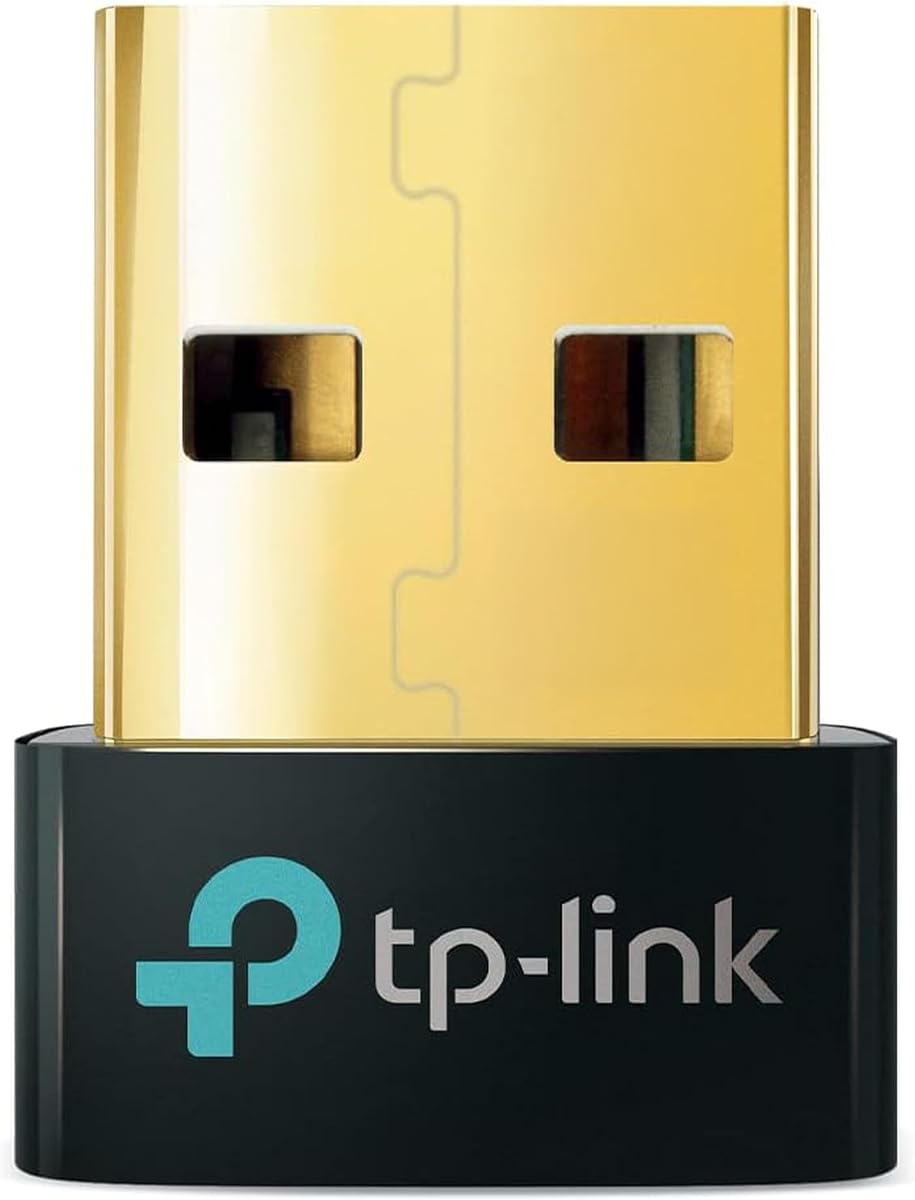
The TP-Link UB500 is a conventional USB Bluetooth receiver rather than a PSVR2-to-PC conversion kit. It carries a 4.5 rating, the highest individual score among the ten products, and supports Bluetooth 5.4 with backward compatibility across numerous earlier Bluetooth versions. It is a sensible general-purpose option for a Windows PC that needs a stable receiver for controllers, audio gear, phones, or other accessories.
We may earn a commission when you buy through this link, at no additional cost to you.
Its EDR and Bluetooth Low Energy support, along with claimed improvements in transfer speed and coverage over Bluetooth 4.0, make it more flexible than an audio-only transmitter. The tiny nano receiver can remain in a USB port, and the product supports connection with Bluetooth-enabled desktops, printers, phones, and headsets. Plug-and-play support is listed for Windows 8.1, 10, and 11, although an internet connection is required for setup.
The important limitation is that this dongle does not carry PSVR2 video, power, or sensor data to a PC. It is not a DisplayPort adapter, and it cannot directly replace a dedicated PSVR2 PC adapter. It also does not support macOS, Linux, TVs, or direct use with PS5, PS4, and Xbox consoles. Existing internal Bluetooth should be disabled in Device Manager to reduce conflict risk.
Choose this adapter when your need is a better Windows Bluetooth receiver and your headset already has another means of connecting to the PC. It may support controller pairing as part of a wider setup, but it is best viewed as an accessory rather than the centerpiece of a PSVR2 conversion.
Bluetooth 5.4, EDR, and backward compatibility make this receiver suitable for common accessories as well as compatible PSVR2 controllers. Its wider device support distinguishes it from audio-only USB-C products in this comparison.
The nano form factor leaves the dongle in a free USB port, while supported Windows versions can use a straightforward driver setup. Disabling an existing internal Bluetooth radio first can prevent conflicting device-manager entries.
We may earn a commission when you buy through this link, at no additional cost to you.
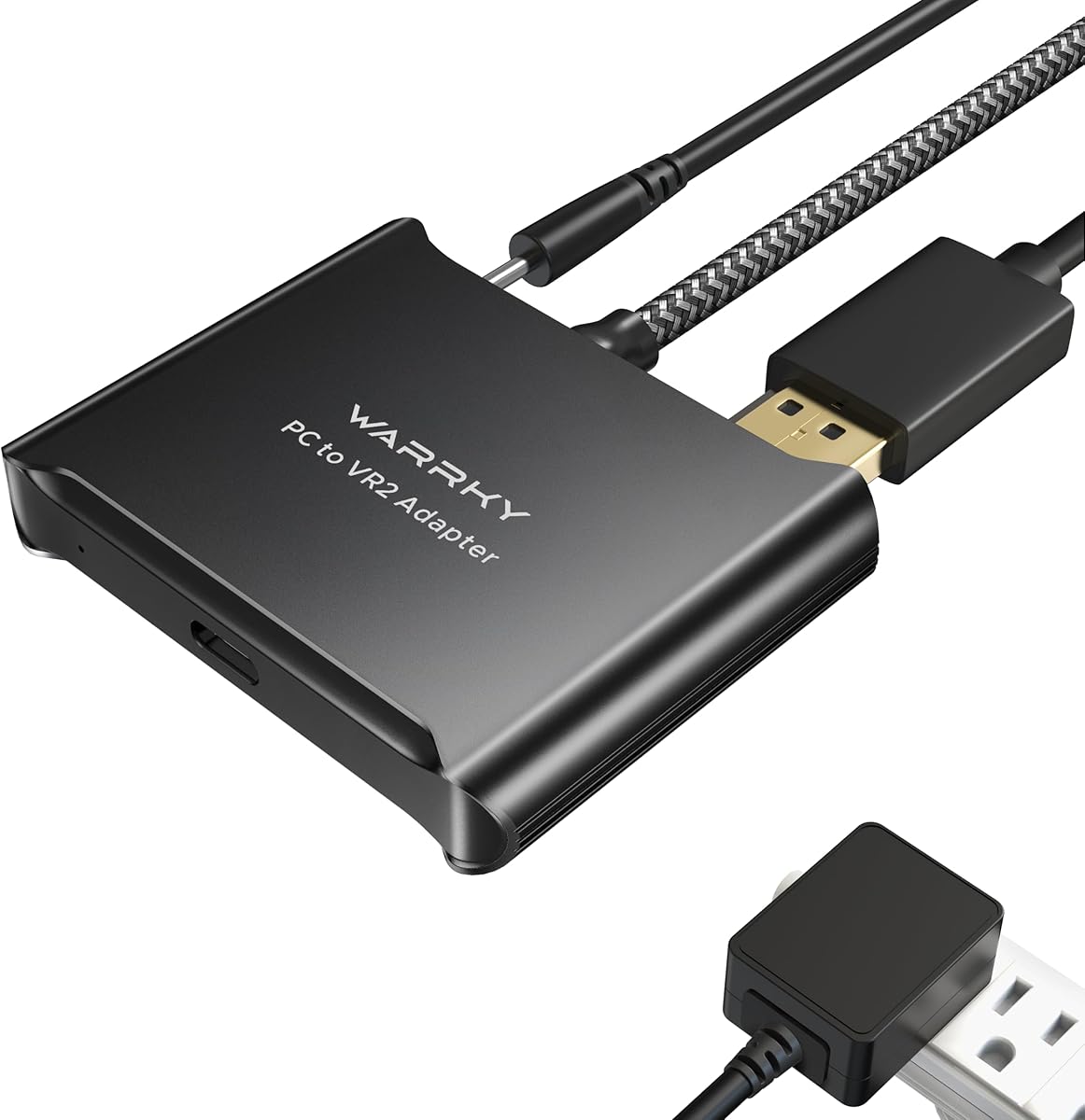
The Warrky adapter is a dedicated third-party solution for bringing a PSVR2 headset to a PC. Its 3.8 rating places it near the middle of the group, and its distinguishing feature is the aluminum shell, which the manufacturer says improves heat dissipation and helps prevent overheating. A nylon braided cable jacket adds resistance to fraying, heat, and kinking.
We may earn a commission when you buy through this link, at no additional cost to you.
The package includes the adapter, a DisplayPort 1.4 cable, a 15W official-standard AC power supply, and a user manual. It is designed to connect with the PSVR2 headset and integrate with Steam, expanding access beyond console-oriented titles. The manufacturer also identifies compatibility with AR glasses and a portable monitor, although that does not turn the product into a general-purpose Bluetooth adapter.
A significant omission is a dedicated Bluetooth receiver. If your PC does not have reliable Bluetooth for PSVR2 controllers, you may need the headset’s normal wireless pairing method or an additional suitable USB receiver. The product is also explicitly not compatible with PS4, PS5, or PS5 Pro, which is sensible for a specialized PSVR2 adapter but important to verify before purchase.
This is a good option for a buyer who values the enclosure and cable construction of a dedicated adapter and already has a workable controller connection method. It is less suitable for someone expecting a single all-in-one solution for every part of a PSVR2-to-PC installation.
The enclosure is designed to dissipate heat more effectively than a basic plastic adapter housing. A braided cable jacket also provides a more durable route for frequently handled connections.
Warrky positions the adapter as a bridge to Steam and the wider PC VR library. The included display cable and 15W power supply cover the essential physical connections, but software configuration remains necessary.
We may earn a commission when you buy through this link, at no additional cost to you.
The YCE PSVR2 PC Adapter is a feature-focused bridge for using a PlayStation VR2 headset with a PC. Its 4.2 rating reflects a generally favorable reception, and the product uses the same IC module as the official version, according to the supplied information. It combines regulated 5.1V power, a DisplayPort interface, and USB 3.0 data transfer.
We may earn a commission when you buy through this link, at no additional cost to you.
Power stability is a central strength. A steady 5.1V supply is intended to prevent equipment malfunctions, screen flickering, and performance degradation associated with insufficient or fluctuating power. Its DisplayPort connection is described as supporting high-resolution, high-refresh video, including 4K at 120Hz, while USB 3.0 provides faster movement of sensor and interaction data.
The package includes a DP 1.4 cable and a 5.1V power adapter, so the core physical connections are covered. The product does not, however, specify a bundled Bluetooth receiver for PSVR2 controllers. That makes it a strong video-and-data solution but not automatically a complete wireless package. Your PC, GPU, software, and wireless setup must satisfy SteamVR requirements.
This adapter is best for a buyer who wants a dedicated, polished bridge and has a compatible PC configuration. Choose it over a generic USB Bluetooth dongle when the main goal is connecting PSVR2 to PC hardware, not simply adding ordinary Bluetooth functionality.
Regulated 5.1V power helps protect the headset from unstable input, while the DisplayPort path targets crisp, high-refresh visuals. A compatible GPU is still required to drive demanding SteamVR applications.
Using the same IC module as the official adapter simplifies the basis of the connection method. The included cable and power adapter reduce setup complexity, although software steps remain part of the process.
We may earn a commission when you buy through this link, at no additional cost to you.
The UGREEN USB Bluetooth 5.3 Adapter is a compact receiver for Windows computers that need general wireless connectivity. Its 4.4 rating is among the strongest in the group, and the product supports BR/EDR, Bluetooth Low Energy, and simultaneous connections with as many as five different device types.
We may earn a commission when you buy through this link, at no additional cost to you.
The practical strength is versatility. It can serve compatible mice, keyboards, phones, and headphones without the audio-only limitation found in some USB-C transmitters. On Windows 8.1, 10, and 11, no driver installation is required. Its small housing can remain inserted in a USB port without obstructing neighboring ports, making it convenient for a permanent desktop setup.
It cannot be the central adapter in a PSVR2-to-PC arrangement because it does not transfer video, provide headset power, or carry sensor data. It also cannot be used directly on PS3, PS4, PS5, Switch, or Xbox consoles. Windows 7, Linux, and macOS are unsupported, and the product cannot serve as a transmitter.
This is the best budget choice for a Windows user who needs a dependable general-purpose Bluetooth receiver, potentially including compatible PSVR2 controller communication. Buyers converting the headset itself should choose a dedicated PSVR2 PC adapter and use this type of dongle only if additional PC Bluetooth hardware is genuinely needed.
The adapter can maintain connections to several different device types at once, making it more useful than a single-purpose audio dongle. Only one connected speaker or headphone of the same type may play music.
Supported Windows versions work without manually installing a driver, and the compact receiver stays neatly inside a USB port. Existing internal Bluetooth should be disabled before insertion to avoid conflicts.
We may earn a commission when you buy through this link, at no additional cost to you.
This UGREEN USB-C product is a Bluetooth audio transmitter, not a PSVR2 PC adapter. Its 4.1 rating reflects a capable device for PC and PlayStation audio, with a Qualcomm QCC3086 Bluetooth 6.0 chipset, LE Audio modes, and support for aptX Adaptive, aptX HD, aptX, and SBC. It can connect wireless headphones to a compatible PC, iMac, or PS5.
We may earn a commission when you buy through this link, at no additional cost to you.
The standout feature is its selectable audio behavior. Low Latency mode targets synchronization during gaming and video, while High-Quality mode emphasizes detail for music. Classic Bluetooth mode supports two connected devices, and LE Audio mode supports one-to-many broadcasting for compatible listeners. The side-mode toggle allows use of BR mode when an endpoint does not support LE Audio or LC3.
The most important limitation is explicit: this adapter supports Bluetooth audio devices only. It cannot pair a mouse, keyboard, or PSVR2 controller, and it is not compatible with televisions, cars, or microphone use. It therefore adds convenience to a PSVR2 PC setup for private audio but does not solve the headset’s video, power, or tracking connection requirements.
Choose this product if your priority is sending PC or console audio to compatible wireless headphones with modern codec options. Do not choose it as the primary Bluetooth Adapter for Psvr2 on PC when controller connectivity, display output, or headset tracking is required.
Separate low-latency and high-quality modes let the adapter prioritize synchronization or sound detail. These functions work best with headphones that support the relevant Bluetooth and LE Audio standards.
Support for aptX Adaptive, aptX HD, aptX, and SBC broadens compatibility with current wireless headphones. Auracast-compatible devices can also use the adapter’s broadcast mode when paired correctly.
We may earn a commission when you buy through this link, at no additional cost to you.
The second UGREEN USB-C audio adapter emphasizes low-latency wireless sound and carries a 4.4 rating. It can transmit audio from a USB-C PC, laptop, iMac, PS5, or Switch to compatible Bluetooth headphones or speakers. Drivers and companion software are not required, making setup comparatively simple.
We may earn a commission when you buy through this link, at no additional cost to you.
Its codec support includes aptX, aptX Adaptive Low Latency, aptX Adaptive High Quality, aptX HD, and SBC. The manufacturer describes 24-bit dynamic audio and a certified low-latency aptX Adaptive implementation designed to reduce delay to less than 100 milliseconds. Indicator LEDs help show operating status, while the transmitter can add wireless audio to a desktop, computer, or iMac.
This remains an audio-only product. It cannot be used for PSVR2 controllers, mice, or keyboards, and the supplied information marks it incompatible with PS4 and PS5 Portal. It also does not support dual-device pairing and is incompatible with AirPods Pro 2. Enabling Bluetooth calling mode can reduce sound quality, so audio-only mode is preferable for games and music.
This adapter is a good match for a PC VR user who wants private wireless game audio and owns headphones that support a compatible aptX profile. It is not a PSVR2 conversion solution, and users should expect some manual sound-device selection on different platforms.
aptX Adaptive Low Latency helps keep sound and visuals closer together during games and video. The endpoint headphones must support the same codec standard to gain the full advertised benefit.
The adapter works without separate drivers or software, reducing setup steps on supported PCs and consoles. Platform differences may still require selecting the correct audio output in system settings.
We may earn a commission when you buy through this link, at no additional cost to you.
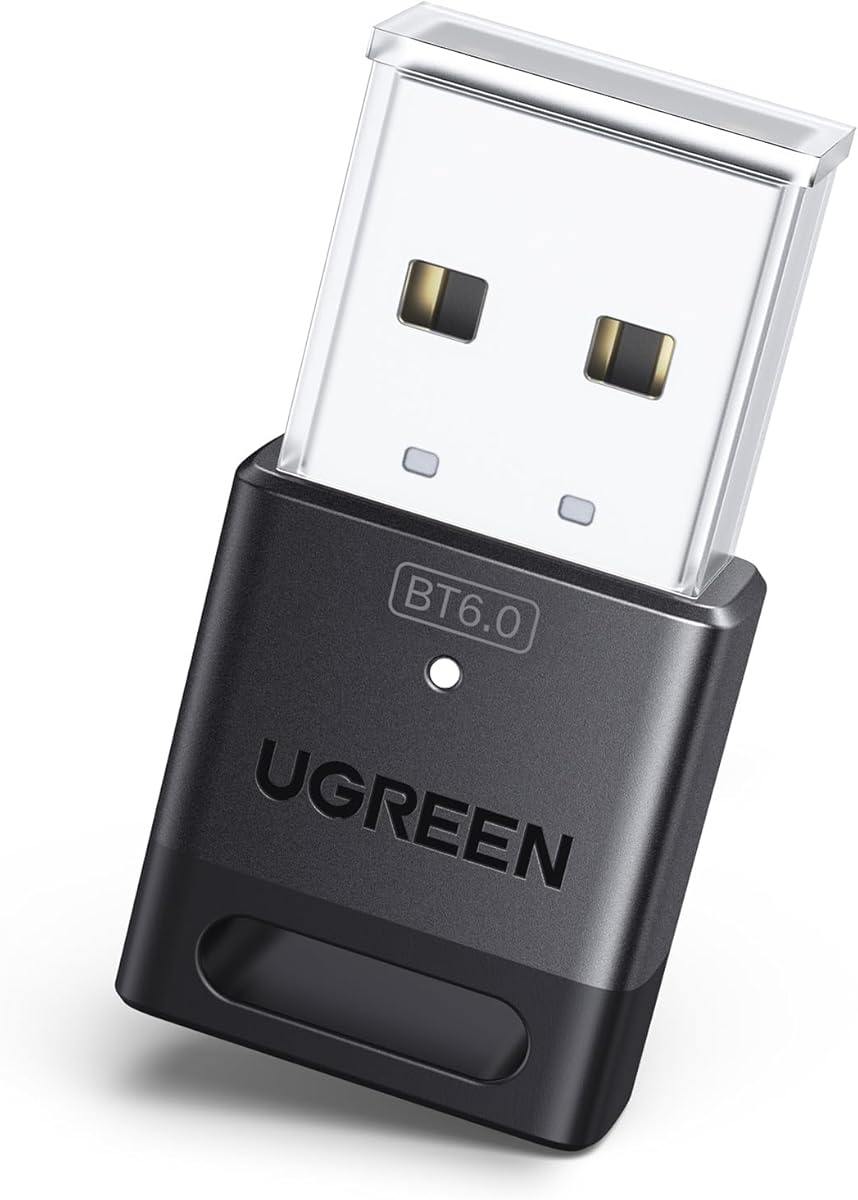
The UGREEN USB Bluetooth 6.0 Adapter provides a current-generation receiver for Windows desktops and laptops. Its 4.2 rating, EDR and BLE support, and backward compatibility with Bluetooth 5.4 and 5.3 make it a versatile option for standard PC wireless accessories. It can connect as many as five different device types at the same time.
We may earn a commission when you buy through this link, at no additional cost to you.
The adapter supports faster data transfer, high-quality audio and video streaming, and efficient large-file transfers according to the product information. Plug-and-play operation works on Windows 8.1, 10, and 11 without a driver. As with other compact PC receivers, the small design allows it to remain in a USB port without taking up much space.
Its scope remains limited. Linux, macOS, and Windows 7 are unsupported, and it cannot connect directly to PS3, PS4, PS5, Switch, or Xbox consoles. It also does not provide the DisplayPort, power, and sensor links required for a PSVR2 headset. Any use with a PSVR2 controller would therefore depend on the PC software and controller compatibility rather than a complete headset conversion.
This is a good general receiver for a newer Windows system that lacks adequate built-in Bluetooth. It is less compelling for VR specifically unless you also need ordinary peripherals and want a single compact dongle to manage them.
Bluetooth 6.0 provides the receiver’s underlying standard while remaining compatible with Bluetooth 5.4 and 5.3 devices. EDR and BLE make it suitable for both higher-throughput and energy-conscious accessories.
Supporting several different device types at once reduces the need for separate adapters around a PC. Audio devices of the same type still have a one-active-playback limitation.
We may earn a commission when you buy through this link, at no additional cost to you.
This YCE PSVR2 PC Adapter shares the core positioning of the other YCE model: a dedicated bridge for PlayStation VR2 on a PC, with support for AR glasses. Its 4.2 rating indicates a favorable reception, while the supplied information emphasizes stable power, high-definition transmission, and rapid USB data transfer.
We may earn a commission when you buy through this link, at no additional cost to you.
The adapter produces a regulated DC 5.1V output to help avoid failures, flickering, or degraded performance associated with power fluctuations. Its DisplayPort interface is described as supporting 4K resolution and 120Hz refresh, and its USB 3.0 interface helps move sensor and player input data quickly for responsive interaction. The same IC module as the official version is used according to the manufacturer.
The supplied listing does not mention a package bundle, so buyers should verify the exact contents before ordering. No dedicated Bluetooth receiver is identified, making this less convenient than the first product in the list when controller communication is the main challenge. It also cannot compensate for an incompatible GPU, unsupported software, or a PC that does not meet SteamVR requirements.
Its flexibility makes it attractive for users who want to connect a PSVR2 headset and potentially AR glasses to the same general PC display ecosystem. Select it for a dedicated PC VR bridge, not as a general Bluetooth receiver for mice, keyboards, or ordinary headphones.
DisplayPort carries the headset image while USB 3.0 supports the timely movement of sensor and interaction data. Together, these connections are central to a responsive PC VR experience.
AR glasses support gives the adapter value beyond a single headset type. Buyers should still confirm the physical connector and power requirements of the specific display device they intend to use.
We may earn a commission when you buy through this link, at no additional cost to you.
The PSVR2 PC Adapter Accessories Kit is a dedicated conversion product designed to open PC and SteamVR content for a PSVR2 headset. Its 4.0 rating and stated goals—stable links, lower game latency, and smooth operation—place it as a practical middle-ground option among the dedicated adapters.
We may earn a commission when you buy through this link, at no additional cost to you.
Its most notable technical feature is DisplayPort 1.4 bandwidth, listed as supporting 4K at 120Hz when paired with a compatible GPU that meets SteamVR requirements. The USB 3.0 interface is intended to carry input and sensor data quickly, while regulated 5.1V power helps avoid screen flicker and performance loss caused by an unstable supply. The product uses the same IC module as the official adapter according to its description.
This package should not be confused with a standard Bluetooth dongle. It provides the physical bridge used to connect a PSVR2 headset to a PC, but no separate Bluetooth receiver is identified in the supplied information. The adapter also supports AR glasses and other USB-C devices using DisplayPort Alt Mode, creating additional connectivity options when their power and connector requirements are met.
Choose it for a straightforward PC VR conversion that emphasizes high-refresh display output and rapid data transfer. Confirm that your GPU, PC, software, and controller connection method are suitable before relying on it for extended sessions.
DisplayPort 1.4 provides the bandwidth foundation for 4K at 120Hz output. Real-world performance still depends on the graphics card and the requirements of the selected SteamVR application.
Beyond games, the adapter can expose educational applications, simulation software, and other PC-based VR content. DisplayPort Alt Mode compatibility also broadens its relevance for compatible AR glasses.
We may earn a commission when you buy through this link, at no additional cost to you.
The right choice depends on whether you need a complete PSVR2-to-PC bridge, a dedicated controller receiver, a general Windows Bluetooth adapter, or a USB-C audio transmitter. Compatibility and connection purpose should be evaluated before any other feature.
A true PSVR2 PC adapter transfers video through DisplayPort, supplies regulated power to the headset, and links controller or sensor data through USB. A standard USB Bluetooth receiver only adds a wireless radio to a PC, while an audio transmitter sends sound to wireless headphones. These functions are not interchangeable, so identify whether the headset itself must connect to the PC before choosing a product.
Most ordinary PC receivers in this list support Windows 8.1, 10, and 11, with some requiring an internet connection or current driver. Dedicated PSVR2 adapters also depend on SteamVR and compatible software, while their performance depends on a compatible GPU. Confirm the operating system and required software before purchasing so you do not end up with a product that cannot perform its intended function.
PC VR typically needs reliable communication with PSVR2 controllers, but a dedicated video adapter may not include a dedicated Bluetooth receiver. The first product in this guide includes one specifically intended to stabilize controller connections and work around older PC Bluetooth versions. If the adapter package has no receiver, verify that your PC has compatible built-in Bluetooth or plan to add a supported USB receiver.
DisplayPort 1.4 is the central video connection used by the dedicated PSVR2 PC adapters. Several listings describe support for 4K at 120Hz, but that capability also requires a compatible GPU and VR application. Do not treat a stated maximum resolution as a guarantee of smooth performance; the complete PC configuration determines the final result.
A consistent power supply can reduce flicker, equipment faults, and performance degradation in a VR session. The YCE adapters and the accessories kit specify regulated 5.1V output, while the first kit and Warrky option include a 15W power component. Match the adapter to the headset’s requirements and use the specified cable rather than assuming any USB-C charger is equivalent.
A receiver adds Bluetooth capability to a computer so it can connect to peripherals or a controller. A transmitter moves audio from a PC or console to Bluetooth headphones. The UGREEN USB-C audio products explicitly support audio devices only and cannot handle mice, keyboards, or PSVR2 controllers, making them complementary rather than primary headset adapters.
Several standard receivers explicitly exclude direct use with PS3, PS4, PS5, Switch, Xbox consoles, TVs, cars, macOS, or Linux. Dedicated PSVR2 adapters also have headset-generation restrictions, with the Warrky model specifically excluding PS4, PS5, and PS5 Pro. These limitations are logical because each product targets a different connection path, but they should be checked before ordering.
A complete conversion kit can include a DisplayPort 1.4 cable, a power cable or adapter, a Bluetooth receiver, and a manual. The Warrky package emphasizes its aluminum housing and braided cable, while the YCE packages prioritize regulated power and high-refresh transmission. Consider cable length, connector fit, available USB ports, and whether the included components remove the need for separate purchases.
Begin by identifying the product role. For a dedicated PSVR2 PC adapter, connect the headset with its supplied cable, attach the DisplayPort cable between the adapter and the PC’s compatible graphics output, and use the specified power supply. For a standard Windows receiver, insert the dongle into a USB port; for an audio transmitter, connect its USB-C plug to the computer or console and pair the intended headphones.
Before inserting a USB Bluetooth receiver, open Device Manager and disable any existing internal Bluetooth radio to avoid driver conflicts. Install the adapter and use the manufacturer’s supported setup process. On a modern Windows system, some models work without a separate driver, while others request an internet-connected installation. Follow the manual for the exact device and any firmware or software steps.
For PC VR, install the required SteamVR and PSVR2 software, connect and pair the PSVR2 controllers using the supported wireless method, and test the headset before launching demanding applications. Keep the adapter and cables free from heavy bending, inspect connectors for dust, avoid obstructed ventilation, and use the original specified power components whenever possible. If the system shows inconsistent connections, check software settings and physical connections before changing hardware.
No. A normal USB Bluetooth adapter can add wireless controller or accessory support, but it cannot replace the DisplayPort, power, and data connections required to operate a PSVR2 headset on a PC. You still need a dedicated PSVR2 PC adapter for the headset connection, along with compatible software and a suitable GPU.
A PSVR2 PC adapter creates the wired display and data path between the headset and PC while supplying the appropriate power. A Bluetooth dongle simply adds a wireless radio for supported peripherals or controllers. The two can be used together, but they solve different parts of the setup.
The important issue is reliable, compatible controller communication rather than the newest Bluetooth version by itself. A dedicated Bluetooth receiver designed for PSVR2 can be valuable, while a modern general receiver may also pair compatible controllers. The complete adapter, software configuration, and PC environment still determine whether the headset works properly.
Not when it is an audio-only transmitter. The UGREEN USB-C products in this list support Bluetooth audio devices and explicitly exclude controllers, mice, and keyboards. PSVR2 video requires a dedicated adapter with a DisplayPort connection, correct power delivery, and USB data support.
A compatible graphics card, a capable PC, and a configuration that meets the requirements of SteamVR and the individual game are essential. DisplayPort 1.4 support alone does not guarantee high refresh rates, because the GPU, game, and software settings determine the final performance level.
It is often advisable. TP-Link and UGREEN both recommend disabling an existing internal Bluetooth device in Device Manager to prevent driver conflicts. After changing the setting, unplug and reconnect the USB receiver so Windows can recognize it in the intended state.
No. Both are dedicated PSVR2-to-PC adapters, but their supplied descriptions emphasize different features. YCE focuses on regulated 5.1V power, USB 3.0, high-refresh DisplayPort output, and AR glasses, while Warrky emphasizes an aluminum heat-dissipation shell, a braided cable, and its included power supply.
The dedicated PSVR2 adapters are intended for a PC connection and should not be treated as general TV or automotive adapters. Standard UGREEN receivers likewise state that they are not compatible with TVs or cars. Always follow the intended endpoint and power requirements listed for the specific product.
The best complete solution in this group is the PSVR2 PC Adapter with Bluetooth and Accessories Kit because it combines the display, power, and dedicated wireless pieces needed for a PC conversion. For a more premium dedicated bridge with emphasis on regulated power and high-refresh output, the YCE PSVR2 PC Adapter is a strong choice. The UGREEN USB Bluetooth 5.3 Adapter is the best budget option when the real need is a compact, general-purpose Windows receiver.
Prioritize the function your setup is missing. Buy a dedicated PSVR2 adapter to move the headset to a PC, a Windows receiver to improve general Bluetooth connectivity, or a USB-C audio transmitter only for wireless headphones. Before ordering, verify Windows support, GPU capability, required software, controller pairing, included cables, and the power specifications of the headset.
Ratings and feature descriptions are useful guides, but they cannot guarantee the outcome of every installation. Compatibility can depend on drivers, Windows updates, SteamVR settings, graphics hardware, interference, and the exact way the adapter is connected. Check the manufacturer’s current instructions and live listing information before purchasing, and recheck compatibility if your PC configuration changes.