
BENFEI 5-in-1 USB-C Hub
4.6Editor score
4K HDMI at 30Hz
Up to 10Gbps transfers
90W pass-through charging
Three USB-A ports
Compact silicone cable
Discover the best HDMI Hub for PC with side-by-side comparisons of ports, video modes, power delivery, compatibility, and setup needs for work or gaming use.
An HDMI Hub for PC can transform a single connection into a more practical workstation, adding display outputs, USB ports, card readers, charging, and network access. The right hub depends on your computer, monitor arrangement, peripherals, and required video resolution. A model that looks versatile may still be unsuitable if its host connection or display modes do not match your setup.
This guide compares ten HDMI hubs, adapters, switches, and docking stations based on their stated ports, supported resolutions, charging capability, operating systems, and installation requirements. It covers USB-C and USB-A expansion options as well as solutions for multiple HDMI sources, extended desktop displays, and computers with DisplayPort output. Each recommendation highlights meaningful strengths and limitations.
The numbered list shows which product is most useful for different needs, from a compact travel adapter to a full desktop dock and a dual-monitor converter. The top selections are also identified separately for quick discovery. Product availability, specifications, and prices can change, so shoppers should verify the current listing and confirm compatibility with their PC before ordering.
4.6Editor score

4.5Editor score

4.4Editor score
The comparison below organizes each option by its most important functional traits, including host connection, display capacity, charging, data ports, operating-system support, and specialized switching or extended-display features.





The Anker USB C Hub is a well-rounded expansion for a modern laptop that has a single USB-C port. Its seven-in-one design combines a 4K at 60Hz HDMI output, two USB-A 3.0 ports, a USB-C data port, a USB-C PD input, and both SD and TF card readers. That combination makes it useful for a desk where one cable needs to connect a monitor, storage devices, input accessories, and charging.
We may earn a commission when you buy through this link, at no additional cost to you.
Video quality is the hub's main attraction. The HDMI port supports 4K at 60Hz, a useful upgrade over many compact alternatives limited to 30Hz. The data connections support transfer rates up to 5Gbps, while the PD input can charge a compatible laptop at up to 85W according to the detailed product information. The card slots also make it convenient to move photographs from cameras or mobile devices without relying on cloud transfers.
There are important distinctions between the USB-C ports. The dedicated data port is for data rather than display output, while the PD port is intended for charging. Only the HDMI port provides video projection. A charger is also required for pass-through charging, and the actual charging rate depends on the host laptop, power adapter, and connected workload.
This is an excellent choice for someone who wants a capable all-purpose hub without moving to a full docking station. It is especially attractive for a single-monitor workspace that needs fast USB expansion and media-card access. Buyers needing two independent extended displays should look at the Anker 8-in-1 dock or the dedicated DisplayPort dual-HDMI adapter instead.
The 4K at 60Hz HDMI output gives this hub an advantage for detailed work, high-resolution media, and smoother motion than a 4K at 30Hz adapter. It suits a single external display while leaving USB ports available for a keyboard, mouse, flash drive, or other peripherals.
Separate SD and TF slots improve the hub's usefulness for photographers and content creators. The dedicated PD input also helps maintain laptop power during extended sessions, reducing reliance on the computer's original charging port.
We may earn a commission when you buy through this link, at no additional cost to you.
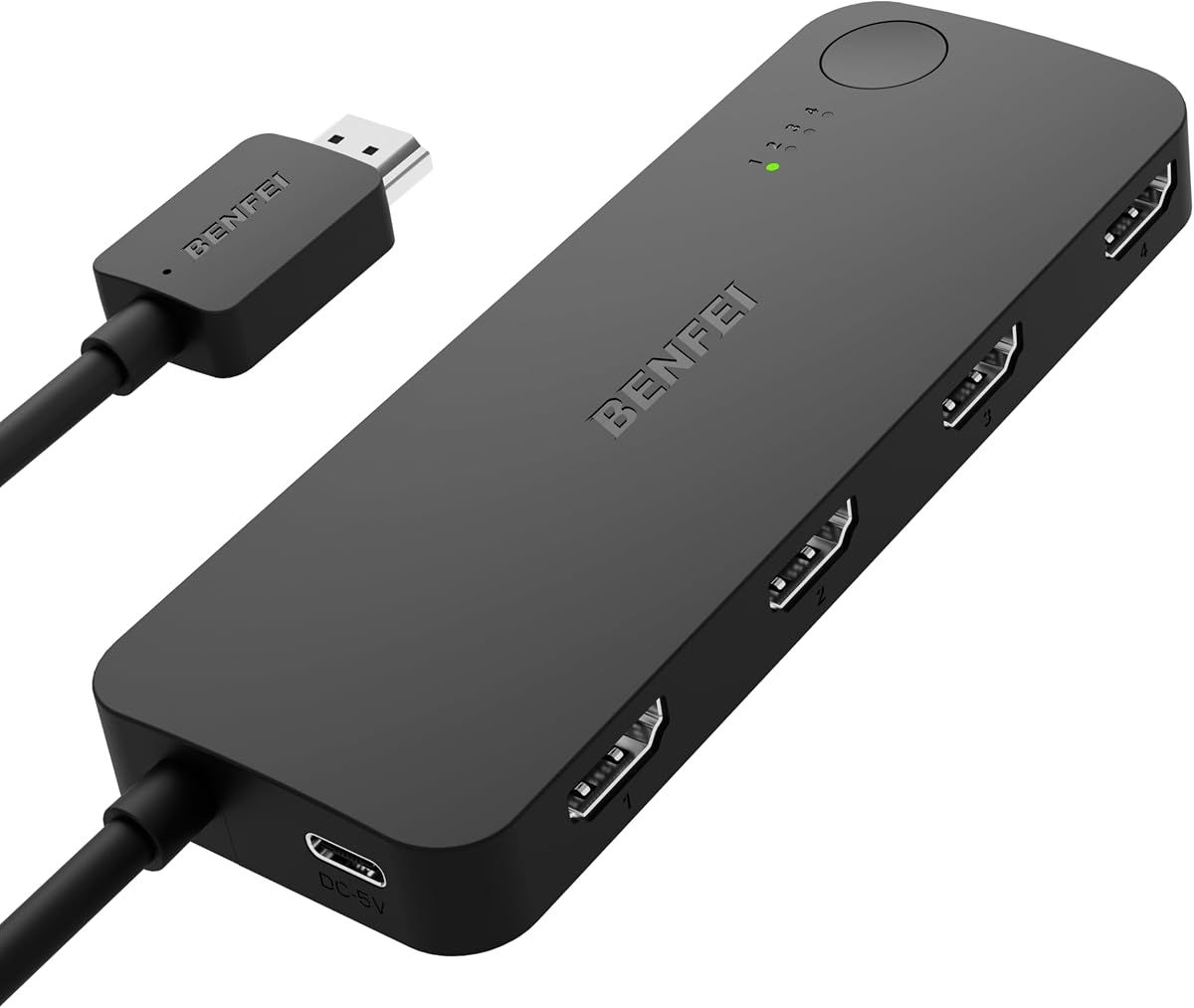
The BENFEI HDMI Switch is designed for a different task than a conventional USB-C hub: choosing one of several HDMI sources for a television or monitor. It has four HDMI inputs and one output, allowing a PC, game console, streaming device, or other source to connect to a shared display. The included fixed HDMI pigtail simplifies placement near a television.
We may earn a commission when you buy through this link, at no additional cost to you.
Its video specifications include support for 4K at 60Hz and 2K at 144Hz, along with compatibility with HDCP 2.3 and 2.2. Adaptive equalization is specified to support transmission over distances of up to 30 feet. Audio pass-through is listed for several common surround-sound formats, which makes the device relevant to home-theater installations as well as desktop use.
The most important limitation is that this is a switch, not a splitter. One selected source appears on the connected display, and the product cannot send one input to four outputs. It also requires the supplied USB-C power connection during operation. Users should therefore treat the advertised long-distance capability as part of a complete setup rather than a guarantee for every combination of source, cables, and display.
This switch is ideal for a PC that shares a television among several HDMI devices. It reduces repeated manual cable swapping and works with common consoles, streaming devices, laptops, Blu-ray players, and projectors. It is not the right solution for extending a PC across multiple monitors, where a true docking station or display adapter is needed.
A four-input switch is most valuable when the television has limited HDMI ports but the household uses several source devices. Connecting those sources through the switch simplifies daily changes while preserving support for high-resolution video.
Adaptive equalization helps maintain signal integrity over extended cable runs. Keeping the power connection attached is also important because the product's stated features depend on stable external power during operation.
We may earn a commission when you buy through this link, at no additional cost to you.
The Anker Laptop Docking Station is the most complete conventional docking station in this guide. A single compatible USB-C connection can provide two HDMI outputs, two USB-A data ports, USB-C Power Delivery input, Ethernet, and an SD/microSD card reader. That combination addresses nearly every common desk need without requiring several separate adapters.
We may earn a commission when you buy through this link, at no additional cost to you.
The display arrangement offers flexibility. One HDMI screen can run at 4K at 60Hz, while two attached displays can each operate at up to 4K at 30Hz. On macOS, the two external displays are described as showing identical content, so buyers needing different images on both screens should review that limitation carefully. Windows users have more flexible dual-screen use, subject to the computer's own display capabilities.
Power Delivery pass-through reaches up to 85W when used with a compatible 100W USB-C wall charger and USB-C-to-C cable, while Ethernet provides a dependable wired network option for offices where Wi-Fi reliability matters. The product supports USB-C, USB4, Thunderbolt, Windows 10 and 11, and ChromeOS. It is explicitly not compatible with Linux, making operating-system support a meaningful purchasing criterion.
Overall, this dock earns the Editor's Choice designation because it balances two-display support with charging, networking, storage access, and USB expansion. It is the most suitable recommendation for a permanent workstation built around a compatible modern laptop. For a simpler travel kit or a basic USB-A desktop, a smaller adapter may provide better portability and less unnecessary complexity.
The eight-port arrangement reduces the number of adapters that must remain attached to a laptop. Displays, wired networking, card readers, charging, and common peripherals can be organized through one dock at the center of the desk.
One display can take advantage of 4K at 60Hz, while a two-display setup supports 4K at 30Hz per screen. This arrangement works well for document-heavy tasks, application windows, monitoring panels, and general productivity.
We may earn a commission when you buy through this link, at no additional cost to you.
The BENFEI USB C Hub offers a practical mix of display, charging, and USB connectivity in a small aluminum-bodied adapter. It includes one HDMI port, a USB-C charging connection, and three USB-A ports. The 20-centimeter silicone-woven cable is designed to remain flexible, making the hub easy to carry between a home desk, office, or meeting room.
We may earn a commission when you buy through this link, at no additional cost to you.
The strongest data feature is a USB-A 3.2 port capable of transfer speeds up to 10Gbps. Two additional USB-A 2.0 ports are better suited to slower accessories such as keyboards and mice. This mix allows the same hub to handle a fast storage device alongside routine input equipment without requiring separate adapters.
Its HDMI output supports resolutions up to 4K at 30Hz, which is suitable for many office and media tasks but not for users seeking 4K at 60Hz. The detailed description states support for up to 90W pass-through charging, with 10W reserved for hub operations. The Type-C connection does not carry data or video, so display output must use the HDMI port and the host must support video over USB-C.
This is the best budget option for a traveler or student who needs occasional external-monitor support and several USB connections. Its highest rating in the product list reflects a strong combination of portability, useful transfer speed, and straightforward operation. Users working with high-refresh 4K displays should choose a more specialized adapter instead.
The short, soft cable and compact housing reduce clutter when the hub is used with a laptop stand. It can remain attached long enough for a workday without presenting the same bulk as a desktop docking station.
One 10Gbps USB-A port supports quick file movement, while two USB-A 2.0 ports handle keyboards, mice, and other everyday devices. This tiered approach is more useful than providing only high-speed ports for accessories that do not need them.
We may earn a commission when you buy through this link, at no additional cost to you.
The Anker 5-in-1 USB-C Hub is aimed at everyday laptop users who need an external display, charging, and a few USB accessories. Its layout includes one 4K HDMI port, one 5Gbps USB-C data port, two 5Gbps USB-A ports, and a USB-C PD input for charging. That is enough to create a functional desk setup without carrying a larger dock.
We may earn a commission when you buy through this link, at no additional cost to you.
The HDMI output supports streaming or mirroring at up to 4K at 30Hz. It cannot deliver 4K at 60Hz, but it remains appropriate for document work, web browsing, video playback, and general monitor use. The USB-C data port also cannot transmit video, so the dedicated HDMI connector is the only display option on the hub.
Up to 85W of pass-through charging keeps a compatible laptop powered while the hub is in use. A suitable charger is not included, so buyers need to use a compatible USB-C power adapter. The product also notes that a 45W wall charger is recommended for full power on an iPad. Data transfers run at up to 5Gbps through both the USB-C and USB-A data connections.
Compatibility covers USB-C, USB4, and Thunderbolt hosts, along with MacBook systems running macOS 12 or newer, Windows 10 and 11, and ChromeOS. Linux is not supported. This hub is a good middle ground for people who want more polish and broad compatibility than a minimal travel adapter without the bulk of an eight-port dock.
The three data ports support a fast external drive, a keyboard, and a mouse at the same time. For a typical productivity desk, that is a more useful balance than a collection of single-purpose dongles.
The hub separates charging, data, and display functions, but the separation matters. The PD port charges, the data USB-C port transfers files, and the HDMI port handles video, reducing ambiguity during setup.
We may earn a commission when you buy through this link, at no additional cost to you.
The NEWCARE HDMI Switch is a simple three-input selector for users who want to connect a PC and two other HDMI sources to one television or monitor. A button on the switch changes the active source, avoiding the need to reconnect cables each time. A 2.6-foot high-speed HDMI cable is included for immediate setup.
We may earn a commission when you buy through this link, at no additional cost to you.
Video support includes 4K at 60Hz, several 2K and 1080p modes, 3D, and high-color-depth formats. The stated maximum data rate is 18Gbps, and 24K gold-plated connectors are used for signal transmission. It is compatible with a wide range of HDMI sources, including PCs, laptops, consoles, streaming sticks, disc players, projectors, and televisions.
Cable length matters for 4K performance. The product notes that each input and output cable should be no longer than 1.5 meters, or 4.9 feet, when using 4K at 60Hz. It also requires an external 5V, 1A power connection, which should be connected for proper operation. Automatic source detection and remote-control switching are not supported.
This switch is a good fit for a bedroom, conference room, trade-show station, or family television with several but not many source devices. Its direct manual controls make operation easy to understand. For more inputs, a four-to-one switch such as the BENFEI model offers greater flexibility, while a true splitter or dock is necessary for multiple simultaneous displays.
The button-based design is useful when the user is near the switch and values predictable operation. It avoids app setup and automatic-switching behavior, although it also means the user must press the button to change sources.
For 4K at 60Hz, the included connection guidelines call for short input and output cables. Maintaining the power connection and observing those length recommendations helps reduce the chance of an unstable or downgraded signal.
We may earn a commission when you buy through this link, at no additional cost to you.
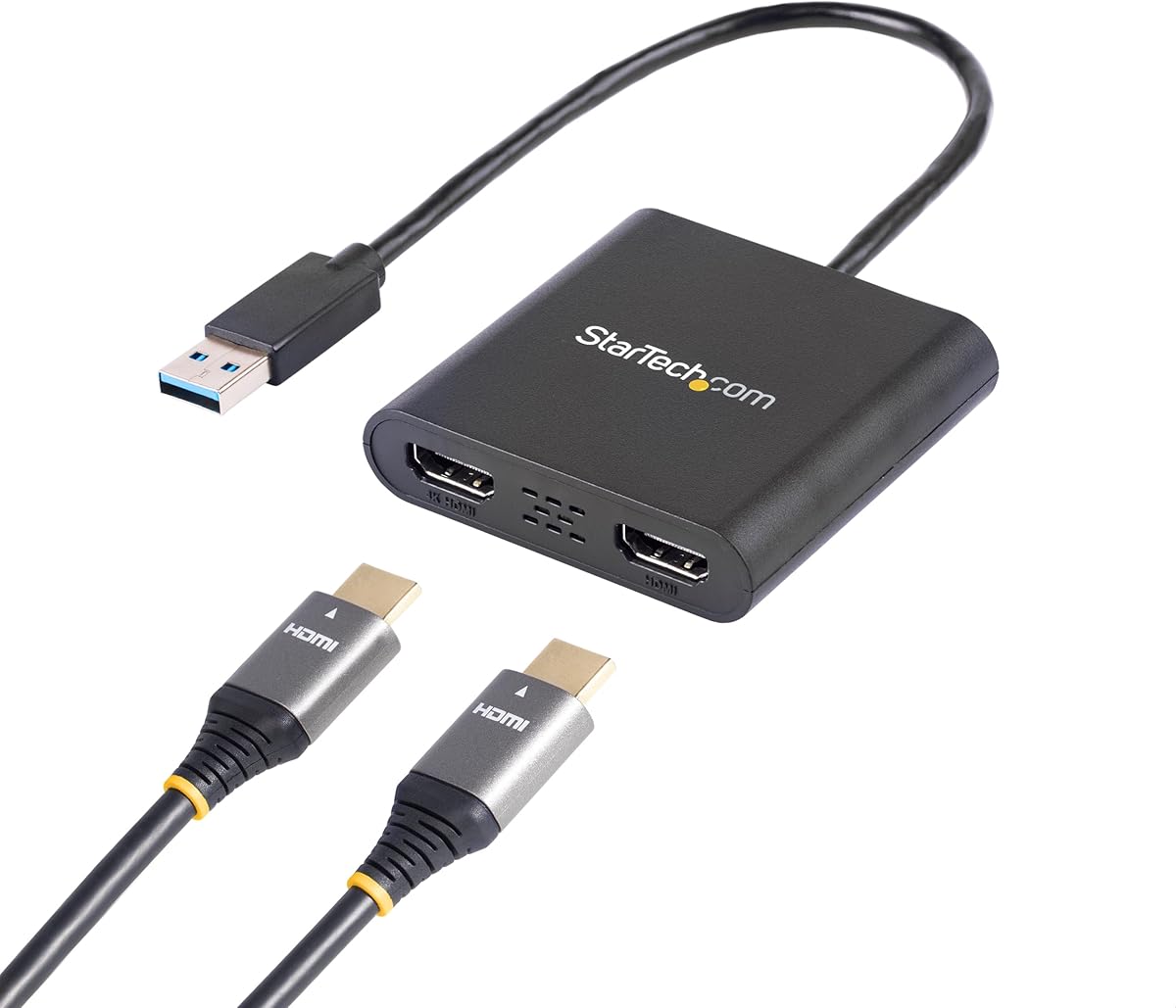
The StarTech USB-A to Dual HDMI Adapter is a specialized solution for Windows computers that need more than one HDMI display but do not have a convenient modern USB-C connection. It uses a USB-A 3.0 plug and provides two female HDMI outputs, allowing supported PCs to add or extend to a pair of monitors.
We may earn a commission when you buy through this link, at no additional cost to you.
The display modes are asymmetric. One HDMI output supports up to 4K at 30Hz, while the other supports 1080p at 60Hz. This arrangement is useful when one screen serves as a high-resolution reference display and the second is used for communication, monitoring, or secondary applications. Audio is delivered through HDMI, and HDCP 1.4 is supported.
Operating-system compatibility is the decisive factor. The adapter works with Windows X86, X64, and ARM platforms, including Intel, AMD, and Snapdragon X Copilot+ PC systems. It does not support macOS, ChromeOS, or Linux. Administrator rights are required to install the necessary drivers, so setup is less immediate than a driver-free USB-C or DisplayPort adapter.
The StarTech is a sensible choice for IT-managed Windows workstations that need two HDMI outputs from USB-A. Its three-year coverage and lifetime technical assistance are meaningful for business environments. It is less appropriate for mixed-OS households, casual users, or anyone seeking 4K at 60Hz on both screens.
One output prioritizes 4K resolution at 30Hz, and the other supports 1080p at 60Hz. This is a practical combination for users who value detail on a primary display and smooth motion on a secondary display.
The adapter supports major Windows processor architectures, including ARM-based Snapdragon PCs. Its driver requirement and Windows-only design make it especially appropriate for organizations that can deploy and maintain software across a standardized fleet.
We may earn a commission when you buy through this link, at no additional cost to you.
The VIENON USB 3.0 to HDMI Adapter combines display output with a surprisingly broad collection of USB connections. It is designed for desktop PCs and laptops that use USB-A rather than USB-C, offering one USB 3.0 port, two USB 2.0 ports, two USB-C data ports, an HDMI connection, and a USB-C power input for hub operation.
We may earn a commission when you buy through this link, at no additional cost to you.
The HDMI output supports 1920 by 1080 resolution and can mirror or extend the desktop on supported systems. The listed operating-system range includes Windows 7, Windows 8, Windows 10, and Mac OS, although Windows 7 does not support extend mode. Linux, Windows Tablet editions, XP, and Vista are excluded. Users should also expect lower output when the host computer only has USB 2.0.
Setup requires a more deliberate process than plug-and-play adapters. A driver installer is stored on a removable disk, and the description instructs users to install the corresponding driver and restart the computer. The included power connection helps prevent insufficient power when several high-draw peripherals are connected, while the USB 3.0 port supports transfers up to 5Gbps.
This hub is most useful for legacy or mixed USB-A workstations that need a monitor and several peripherals through one adapter. Its resolution ceiling and required driver setup place it behind newer USB-C alternatives for modern use. Even so, the seven-port layout and combination of mirror and extend functions provide useful flexibility where a modern port is unavailable.
The mix of USB-A and USB-C data ports allows older peripherals and newer accessories to coexist. A powered hub connection helps maintain stability when several devices are active at once.
The adapter's stated ceiling is 1080p, and a USB 2.0 host can be limited further. Installation requires the bundled driver process, making advance planning preferable for users who need the adapter immediately.
We may earn a commission when you buy through this link, at no additional cost to you.
The DisplayPort to Dual HDMI Adapter is a specialized and premium-oriented solution for a desktop PC with a suitable DisplayPort output. It uses MST-style extended display support to send one DisplayPort signal to two HDMI monitors, with both outputs listed as supporting 4K at 60Hz when the source hardware and cables meet the stated requirements.
We may earn a commission when you buy through this link, at no additional cost to you.
The adapter can present two different desktops or mirror the same image. Windows supports extended and mirrored configurations, while macOS is limited to SST-style arrangements with matching output. Achieving the full dual 4K at 60Hz specification requires a DisplayPort 1.4 source, compatible HDMI 2.0 cables, and a graphics card capable of handling the required output bandwidth.
Installation is refreshingly direct because no drivers are required. The aluminum alloy housing supports heat dissipation, and the gold-plated DisplayPort connector is stated to withstand more than 25,000 insertion cycles. The design is intended specifically as a one-way DisplayPort-to-HDMI conversion and should not be combined with another hub, docking station, or KVM device.
This is the strongest recommendation for a powerful desktop with dual high-resolution monitors, especially when it lacks spare HDMI outputs. It is less appropriate for laptops with only DisplayPort 1.2, systems with integrated graphics that can only mirror, or users who need USB expansion. Those seeking a broader port collection should choose a conventional USB-C dock instead.
Supporting two independent 4K at 60Hz outputs can remove limitations encountered with basic adapters that mirror the desktop. The result is a more practical canvas for research, editing timelines, financial dashboards, and other multi-window work.
The PC must have DisplayPort 1.4, the graphics system must offer sufficient bandwidth, and both HDMI cables should meet the HDMI 2.0 standard. Confirming those details before purchase is more important than the adapter's headline specification.
We may earn a commission when you buy through this link, at no additional cost to you.
The Acer 7-in-1 USB-C Hub combines a broad set of connections in a compact aluminum housing. It provides one HDMI output, two USB-A 3.1 data ports, one USB-C data port, one USB-C PD charging port, and both microSD and SD card readers. That layout is appropriate for a laptop user who needs display, charging, storage, and peripheral connections without a full docking station.
We may earn a commission when you buy through this link, at no additional cost to you.
The HDMI port supports mirroring or extending at up to 4K at 30Hz, with 1080p also available. It explicitly does not support 4K at 60Hz or 2K at 144Hz. The host USB-C port must support DisplayPort Alternate Mode, which is standard on many modern laptops and tablets but should be confirmed for older models.
Power Delivery can deliver up to 100W, making this one of the stronger charging specifications among the smaller hubs. The product recommends a 65W-or-higher charger and says the power supply should be connected to the PD port to provide sufficient power for the hub. Data transfers through the USB-A and USB-C data ports run at up to 5Gbps, but those ports do not carry video or audio.
Compatibility is a major advantage because the hub supports Windows, ChromeOS, Linux, and Mac OS X 10.5 or later. It is compatible with MacBook Pro, MacBook Air, Acer laptops, XPS systems, and other USB-C devices, with DeX mode enabled on supported Samsung Galaxy tablets. This is a versatile choice for a mixed ecosystem, though high-refresh 4K users should choose a faster HDMI model.
Support for Windows, ChromeOS, Linux, and macOS makes the hub useful beyond a single laptop brand. Confirming DisplayPort Alternate Mode and Power Delivery support on each host device remains essential.
Up to 100W of PD charging provides useful headroom for demanding laptops. A capable charger and a wired USB-C connection are needed to realize that potential, and keeping the PD port powered also supports stable hub operation.
We may earn a commission when you buy through this link, at no additional cost to you.
A useful HDMI hub begins with the PC's available ports, the number and type of displays, and the peripherals that must remain connected. Video resolution, charging, operating-system support, and installation requirements then determine which adapter or docking station offers the most reliable fit.
Begin with the connector available on the PC rather than with the hub's most attractive feature. USB-C hubs are convenient for modern laptops because one port can carry data, display, and power, but the host must support DisplayPort Alternate Mode and USB-C Power Delivery for every promised function. USB-A adapters can serve older desktops and laptops, while DisplayPort adapters make sense when the PC has a modern discrete graphics card. A USB-C port that supports only data cannot transmit video, regardless of the hub connected to it.
Choose the host connector your computer already provides. Also verify whether that port is USB 3.0, USB 3.1, USB4, or Thunderbolt, since these standards differ in bandwidth and feature support.
Decide whether the goal is one external display, an extended desktop, mirrored content, or several source devices feeding one screen. A basic hub with one HDMI port may be enough for a single monitor, while a docking station with two outputs can support side-by-side productivity windows. A DisplayPort-to-dual-HDMI adapter can provide two 4K at 60Hz outputs from a compatible desktop, but it may not add USB connectivity. An HDMI switch selects among sources; it does not send one source to multiple displays.
Match the number of outputs to the task. Do not purchase a switch expecting splitter behavior, or a splitter expecting extended-desktop capability.
A 4K label alone does not indicate the full performance of a display connection. The refresh rate, color format, HDCP requirements, and host graphics capabilities all matter. Many compact USB-C hubs support 4K at 30Hz, which is sufficient for office documents but less suitable for high-refresh gaming or demanding motion. Products in this guide include 4K at 60Hz options and one adapter specified for dual 4K at 60Hz output when the source, graphics card, cables, and operating system support it.
Check both maximum resolution and maximum refresh rate. For high-end displays, verify whether the PC's graphics output can drive the desired combination.
A hub with a USB-C PD input can often keep a laptop charged while the adapter is in use, effectively replacing the need to occupy a dedicated charging port. Charging figures differ across the products, ranging from 85W to 100W for the relevant models, with one description specifying 90W pass-through charging. The host computer, charger, cable, and power draw from connected peripherals all influence the result. A wall charger and compatible USB-C-to-C cable may need to be purchased separately.
Choose a charging rating that comfortably covers the laptop's requirements. If a device is power-hungry, use a reputable charger and avoid relying on a marginal power supply.
USB ports should be selected according to the peripherals in daily use. A high-speed USB-A or USB-C data port is useful for flash drives, external storage, and file transfers, while USB 2.0 ports are sufficient for keyboards, mice, and similar devices. Card readers add convenience for photographers and content creators, while Ethernet can provide a more consistent office network connection than Wi-Fi. The port mix should be broad enough for the desk without making the adapter unnecessarily bulky.
Prioritize the connections you will use every day. Fast storage or network access may justify a dock, while a mouse and keyboard may need only basic USB ports.
Compatibility extends beyond the physical connector. Some adapters support Windows and macOS but not Linux or ChromeOS, while the Windows-only StarTech model requires driver installation and administrator access. macOS may also impose mirroring limitations on multiple external displays. The VIENON adapter supports several Windows versions and Mac OS but explicitly excludes Linux and older systems such as XP and Vista. Reading the operating-system notes before ordering can prevent a disappointing setup.
Check the stated system requirements and any special driver steps. Confirm that the exact operating-system version and host computer are covered.
HDMI performance can depend on cable length, especially at 4K and high refresh rates. Some switches specify short cable limits for their highest resolution, and the dual-HDMI DisplayPort adapter calls for an HDMI 2.0-standard cable. Powered switches may require an external connection, and hubs with several high-draw peripherals can also benefit from dedicated power. A fixed pigtail may reduce loose connections, but it can make placement less flexible than a detachable cable.
Plan the physical layout before purchasing. Measure cable runs, note where the power outlet is, and confirm that included accessories cover the required connections.
A large docking station offers comprehensive connectivity for a permanent desk, while a compact hub is easier to carry and less expensive. Additional ports only help if they are useful, and a crowded adapter can create cable clutter. Consider whether the product will remain beside a monitor or travel in a laptop bag. Build quality, housing material, cable flexibility, and footprint can influence long-term convenience even when two products share the same basic port count.
Choose the smallest layout that fully meets the intended workload. For frequent travel, favor a lightweight hub; for a fixed desk, a dock may better reduce adapter clutter.
Start by confirming that the computer supports the hub's required host connection, video mode, and charging protocol. Connect the hub directly to the PC, attach the display cable to the HDMI output, and connect a compatible power adapter to the PD input when the product calls for one. If the video is absent, test the display independently, select the correct input on the monitor, and make sure the computer's display settings place the screen in the desired extended or mirrored mode.
Add peripherals gradually rather than connecting everything at once. Install the required driver and restart the computer if the manufacturer instructs you to do so, which applies particularly to the Windows-only StarTech adapter and the VIENON model. For a switch, connect the display output and each source, attach external power where required, and use the manual selector or switch control. Keep high-speed and high-resolution cables within any length limits stated in the product instructions.
To care for the equipment, unplug it before rearranging cables and avoid forcing connectors into ports. Keep the hub and cables away from moisture, excessive heat, and strong tension. If video flickers or a device disconnects, reseat the connections, verify power, test a known-good cable, and confirm the display remains within the adapter's supported resolution and refresh rate. Periodically clean the connectors and keep the housing unobstructed so heat can dissipate.
Only if the PC has a compatible video output and the hub provides enough display outputs. A USB-C hub with two HDMI ports can support two screens, but many compact single-HDMI models cannot. A DisplayPort-to-dual-HDMI adapter is another option, provided the graphics card supports DisplayPort 1.4 and the required output bandwidth. Check the host and graphics specifications before buying.
No. An HDMI switch lets the user select one of several source devices for a single connected display. An HDMI splitter sends one source to multiple outputs, usually as a mirrored image. The BENFEI and NEWCARE products in this guide are switches, so they should not be purchased when the goal is to show the same PC desktop on two screens simultaneously.
The limit may come from the hub, the PC's USB-C port, the graphics hardware, or the display. A USB-C port must support DisplayPort Alternate Mode, and its underlying version determines available video bandwidth. The monitor, cable, operating system, and selected refresh rate can also restrict the result. Review every link in the connection rather than assuming a 4K label guarantees 4K at 60Hz.
For models with pass-through charging, yes, unless the PC already has a suitable charger available. A compatible USB-C wall charger and appropriate cable are generally needed to deliver charging power. The hub's stated wattage is also not always identical to the amount accepted by the host laptop, because some power may be reserved for hub operations and connected peripherals.
Not directly. A USB-C hub requires a host USB-C connection with the appropriate data and video functions. If the computer only has USB-A, choose a USB-A adapter, such as the StarTech or VIENON model, or add a verified USB-C expansion solution. Adapters that merely change connector shape do not automatically add DisplayPort Alternate Mode or Power Delivery support.
It can improve convenience by providing the correct connection, stable power, and support for a compatible display, but it does not automatically increase frame rates. Resolution, refresh rate, color depth, and HDR requirements must be supported by the full display chain. A 4K at 30Hz hub is not appropriate for a 4K at 144Hz gaming display, and some adapters add processing that can affect advanced display features.
Mirroring shows the same content on both screens, which suits presentations and shared viewing. Extended mode creates separate desktop space across the displays, which is better for multitasking. Open the computer's display settings, select the desired mode, and identify each monitor. Mac systems may mirror both external displays when using hubs with two HDMI outputs.
First confirm that the source computer supports extended displays and that the graphics hardware can drive the desired resolutions. Check that the correct adapter is selected in display settings, then verify cable lengths and standards. On macOS, some dual-output adapters provide matching mirrored content rather than independent desktops. Integrated graphics and insufficient graphics bandwidth can also prevent the advertised extended mode.
The Anker 8-in-1 USB-C Dock is the strongest all-around choice for a permanent modern workstation because it combines two HDMI outputs, charging, Ethernet, USB data connections, and card reading in one package. The BENFEI 5-in-1 USB-C Hub offers the most compelling portable package, while the DisplayPort dual-HDMI adapter stands out for two 4K at 60Hz outputs on compatible desktops.
Prioritize the requirement that cannot be compromised. A high-refresh gaming display needs adequate resolution and refresh support, a multi-screen office needs enough video outputs and appropriate operating-system behavior, and a travel setup benefits more from a compact cable than from a collection of rarely used ports. Verify USB-C video capability, charging protocol, display mode, and cable requirements before finalizing a purchase.
Product specifications and prices can change, so consult the current listing for the latest details. Also check the PC manufacturer's specifications and the monitor's supported inputs. A careful compatibility check is often the difference between an adapter that works immediately and one that creates avoidable display or power limitations.