
Logitech M240 Compact Silent
4.4Editor score
Compact ambidextrous design
Up to 18-month battery
Silent 90-percent click reduction
This expert guide compares the best external mouse for MacBook Neo options, covering portability, quiet clicks, connectivity, battery life, comfort, and more.
An external mouse can transform a MacBook Neo into a more comfortable and productive workstation, especially when the built-in trackpad feels cramped or lacks the controls you use daily. The right choice should match your working style, travel routine, and preferred level of customization.
We compared ten mice based on the supplied specifications, focusing on Bluetooth compatibility, portability, click noise, battery life, tracking capabilities, multi-device support, charging design, ergonomics, and suitability for macOS. The guide covers compact travel models, quiet everyday options, premium productivity tools, and rechargeable alternatives.
Each pick reveals where a particular mouse excels, from the unusually slim Logitech Slim Wireless Bluetooth Mouse for Mac to the feature-rich MX Master 4 for Mac. Ratings and product details reflect the supplied listings, while availability and configurations may change over time.
4.4Editor score
4.7Editor score

4.4Editor score
The comparison highlights the practical differences among all ten mice, including their connection methods, portability, battery approach, click design, and feature sets. It is intended to help MacBook Neo users identify the most appropriate option for mobile work, shared spaces, focused productivity, or advanced control.
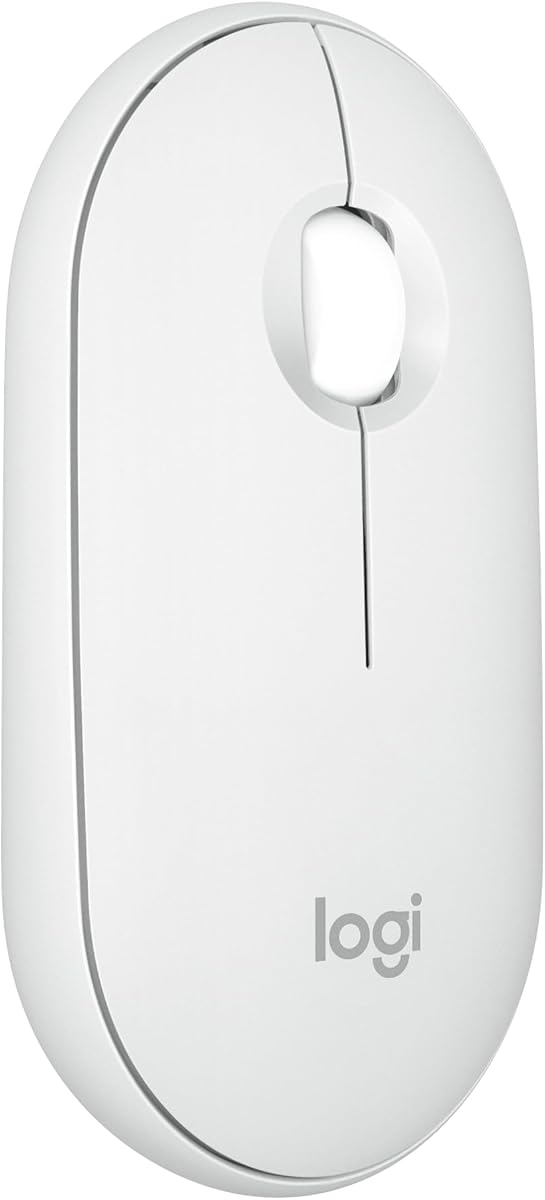




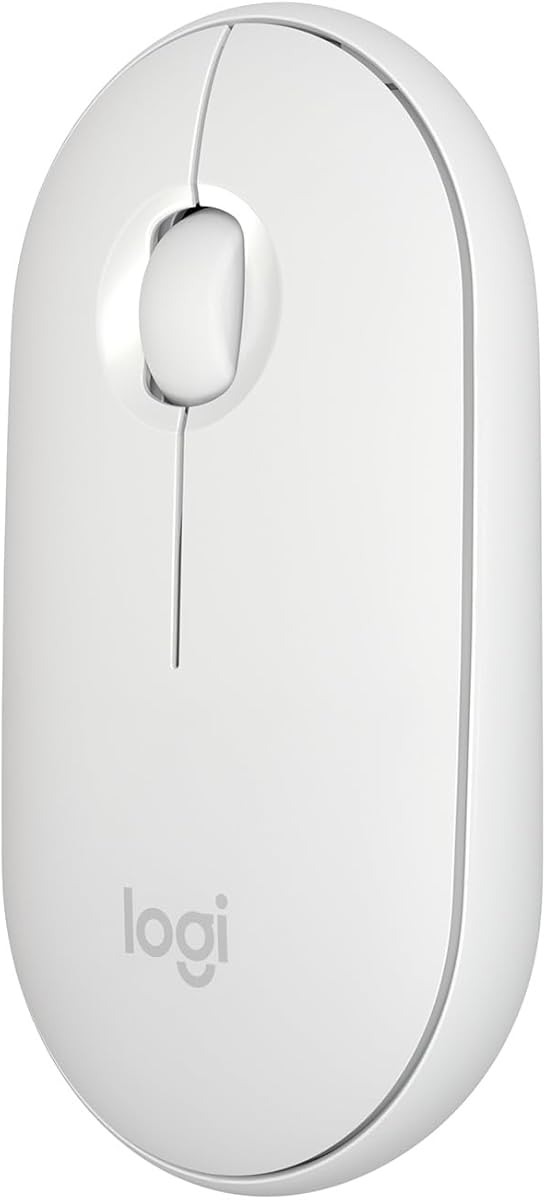
The Logitech M240 Compact Silent is a straightforward Bluetooth mouse designed for people who want a dependable external pointer without unnecessary complexity. Its supplied rating is 4.4 out of 5, but the more important consideration is how neatly it addresses the core needs of a MacBook Neo user. It pairs quickly, avoids the need for a receiver, and works across macOS, Windows, Linux, ChromeOS, iPadOS, and Android.
We may earn a commission when you buy through this link, at no additional cost to you.
The M240's strongest attraction is its combination of silent operation and travel-friendly proportions. Logitech states that Silent Touch technology reduces click sound by 90 percent while preserving the feel of the click. The small, slim, ambidextrous shape is easy to carry, yet the supplied information also positions it as a comfortable choice for either hand. A connection range of up to 10 meters, or 33 feet, gives it more freedom than a typical compact travel mouse.
Battery management is another persuasive detail. The mouse can run for up to 18 months and automatically sleeps when it is not being used, reducing the likelihood that it will fail during an important work session. The trade-offs are that this is a basic mouse with no Easy-Switch button, no advanced scrolling system, and no customizable controls. It also relies on a single Bluetooth connection rather than managing several devices at once.
This is an excellent choice for a student, commuter, office worker, or anyone who wants a quiet mouse that can move easily between a MacBook Neo and other compatible equipment. Those seeking more programmable buttons or a premium ergonomic form should look farther down the list, but for uncomplicated daily use, the M240 covers the essentials with an impressive balance of portability and endurance.
The advertised 90 percent click-noise reduction makes the M240 suitable for libraries, shared offices, and quiet study environments. SilentTouch technology addresses the disruptive click itself rather than merely lowering the overall volume.
Its compact body fits easily into a laptop bag, while Bluetooth pairing eliminates a USB receiver. The listed platform support also makes it useful when you move between a MacBook Neo and another Bluetooth-enabled device.
We may earn a commission when you buy through this link, at no additional cost to you.
The Logitech Pebble 2 M350s combines a minimalist appearance with one of the more useful device-management features in this guide. Its supplied rating is 4.5 out of 5, and the mouse can connect to up to three Bluetooth devices across Windows, macOS, iPadOS, and ChromeOS. A dedicated Easy-Switch button lets users move between a MacBook Neo, an iPad, and another computer without repeatedly entering pairing mode.
We may earn a commission when you buy through this link, at no additional cost to you.
The rounded, low-profile enclosure is slim and lightweight, making the M350s well suited to mobile work. It has a refined appearance that complements a MacBook Neo, and the Tonal White color is a natural visual match. Rather than crowding the shell with buttons, Logitech keeps the design clean and places useful personalization on the middle button through the Logi Options+ app.
Silent Touch technology is claimed to remove 90 percent of click noise, making this another strong option for shared environments. The included battery can deliver up to two years of use under the stated conditions, while an automatic sleep mode helps conserve power. It can also work with a Logi Bolt USB receiver, although that receiver is not included and is not necessary for Bluetooth use.
The Pebble 2 M350s is best for a user who wants a restrained, attractive mouse that follows them between several computers. Its three-device switching and customizable middle button provide more day-to-day flexibility than the M240. However, it does not offer a large ergonomic body, thumb controls, or the unusually fast scrolling found on premium productivity mice, so buyers should value simplicity and portability over extensive controls.
Easy-Switch is the defining convenience for MacBook Neo users who also handle an iPad, Windows PC, or Chromebook. The mouse retains connections to three devices and moves between them with a single button press.
The middle button can be assigned to frequently used applications and shortcuts through Logi Options+. This preserves the M350s's clean appearance while adding a useful route to app-specific commands.
We may earn a commission when you buy through this link, at no additional cost to you.
The Logitech Mobi Fold is built around a simple idea: a full-size-feeling wireless mouse should be able to disappear into a pocket when it is not needed. It is small, foldable, and ultra-thin, with a structure that allows it to unfold for use and fold to switch off. The supplied rating is 4.2 out of 5, but its distinctive portability gives it a clear role in this roundup.
We may earn a commission when you buy through this link, at no additional cost to you.
The Mobi Fold does more than reduce its footprint. It supports Bluetooth across Windows, macOS, ChromeOS, Android, and iPadOS, and it can hop among three devices using Easy-Switch. Its 4K DPI tracking and Adaptive Touch Scrolling are aimed at users who want precision and rapid navigation, while quiet clicks are helpful in shared spaces. Logitech also states that the design can reduce muscle strain by 22 percent compared with a laptop trackpad.
Unlike conventional wireless mice, this model uses an internal rechargeable battery. It can run for up to one month on a full charge, and a one-minute charge can provide up to 22 hours of operation. That makes it convenient for short trips, although the USB-C cable is not included. Its recycled-plastic construction also appeals to buyers who prefer a compact accessory with a reduced material footprint.
The Mobi Fold is ideal for travelers, students, and hybrid workers who carry a MacBook Neo between locations and want the option to pocket their mouse. It may be less appealing to someone who works continuously at a desk and prefers a traditional contoured grip, since portability rather than long-session ergonomics is its defining priority.
The Mobi Fold's ultra-thin, pocketable construction is the clearest differentiator in the guide. Folding it also powers the mouse down, reducing the need to manage an on-off switch while carrying it between locations.
With 4K tracking resolution and Adaptive Touch Scrolling, the Mobi Fold offers capabilities associated with more conventional productivity mice. This makes it more than a basic travel accessory.
We may earn a commission when you buy through this link, at no additional cost to you.
The Satechi Slim EX is a refined low-profile mouse that emphasizes materials, flexible connectivity, and a rechargeable power system. It carries a supplied rating of 4.6 out of 5 and pairs well with a MacBook Neo's clean aesthetic. Its anodized shell and precision-machined metal wheel give it a more substantial, desktop-oriented appearance than most of the compact travel models in this guide.
We may earn a commission when you buy through this link, at no additional cost to you.
Connectivity is one of its strongest attributes. The mouse can switch between two Bluetooth channels and a 2.4GHz USB-C receiver, allowing it to serve a Mac, Windows computer, tablet, or desktop. This makes it a useful option for users who need more than one connection method but do not necessarily require rapid one-button switching among several remembered devices.
The removable battery is another practical benefit. It can provide up to three months of continuous use and more than a year in sleep mode, and the package includes a USB-C cable. The precision-machined wheel and discreet click switches are designed for controlled operation, while the low-profile aluminum body works particularly well for a minimalist office.
Choose the Slim EX if appearance, metal construction, and dual-mode connectivity matter to you. It is less suitable for users who want extensive button customization or the deeper hand support of a large ergonomic mouse. Its included two-year limited warranty also provides added reassurance for long-term ownership.
Two Bluetooth channels plus a 2.4GHz USB-C receiver give the Slim EX more connection options than a basic Bluetooth-only mouse. It can adapt to different computers and working environments without requiring a separate receiver for each setup.
The anodized aluminum enclosure and metal wheel create a refined appearance that pairs naturally with a MacBook Neo. The design favors a clean, low-profile desktop look over a highly sculpted ergonomic form.
We may earn a commission when you buy through this link, at no additional cost to you.
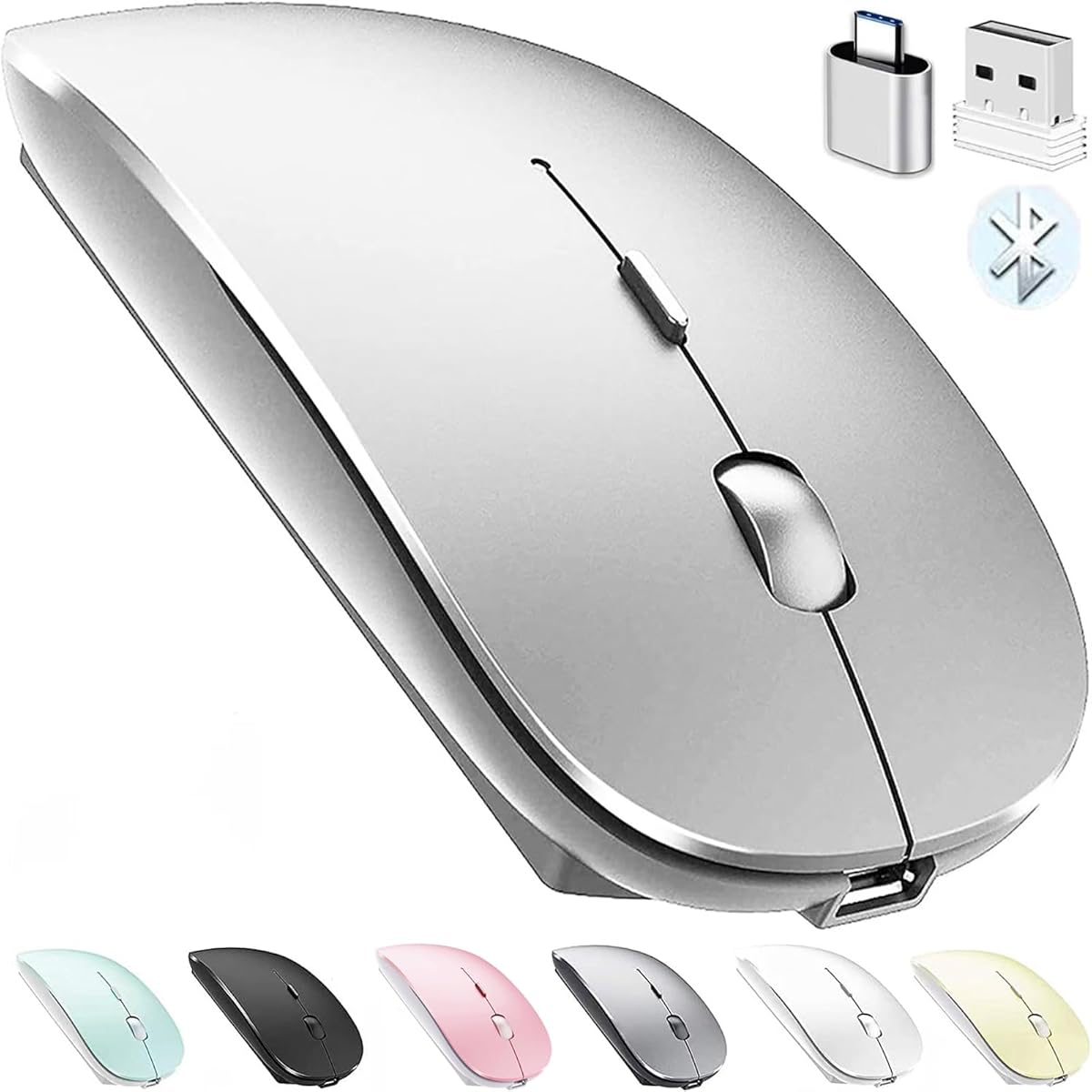
The PEIBO Dual-Mode Mouse is a broad compatibility option for MacBook Neo users who may also need to operate Windows, Linux, ChromeOS, Apple, or tablet systems. It has a supplied rating of 4.3 out of 5. Its defining feature is support for Bluetooth 5.2, Bluetooth 3.0, and a 2.4GHz USB receiver, with a USB-C adapter also included in the stated configuration.
We may earn a commission when you buy through this link, at no additional cost to you.
The mouse provides three adjustable DPI settings—800, 1200, and 1600—which let users tailor pointer speed for different tasks. That is useful for document editing, general office work, or more precise navigation. Its optical tracking is designed to deliver faster and more accurate movement than older traditional alternatives, while the skin-like surface coating and muted click design prioritize practical everyday comfort.
Power is handled through a rechargeable lithium-polymer battery and an automatic sleep system. The mouse shuts down when the computer is turned off or the receiver disconnects, then enters sleep after eight minutes of inactivity. A button press wakes it. This is a straightforward approach, and it avoids some of the charging anxiety associated with sealed rechargeable batteries.
This option is best for someone who wants adjustable sensitivity and several connection methods in a portable package. Its product listing is less polished and less specific than those from established manufacturers, so it is primarily a functional choice. Users who need premium materials, sophisticated scrolling, extensive Mac customization, or effortless one-button device switching will find more refined alternatives elsewhere in the guide.
The 800, 1200, and 1600 DPI options let users change pointer speed without changing applications. This is valuable for a MacBook Neo setup used for both precision editing and ordinary navigation.
Bluetooth and 2.4GHz operation broaden compatibility across computers and tablets. The included receiver and USB-C adapter make the mouse useful in setups where wireless pairing is inconvenient or unavailable.
We may earn a commission when you buy through this link, at no additional cost to you.
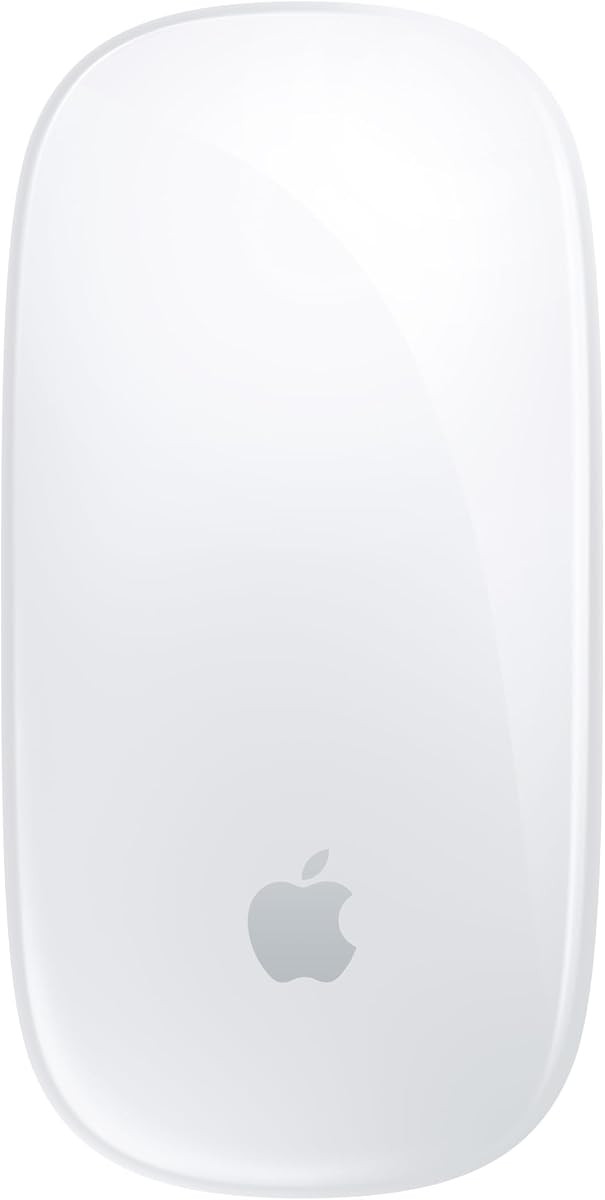
The Apple Magic Mouse is the most Mac-centric option in the guide, pairing automatically with a Mac and offering a gesture-focused Multi-Touch surface. Its supplied rating is 4.4 out of 5. For a MacBook Neo user who values native integration and a seamless visual match, it delivers an uncomplicated experience without requiring third-party configuration.
We may earn a commission when you buy through this link, at no additional cost to you.
The upper surface supports simple gestures such as swiping between web pages and scrolling through documents. Its optimized foot design is intended to glide smoothly across a desk, while the rechargeable battery can run for about a month or more between charges. The woven USB-C cable is included and can both charge the mouse and support the pairing process when connected to a compatible Mac.
Apple's design is clean, but that minimalism brings trade-offs. There are few visible physical controls, and users who rely on additional buttons for productivity may find the gesture surface less immediately flexible. The low-profile shape also does not provide the pronounced palm support offered by ergonomic models such as the MX Master 4.
The Magic Mouse is a compelling recommendation for Mac users who mainly navigate with gestures, prefer Apple's ecosystem, and want minimal setup. It is less suitable for creative professionals or power users who require dedicated side buttons, a thumb wheel, adjustable DPI, or extensive app-specific controls.
The mouse is ready to pair automatically with a Mac, which reduces friction at the start of a new MacBook Neo setup. The included woven USB-C cable supports both charging and pairing.
Multi-Touch gestures provide a touchpad-like way to swipe and scroll. This is particularly natural for users accustomed to controlling a MacBook directly, although it offers less physical-button flexibility.
We may earn a commission when you buy through this link, at no additional cost to you.
The Logitech POP Mouse provides a stronger balance of personality, portability, and productivity than many basic travel mice. It has a supplied rating of 4.6 out of 5, a compact contoured shape, and a modern design intended to stand out. Its Mist color complements a MacBook Neo, while the included Bluetooth connection and three-device switching make it adaptable to a mixed-device workflow.
We may earn a commission when you buy through this link, at no additional cost to you.
The POP's defining feature is its customizable Action Buttons. Through the Logi Options+ app, the buttons can provide shortcuts to work, social, and entertainment applications, including Netflix and Spotify, or offer access to AI tools. That customization turns a visually simple mouse into a practical productivity accessory without filling the shell with extra buttons.
Silent Touch technology reduces click noise by 90 percent, and the mouse can connect to three Bluetooth devices across Windows, macOS, iPadOS, and ChromeOS. A single AA battery is included and is advertised to deliver up to two years of operation, with an automatic sleep mode helping preserve power. The plastic components contain between 37 and 68 percent recycled material depending on the color.
The POP is a strong all-around recommendation for a MacBook Neo user who wants attractive styling, quiet operation, and useful shortcuts in a compact body. It is less compelling for users who need precision sensors, advanced scrolling, or a deeply contoured ergonomic grip. Even so, its feature balance makes it one of the most versatile selections in the roundup.
Action Buttons turn the POP's streamlined shell into a customizable productivity tool. Users can assign frequently opened apps or functions without sacrificing the compact, uncluttered appearance.
The contoured body fits into a hand or bag, while 90 percent click-noise reduction helps during shared work. Three-device switching extends its usefulness beyond the MacBook Neo.
We may earn a commission when you buy through this link, at no additional cost to you.
The Logitech Slim Wireless Bluetooth Mouse for Mac is the highest-rated product in the supplied roundup, with a rating of 4.7 out of 5. It is also one of the most convincingly Mac-oriented designs. The rounded corners, clean lines, and White finish closely complement the visual language of a MacBook Neo, while the extra-slim enclosure makes it easy to carry in a pocket or laptop bag.
We may earn a commission when you buy through this link, at no additional cost to you.
Despite its thin profile, the mouse is designed to fit naturally in the palm. Soft, rounded sides provide a comfortable grip for ordinary use, and the listed specifications emphasize accurate tracking on both tables and softer surfaces such as bed covers. That flexibility is useful if the MacBook Neo is used around the home rather than exclusively at a fixed desk.
Bluetooth LE provides a reliable connection with a stated range of up to 10 meters, although actual range can vary with environmental and computing conditions. Silent operation is another major strength: the mouse produces about 90 percent less click noise, and the wide rubber scroll wheel glides quietly as well. The battery is advertised to last up to 18 months, with an automatic battery-saving sleep mode.
This is the most balanced recommendation for a MacBook Neo user who values quiet operation, slim aesthetics, and easy portability. It lacks the advanced controls, sculpted support, and rapid scrolling of premium productivity mice, but it handles the everyday essentials with few distractions. Its rating, platform fit, and compact design make it an especially confident editor's choice.
The extra-slim body is designed to fit naturally in the palm, with rounded sides that improve comfort without creating a bulky grip. It is a particularly natural fit for users who like the visual cleanliness of a MacBook Neo.
Silent clicks and a nearly silent rubber wheel reduce distractions in shared environments. Accurate tracking on varied surfaces also lets the mouse perform outside a conventional office desk.
We may earn a commission when you buy through this link, at no additional cost to you.
The Logitech MX Master 4 for Mac is the most advanced productivity mouse in this guide. Its supplied rating is 4.4 out of 5, but its feature set clearly separates it from the compact and minimalist alternatives. It combines an ergonomic right-handed body, haptic feedback, a contextual Actions Ring, a thumb scroll wheel, and Logitech's MagSpeed wheel in a design explicitly tailored to Mac users.
We may earn a commission when you buy through this link, at no additional cost to you.
The Actions Ring is a dynamic, customizable overlay that can place frequently used filters, adjustments, and shortcuts near the cursor. The Haptic Sense Panel adds configurable feedback for selected actions, notifications, and shortcuts, allowing users to receive physical confirmation without an audible click. Logi Options+ support for macOS adds deeper control and integrates the mouse with an Apple-oriented workflow.
Scrolling is another major strength. The MagSpeed wheel can move through 1,000 lines per second and stop on a pixel, making it useful for lengthy documents, timelines, spreadsheets, and creative applications. A separate thumb wheel supports fluid horizontal navigation, while the natural tilt, intuitive buttons, and shaped body are designed to reduce hand stress during extended sessions.
This is the premium recommendation for MacBook Neo users who spend substantial time at a desk and want professional controls, fast navigation, and software integration. Its larger form is less convenient for minimalist travel, and the USB-C charging cable is not included. It also has a right-handed ergonomic orientation, which may not suit users who strongly prefer a symmetrical mouse.
The Actions Ring adapts to the active application and places commonly used controls near the pointer. Combined with customizable haptics and Logi Options+ for macOS, it can materially shorten repetitive editing workflows.
MagSpeed scrolling, a dedicated thumb wheel, and a naturally tilted body support both speed and control. The sculpted right-handed shape is especially useful during long sessions at a MacBook Neo desk setup.
We may earn a commission when you buy through this link, at no additional cost to you.
The Satechi M1 is a polished wireless mouse designed to complement modern Apple and desktop environments. It has a supplied rating of 4.4 out of 5. Its aluminum finish, Space Gray color, and balanced proportions create a refined appearance that pairs naturally with a MacBook Neo, while the built-in rechargeable battery avoids disposable battery replacements.
We may earn a commission when you buy through this link, at no additional cost to you.
Bluetooth 4.2 provides a stable connection within a stated range of up to 32 feet. The high-precision optical sensor offers 1200 DPI, which is a practical everyday setting for document navigation, web browsing, and general productivity. Fast scrolling and responsive tracking are among the core benefits advertised for the mouse.
A built-in lithium-ion battery is charged through the included USB-C cable. This provides a cleaner desk setup than a loose battery compartment and makes the mouse ready for repeated use. The shell is described as comfortable for both left- and right-handed users, although its shape is not as supportive as a deeply contoured ergonomic model.
The M1 is a strong choice for a MacBook Neo owner who prefers an aluminum aesthetic, accurate conventional tracking, and a rechargeable design. The important limitation is its note that it is not recommended for 2011 and earlier Mac devices. It also lacks the sophisticated device switching, programmable controls, rapid scrolling, and multi-surface features found among the more specialized options.
The built-in lithium-ion battery and included USB-C cable provide a simple power system without disposable cells. Once charged, the mouse connects wirelessly and keeps the working area uncluttered.
A 1200 DPI optical sensor provides consistent pointer control for common productivity tasks. It is a sensible middle ground for users who want accuracy without navigating multiple sensitivity settings.
We may earn a commission when you buy through this link, at no additional cost to you.
A useful external mouse for a MacBook Neo should fit the user's work environment as closely as possible. Consider portability, Mac compatibility, click noise, battery behavior, ergonomics, and the amount of control required before making a final selection.
Begin by confirming that the mouse connects cleanly to macOS and that its setup process suits your workflow. Every product in this guide is listed as compatible with a MacBook Neo, but the broader details differ. Some support Windows, ChromeOS, iPadOS, Linux, and Android as well, while others focus more directly on the Mac experience. A mouse with explicit macOS software support may be preferable if you want application-specific buttons, gesture mapping, or system-level customization.
The best shape for a mobile MacBook Neo setup is the one you can comfortably carry. Ultra-slim models slide into a pocket, compact mice fit easily into a laptop bag, and full-size ergonomic devices feel more natural during long desk sessions. The Logitech Mobi Fold goes furthest by physically folding and powering off. The M240, Pebble 2 M350s, POP Mouse, and Logitech Slim for Mac are also designed with portability in mind.
Click noise can be a meaningful issue in libraries, offices, classrooms, and video calls. Logitech's Silent Touch technology is advertised to reduce click noise by 90 percent and is included with the M240, Pebble 2 M350s, POP Mouse, and Logitech Slim for Mac. The Mobi Fold also emphasizes quiet clicks, while the Satechi Slim EX uses discreet switches. Quiet operation is especially useful if you regularly work beside other people.
Battery design determines how much routine maintenance the mouse needs. The M240 and Logitech Slim for Mac are advertised for up to 18 months of use, while the Pebble 2 M350s and POP Mouse are listed for up to two years. The Mobi Fold and Satechi Slim EX use rechargeable batteries, and the MX Master 4 uses USB-C charging. Rechargeable models are convenient once charged, but you should consider whether their stated charging cables are included.
A mouse should support the way you naturally move your hand. Full-size ergonomic models, such as the MX Master 4, offer a raised palm, angled shape, thumb wheel, and multiple controls for sustained work. Symmetrical models such as the M240 can be easier to use with either hand. Slim models prioritize a low profile but may offer less palm support. Think about desk depth, hand size, grip style, and whether you use the mouse for long editing sessions or short bursts of work.
A MacBook Neo user may also own an iPad, Windows computer, or Chromebook. The Pebble 2 M350s, Mobi Fold, and POP Mouse can each connect to three Bluetooth devices and switch using Easy-Switch. The Satechi Slim EX supports two Bluetooth channels plus a 2.4GHz USB-C receiver, while the PEIBO mouse offers Bluetooth and 2.4GHz modes. If you regularly move between equipment, quick switching can eliminate repeated pairing.
Basic pointing and clicking may be enough for occasional use, but power users benefit from programmable controls. The POP Mouse offers customizable Action Buttons, the Pebble 2 M350s can assign its middle button, and the MX Master 4 provides an Actions Ring, Haptic Sense Panel, and MagSpeed scrolling. The Satechi M1 and Logitech Slim for Mac focus more on conventional navigation. Additional controls are useful for editing, creative software, and navigating long documents.
Most standard office mice assume that you work on a desk, but some models are more flexible. The Logitech Slim for Mac is listed as tracking accurately on tables and soft surfaces such as bed covers. The Mobi Fold provides 4K tracking resolution, while the Satechi M1 uses a 1200 DPI sensor and the PEIBO mouse offers 800, 1200, and 1600 DPI settings. Consider your work surface and whether fine pointer control is more important than simplicity.
Begin by charging the mouse if it uses a rechargeable battery, then switch it on and place it on a clean, unobstructed surface. For a Bluetooth model, open the MacBook Neo's Bluetooth settings, select the mouse from the available device list, and complete the pairing process. Models that support a USB-C receiver can be connected through the supplied receiver, while a mouse offering several channels may require choosing the appropriate device in its companion app.
After connection, open the system's pointer and trackpad settings to confirm that the primary click, secondary click, scroll direction, and pointer speed behave as expected. If the mouse includes programmable actions, install the manufacturer's recommended software and assign buttons only after considering the apps you use most. The Pebble 2 M350s, POP Mouse, and MX Master 4 can benefit from their respective Logitech customization options.
To maintain performance, keep the sensor free of dust, crumbs, and sticky residue, and clean the body with a soft dry or lightly damp cloth. Avoid abrasive cleaners and excessive moisture around buttons, seams, and charging ports. Remove replaceable batteries before long periods of storage, and rechargeable models should be kept partially charged if they will sit unused for an extended period.
Yes. All ten products in this guide are listed as compatible with MacBook Neo laptops through instant Bluetooth connectivity. Turn on the mouse, open the MacBook Neo's Bluetooth settings, and select it from the available devices. Models that support multiple Bluetooth channels or Easy-Switch can also be connected to other compatible computers and tablets.
A slim mouse is usually more convenient if you travel frequently because it is easier to fit into a bag or pocket. The M240, Pebble 2 M350s, POP Mouse, Logitech Slim for Mac, and Satechi Slim EX all emphasize portability. A larger ergonomic model may feel better during long desk sessions, so the best choice depends on where you use the MacBook Neo most often.
Several options explicitly advertise 90 percent click-noise reduction, including the M240, Pebble 2 M350s, POP Mouse, and Logitech Slim for Mac. The Mobi Fold and Satechi Slim EX also emphasize quieter operation. Actual sound can vary by surface, pressure, and sensitivity, but these models are the strongest candidates when minimizing click distraction is important.
Replaceable-battery models such as the M240 and Logitech Slim for Mac are advertised for up to 18 months of use, while the Pebble 2 M350s and POP Mouse offer up to two years. Rechargeable models avoid disposable cells and are convenient for a fixed desk. Consider your travel schedule and charging habits, because a sealed rechargeable battery requires periodic charging.
Only if you regularly alternate between your MacBook Neo and other equipment. The Pebble 2 M350s, Mobi Fold, and POP Mouse support three Bluetooth devices, and the Satechi Slim EX supports two Bluetooth channels plus a 2.4GHz receiver. For a single-computer setup, a simpler Bluetooth mouse may be easier to manage.
The MX Master 4 is the most feature-rich option for extended productivity because it offers an ergonomic shape, thumb wheel, fast MagSpeed scrolling, customizable Actions Ring, and haptic feedback. The M240 and M240-style ambidextrous models may suit users who prefer a simpler symmetrical grip. Comfort is personal, so hand size and grip style should guide the decision.
Most of the selected models support additional platforms. The M240, Pebble 2 M350s, Mobi Fold, POP Mouse, and PEIBO mouse are listed for multiple systems, while the Satechi Slim EX can control Mac, Windows, tablet, and desktop devices. Check the specific product listing before purchase if cross-platform use is essential.
No. Basic Bluetooth pointing, clicking, and scrolling should work after pairing. Companion software is most useful for models with customizable actions, such as the POP Mouse, Pebble 2 M350s, and MX Master 4. The Apple Magic Mouse is designed for automatic Mac pairing, while the PEIBO mouse provides physical DPI controls without requiring software.
The Logitech Slim Wireless Bluetooth Mouse for Mac is the most balanced overall recommendation, combining the highest supplied rating with an exceptionally slim shape, quiet operation, reliable Bluetooth LE, and long battery life. The M240 is a compelling simple choice for mobile users, while the MX Master 4 stands apart as the most capable productivity model with haptics, advanced scrolling, and extensive customization.
Prioritize the features you will use every day rather than the longest specification list. Frequent travelers should consider the Mobi Fold or another compact option, mixed-device workers should look for Easy-Switch, quiet environments favor Silent Touch models, and desk-based professionals may prefer the MX Master 4's ergonomic controls. USB-C charging, removable batteries, and multi-platform support can further refine the choice.
Before buying, confirm the current product details, included accessories, and operating system support on the listing. Product configurations and availability can change, so checking the current description ensures that the selected mouse still meets your MacBook Neo setup, portability, and productivity needs.