
reMarkable Paper Pro with Marker Plus and Black Leather Book Folio
4.1Editor score
Large 11.8-inch color display
Adjustable reading light
Instant handwriting conversion
Handwriting to text tablets combine the natural feel of writing with searchable, editable digital notes. A capable model should recognize handwriting accurately, respond naturally to the stylus, display documents comfortably, and make converted text easy to organize, search, and share.
This guide compares ten options ranging from smart pens and reusable paper notebooks to color, monochrome, and compact e-ink tablets. We evaluated the supplied information for recognition features, writing surfaces, portability, document support, connectivity, organization, and included accessories.
Each pick reveals which user it best serves and where it falls short of the alternatives. Product configurations and prices can change, so confirm the current listing and feature availability before buying, particularly for optional subscriptions, accessories, and software services.
4.1Editor score

4.3Editor score

3.9Editor score
As an Amazon Associate we earn from qualifying purchases.
The comparison below highlights the main differences in display technology, portability, handwriting conversion, document flexibility, and connectivity across all ten products.
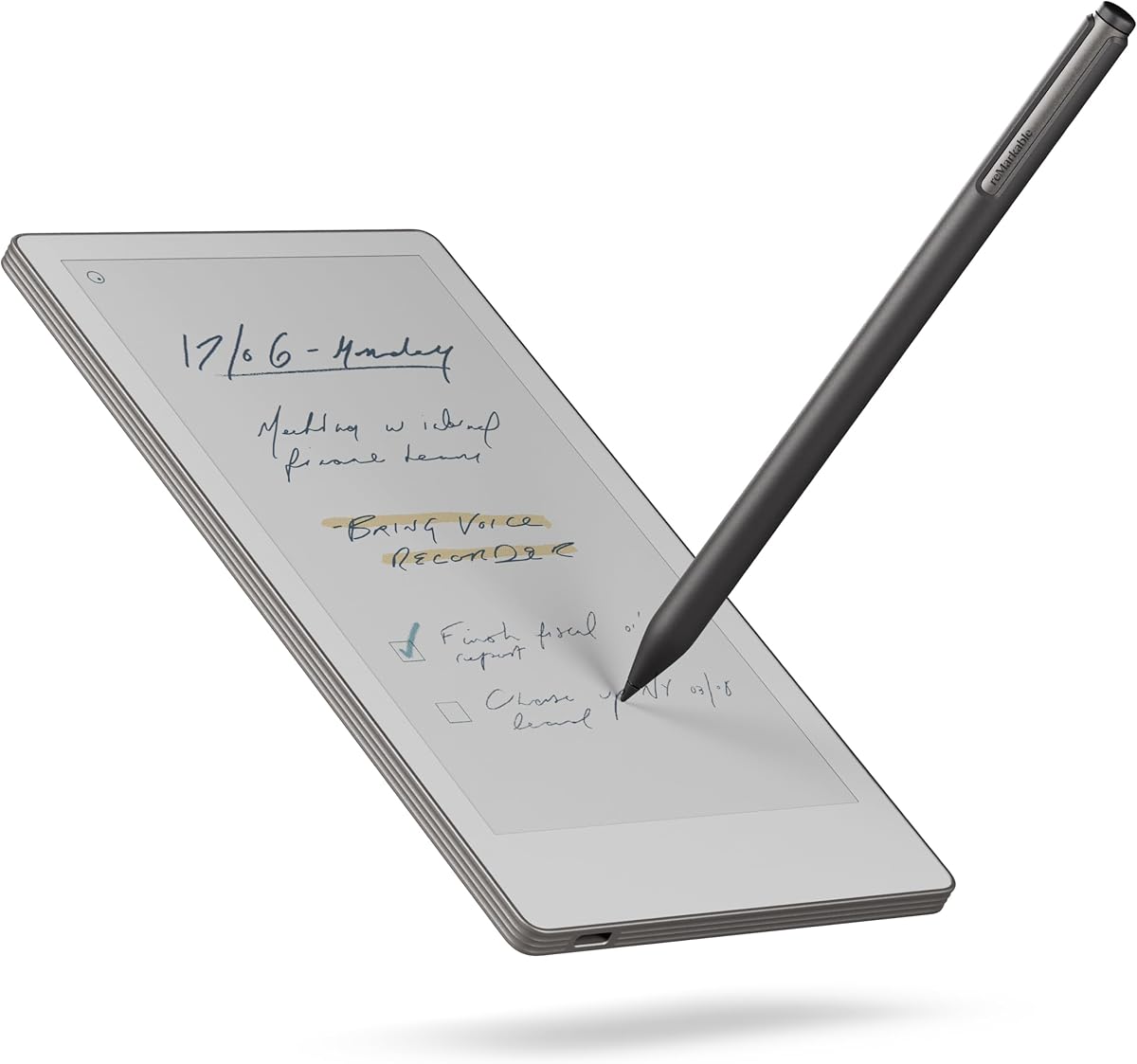


The reMarkable Paper Pure bundle is a strong overall choice for people who want a dedicated notebook that can capture handwriting and convert it into usable digital text. Its supplied rating is 4.3, and the package pairs the tablet with the Marker Plus and an Ocean Blue sleeve folio. The principal attraction is the combination of a clean 10.3-inch monochrome display, quick ink response, and a software environment built around notes and documents rather than general-purpose apps.
We may earn a commission when you buy through this link, at no additional cost to you.
The third-generation display is described as whiter and higher in contrast than earlier versions, which should make text and line work easier to inspect during long sessions. A reported 21 millisecond ink response creates a convincing connection between pen movement and marks on the page. Dozens of templates support note-taking, while folders and tags provide practical organization for meetings, classes, research, and document review. The device can also import articles, documents, and PDFs through services such as Google Drive, Dropbox, and Microsoft Word.
Its handwriting conversion is particularly relevant to this roundup. The tablet can turn handwritten notes into text, while Connect adds useful tools such as handwritten-note search, editing in the reMarkable apps, and sharing to services including Slack and Miro, where background AI converts writing into text. The important trade-off is that some of the most useful connected functions depend on a subscription. Buyers who need only local handwriting, PDFs, and basic conversion may receive less value from the service than those who actively organize and share large note collections.
This bundle is best for professionals, students, and readers who want a calm writing surface with dependable conversion and broad document support. The folio and stylus make it ready for daily use rather than a bare tablet purchase. Those who need color highlights should look toward the Paper Pro, while people who prefer writing on actual paper should examine the Ophaya smart-pen sets. For a balanced combination of writing feel, focused software, response speed, and conversion capability, the Paper Pure bundle remains the most complete general recommendation.
The reMarkable also reduces the chance of distraction by presenting an uncluttered screen. That makes it useful in meetings where a laptop can fragment attention across multiple applications. Its role is narrower than a full Android tablet, but that focus directly supports the core promise of a handwriting to text device: record ideas naturally, then find and reuse them as digital material.
The 21 millisecond response and paper-like monochrome display make the Paper Pure feel immediate when taking notes or annotating documents. A clean interface also helps users remain focused on the page rather than managing conventional tablet apps.
Handwritten notes can become text and then travel through email and connected services. Cloud import and sharing options make the tablet useful beyond isolated note capture, although some advanced capabilities depend on Connect.
We may earn a commission when you buy through this link, at no additional cost to you.
The reMarkable Paper Pro with folio is the premium large-screen option in this guide, carrying a supplied rating of 4.1. It is built for users who want more canvas than a conventional e-reader or compact notebook, particularly when reading long documents, reviewing presentations, marking up technical material, or separating color-coded ideas by hand. The 11.8-inch Canvas Color display is the central feature, adding color to a writing experience that previously emphasized monochrome simplicity.
We may earn a commission when you buy through this link, at no additional cost to you.
The included Marker Plus is designed specifically for the color display, with the supplied information emphasizing realistic friction, precise control, responsiveness, and comfort. That matters because handwriting is more than a recognition checkbox: users need to see the pen response clearly, especially when using different colors for headings, diagrams, corrections, or emphasis. The package also includes six spare marker tips, a black leather Book Folio, and a USB-C cable, so it is presented as a ready-to-use portable workstation.
Handwriting can be converted into typed text immediately, while folders and tags keep notebooks and documents organized. The Paper Pro can also accept PDFs for direct annotation. Its low-glare display reflects ambient light rather than relying on a conventional emissive-panel look, and an adjustable reading light extends use into darker environments. This combination makes it particularly appealing for long reading sessions, evening study, and professional work away from a desk.
The trade-offs relate to size and the reMarkable software model. A full-size 11.8-inch tablet takes more room than the 7.3-inch Paper Pro Move and is less convenient for pocket-sized note capture. While the low-glare screen is comfortable, users should still consider how they will carry and support the device. Additionally, the description does not promise every connected capability without a subscription, so buyers who rely heavily on cloud workflows should verify current service requirements.
Choose the Paper Pro Folio when screen area, color, and an included premium case outweigh compact portability. It is a compelling premium pick for consultants, students, researchers, and anyone working with dense documents. Those who want similar handwriting conversion in a smaller form should consider the Paper Pro Move, while monochrome buyers seeking less visual complexity can look toward the Paper Pure. For a large, focused, color-capable paper tablet, this is the most complete package in the lineup.
The 11.8-inch color canvas supports more expressive highlighting and diagramming than a monochrome page. Its larger surface also gives technical notes, reference material, and PDF annotations more room to breathe.
The low-glare display and adjustable reading light make the tablet useful across bright rooms and dim settings. This supports long reading sessions as well as note-taking after the normal working day has ended.
We may earn a commission when you buy through this link, at no additional cost to you.
The reMarkable Paper Pro Move is designed for people who want to capture ideas away from a desk. Its supplied rating of 3.8 is the lowest among the three reMarkable Paper Pro configurations in this list, but the product serves a clear need: a small, color, distraction-free notebook that can move between meetings, classes, travel, and daily planning. The 7.3-inch display is considerably more compact than the full Paper Pro.
We may earn a commission when you buy through this link, at no additional cost to you.
Handwriting remains the primary interface. Users can write notes, annotate, and then convert their handwriting into typed text. Notes synchronize to the cloud and become available in mobile and desktop applications, making captured material useful beyond the tablet itself. The description also states that users can search handwritten notes when subscribed to Connect, while tags and folders provide organization regardless of note type.
Its main benefit is context. A tablet that is small enough for a bag or jacket pocket can be present when an idea appears, whereas a desk-bound notebook may remain behind in another room. The device is marketed specifically as a way to avoid a wall of laptops and notifications during meetings, preserving the tactile satisfaction of writing on a color display that looks, feels, and sounds like paper.
The smaller canvas creates an obvious trade-off. Users working across two pages, reading dense PDFs, or drawing complex diagrams may find the 10.3-inch and 11.8-inch alternatives more comfortable. Handwritten search also appears to require Connect, while the 3.8 rating may reflect variability in the less mature product category or the compromises of a compact first-generation format. None of that negates the appeal for travelers and meeting-focused users.
The Paper Pro Move is best for commuters, students, and professionals who prioritize pocketability over maximum canvas size. It offers the same core handwriting-to-text proposition as larger reMarkable tablets in a more travel-friendly form. Choose it when your priority is quick capture in places where a larger notebook would be inconvenient. For maximum reading area, move up to the full Paper Pro; for a smaller monochrome design, consider the Paper Pure.
The 7.3-inch format is closer to a paperback than a full desktop notebook. That makes spontaneous note capture and meeting use more realistic while retaining color writing and stylus input.
Cloud synchronization brings captured material into mobile and desktop apps. Combined with conversion and tags, this helps a brief note become something students and professionals can retrieve and reuse later.
We may earn a commission when you buy through this link, at no additional cost to you.
The Ophayapen 3-in-1 Smart Writing Set is the budget-oriented choice for anyone who wants digitized handwriting without replacing paper with a tablet. It has a supplied rating of 3.9 and uses a dedicated smart pen, a 60-sheet reusable notebook, and a writing board. The writing remains physical, but the pen captures strokes and drawings and synchronizes them to the Ophaya Pro+ app on compatible iOS and Android phones.
We may earn a commission when you buy through this link, at no additional cost to you.
The set includes the smart pen, notebook, writing board, four ballpoint refills, two plastic pen nibs, and a USB-C cable. Handwritten content can be converted to digital text and shared as a Word document. Users can also search notes by keyword, tag, or timestamp, which turns a collection of handwritten pages into a more practical digital archive. Additional storage and sharing formats include PDF, Word, PNG, GIF, and MP4, with the ability to combine multiple PDF or PNG files before sharing.
Audio recording is one of its most distinctive features. The pen can record sound while the user writes, linking playback to the relevant note. That combination can preserve explanations and context that a transcript alone might omit. The writing board may also be useful when a steadier writing surface is needed, making the package feel more like a complete traditional notebook system than a single accessory.
The main limitation is dependence on the phone ecosystem. A full tablet provides a self-contained screen for reading and editing, while this set centers on capture and synchronization. Offline storage reduces the risk of losing work when a connection is unavailable, with content uploading after reconnection, but the experience is still fundamentally tied to the companion app. Buyers should also check device compatibility and account requirements.
This is the most sensible pick for students, meeting participants, and journal users who prefer the feel of a ballpoint on paper but want searchable OCR copies, sharing, and audio context. It is not a reading tablet, and it cannot replace the larger writing surface of an e-ink device. Even so, it delivers a focused handwriting-to-text experience at a much lower entry point, making it a credible budget alternative to conventional paper tablets.
Writing on paper may feel more familiar and less distracting than writing on glass. The smart pen captures that physical page and adds OCR conversion, keyword search, tags, timestamps, and export options.
Offline storage allows users to continue writing and saving content without a phone connection. Saved material can upload after reconnection, providing a safeguard against losing notes taken in classrooms or meetings.
We may earn a commission when you buy through this link, at no additional cost to you.
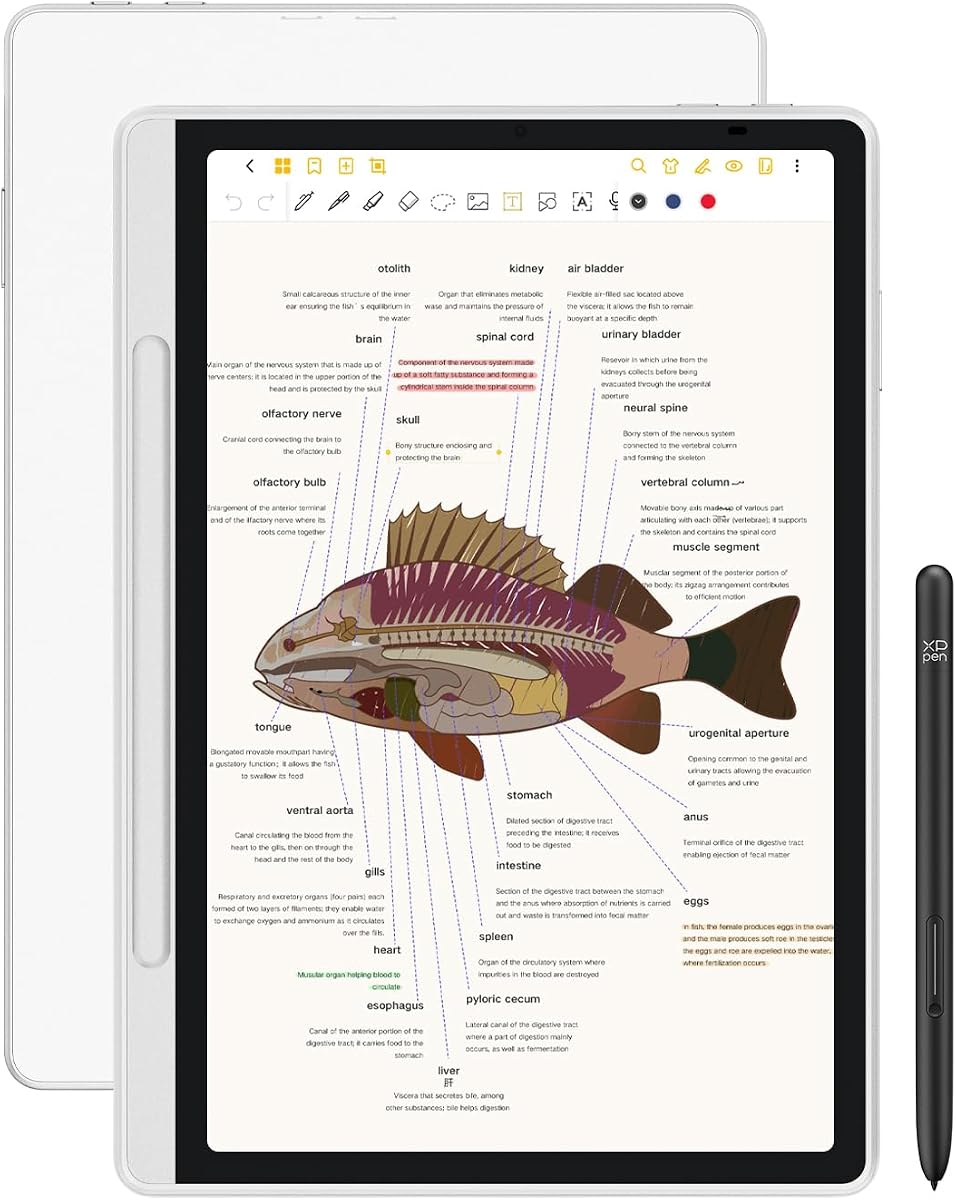
The XPPen 3-in-1 Color Digital Notebook is the feature-rich Android alternative in this roundup. Its supplied rating is 4.2, and the product combines a 10.95-inch nano-etched LCD with an X3 Pro Pencil 2, 128GB of storage, and a magnetic folio. Unlike dedicated e-ink notebooks, it runs Android 14, allowing users to install Google Play applications and move beyond a narrowly focused note environment.
We may earn a commission when you buy through this link, at no additional cost to you.
Its display is designed to bridge color and paper-like use. One press of the X-key switches among monochrome LCD, light color, and nature color modes. TCL NXTpaper 3.0 etched-glass technology is claimed to reduce up to 95% of ambient-light interference, while the 90Hz refresh rate is intended to provide smooth page transitions without lag or ghosting. The screen supports 16.7 million colors and reaches 400 nits, although the etched construction creates a narrower viewing angle than a conventional tablet.
Handwriting input is the centerpiece. The battery-free X3 Pro Pencil 2 has 16,384 sensitivity levels, a soft nib, magnetic attachment, and a customizable shortcut key. XPPen Notes supports handwriting conversion, audio recording, PDF import and editing, multiple brushes, cloud uploads, and AI tools after the system is upgraded to 1PAE. Pre-installed MyScript Notes converts handwriting and shapes into typed text and supports 66 languages, while MyScript Math handles equations, functions, variables, and scratch-out editing.
Several trade-offs follow from treating the product as a normal Android tablet. It is not an e-ink screen, and the manufacturer explicitly recommends avoiding multiple simultaneous programs to preserve the best experience. The narrow viewing angle is a consequence of the anti-glare etched glass rather than a defect, but it may matter in shared spaces. The long feature list also involves software updates and version-dependent AI tools, so buyers should understand what is available immediately after setup.
This notebook is best for students and professionals who want handwriting conversion alongside general Android flexibility, document editing, cloud storage, and meeting functions. It is a particularly compelling choice for math-heavy study because of MyScript Math and for language learners because of the stated 66-language recognition. Those prioritizing sunlight readability, long battery life, or an ultra-focused interface should favor an e-ink alternative such as the Penstar eNote 2 or a dedicated reMarkable model.
Android 14 and 128GB of storage make this model useful for applications beyond note-taking. Cloud services, productivity tools, and a front camera can turn the device into a broader portable workstation.
MyScript Math can recognize handwritten equations and support functions, variables, plotting, and scratch-out editing. Flashcard and PDF-summary tools add further utility for students preparing or reviewing lessons.
We may earn a commission when you buy through this link, at no additional cost to you.
The Penstar eNote 2 is a substantial 10.3-inch e-ink notebook with a supplied rating of 4.3. Its specification sheet is unusually detailed for this category, covering a 2480-by-1860 panel at 300 ppi, 8,192 levels of pressure sensitivity, 4GB of RAM, 128GB of storage, four speakers, a microphone, and a 6,500mAh battery advertised at up to four weeks of use. The included magnetic folio, stylus, spare tips, charging cable, and guide make it a broad starter bundle.
We may earn a commission when you buy through this link, at no additional cost to you.
The display is described as having reduced haze and refraction, producing whiter whites and punchier blacks than many e-ink screens. That makes it suitable for reading books and PDFs in bright surroundings, including sunlight, while keeping a printed-page appearance. Writing and marking can occur over imported books and PDF files, and the stylus requires no charging. The reduced pen lag and nearly aligned strokes are intended to create a natural response.
AI features include real-time speech-to-text, handwriting-to-text conversion, note summaries, and organization with folders and tags. A split-screen mode can show a book on one side and notes on the other, which is valuable for students, researchers, and anyone comparing source material with commentary. The system also supports over 35 document formats, including PDF, DOCX, PPTX, EPUB, MOBI, and TXT, alongside common image and audio formats.
The device is a monochrome Android tablet rather than a specialized writing-only appliance, but that flexibility brings some complexity. The supplied description mentions third-party app support, while also implying that users can explore multiple functions. As with many Android-based e-ink devices, performance may vary by task. Buyers should also distinguish the bundle reference to a Penstar eNote Pro from the Penstar eNote 2 product name and verify the exact included accessories on the listing.
The eNote 2 is best for readers and note-takers who want an e-ink screen, substantial local storage, broad file compatibility, and both handwriting and speech conversion. It is especially suitable for students who need to keep a source document and a note page visible together. Buyers wanting color should move toward the XPPen or reMarkable Paper Pro, while those prioritizing a simpler workflow may find the Paper Pure more restrained and approachable.
The 300-ppi e-ink panel presents text in a printed-page style and remains suitable for bright-room use. Reduced haze and refraction seek to improve clarity compared with conventional e-ink layers.
Handwriting conversion, speech-to-text, summaries, and extensive format support make the tablet more versatile. Split-screen viewing further improves its usefulness for study and reference work.
We may earn a commission when you buy through this link, at no additional cost to you.
The reMarkable Paper Pure with Marker is a simpler version of the top-ranked bundle. Its supplied rating is 3.8, and it shares the same core 10.3-inch third-generation monochrome display, 21 millisecond ink response, note templates, folders, and tags. The key difference is the package: this listing includes the tablet and Marker rather than the Marker Plus and Ocean Blue sleeve folio found with the higher-ranked configuration.
We may earn a commission when you buy through this link, at no additional cost to you.
The device is built around a clear proposition. Users write, sketch, review documents, and convert handwritten work into text without navigating the clutter of a conventional tablet. Its clean screen can reduce distraction in meetings and lectures, while the 21 millisecond response helps maintain the directness of pen-on-paper writing. The display remains monochrome, which gives the visual experience a restrained and document-centered character.
Documents and web articles can be sent from Google Drive, Dropbox, Microsoft Word, and other supported sources, then annotated and shared by email. Handwritten notes can be converted to text, while tags and folders provide a consistent organizational system. This makes the tablet useful for recurring workflows such as reviewing a report, marking up a lecture handout, or turning meeting notes into a shareable document.
There are two important reasons to consider the folio bundle instead. First, the included Ocean Blue sleeve adds immediate protection and portability. Second, the Marker Plus is a more capable pen than the standard Marker included here, and it is designed around the reMarkable experience. Users who value accessories may find the higher-ranked bundle more complete. In addition, some of the most useful cloud, search, and sharing features depend on Connect.
The standard Paper Pure is a strong fit for buyers who already own a suitable stylus or cover and want the focused reMarkable software at a lower entry point. It is best for note-taking, PDF review, and basic text conversion without the broader app ecosystem of an Android tablet. Those who value portability should consider the Paper Pro Move, while readers who want color and a large canvas should move up to the Paper Pro.
The Paper Pure presents notes and documents without the notifications and multitasking found on a general tablet. That restrained environment can be valuable during lectures, workshops, and meetings.
Google Drive, Dropbox, Microsoft Word, and email support streamline document movement. Users can annotate imported files, convert handwriting, and send finished work without designing a complex export workflow.
We may earn a commission when you buy through this link, at no additional cost to you.
The reMarkable Paper Pro with Marker Plus is a large color notebook for users who want to read, write, and annotate on one device. It has a supplied rating of 4.2 and uses the same 11.8-inch Canvas Color display as the premium folio configuration. This version includes the tablet, Marker Plus, and six spare tips, but not the Book Folio, making it a more economical starting package for users who already have their own cover.
We may earn a commission when you buy through this link, at no additional cost to you.
Its large display supports color writing, sketching, and reading while preserving a paper-like appearance. The Marker Plus is designed for the color panel and emphasizes natural friction, precise control, responsiveness, and long-session comfort. Users can create notes, write directly on PDFs, organize documents with folders and tags, and convert handwriting into typed text. These features cover the central needs of most note-taking and document-review workflows.
The low-glare display is another major advantage. By reflecting ambient light, it can feel more natural than a bright emissive screen during ordinary reading, while the adjustable light adds comfort in darker environments. This makes the Paper Pro useful for long documents and extended study sessions. It is a larger device, however, so portability is less convenient than with the 7.3-inch Paper Pro Move.
Compared with the top-ranked Paper Pro bundle, the main tradeoff is simply the absence of the premium black leather Book Folio. Users who value protection and a polished portable package should consider that option. As with other reMarkable devices, some advanced connected features may require Connect, so a buyer focused mainly on local writing can ignore subscription benefits while a heavy cloud user should investigate the current service terms.
This Paper Pro configuration is best for students, researchers, and professionals who need generous writing and reading space with color support. It also works well for anyone comparing documents and notes over a long session. People needing maximum portability should choose the smaller Move, while those who do not need color can save money and gain a more traditional monochrome appearance with the Paper Pure.
The 11.8-inch canvas leaves room for large handwriting, diagrams, PDF markup, and side-by-side reference. It is especially useful for technical or academic material that would feel compressed on a small display.
Reflective low-glare viewing works well in bright surroundings, and the adjustable reading light supports dim environments. This flexibility makes the device suitable for travel, study, and extended work.
We may earn a commission when you buy through this link, at no additional cost to you.
The VIWOODS AiPaper Mini is a compact 8.2-inch e-ink notebook aimed at readers and travelers who want more than an ordinary e-reader. Its supplied rating is 4.0, and the device weighs 230 grams, making it easy to carry in a bag like a traditional notebook. The W2 Stylus Pro supports note-taking, PDF annotation, sketches, to-do lists, and meeting notes.
We may earn a commission when you buy through this link, at no additional cost to you.
Its 292-PPI e-ink display reflects ambient light and includes 20 adjustable warm-light levels for reading in bright rooms or dim spaces. The product is positioned for ebooks, articles, class notes, travel reading, and everyday planning. Natural e-ink refresh latency is expected, which is an important distinction from fast LCD tablets. The screen prioritizes a stable, paper-like appearance over animation and immediate page transitions.
Storage and file movement are the device's strongest practical points. It includes 128GB for ebooks, PDFs, handwritten notes, recordings, and documents. Files can synchronize or transfer through OneDrive, Google Drive, Dropbox, WLAN, Bluetooth, USB, or ViTransfer. That range gives users several ways to move material without relying on a single service. The product name includes AI, but the supplied description focuses more heavily on reading, writing, storage, and connectivity than on specific conversion capabilities.
As a result, buyers who need guaranteed searchable handwriting or an explicit OCR workflow should verify the current software before committing. This product appears strongest for users who want a lightweight e-ink reader with annotation and a stylus, even if broad AI conversion is a secondary requirement. Its smaller 8.2-inch size also means dense documents and handwritten diagrams will have less room than on the Paper Pro or Penstar eNote 2.
The bundle includes the tablet, protective folio, W2 Stylus Pro, five replacement nibs, and a USB-C cable, plus support for setup and troubleshooting. It is a good match for commuters, students, and light travelers who want an e-ink reading device with note-taking. If handwriting search and conversion are the central requirement, compare the supplied conversion details with a dedicated reMarkable, the Penstar eNote 2, or the Ophaya system before purchasing.
The W2 Stylus Pro adds annotation, sketches, planning, and meeting notes to an e-ink reading experience. It becomes a more capable daily notebook without approaching the weight of a full-size paper tablet.
With 128GB of local storage and support for several cloud services, WLAN, Bluetooth, and USB, the device offers multiple paths for moving ebooks, PDFs, and notes.
We may earn a commission when you buy through this link, at no additional cost to you.
The Ophaya Smart Pen and Reusable Digital Notebook is a paper-first system for users who want their handwriting captured digitally while retaining the experience of writing on a physical page. It has a supplied rating of 4.0. The pen captures strokes in real time, and the Ophaya Pro+ app synchronizes the notes to compatible iOS and Android phones, making the result searchable, editable, and easier to share.
We may earn a commission when you buy through this link, at no additional cost to you.
Its handwriting recognition can turn written material into editable digital text and generate a Word file. Users can search for specific words or phrases, assign tags, and retrieve notes without manually scanning pages. Sharing formats include Word, PDF, PNG, MP4, and video, allowing captured material to move through email, messaging, or social channels. The system is therefore particularly useful for students and meeting participants who need to circulate notes quickly.
Audio recording adds another dimension. The pen can record sound while the user writes, then link playback to the corresponding note. This can preserve the reasoning behind a sketch or diagram that would be incomplete in converted text alone. Offline storage also allows writing and saving to continue without a phone connection, with the material uploading after reconnection, reducing the risk of losing important classroom or meeting information.
The trade-off is that this remains a capture system rather than a standalone reading tablet. It depends on a compatible phone and its app, and it lacks the large document canvas, adjustable display, and file library found in dedicated e-ink tablets. The reusable notebook also requires enough writable surface for the intended workflow; digital convenience does not remove the need to keep paper pages available.
This product is best for people who strongly prefer pen-on-paper writing but want OCR, search, audio context, and convenient sharing. It works particularly well for brief notes that would be tedious to type during a meeting. Those who need to read and mark up large PDFs should choose a tablet such as the Paper Pro, Penstar eNote 2, or XPPen notebook. For actual paper comfort without another screen, the Ophaya approach remains one of the most distinctive in this guide.
The smart pen works on ordinary notebook pages, preserving familiar handwriting and pen feedback. Digital capture adds search, OCR, editing, sharing, and organization without requiring every note to be typed.
Recording during note creation and linking playback to the relevant page can preserve explanations, decisions, and context. This makes the system more useful for classes, interviews, and brainstorming sessions.
We may earn a commission when you buy through this link, at no additional cost to you.
The right handwriting to text tablet depends on how you capture information, how much you need to read and annotate, and whether preserving the feel of paper is essential. These factors help narrow the choices without overlooking software and accessory requirements.
E-ink displays are designed to resemble printed paper and generally suit long-form reading in bright environments. Their strengths include sunlight visibility, low glare, and long battery life, while the trade-off is natural refresh latency and, in many models, monochrome content. The Penstar eNote 2 and VIWOODS AiPaper Mini use e-ink, whereas the XPPen uses an etched LCD designed for a similar paper-like appearance but also supports fast refresh and color.
Choose e-ink for reading-heavy use and calm note-taking. Choose an LCD-style tablet when color, animation, application flexibility, and faster page changes matter more.
OCR quality is difficult to evaluate from a specification alone. Look for the languages supported, whether shapes and diagrams can be recognized, and whether conversion is available for every page rather than only a selected region. The reMarkable models include direct handwriting conversion, the XPPen supports MyScript recognition across 66 languages and mathematical expressions, and the Ophaya products promise editable OCR output.
Test a representative page with your own writing before buying. Confirm that the converted text is editable, searchable, and easy to export.
Screen size affects both comfort and carrying burden. The 11.8-inch Paper Pro provides a generous canvas for documents and diagrams, the 10.95-inch XPPen supports a broad Android environment, and the 7.3-inch Paper Pro Move is designed to fit into a pocket or small bag. The 8.2-inch VIWOODS AiPaper Mini is even lighter, while paper-based Ophaya systems avoid the need to carry a display at all.
Match the device to your working environment. Portability is essential for commuting and spontaneous notes, while large screens are preferable for dense reading and technical markup.
A dedicated paper tablet can provide low glare, natural line rendering, and a controlled writing environment. An etched LCD may feel more like a traditional notebook while offering color and general app access. Smart-pen systems go further and preserve actual paper, which can be the most comfortable option for people accustomed to ballpoint writing.
Decide whether the tactile experience matters more than screen flexibility. Traditional paper feels familiar, e-ink reduces distractions, and etched LCD balances writing with computer-like capability.
A useful handwriting to text tablet must do more than recognize isolated words. Consider whether it can import PDFs, open common document formats, write directly on files, and export notes without a complicated process. The Penstar supports more than 35 listed formats, the reMarkable models integrate with Google Drive, Dropbox, and Microsoft Word, and the XPPen supports Android applications, OneDrive, and Google Drive.
Check formats before buying. The Ophaya products emphasize Word, PDF, PNG, GIF, MP4, and video sharing, which may suit collaboration but not a heavy PDF library.
Local storage is valuable for large ebook and document collections, while cloud synchronization helps notes travel between devices. The VIWOODS model includes 128GB and supports several transfer methods. The Penstar also offers 128GB, and the XPPen provides 128GB within an Android 14 system. By contrast, the Ophaya products rely on a compatible phone and companion app.
Determine how much operation must continue offline. A standalone tablet offers more independence, whereas a phone-linked pen needs its app and a reliable connection for some workflows.
Converted text is only useful if it can be found later. Look for folders, tags, keyword search, timestamps, and a reliable app interface. The reMarkable ecosystem emphasizes folders and tags, and Connect can add handwritten-note search. The Penstar combines folders and tags with AI summaries, while the Ophaya products support keyword, tag, and timestamp-based retrieval.
Prioritize an organization method that matches your habits. Students may benefit from subject folders, while professionals may need client, project, date, and document categories.
Some bundles include a stylus, folio, replacement tips, and charging cable, while others require separate purchases. The reMarkable packages also differ in whether the Marker Plus and protective cover are included. In addition, advanced cloud, search, editing, and sharing functions may require a Connect subscription. Check the current package contents and service terms before ordering.
Include accessories and ongoing services in your overall value judgment. A lower-priced bare tablet may cost more after adding a suitable pen, cover, storage, or conversion features.
Begin by completing the device setup, installing the required app, and pairing the stylus or smart pen with the tablet. For phone-based systems, create an account, confirm that the phone is compatible, and test a short handwritten sample before an important meeting. Learn the basic tools for creating notebooks, selecting templates, changing pen types, and opening a document so conversion does not become a new obstacle during time-sensitive work.
Write clearly, leave adequate spacing between lines, and use consistent letter formation when the accuracy of converted text matters. Keep the writing area uncluttered, save notes regularly, and test OCR on a small section before processing a full notebook. For document annotation, duplicate the original file when appropriate, write in a separate layer if the software supports it, and use folders, tags, or dates to make converted material easier to retrieve.
Protect the screen and stylus according to the manufacturer's guidance, keep the device away from excessive heat, moisture, and direct pressure, and use the supplied charging equipment. Store a smart-pen system with spare paper and refills, and synchronize important notes regularly. For e-ink and LCD devices, avoid leaving the screen on an unchanging image for long periods when the manual recommends a sleep or screen-refresh cycle.
A handwriting to text tablet is a digital writing device that captures stylus input and uses handwriting recognition to turn written notes into editable, searchable text. Some models also convert speech, summarize notes, identify mathematical expressions, or export documents in common office formats. The best choice depends on display preference, portability, software access, and the types of documents you work with.
Accuracy varies with writing style, legibility, language support, and the recognition software. The XPPen model specifically advertises handwriting and shape recognition across 66 languages, while the reMarkable and Ophaya products also include direct conversion features. Test a sample using your own handwriting and terminology, and retain the original image or note as a backup when accuracy is critical.
Choose e-ink for paper-like reading, sunlight visibility, low distraction, and typically longer battery life. Choose an LCD-style tablet for color, faster page changes, Android applications, and a more conventional computer experience. The XPPen is an etched LCD rather than true e-ink, so it aims for a paper-like appearance while retaining a 90Hz refresh rate and full Android ecosystem.
A smart pen is better when preserving the feeling of writing on real paper is your top priority. The Ophaya systems capture handwriting on reusable paper, add OCR, search, and audio synchronization, and are more approachable for people who dislike writing on glass. A tablet is better when you also want to read, annotate PDFs, display color, organize large libraries, and work without a phone.
It depends on the product and software version. The Ophaya systems explicitly support offline writing and storage, with later upload after reconnection. Standalone tablets generally continue accepting stylus input offline, but cloud synchronization, online handwriting search, app downloads, and other connected functions may not be available. Check local storage and offline conversion support for your chosen model.
Look for pressure sensitivity, low lag, palm rejection, a comfortable grip, and buttons that are easy to reach without accidental input. Some pens recharge while others, including the XPPen X3 Pro Pencil 2 and Penstar stylus, do not. A magnetic folio, book-style cover, or sleeve can make a tablet easier to carry and protect from everyday impact.
Some can, but the level of support varies. The XPPen includes MyScript Math for handwritten equations, functions, variables, plotting, and scratch-out editing, along with shape recognition. Other models focus primarily on converting words and notes into text. If mathematical notation is central to your work, verify the stated math features before choosing a less specialized model.
Not every product requires a subscription for basic handwriting conversion, although advanced search, editing, storage, or sharing may depend on one. The supplied reMarkable information specifically connects advanced features such as handwritten-note search and certain sharing tools with Connect. Always verify the current feature list and service terms before purchasing.
The reMarkable Paper Pure bundle is the strongest all-around choice because it combines a fast, focused monochrome writing surface with handwriting conversion, document handling, cloud import, and a complete accessory package. The reMarkable Paper Pro Folio is the premium selection for readers who want a large color canvas, while the Ophayapen 3-in-1 set is the budget-friendly choice for people who prefer writing on real paper.
Before buying, prioritize the type of writing you do, the documents you need, and the importance of portability. Color and general app flexibility favor the XPPen, while e-ink and split-screen study favor the Penstar. Compact color notebooks suit the Paper Pro Move, and paper-first workflows are best served by the Ophaya products. Review accessory contents, connectivity, and any subscription-dependent features as carefully as the screen specification.
Product configurations, promotions, and prices change, so verify the current Amazon listing before making a final decision. The most useful tablet is the one that captures your notes naturally, converts them accurately, and makes the resulting text easy to find when you need it later.
