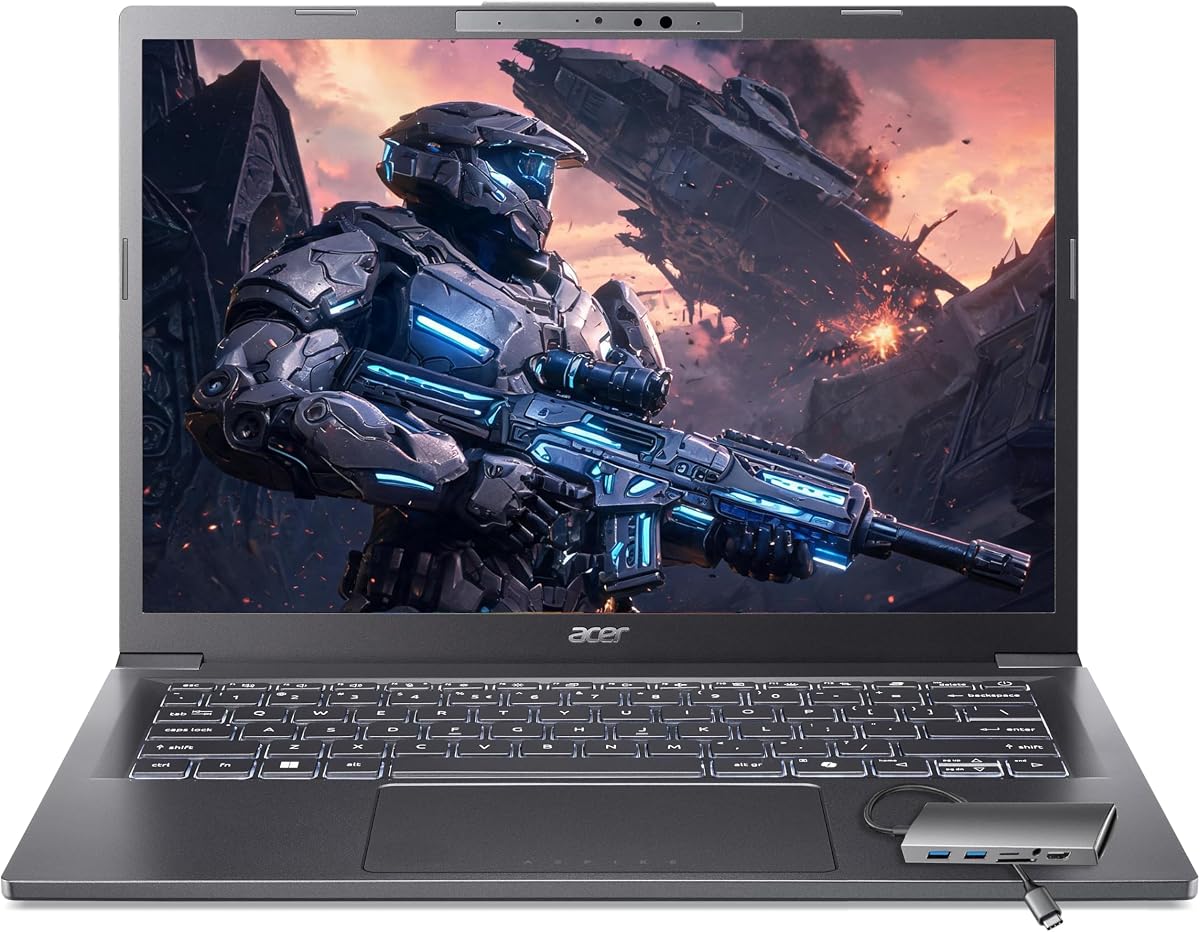
Acer Aspire Laptop 2026
4.8Editor score
32GB LPDDR5X memory
Intel Arc 140V graphics
2TB PCIe solid-state drive
A laptop for Lightroom must balance processing power, memory, storage, graphics capability, and a color-friendly display. The right combination makes importing, organizing, developing, and exporting large photo libraries feel responsive while remaining practical for work or travel.
This guide compares ten laptops using their listed processors, memory, storage, graphics, screens, ports, weight, and intended creative workloads. It covers premium creator machines, portable OLED models, larger-screen options, and more affordable systems for lighter editing.
Each recommendation reveals which photographers are most likely to benefit from its balance of capabilities. Ratings and configurations provide useful context, but availability and prices change, so readers should confirm the current listing and exact specification before purchasing.
4.8Editor score
4.3Editor score

4.3Editor score
As an Amazon Associate we earn from qualifying purchases.
The comparison below places all ten laptops side by side, highlighting their processor class, memory, storage, display characteristics, and practical relevance to a Lightroom workflow.




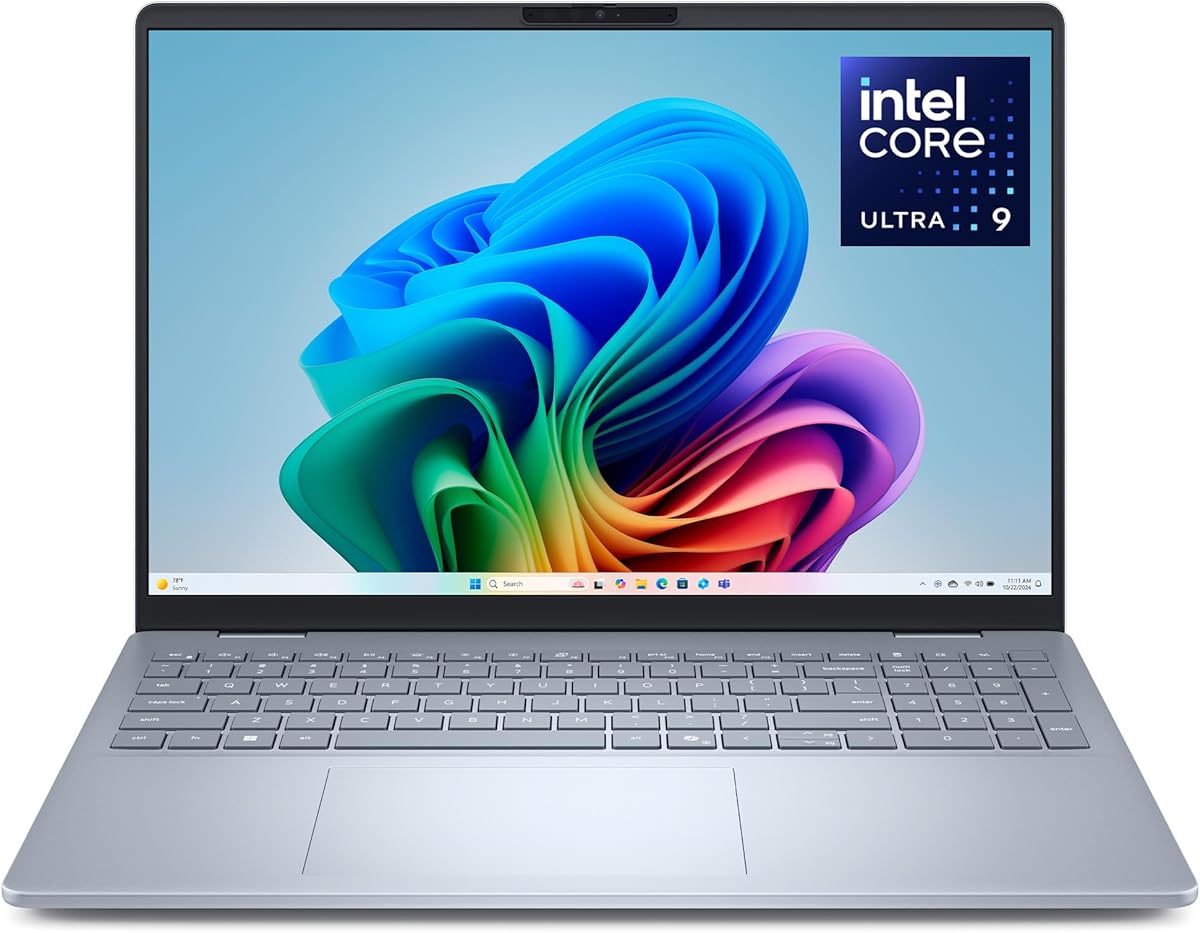
The Dell 16 Plus Laptop QHD+ combines an Intel Core Ultra 9 288V processor with 32GB of RAM, creating a strong foundation for Lightroom and other demanding creative applications. Its 4.3 rating and emphasis on efficiency, screen space, and dependable support make it a particularly compelling all-around recommendation.
We may earn a commission when you buy through this link, at no additional cost to you.
The Core Ultra 9 platform should comfortably support large catalogs, multitasking, catalog database activity, and simultaneous creative applications. A 16:10 display is especially useful for photo editing because Lightroom's interface contains many panels, and the taller ratio can reveal more of the image and editing controls without requiring an external monitor.
Dell also highlights military-grade testing, a durable aluminum design, and one year of onsite service for qualifying hardware issues. The main trade-off is portability: a 16-inch laptop is easier to use for detailed edits at a desk, but it will be bulkier in a travel bag than a compact 14-inch model.
This is the strongest choice for photographers who want serious processing power, plenty of memory, a practical large workspace, and professional support without moving to a much heavier workstation format. It also suits users who divide their time between Lightroom, catalog management, communication, and general office work.
The 16:10 QHD+ panel offers more vertical working area than a conventional widescreen display. That extra room helps Lightroom users compare previews, browse larger folders, and keep more controls visible without immediately reaching for an external display.
With 32GB of RAM, the laptop is well suited to keeping a substantial catalog open while switching among Lightroom, file browsers, cloud storage, and communication tools. The processor's emphasis on efficiency also targets cooler, quieter operation during lengthy creative sessions.
We may earn a commission when you buy through this link, at no additional cost to you.
The LG gram 17Z95P is built around a 17-inch WQXGA IPS panel with a 2560 by 1600 resolution and DCI-P3 99% color expression. That makes it an appealing choice for photographers who consider the display itself a central part of the Lightroom experience, especially when judging color and image detail.
We may earn a commission when you buy through this link, at no additional cost to you.
Its Intel Core i7-1195G7 processor, Intel Xe graphics, 16GB of LPDDR4X memory, and 1TB PCIe NVMe drive form a capable platform for photo selection, raw development, catalog browsing, and content creation. Thunderbolt 4 also makes external storage and high-resolution monitor connections straightforward.
The large display provides ample room for comparing images and keeping editing modules visible, while the IPS panel avoids the glossy reflections sometimes associated with smaller premium screens. However, the listed 16GB memory is less future-facing than the 32GB configurations elsewhere in this list, and 17-inch portability requires planning.
Choose the gram 17Z95P when display size, resolution, color coverage, and premium connectivity matter most. It is well suited to a fixed editing desk and photographers who regularly assess subtle color differences, make detailed selections, or work with large visual workspaces.
At 2560 by 1600, the screen provides considerably more usable space than a standard Full HD panel. Lightroom can be arranged with large previews, catalog folders, and adjustment panels visible at once, reducing screen switching during long editing sessions.
Two Thunderbolt 4 ports support high-bandwidth accessories and external displays. The full-size HDMI port, USB-A ports, microSD reader, and audio jack reduce the need for a permanent collection of simple adapters.
We may earn a commission when you buy through this link, at no additional cost to you.
The Acer Aspire Laptop 2026 pairs an Intel Core Ultra 7 258V processor, 32GB of LPDDR5X memory, and a 2TB PCIe SSD. Its 4.8 rating is the highest in this group, while the listed Intel Arc 140V graphics are specifically described as accelerating photo editing in Lightroom.
We may earn a commission when you buy through this link, at no additional cost to you.
This is an unusually strong value-oriented specification set for photographers. Thirty-two gigabytes of memory supports large catalog workloads and multitasking, while 2TB of storage leaves room for RAW files, exported images, caches, and project files. The integrated graphics are intended to improve Lightroom responsiveness without requiring a discrete GPU.
The 14-inch touchscreen supports stylus-based retouching and precise adjustments, although some photographers may prefer a non-touch display for a different visual experience. Its 3.09-pound weight and 0.7-inch thickness also make it easier to carry than most of the larger alternatives here.
The Acer is a strong recommendation for photographers seeking serious memory and storage without moving to a large premium workstation. It suits students, traveling creatives, and hybrid workers who want a capable Lightroom machine that can also handle video, design, and everyday productivity.
The 32GB memory and 2TB drive address two common limitations of affordable creator laptops: too little working memory and too little local storage. Together, they create a more comfortable environment for growing catalogs and asset libraries.
At just 3.09 pounds and 0.7 inches thick, the Aspire can accompany a photographer to a client session or editing trip. Its touchscreen also gives retouching workflows a direct, pen-friendly option when precision control is useful.
We may earn a commission when you buy through this link, at no additional cost to you.
The HP OmniBook 7 AI combines a 14-core Intel Core 9 270H processor with 32GB of DDR5 memory and a 1TB SSD. Its most eye-catching feature for Lightroom users is the 16-inch 2K OLED touchscreen, which supports a 120Hz refresh rate, HDR 500 nits, and 100% DCI-P3 coverage.
We may earn a commission when you buy through this link, at no additional cost to you.
The processor reaches up to 5.8GHz with turbo boost, providing strong performance for raw processing, large catalogs, and multitasking. The generous memory is useful when Lightroom, browser-based client communication, file management, and other applications remain open together throughout the day.
The OLED panel produces deep blacks and high contrast, which can make images feel vivid and detailed. Photographers should still judge their final work on calibrated displays, and some may prefer the more restrained output of a standard color-managed IPS panel. The 16-inch format also adds desk presence rather than ultraportable convenience.
This laptop is well suited to a creator who wants a vivid, interactive display and high-end processing in one relatively modern all-in-one. It is especially appealing for detailed retouching, image review, presentations, and users who value smooth visual interaction over gaming-oriented graphics.
The combination of 2K resolution, OLED contrast, a 120Hz refresh rate, and HDR support gives Lightroom's preview and editing interface a crisp, fluid appearance. The multitouch panel can also help with direct retouching adjustments.
Thirty-two gigabytes of DDR5 memory provides room for a demanding catalog and multiple open applications. The Core 9 processor's high boost clock should benefit short bursts of intensive processing such as preview generation and file-heavy operations.
We may earn a commission when you buy through this link, at no additional cost to you.
The NIMO 17.3-inch model combines an eight-core Ryzen 7 8745HS processor with 32GB of DDR5 memory and a 1TB PCIe 4.0 SSD. Its 4.7 rating reflects a capable specification set that should serve photographers who want editing performance and room to expand.
We may earn a commission when you buy through this link, at no additional cost to you.
The Ryzen chip uses Zen 4 architecture and can reach 4.9GHz, providing useful processing power for Lightroom development, catalog operations, exports, and additional software. Radeon 780M integrated graphics add more creative capability than basic display graphics without requiring a separate graphics card.
A major advantage is upgradability. Dual SO-DIMM and dual M.2 2280 slots allow the memory to be expanded to 64GB and storage to be increased, allowing the laptop to grow with a catalog or changing creative ambitions. The 17.3-inch Full HD screen is roomy but offers fewer pixels than the OLED and QHD alternatives.
Choose this NIMO if you want substantial current specifications, future expansion, and multiple fast ports without requiring a discrete graphics laptop. It is a good match for photographers who also edit video, develop software, or need to keep several demanding applications open simultaneously.
Dual memory slots and two M.2 positions provide unusual flexibility for a consumer laptop. A photographer can start with the listed 32GB and 1TB and add capacity later if a larger catalog, more complex exports, or additional creative software changes the workload.
The USB4 port, additional USB-C connection, three USB-A ports, HDMI 2.1, and SD card reader cover many common editing needs. Fast card transfers and direct storage or monitor connections can simplify a desk setup.
We may earn a commission when you buy through this link, at no additional cost to you.
The NIMO 15.6-inch IPS laptop uses a Ryzen 7 PRO 6850U processor, 32GB of LPDDR5 memory, and a 1TB PCIe 4.0 SSD. Its 4.4 rating and business-oriented feature set make it a compelling option for photographers who edit on a normal-sized, portable screen.
We may earn a commission when you buy through this link, at no additional cost to you.
The eight-core processor is designed for efficient multitasking, while Radeon 680M integrated graphics support light creative work and smooth high-resolution media playback. With 32GB of memory, the system can handle a sizable Lightroom catalog alongside communication tools, browser sessions, and office applications.
The anti-glare Full HD display is practical for extended work in bright rooms, and the laptop includes a fingerprint reader, physical webcam shutter, backlit keyboard, and flexible hinge. The fixed LPDDR5 memory cannot be expanded, and the display's native resolution is lower than the premium options.
This is a good choice for a photographer who prioritizes memory, efficient performance, warranty coverage, and practical connectivity over premium display resolution. It fits well in a hybrid work environment and may be especially attractive for business users handling both creative and administrative tasks.
The Ryzen 7 PRO 6850U's eight-core architecture supports demanding multitasking without moving into a heavy workstation design. It is relevant for Lightroom users who need reliable responsiveness across editing, file management, meetings, and documentation.
Dual full-function USB-C connections, HDMI 2.0, three USB-A ports, a backlit keyboard, fingerprint reader, and physical camera shutter create a practical office setup. The configuration can support a monitor and several accessories without relying on a large adapter collection.
We may earn a commission when you buy through this link, at no additional cost to you.
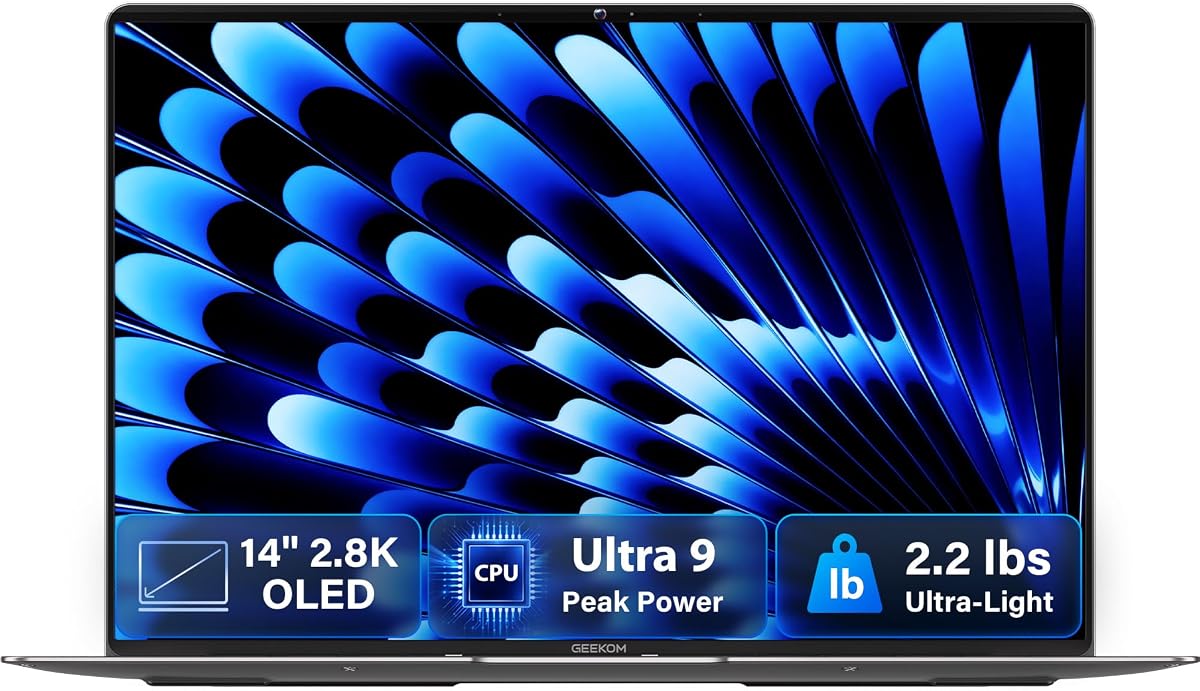
The GEEKOM GeekBook X14 Pro is a highly portable creator laptop with a 2.8K OLED display, 32GB of LPDDR5X memory, and a 1TB PCIe Gen4 SSD. Its 4.3 rating reflects a balanced combination of strong specifications, a 2.2-pound magnesium-alloy body, and creator-focused connectivity.
We may earn a commission when you buy through this link, at no additional cost to you.
The Core Ultra 9 185H processor offers 16 cores, 22 threads, and up to 5.1GHz, giving Lightroom workflows plenty of computational headroom. Intel Arc graphics, a dedicated NPU, and hardware acceleration support modern creative and on-device AI functions without requiring a discrete GPU.
Its 14-inch OLED panel includes 100% DCI-P3 coverage, a 120Hz refresh rate, and brightness up to 450 nits. That makes it attractive for travel editing, although the smaller screen may feel less spacious than the 16- and 17-inch alternatives. The included dock and dual USB4 ports improve desk flexibility.
Buy this model when a powerful Lightroom machine must be carried regularly. It is ideal for a traveling photographer, student, or creative professional who values an excellent color-capable display, low weight, fast memory, and high-speed external connections.
At 2.2 pounds and 0.23 inches thick, the GeekBook X14 Pro is notably easier to carry than the larger creator laptops in this comparison. Its 2.8K OLED display preserves fine detail while keeping the device suitably compact.
The listed 7500MHz LPDDR5X memory and Core Ultra 9 processor provide responsive multitasking for catalog work and image development. Two 40Gbps USB4 ports, HDMI 2.1, USB-A, and an included dock simplify connections to displays, storage, and accessories.
We may earn a commission when you buy through this link, at no additional cost to you.
The NIMO 15.6-inch AI Creator Laptop offers a Ryzen 5 6600H processor, 16GB of DDR5 memory, and a 512GB PCIe SSD. Its 5.0 rating is the highest numerical rating listed, although the lighter specification makes it more appropriate for entry-level editing and learning.
We may earn a commission when you buy through this link, at no additional cost to you.
The six-core, 12-thread processor can handle daily multitasking, light photo editing, media playback, and remote work. Radeon 660M graphics are suitable for ordinary creative tasks and avoid the heat and power demands associated with a dedicated graphics solution.
Its most practical advantage is upgradeability. Dual SO-DIMM slots support expansion to 64GB of RAM, and the M.2 2280 storage position can accommodate as much as 4TB. That means the listed 16GB and 512GB can serve as a starting point rather than a permanent ceiling.
Choose this laptop for students, hobbyists, or traveling photographers who will work with moderate catalogs and need room to upgrade. It is less suitable as a ready-to-go machine for very large RAW libraries, but it offers a flexible path for growing workflows.
The Ryzen 5 6600H and 16GB of memory provide enough capability for everyday Lightroom editing and school or office multitasking. It is most suitable for users who are building a catalog gradually rather than managing a large professional archive.
Dual SO-DIMM slots and a replaceable M.2 drive make it possible to increase memory and storage as the user's workload grows. That flexibility helps extend the useful life of the laptop for future editing and productivity needs.
We may earn a commission when you buy through this link, at no additional cost to you.
The NIMO 17.3-inch AI-Creator Laptop combines a Ryzen 5 6600H processor with 16GB of DDR5 memory and a 512GB PCIe SSD. Its 4.4 rating and large display make it an interesting option for users who prioritize screen area and flexibility over premium specifications.
We may earn a commission when you buy through this link, at no additional cost to you.
Radeon 660M graphics support photo editing, design previews, HD playback, and presentations. The 17.3-inch Full HD panel offers more space for folders and split-screen work, which can reduce the number of applications or windows a Lightroom user needs to keep visible at once.
The laptop remains upgradeable through dual SO-DIMM and M.2 slots, allowing memory to reach 64GB and storage up to 4TB. Its listed weight of no more than 2.1kg and thickness of about 19.9mm make it lighter and slimmer than many large-screen alternatives.
This is a sensible option for a student, hobbyist, or hybrid office user who wants a big screen and plans to expand the system. For a professional handling huge catalogs immediately, one of the 32GB configurations would offer a safer starting point.
The large 16:9 panel gives Lightroom more physical space for the image preview, folder tree, and editing controls. That can make navigation easier for users who do not want to connect an external monitor at a basic editing station.
A stated weight of 2.1kg or less helps offset the usual burden of a 17.3-inch display. The 175-degree hinge also makes it easier to share the screen during a review, presentation, or client discussion.
We may earn a commission when you buy through this link, at no additional cost to you.
The HP 17-inch Business Laptop is a basic large-screen option with an AMD Ryzen 5 CPU, 16GB of RAM, and a 512GB SSD. Its 4.5 rating, anti-glare Full HD display, and long-battery-life emphasis make it relevant for basic photo organization and editing.
We may earn a commission when you buy through this link, at no additional cost to you.
The 17.3-inch screen gives users ample space to browse images, compare details, and work in multiple windows. A full-size keyboard with a numeric keypad may be helpful for catalog renaming, metadata entry, and other repetitive tasks, while a 720p camera supports everyday calls.
The listed 16GB of memory and 512GB of storage are modest for a serious professional catalog, and the listing does not identify a specific Ryzen 5 model. It may require prompt storage upgrades for RAW files, exports, and application data. GPU specifications are also not provided.
Choose this HP for general office work, learning Lightroom, or a modest collection of photographs. It is less compelling for intensive retouching or large professional libraries, but its large screen and portable design can still make light editing more comfortable.
The anti-glare Full HD panel reduces distracting reflections and offers enough area for Lightroom's main panels. It is a practical display for indoor work and users who prioritize a large screen over high pixel density.
Windows 11, Office 365 for the web, a 720p camera, digital microphones, fast charging, and a numeric keypad support general office duties. These features make the laptop more than a dedicated photo editor when work and communication share the same device.
We may earn a commission when you buy through this link, at no additional cost to you.
The most important Lightroom laptop is the one that matches your catalog size, editing intensity, display needs, and mobility. Processors, memory, storage, graphics, and the screen should be considered together rather than in isolation.
The processor affects preview generation, raw development, catalog operations, exports, and overall responsiveness. Modern Core Ultra 9, Core Ultra 7, Core 9, Ryzen 7, and Ryzen 7 PRO options in this list provide a useful foundation for demanding workflows. Look beyond core count alone and consider sustained performance, cooling, and the balance between CPU and GPU acceleration.
Choose a current high-performance processor when editing large RAW files, maintaining very large catalogs, or running Lightroom alongside video editing and other demanding applications.
RAM helps Lightroom hold catalog information, image previews, application data, and temporary processing files. Sixteen gigabytes can work for smaller collections and mixed productivity tasks, but 32GB offers a better margin for large libraries, multiple applications, and future growth. LPDDR memory is efficient but usually fixed, while systems with dual SO-DIMM slots may permit later expansion.
Prioritize 32GB when the laptop will be a long-term creative workstation or must handle large libraries alongside demanding software.
Photographers need room for RAW originals, edited exports, catalog files, previews, and application data. A 1TB drive is a practical minimum for a dedicated editing machine, while 2TB reduces the need to move files frequently. PCIe NVMe storage also improves boot time, application launching, and transfer speed, which matters during large import sessions.
Choose storage based on your existing library and editing habits, but avoid leaving too little free capacity for cache files and future exports.
Integrated Intel Arc, AMD Radeon 680M, Radeon 660M, and Radeon 780M graphics can support hardware-accelerated Lightroom tasks, while the Acer configuration explicitly highlights Intel Arc 140V acceleration. GPU performance also affects video playback and other creative applications. Color-critical work additionally depends on a capable display, software calibration, and viewing environment rather than graphics performance alone.
Choose graphics appropriate to your workflow, and do not assume that a vivid-looking screen is automatically calibrated for professional color judgment.
A larger screen helps with Lightroom's interface, while higher resolution makes fine details easier to inspect. The Dell's 16:10 panel, LG's WQXGA IPS display, HP's 2K OLED, and GEEKOM's 2.8K OLED provide varying combinations of workspace, detail, and color capability. IPS and OLED panels both suit creative work, but the OLED models offer deeper contrast and higher refresh rates.
Prioritize resolution for detailed inspection and panel capability for color work, then calibrate the selected display with appropriate software and hardware.
A Lightroom laptop may need to move between a home studio, office, classroom, hotel, or client location. The GEEKOM is the lightest listed option at 2.2 pounds, while the Acer combines a 3.09-pound weight with a 0.7-inch profile. Larger 16- and 17-inch models usually provide more screen area but require more space in a bag. Battery claims should be treated as workload-dependent.
Choose the lightest model that still provides enough display area and processing power for your real editing routine.
Photographers often connect external SSDs, card readers, calibrated monitors, colorimeter devices, and backup drives. USB4, Thunderbolt 4, USB-C, HDMI, and built-in SD readers can simplify those tasks and reduce adapter clutter. A card reader is particularly convenient for moving new images into the catalog before importing them to a larger working drive.
Check the port selection against your current accessories, especially if you already rely on a particular external display, backup device, or card reader.
Support can matter when a portable creator machine travels frequently or becomes essential to paid work. Dell includes one year of onsite service for qualifying hardware issues. NIMO's listed configurations include a two-year manufacturer warranty and a 90-day return window, while GEEKOM includes a one-year limited warranty and 24/7 U.S.-based technical support.
Consider warranty coverage and local support alongside performance, because the most capable specification cannot compensate for a machine that is inconvenient or costly to service.
Begin by copying new images to a fast working drive while keeping originals on separate storage. Open the catalog in Lightroom, verify that the drive is indexed, and avoid disconnecting it during preview generation or catalog writes. Consistent folder names and a structured filing system reduce duplicate imports and make future backups easier to verify.
Treat the screen as a viewing tool rather than an uncalibrated reference monitor. Keep the operating system's brightness and color profile consistent, use a soft ambient light, and calibrate the panel with a suitable colorimeter when accurate decisions matter. Avoid judging final color from a dim room or an overly bright screen, and keep a calibrated reference display for demanding assignments.
Protect performance by reserving storage space for the operating system and application cache. Let long exports and imports finish without forcing repeated shutdowns, keep ventilation openings clear, and clean the laptop only according to the manufacturer's instructions. Back up both the catalog and original files regularly, and verify that restores work rather than assuming every backup is complete.
Sixteen gigabytes is generally workable for smaller libraries and a laptop used mainly for editing. Thirty-two gigabytes is the better target for large catalogs, heavy RAW processing, multiple applications, and long-term creative work. Consider whether memory is fixed before purchasing, because some thin laptops cannot be upgraded later.
A discrete GPU is not always required for standard photo editing. Modern integrated graphics, including the Intel Arc and Radeon options listed here, can accelerate Lightroom and handle related media work. A discrete GPU becomes more compelling for intensive video editing, demanding 3D work, or heavily accelerated workflows rather than Lightroom alone.
The ideal panel combines accurate color, good resolution, sufficient brightness, and a comfortable size. The HP OmniBook 7 AI and GEEKOM GeekBook X14 Pro offer high-resolution OLED screens, while the LG gram 17Z95P provides a large WQXGA IPS panel with broad DCI-P3 coverage. For color-critical work, calibrate the chosen display and maintain suitable ambient lighting.
It can be enough for a smaller collection, but RAW files, exports, previews, and applications consume space quickly. A 1TB drive offers more flexibility, while 2TB is preferable for photographers who want to keep a substantial working library on the laptop. Users should also maintain separate backups and keep some free space available.
A 14-inch model is generally easier to carry and is well suited to mobile editing. A 17-inch model offers more room for Lightroom panels and photo comparisons but is heavier and less convenient for travel. The best choice depends on whether your priority is a compact editing setup or a stationary, large-workspace experience.
Several can, particularly those with Core Ultra 9, Core Ultra 7, Core 9, Ryzen 7 8745HS, or Ryzen 7 PRO processors and 32GB of memory. The Acer is specifically described as supporting 1080p editing in Premiere and DaVinci Resolve, while the NIMO Ryzen 7 model highlights 4K and 8K playback. Actual performance depends on the project, codec, effects, and thermal limits.
Adobe's software requirements can change, so the current official compatibility list should be checked before buying or upgrading. Several laptops in this comparison are explicitly listed with Windows 11. Confirming the operating system, application version, hardware requirements, and account requirements can prevent compatibility surprises.
Verify the exact processor, memory capacity, storage size, screen resolution, ports, weight, operating system, and warranty for the specific listing. Configuration details can vary between sellers, and manufacturer pages may include additional information. Also check that the selected display and laptop size fit your editing style and travel requirements.
The Dell 16 Plus QHD+ stands out as the most balanced premium recommendation, combining a Core Ultra 9 processor, 32GB of memory, and a spacious 16:10 display. The Acer Aspire 2026 delivers the strongest budget-oriented package for Lightroom, while the LG gram 17Z95P prioritizes a large, color-capable IPS workspace.
For lighter editing, the HP OmniBook 7 AI and GEEKOM GeekBook X14 Pro offer high-resolution OLED screens, with the GEEKOM leading in portability. The NIMO range provides several useful upgrade paths, while the HP 17-inch Business Laptop serves best as an accessible large-screen starting point for basic workflows.
Before purchasing, confirm the current configuration, display details, port requirements, warranty, and current price for the exact listing. Specifications and prices can change, so the product page should be treated as the final source of truth for availability and included features.