
Lumens DC166
3.6Editor score
Six-times optical zoom
Multiple resolution modes
One-touch video recording
Interactive whiteboard compatibility
A document projector for the classroom must turn papers, worksheets, textbook pages, artwork, and small objects into clear visuals that students can follow from their seats. The right choice depends on whether the device is a visual presenter, overhead projector, or conventional classroom display projector, as well as on image quality, lighting, connectivity, and ease of operation.
The products in this guide span document cameras, an overhead projector, short-throw models, and traditional LCD classroom projectors. Their ratings and listed specifications were compared for image resolution, brightness, capture area, zoom, lighting support, connectivity, portability, and suitability for common teaching environments, giving buyers a practical way to narrow the field.
Each review explains the strongest reason to consider the product alongside its limitations and ideal user. The top picks emphasize wireless flexibility, dependable wired document capture, and classroom value, while the complete list shows how projection needs differ. Product availability, features, and prices can change, so confirm current details before purchasing.
3.6Editor score

4.6Editor score

4.4Editor score
As an Amazon Associate we earn from qualifying purchases.
This side-by-side comparison distinguishes document cameras, overhead projectors, and screen projectors while highlighting the resolution, brightness, connectivity, and teaching features that matter most in a classroom.
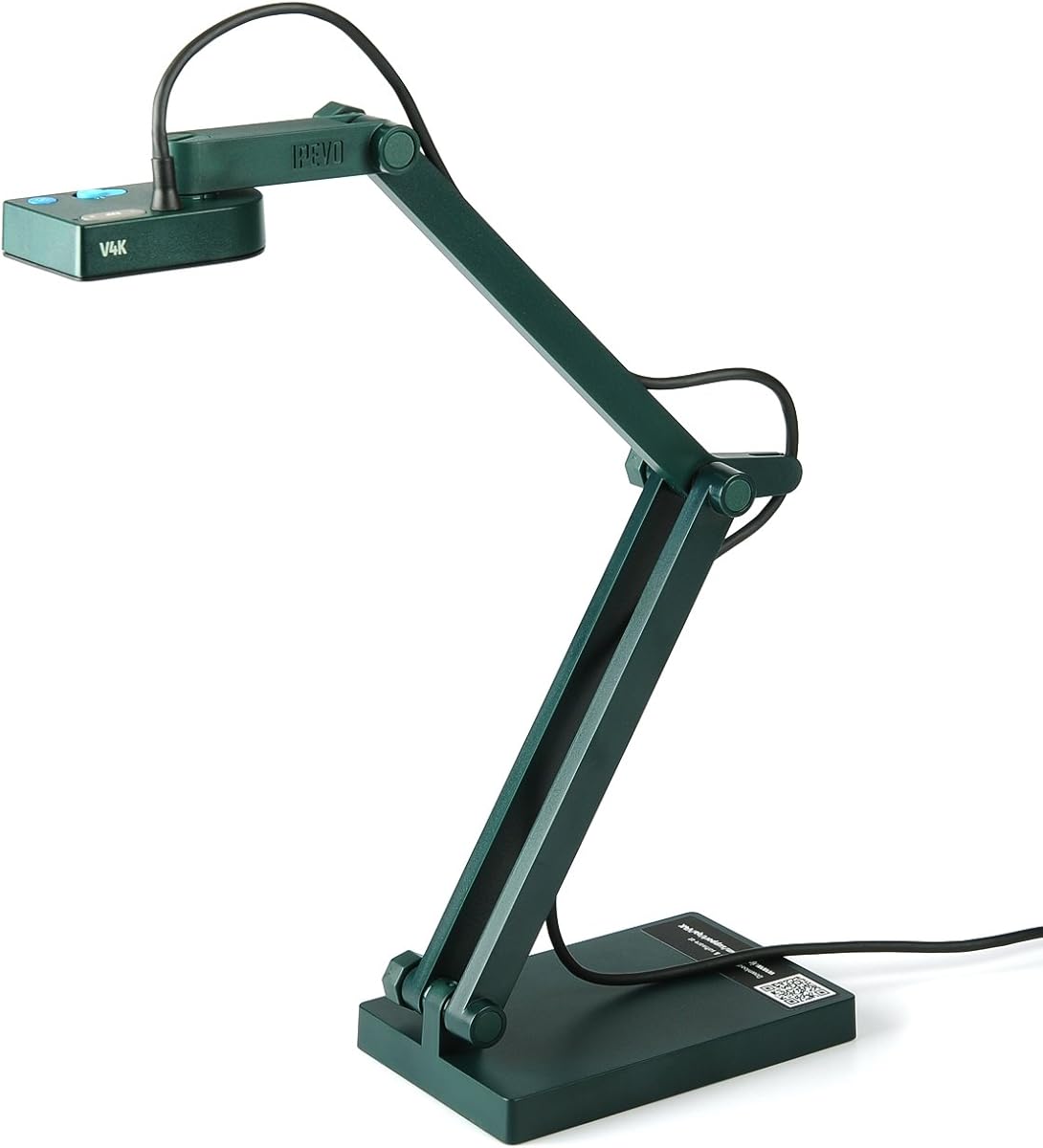




The IPEVO V4K is an 8MP USB document camera built for teachers who need detailed views of printed pages, small writing, demonstrations, and other classroom materials. Its 4.5 rating reflects a generally favorable balance of image quality, fast focusing, and straightforward computer use. The camera can capture live images at up to 3264 by 2448 pixels and stream at up to 30 fps at Full HD.
We may earn a commission when you buy through this link, at no additional cost to you.
Its Sony CMOS sensor is designed to reduce noise and reproduce color more accurately when classroom lighting is imperfect. Fast focusing is particularly useful when a teacher alternates between a worksheet, a handwritten note, and a three-dimensional object. The multi-jointed stand also makes it easier to change height, angle, and orientation without repeatedly moving the entire unit on the desk.
The main limitation is its dependence on a wired computer connection and a reasonably capable system. The listed recommendations call for an Intel Core i5-class processor, suitable operating system, solid-state drive, 4 GB RAM on Windows, and dedicated video memory for smooth Full HD streaming. Teachers with older or heavily shared classroom computers should check compatibility before purchase.
It is an excellent choice for a permanent document-camera station, particularly when image detail and responsive focusing matter more than wireless mobility. With the computer already connected and streaming software in place, the V4K can become a straightforward visual tool for lectures, tutoring, distance learning, and parent meetings.
The 8MP sensor and high maximum resolution are useful when students need to see fine print, equations, diagrams, or the texture of a classroom object. The live stream can also provide a useful close-up during a practical demonstration.
Fast focusing reduces the pauses that often occur when teachers switch materials. A flexible multi-jointed stand supports quick repositioning, making the camera practical for frequent, unscripted classroom use.
We may earn a commission when you buy through this link, at no additional cost to you.
The Apollo Horizon 2 uses a traditional overhead-projection format rather than a digital document-camera sensor. With a 4.2 rating, 2000-lumen output, and a 10-by-10-inch open head, it is designed for schools that regularly use transparencies and want a direct optical path from the document stage to a classroom screen.
We may earn a commission when you buy through this link, at no additional cost to you.
Its largest advantage is the physical viewing surface. Teachers can place a transparency, worksheet, or other transparent material on the illuminated stage, adjust the mirrors, and send the enlarged image toward a wall or screen. VGA and USB connectivity make it possible to incorporate computer-based content when the same classroom setup needs both traditional and digital sources.
The open-head format is less flexible than a modern document camera for digital materials. It occupies more space, and the 10-by-10-inch stage is a physical limitation when the goal is to capture a full page with dense text. It also lacks the electronic focusing, digital zoom, and software annotation features expected from newer visual presenters.
This projector makes the most sense for institutions committed to transparency-based instruction or seeking a simple optical backup for older media. For everyday paper viewing, online lessons, video conferencing, and digital annotation, one of the camera-based options will usually be more versatile and easier to integrate with modern teaching software.
The overhead design enlarges transparent materials without requiring them to be scanned or placed beneath a digital camera. That makes it useful for older classroom collections of transparencies.
VGA and USB connections broaden the unit beyond transparency use. Teachers can retain older teaching materials while adding a wired computer source when needed.
We may earn a commission when you buy through this link, at no additional cost to you.
The IPEVO VZ-X is the most flexible document camera in this guide, combining Wi-Fi, HDMI, and USB operation in one 8MP device. Its 4.6 rating makes it an especially strong choice for teachers who move between a computer, mobile device, television, interactive display, or projector. It captures 1920 by 1080 in wireless and HDMI modes and up to 3264 by 2448 through USB.
We may earn a commission when you buy through this link, at no additional cost to you.
The built-in LED illuminates the viewing area, reducing dependence on room lighting and helping the camera present small objects or pale paper more consistently. A swiveling head, multi-jointed stand, and compact footprint make it practical to move around a room, while buttons on the camera body allow adjustments without returning to the computer.
Wireless range is listed at up to 33 feet, and the battery is advertised for nine to twelve hours of use. Those specifications are well suited to a full class or presentation session, although walls, interference, device compatibility, and network configuration can affect real-world wireless behavior. The USB mode also delivers the highest stated image resolution.
The VZ-X is recommended for teachers who value presentation mobility and broad device support more than the simplicity of a fixed USB-only setup. It is particularly attractive for hybrid classrooms, collaborative demonstrations, and rooms where the document camera must connect to several types of display.
Wi-Fi, HDMI, and USB modes let teachers select a connection that suits the lesson rather than being limited by a single interface. The camera can connect to computers, iOS and Android devices, Apple TV, projectors, televisions, and monitors.
A listed 33-foot wireless range and nine-to-twelve-hour battery life support roaming demonstrations. The flexible stand and swiveling head make it easier to point the camera at people, objects, or a document.
We may earn a commission when you buy through this link, at no additional cost to you.
The THUSTAR A3-Size combines an 8MP document camera, webcam, and USB visualizer at an accessible price point. Its 4.4 rating and broad feature set make it a compelling choice for budget-conscious classrooms that need more than a basic overhead lens. It supports live image and video output at up to 30 fps and includes a one-touch automatic focus.
We may earn a commission when you buy through this link, at no additional cost to you.
Lighting is handled by 14 ring-lamp beads with three brightness levels, while separate buttons adjust image brightness and orientation. The inversion control is particularly helpful when the image appears reversed or upside down relative to the physical page. Its adjustable arm and folding design also allow the camera to cover larger materials and collapse for storage or transport.
As a wired USB device, it depends on a compatible computer and does not offer the wireless freedom of the IPEVO VZ-X. The listed maximum coverage description contains an inconsistent dimension, so buyers needing precise A3 framing should verify the usable area rather than relying on that statement alone. Compatibility also depends on the software and meeting platform being used.
Despite these caveats, the camera offers a strong foundation for live demonstrations, remote instruction, and online classes. It is a practical recommendation for a new classroom setup, a traveling teaching kit, or teachers who want automatic focus, microphones, and adjustable lighting without moving to a higher-priced specialist model.
Three LED levels help teachers compensate for dark corners, bright rooms, or reflective pages. Manual brightness controls add another layer of control when automatic results are not quite right.
Dual built-in microphones make the camera more relevant for distance education and video calls. Its listed platform compatibility includes Google Meet, Zoom, and Microsoft Teams.
We may earn a commission when you buy through this link, at no additional cost to you.
The INSWAN INS-2 is built for educators who regularly present large documents, artwork, and two-page spreads. Its 4.4 rating reflects a capable 13MP Sony sensor and 4K Ultra HD output at 3840 by 2160 and 30 fps. The multi-joint arm supports documents up to A3 size, providing more physical coverage than a compact webcam-style visualizer.
We may earn a commission when you buy through this link, at no additional cost to you.
A built-in LED light improves visibility, and a dual-mode autofocus system helps maintain clear images as the camera changes focus. The supplied Documate software adds zoom, annotation, video recording and scanning, whiteboard tools, and OCR. Those features can make the camera more than a simple live-feed device, particularly for lesson preparation and reusable instructional content.
Compatibility is broad but not universal. The listed requirements cover recent Windows and Mac systems, compatible iPads with USB-C, and Chromebooks, along with common conferencing platforms. Because Documate must be downloaded from the manufacturer's website, setup involves a little more work than relying exclusively on plug-and-play computer controls.
The INS-2 is an excellent option for art instruction, demonstrations, document-heavy courses, and educators who want annotation and recording tools in one package. It is especially attractive when image resolution and an A3 capture area are central priorities, although teachers should verify operating-system and device requirements before committing.
The 13MP sensor and 4K stream provide high-resolution imagery for artwork, diagrams, and fine print. This makes the camera particularly useful when students need to inspect small visual details.
Documate adds annotation, whiteboard tools, OCR, recording, and scanning. Teachers can prepare visual material or capture lessons in a more structured format.
We may earn a commission when you buy through this link, at no additional cost to you.
The Lumens DC166 is a specialist document camera distinguished by 6x optical zoom, manual zoom, and up to 8x digital magnification. Its 3.6 rating is the lowest in the group, but the listed optical and storage features explain why it remains relevant for schools, institutions, and professional training spaces that value magnification and traditional presenter controls.
We may earn a commission when you buy through this link, at no additional cost to you.
Rather than relying only on electronic cropping, the DC166 can optically enlarge small print, components, and detailed objects. One-touch video recording and playback are useful for preserving demonstrations, while internal memory can hold 120 JPEG images. An SD card slot accepting cards up to 32 GB expands that working storage further.
Compatibility with all interactive whiteboards makes the camera useful in meeting-heavy rooms where the presenter display is a central part of instruction. On the other hand, its lower rating may reflect concerns that cannot be determined from the supplied data, including value, ease of use, or performance relative to newer alternatives. Its higher price also places it in a different buying tier.
This is the recommendation for a buyer who specifically values optical magnification, expandable image storage, and established whiteboard compatibility. Teachers who mainly need a simple plug-and-play camera for online lessons may find a newer 4K model more aligned with current classroom software and mobile workflows.
The 6x optical zoom provides a different kind of enlargement from digital cropping. It is useful for fine print, small components, and compact objects that teachers need to show in detail.
One-touch recording, playback, internal JPEG storage, and an SD card slot simplify the capture of demonstrations. The camera can also serve interactive whiteboard installations.
We may earn a commission when you buy through this link, at no additional cost to you.
The Epson PowerLite 118 is a conventional classroom projector rather than a visual presenter, yet its 4.9 rating makes it the strongest choice here for projecting prepared slides, worksheets, videos, and other computer content. It uses 3LCD technology and supports ceiling mounting, giving schools a flexible installation option for permanent or mobile use.
We may earn a commission when you buy through this link, at no additional cost to you.
Its listed 17,000-hour lamp life is a major advantage for frequent classroom operation. The moderator function can connect up to 50 users simultaneously, which may help teachers manage questions or collaborative sessions, while a built-in speaker provides audio without requiring a separate classroom speaker for every presentation.
It does not replace a document camera. Printed pages generally need to be scanned or captured by a separate visualizer before being displayed. Its 4:3 format is also less widescreen than modern presentation formats, although that aspect ratio can suit certain classroom screens and older content.
The PowerLite 118 is recommended for schools that need a dependable screen projector alongside a separate document camera. Teachers prioritizing lamp longevity, installation flexibility, and group-display features are likely to find it especially compelling, particularly in rooms used throughout the school day.
A listed 17,000-hour lamp life helps position the projector for long operating schedules. This makes it more relevant to a permanent classroom role than occasional portable use.
The moderator function supports up to 50 simultaneous users, and the integrated speaker simplifies audiovisual presentation. Ceiling mounting provides another installation option.
We may earn a commission when you buy through this link, at no additional cost to you.
The DLP Business Projector is a straightforward 3300-lumen projector intended for offices, classrooms, meeting rooms, and training spaces. Its 5.0 rating is the highest in this list, and the supplied features emphasize clear group viewing, professional color and contrast, rapid startup, and uncomplicated wired setup.
We may earn a commission when you buy through this link, at no additional cost to you.
The built-in DLP system supports clean presentation of slides, documents, charts, and other visual content. Its 3300-lumen output is designed for everyday indoor use where ambient light may make weak projection difficult to read. Fast startup is valuable for teachers moving between back-to-back classes or administrators running meetings in shared rooms.
The product is a display projector, not a document visualizer, so teachers must scan or separately capture physical pages. The listed connectivity approach is also wired, which keeps setup predictable but does not offer the cable-free flexibility of a wireless document camera. Detailed specifications such as native resolution and throw ratio are not provided in the source data.
It is a sensible recommendation for straightforward classroom projection with a room that is not heavily affected by daylight. Buyers should treat it as the screen-display component of a teaching system, adding a document camera if physical papers and objects need frequent visual presentation.
The 3300-lumen output targets the typical brightness challenges of classrooms and meeting spaces. It is intended to keep slides, charts, and instructional graphics visible under normal indoor conditions.
Quick startup reduces the delay between preparing a room and beginning instruction. Simple wired operation also reduces the number of connection steps for regular users.
We may earn a commission when you buy through this link, at no additional cost to you.
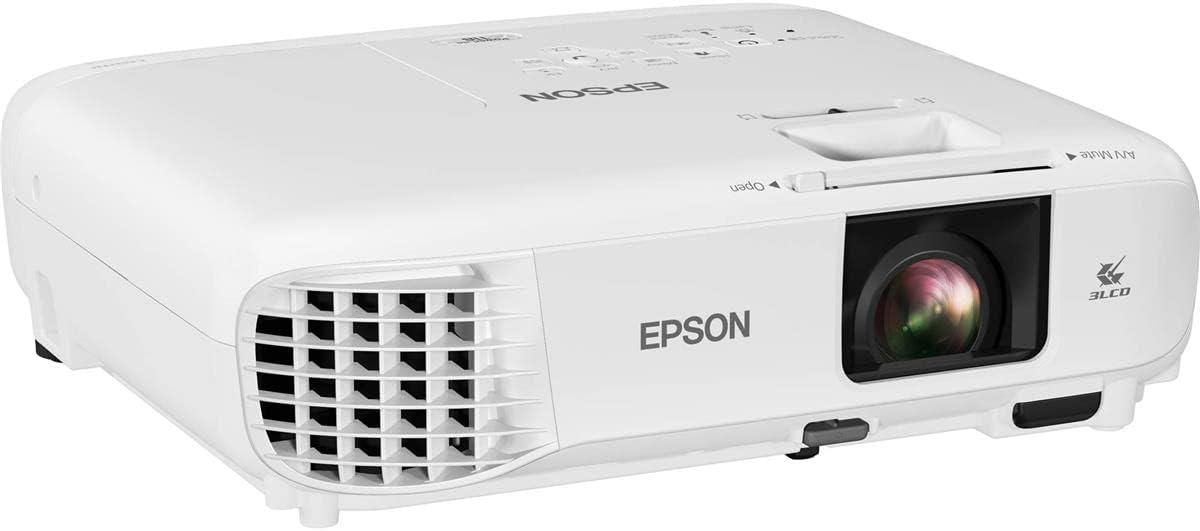
The Epson PowerLite E20 is a 4:3 LCD projector designed for flexible classroom placement and ceiling mounting. Its 4.8 rating indicates a strong reception, while the listed 3LCD technology and 12,000-hour lamp life make it appropriate for schools that want colorful presentation images and a long-lived classroom installation.
We may earn a commission when you buy through this link, at no additional cost to you.
HDMI carries video and audio through a single cable, simplifying the connection between a teacher laptop and the projector. A five-watt built-in speaker removes the need for separate audio equipment in many small-room lessons. Flexible construction supports different room positions, and the white finish is appropriate for many contemporary classroom interiors.
As with the other dedicated projectors in this guide, it cannot directly capture a worksheet or physical object. A separate document camera is necessary for live demonstrations of papers and three-dimensional items. Its 4:3 ratio also requires attention when displaying widescreen material, and the supplied information does not include brightness or native resolution details.
The E20 is a balanced choice for teachers who primarily project prepared digital content and value straightforward setup. It is worth considering for a permanent classroom position or flexible ceiling-mounted installation, particularly alongside a dedicated camera such as the IPEVO V4K or INSWAN INS-2.
Epson's 3LCD technology is intended to produce vibrant, true-to-life presentation images. It is a useful fit for diagrams, charts, photographs, and classroom slides.
Single-cable HDMI transfers both video and sound. The five-watt speaker gives teachers a straightforward option for presentations without requiring a separate speaker.
We may earn a commission when you buy through this link, at no additional cost to you.
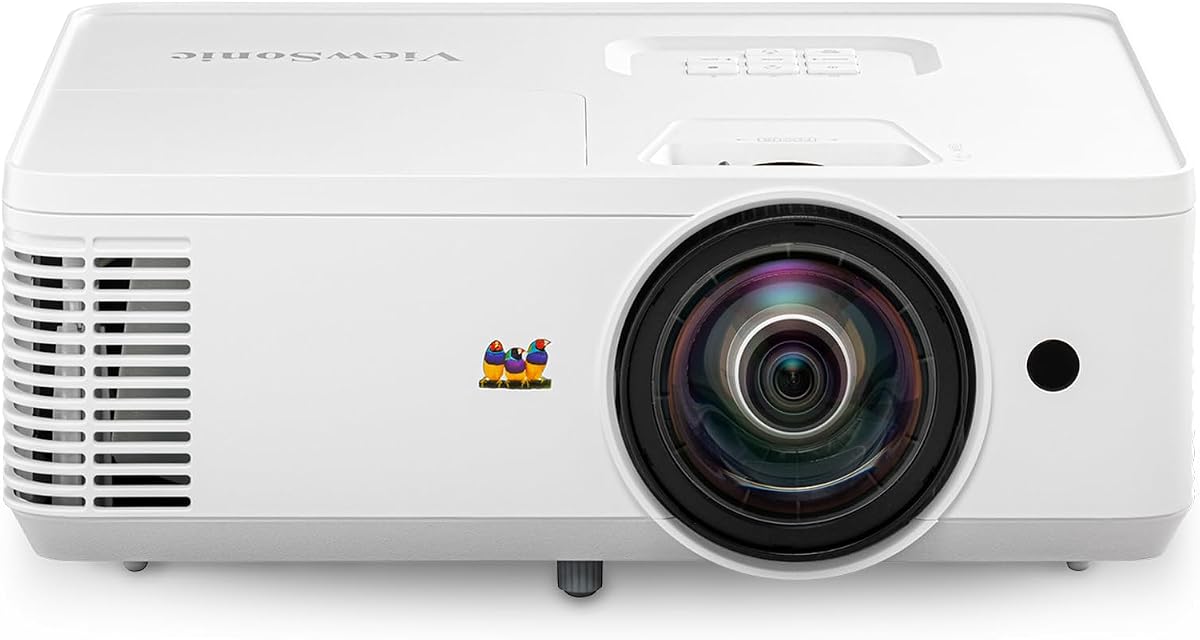
The ViewSonic PS502W is built for classrooms and small meeting rooms where a conventional projector would sit too close to the screen. Its 4.4 rating complements a 4000-ANSI-lumen output and 0.5 throw ratio. The short-throw design can create a 100-inch image from 4.5 feet away and supports screen sizes up to 150 inches.
We may earn a commission when you buy through this link, at no additional cost to you.
Brightness is a major strength in rooms with windows, lights, or pale walls. SuperColor technology is intended to provide a wide color gamut for educational and professional visuals. Vertical auto-keystone correction and digital zoom simplify alignment, while dual HDMI inputs make it easier to switch between classroom devices.
Its WXGA resolution of 1280 by 800 is lower than many modern 4K products, so extremely fine text may appear less crisp than it would on a higher-resolution display. The short throw also means placement choices are narrower, although that is precisely the benefit in a compact room. Instant power-on and off functions support fast transitions between lessons.
The PS502W is recommended for small spaces that need a large, bright image and have a screen positioned close to the teaching area. It is a strong complementary projector for a camera-based system, especially when ambient light or limited floor space makes a standard long-throw projector inconvenient.
The 0.5 throw ratio lets the projector create a 100-inch display from 4.5 feet away. This reduces projector-to-screen distance and can preserve valuable floor space.
The 4000-ANSI-lumen output is aimed at classrooms where lights may remain on. Dual HDMI inputs and automatic vertical correction also streamline daily setup.
We may earn a commission when you buy through this link, at no additional cost to you.
The most useful classroom projector is the one that matches the material being presented, the room's lighting and layout, and the devices already used for teaching.
A document camera is the better choice when teachers routinely display physical worksheets, handwritten work, textbook pages, experiments, art, or small objects. These cameras send a live or recorded image of the material to a computer or display. A screen projector is more appropriate for prepared digital slides, videos, websites, and teaching software. Some schools need both: a ceiling-mounted screen projector for the room and a portable document camera for demonstrations.
Resolution determines how much fine detail students can see. The IPEVO V4K and IPEVO VZ-X reach 3264 by 2448 in USB mode, while the INSWAN INS-2 offers 3840 by 2160 at 30 fps. The THUSTAR camera captures 8MP images. These figures are most useful for small text, diagrams, and compact objects. Traditional projectors in this guide offer WXGA resolution or do not include resolution data, so teachers should compare their actual source material rather than relying on brightness alone.
Document cameras often include their own LED lighting, reducing dependence on room lights. The THUSTAR provides three brightness levels, the INSWAN has a built-in LED, and the IPEVO VZ-X includes an illuminated viewing area. For screen projectors, brightness is the key factor: the ViewSonic lists 4000 ANSI lumens, the DLP Business Projector lists 3300 lumens, and the Apollo overhead projector lists 2000 lumens. Darker rooms require less output, while daylight and brightly lit classrooms benefit from stronger projection.
USB is the most consistent wired option and commonly works with conferencing platforms such as Zoom, Microsoft Teams, and Google Meet. HDMI provides a direct display connection and often carries audio as well. Wi-Fi gives teachers freedom to roam but introduces dependence on network conditions, device pairing, and compatible software. The IPEVO VZ-X supports all three approaches, while the THUSTAR is USB-only. Before purchasing, check the operating system, video-conference application, classroom display, and any required annotation or recording software.
The viewing area determines whether a full page, two-page spread, or oversized project fits comfortably. The INSWAN INS-2 and THUSTAR are designed around A3 coverage, while the IPEVO VZ-X supports large 16:9 and 4:3 areas. The Apollo uses a physical 10-by-10-inch transparency stage. A flexible multi-jointed arm is also important because it lets teachers capture a page, a vertical whiteboard, and a three-dimensional object without relocating the base.
Focus and magnification affect how quickly a teacher can switch between materials. The IPEVO V4K emphasizes fast focusing, the THUSTAR offers one-touch automatic focus, and the Lumens DC166 includes 6x optical zoom with manual and 8x digital zoom. Optical zoom can be valuable for tiny components because it enlarges the image without relying entirely on digital cropping. For ordinary worksheets, automatic focus and a stable arm may matter more than maximum magnification.
A permanent classroom installation has different requirements from a portable teaching kit. Ceiling-mountable projectors free the desk and keep the image consistently positioned. Document cameras with folding stands, swiveling heads, and compact footprints are easier to carry between rooms. Wireless range and battery life also affect roaming demonstrations. The IPEVO VZ-X lists up to 33 feet of wireless range and nine to twelve hours of battery life, while the THUSTAR folds for more compact transport.
Audio support can simplify a lesson or meeting. The Epson PowerLite 118 includes a built-in speaker, as does the E20 with a five-watt speaker. Document cameras such as the THUSTAR and INSWAN include microphones, making them more useful in hybrid classes and recorded instruction. The Epson 118 also supports a moderator function for up to 50 simultaneous users, which may help in discussion-based or collaborative teaching environments.
Begin by positioning the device where the complete viewing area or projected image is visible to students. For a document camera, place the arm so the lens faces the material squarely and the stand remains stable. Connect the camera or projector to the intended display, launch the required classroom software, and complete any image rotation or focus adjustment before students begin working.
For a document camera, place one page at a time on the marked area and use the available lighting and focus controls. Check that text orientation matches the physical document. If glare appears, angle the camera slightly or adjust brightness. For a screen projector, center the image, correct keystone distortion, connect the correct input, and test the source before the lesson to avoid revealing problems in front of the class.
Care for the equipment by treating the camera lens and projector lamp as sensitive components. Clean surfaces with a soft microfiber cloth, keep liquids away from vents and joints, and avoid leaving a document camera folded under unnecessary weight. Store portable units in a protective case, route cables so they cannot be tripped over, and follow the manufacturer's guidance for lamp replacement, cleaning, and firmware or software updates.
A document camera captures physical pages, objects, and demonstrations for display on a computer or screen. A classroom projector displays content from a computer, streaming device, or other video source. A document camera may be used with a projector, but the two products solve different teaching problems.
Usually not. A document camera needs a display or computer to show its captured image, while a projector creates a large screen image from digital sources. Schools that show both physical documents and prepared slides often need both types of equipment or a modern display that can accept the camera's output.
USB is generally the most predictable option for stable wired streaming and computer-based applications. HDMI is useful for direct display connections, while Wi-Fi provides greater mobility. The best choice depends on the classroom computer, conferencing software, network reliability, and whether teachers need to move around the room.
Higher resolution can reveal finer text, diagrams, and object details, but it does not solve every visual problem. Lighting, focus, camera placement, display quality, and the source material also affect what students see. A well-adjusted lower-resolution camera may still be more useful than a poorly positioned high-resolution model.
The required area depends on the materials being shown. Standard pages may fit on smaller document cameras, while two-page spreads, large artwork, and A3 sheets call for a wider stage or a flexible multi-joint arm. Teachers should also consider whether they need to move between flat pages, vertical surfaces, and three-dimensional objects.
They can be, provided the camera, computer, conferencing application, and network are compatible. Wireless models are especially useful when the teacher needs to capture different parts of a room. A wired USB model may offer a steadier connection and simpler troubleshooting for daily remote lessons.
The appropriate level depends on room size, screen size, windows, and ambient lighting. Darker rooms and smaller screens can work with lower output, while bright classrooms benefit from more lumens. For document projection, the camera's built-in LED can often produce a clearer paper image than relying on the room's ceiling lights.
A short-throw projector is beneficial in a compact classroom or small meeting room where the unit must sit close to the screen. It can create a large image without requiring as much depth. It is less flexible for rooms where the projector needs to be positioned farther away or where a longer image distance is preferred.
The IPEVO VZ-X stands out for teachers who need wireless mobility, several connection methods, mobile-device support, and high-resolution USB capture. The IPEVO V4K is a strong alternative for a fixed wired station where detail and fast focusing are priorities, while the THUSTAR A3-Size provides the most accessible feature set for everyday value. The Lumens DC166 earns the premium position for buyers who specifically need optical magnification and established presentation storage.
For schools that mostly display prepared digital material, the Epson PowerLite 118, DLP Business Projector, Epson PowerLite E20, and ViewSonic PS502W offer different strengths in brightness, lamp life, placement, and screen size. Teachers should first decide whether physical-document capture is the primary requirement, then verify software, ports, room lighting, and coverage before making a final selection.
Ratings can offer a useful signal, but classroom fit matters more than a single number. Confirm the current product details, device compatibility, included accessories, warranty information, and latest price directly with the seller. Promotions and availability change, so purchasing when the required features and value align is more useful than waiting solely for a particular rating or discount.