
HP DeskJet 2923
3.7Editor score
Simple icon LCD
Print, copy, and scan
60-sheet input tray
Simple printers for seniors should make everyday tasks feel manageable without requiring advanced technical knowledge. Important qualities include a clear display, straightforward setup, reliable wireless connections, easy ink replacement, and controls that make sense without a steep learning curve. A printer can save time and reduce dependence on help when it also handles common documents well.
This guide compares ten compact wireless all-in-one and portable printers from Canon, HP, Brother, and Epson. The evaluation focuses on setup, display visibility, mobile printing, copy and scan functions, automatic duplexing, paper capacity, document feeders, ink systems, and compatibility with common apps. The list covers models for light household use, home offices, and portable printing needs.
Each review explains the features that distinguish the printer for seniors, along with practical limitations to consider before buying. The Canon PIXMA TS6520 leads as a well-rounded option, the HP DeskJet 2923 represents a straightforward budget choice, and the Canon PIXMA TR160 stands apart for portability. Availability, promotions, and pricing can change, so confirm current details before purchasing.
3.7Editor score

4.2Editor score
4.2Editor score
As an Amazon Associate we earn from qualifying purchases.
The comparison below places each printer's most useful senior-friendly features side by side, including display type, automatic duplexing, document handling, connectivity, and primary functions.

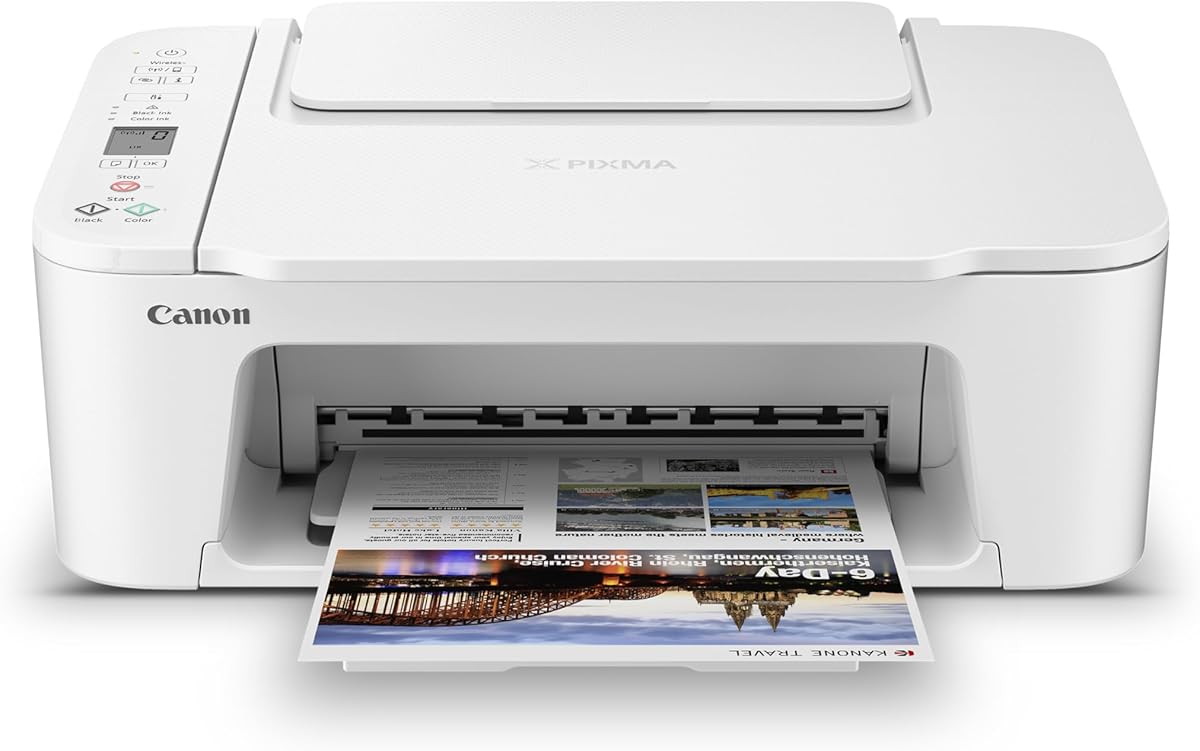



The Canon PIXMA TS6520 combines an approachable control panel with a broad set of useful functions, earning a 4.2 rating and the Editor's Choice distinction. Its 1.42-inch monochrome OLED displays ink levels, printer status, and settings at a glance, giving users essential information without requiring a computer. Print, copy, scan, wireless, and automatic duplex functions cover the core needs of most homes.
We may earn a commission when you buy through this link, at no additional cost to you.
One of its most useful senior-friendly features is the OLED display, which provides immediate feedback about ink and printer status. The printer supports setup through a smartphone or computer, while Canon PRINT, Apple AirPrint, and Mopria Print Service expand mobile printing options. Dual-band Wi-Fi can operate on either 2.4GHz or 5GHz networks, offering more flexibility than a printer restricted to one frequency.
Automatic two-sided printing reduces the need to flip pages manually and can conserve paper. The compact footprint also suits a smaller room, while media support extends to bordered and borderless documents and photos up to 8.5 by 11 inches. The trade-offs are a two-cartridge hybrid ink system and the absence of an automatic document feeder, meaning a multipage scan still requires placing each page on the glass.
This is a strong recommendation for someone who wants a single printer capable of everyday documents, color projects, copying, and scanning without navigating a dense control panel. It is particularly suitable when visible status information and wireless flexibility matter more than automated bulk document handling. Among the choices reviewed, it offers the most balanced combination of simplicity, output options, and physical convenience.
The 1.42-inch OLED makes ink levels, status, and setting changes visible directly on the printer. That reduces the need to open an app merely to check whether a job is ready or whether a cartridge needs attention.
Dual-band Wi-Fi supports both 2.4GHz and 5GHz connections, while the Canon PRINT app, Apple AirPrint, and Mopria give seniors several familiar routes for printing from a compatible phone or tablet.
We may earn a commission when you buy through this link, at no additional cost to you.
The HP DeskJet 2923 is a practical budget-oriented choice for seniors who mainly print letters, recipes, lists, and financial documents. It has a 3.7 rating and a straightforward icon LCD that keeps common controls easy to identify. Color printing, copying, scanning, mobile printing, and wireless connectivity are included in a compact home design.
We may earn a commission when you buy through this link, at no additional cost to you.
HP AI formatting is a useful feature for frequently printing web pages or emails because it is designed to remove unwanted content and reduce awkward layouts. Dual-band Wi-Fi automatically detects and resolves connection issues according to the product information. The HP app also provides a route for printing, scanning, copying, or faxing from a smartphone, which reduces dependence on a desktop computer.
The main limitation is the absence of automatic two-sided printing. Longer documents must be flipped by hand, and the 60-sheet input tray is smaller than several premium models. There is also no automatic document feeder, so the scanner remains a page-at-a-time tool. These constraints are reasonable for light printing but may become inconvenient for a senior handling frequent multi-page paperwork.
Best for households that need uncomplicated color printing and occasional copying or scanning without needing advanced document automation, the DeskJet 2923 keeps the focus on core functions. Its icon-based interface and familiar HP app support make it a sensible entry point for users who prioritize simplicity over paper handling and speed.
The icon LCD presents basic controls in a recognizable format, helping users choose common functions without navigating a complex touchscreen. That makes the printer approachable for letters, recipes, and household forms.
HP AI is designed to remove unwanted page elements and improve the layout of web pages and emails. The result is more useful output when printing information that was originally designed for a screen.
We may earn a commission when you buy through this link, at no additional cost to you.
The HP DeskJet 2955 offers a similar straightforward approach to the 2923, with a 3.7 rating and an icon LCD for uncomplicated operation. It handles color documents, copying, and scanning while fitting into a compact home footprint. The 60-sheet input tray is suitable for short print runs and routine household administration.
We may earn a commission when you buy through this link, at no additional cost to you.
Its strongest features center on connectivity and page preparation. Dual-band Wi-Fi helps maintain a stable connection, while HP AI is intended to produce cleaner layouts from web pages and emails. The HP app allows a compatible smartphone to serve as a convenient control point for printing, scanning, copying, or faxing, which may be easier for users who already work primarily on a phone.
This model does not include automatic duplex printing or an automatic document feeder. Those omissions mean the user must handle two-sided jobs manually and place each document individually on the scanner glass. It is also a basic inkjet rather than a high-volume office machine, so extensive printing may expose the limitations of its input tray and general-purpose feature set.
The DeskJet 2955 is best for a senior who prints short color documents, occasional copies, and basic scans from home. Buyers who want the same uncluttered experience but expect to handle multi-page files regularly should consider a model with duplexing and a document feeder.
The HP app centralizes printing, scanning, copying, and faxing from a smartphone. This phone-based option can be especially convenient for users who already manage most daily tasks on a mobile device.
The printer uses at least 70% recycled plastics and carries ENERGY STAR and EPEAT certifications. Its compact dimensions also make it easier to place in a home workspace.
We may earn a commission when you buy through this link, at no additional cost to you.
The Canon PIXMA TS3720 is designed for basic home printing and carries a 4.0 rating. Its 1.5-inch segment LCD provides a clear but uncomplicated display, while streamlined setup is intended to get the printer running in only a few minutes. Print, copy, and scan functions cover everyday needs without the complexity of a large office-style control panel.
We may earn a commission when you buy through this link, at no additional cost to you.
Wireless setup can be completed without a computer, which is helpful for seniors who may not want to configure software on a desktop. The printer supports dual-band Wi-Fi, the Canon PRINT app, Apple AirPrint, Mopria Print Service, Chromebook printing, and mobile-device printing. Its two-cartridge ink configuration also reduces the number of supplies a user needs to understand.
The significant limitation is that this model offers single-sided printing only. That means users must manually reverse pages for two-sided documents. It also lacks an automatic document feeder, so scanning multiple pages takes more involvement than on an office-oriented model. On the positive side, media support includes envelopes, photos, high-resolution paper, banners, square photos, and borderless images up to 5 by 7 inches.
This Canon is a good fit for a senior who wants quick setup, visible controls, and versatile photo and document printing. It is less suitable for someone whose routine includes lengthy double-sided reports or regular bulk scanning. Its one-year warranty adds reassurance for a basic home purchase.
The printer can join a Wi-Fi network without a computer, reducing one common setup obstacle. Canon PRINT, AirPrint, Mopria, and Chromebook support provide additional ways to begin printing from compatible devices.
Despite its straightforward design, the TS3720 supports envelopes, banners, square photos, high-resolution paper, and borderless photos. POSTARTIST Online also helps users create banners, signage, and other printable projects.
We may earn a commission when you buy through this link, at no additional cost to you.
The Canon PIXMA TS4320 delivers useful all-in-one functions in a compact design and has a 3.9 rating. It supports printing, copying, scanning, wireless connectivity, and automatic two-sided printing. A two-cartridge hybrid ink system is designed to produce sharp text and vivid color for both ordinary documents and photos.
We may earn a commission when you buy through this link, at no additional cost to you.
Its automatic duplex function is a meaningful benefit for seniors who regularly print long documents and want to avoid manual page flipping. Dual-band Wi-Fi supports 2.4GHz and 5GHz connections, and the Canon PRINT app, Apple AirPrint, and Mopria Print Service allow printing from compatible phones or tablets. Setup can be initiated from either a smartphone or computer.
The trade-offs are a lack of an automatic document feeder and no detailed control display specified in the product information. A senior who frequently scans several pages may find the flatbed workflow slower than using a feeder-equipped printer. The compact footprint and relatively basic interface, however, can help keep the device unobtrusive and uncomplicated.
The TS4320 is a strong choice for users who want color, copying, scanning, and duplex printing in a compact unit. It offers a useful balance for family spaces where documents, occasional photos, and wireless access all matter. It is less appropriate as a high-volume office solution because document automation is limited.
Automatic two-sided printing saves users from manually reversing each sheet. It can also reduce paper consumption, making this feature useful for recurring household and paperwork needs.
The small body is designed to fit neatly into limited workspaces, while the printer still supports full-size documents and photos up to 8.5 by 11 inches. Mobile services expand access beyond a computer.
We may earn a commission when you buy through this link, at no additional cost to you.
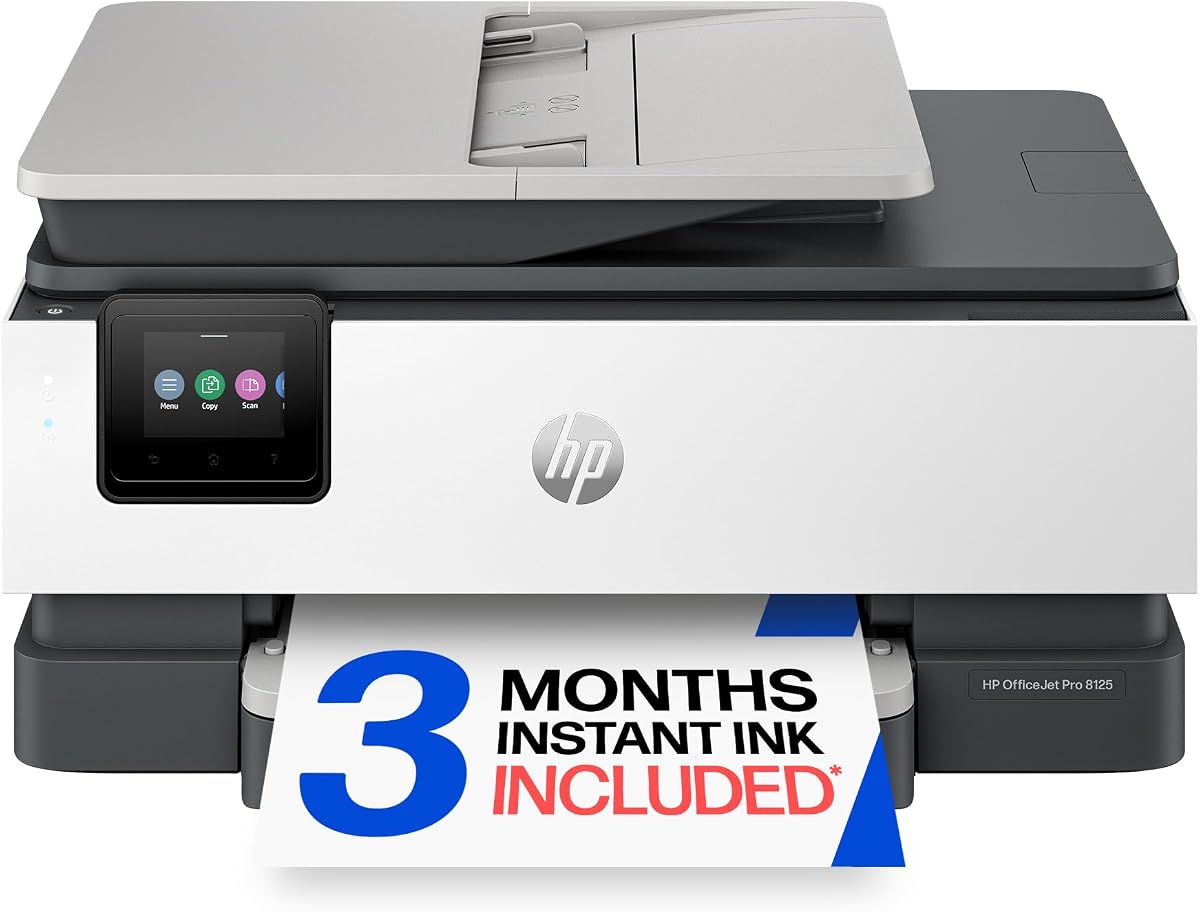
The HP OfficeJet Pro 8125 is built for home offices and users who regularly produce professional-looking color documents. It has a 3.9 rating and a 2.7-inch color touchscreen with a phone-like interface. Printing, scanning, copying, automatic duplexing, an automatic document feeder, and a 225-sheet input tray cover a more demanding workload.
We may earn a commission when you buy through this link, at no additional cost to you.
The large touchscreen makes status and settings more visible than on compact icon-panel printers. Print speeds reach up to 20 pages per minute in black and 10 pages per minute in color, which can reduce waiting for longer jobs. The 20-page automatic document feeder is particularly valuable for scanning or copying multi-page records without placing every sheet on the glass.
This is also the most feature-dense model in the guide, so it may feel less minimal than the HP DeskJet or entry-level Canon models. The touchscreen requires more navigation, the body occupies additional space, and features such as HP AI and Instant Ink add choices that a new user must understand. HP Wolf Essential Security also provides network protection for compatible use.
The OfficeJet Pro 8125 is best for a senior who maintains a home office, handles recurring multi-page documents, or wants a large screen and generous paper capacity. A user who prints only a few letters each month may find one of the smaller all-in-one models easier to manage and less demanding to operate.
The 20-page automatic document feeder reduces the need to handle each sheet individually. Combined with automatic duplex printing, it helps streamline recurring copy, scan, and print tasks.
The 2.7-inch color touchscreen presents controls in a phone-like format. Its larger size makes status information and menu choices easier to see than on a small monochrome or segment display.
We may earn a commission when you buy through this link, at no additional cost to you.
The HP Envy 6155 sits between basic DeskJet models and the more office-focused OfficeJet Pro. It has a 4.1 rating and a 2.4-inch color touchscreen that provides a visual, easy-to-follow interface. Color printing, copying, scanning, automatic duplexing, and a 100-sheet input tray make it well suited to home documents and photos.
We may earn a commission when you buy through this link, at no additional cost to you.
Its touchscreen provides more visible guidance than a simple icon LCD, which can be helpful for users who prefer clearly labeled choices. Print speeds reach up to 10 pages per minute in black and 7 pages per minute in color. HP's True-to-Screen technology is intended to produce vibrant output, while HP AI helps clean up web pages and emails before printing.
The lack of an automatic document feeder is the biggest difference from the OfficeJet Pro 8125. Multi-page scanning and copying require manual placement of each original. There is also no dedicated fax function listed for this model, and the touchscreen still requires some menu navigation. Those limitations are acceptable for a home-focused printer but may matter for a remote office.
The Envy 6155 is an excellent option for a senior who wants colorful homework, reports, personal projects, and borderless photos without the bulk of a home-office model. The combination of a visible touchscreen, duplexing, and wireless printing makes it particularly approachable for users who want more guidance than a minimal printer offers.
The 2.4-inch touchscreen gives users a clear visual route through printing, copying, and scanning. It offers more guidance than the small icon displays found on entry-level models without reaching the size of the OfficeJet Pro screen.
True-to-Screen technology is designed to keep printed documents and photos vibrant. Borderless photo support and automatic duplexing extend the printer beyond basic monochrome office use.
We may earn a commission when you buy through this link, at no additional cost to you.
The Brother Work Smart 1360 combines compact dimensions with home-office features and has a 3.8 rating. Its 1.8-inch color display provides visual navigation, while automatic duplex printing, a 20-sheet automatic document feeder, and a 150-sheet paper tray give it more workflow capability than many basic models.
We may earn a commission when you buy through this link, at no additional cost to you.
Cloud app connections allow printing from and scanning to Google Drive, Dropbox, Box, OneDrive, and other supported services. The Brother Mobile Connect app adds onscreen menu navigation for printing, copying, scanning, and device management. Its Page Gauge feature helps monitor ink usage, which may be useful for users who want less uncertainty about supplies.
The printer reaches up to 16 pages per minute in black and 9 pages per minute in color. It can connect over a wireless network or through USB, giving users more than one setup path. The trade-off is that the 1.8-inch display is still fairly small, and the automatic document feeder handles 20 single-sided sheets, so larger scanning jobs require more than one load.
The Work Smart 1360 is well suited to a senior who needs basic cloud access and occasional multi-page scanning in a compact device. It may be especially attractive to users who already keep documents in cloud services. Those who only need simple printing can find less demanding alternatives in this list.
Direct connections to Google Drive, Dropbox, Box, OneDrive, and other supported cloud services let users retrieve and send documents without saving every file locally. The printer's display provides the access point.
Page Gauge within Brother Mobile Connect is designed to help users monitor ink use. Seeing remaining ink before starting a large job can prevent unexpected interruptions.
We may earn a commission when you buy through this link, at no additional cost to you.
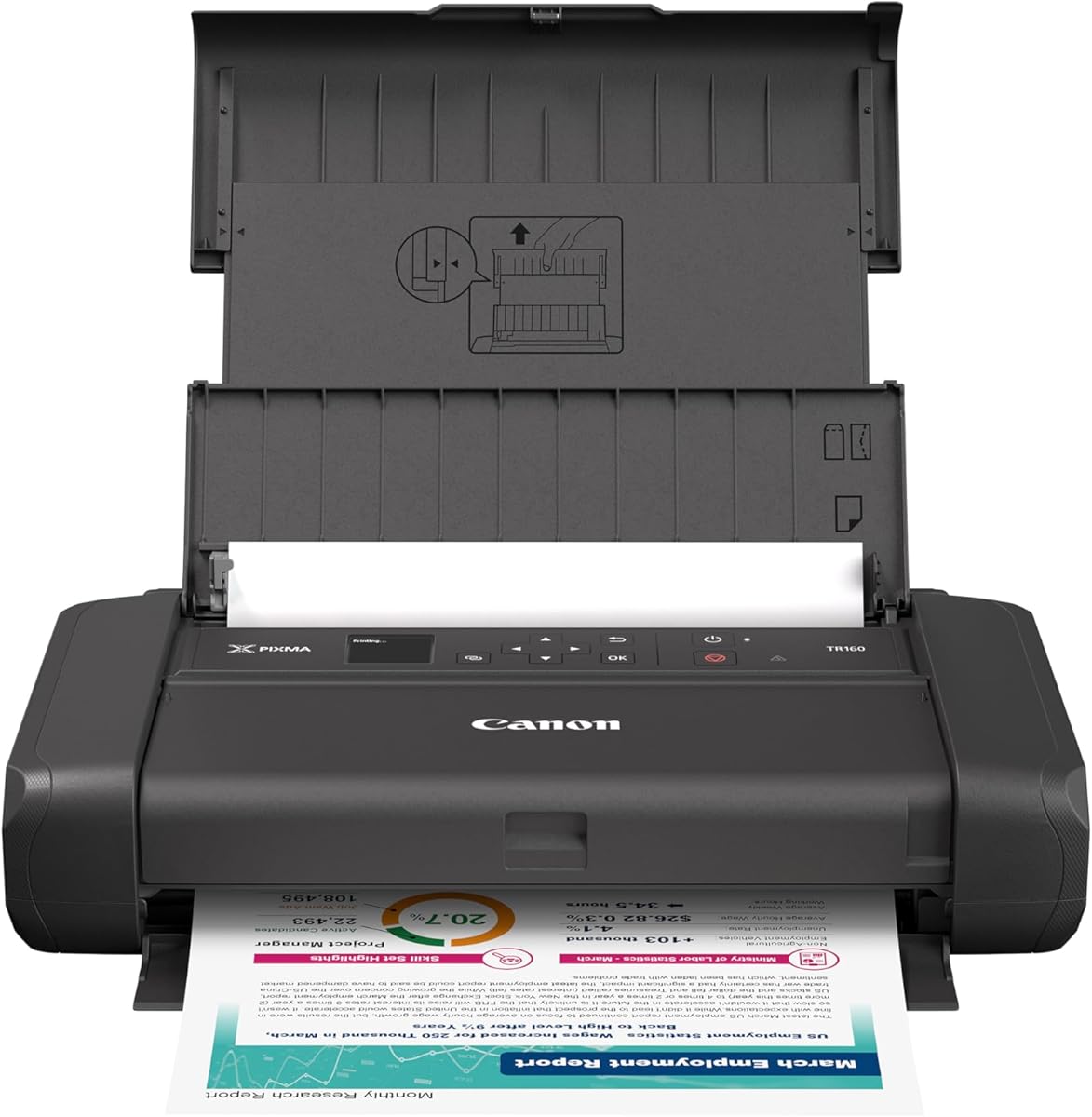
The Canon PIXMA TR160 is the guide's premium portable option, combining a 4.2 rating with a lightweight body that can fit in a bag or backpack. Unlike most all-in-one models, it focuses on portable printing. A 1.44-inch monochrome OLED provides clear visibility into ink levels, printer status, and other settings without occupying much space.
We may earn a commission when you buy through this link, at no additional cost to you.
Its 5-color hybrid ink system is designed to produce sharp black text and vibrant color for documents and photos up to 8.5 by 11 inches. Square and borderless printing options add flexibility for personal projects. Canon PRINT, Apple AirPrint, and Mopria provide familiar wireless printing routes, while wireless direct mode lets a compatible device connect without a wireless router.
The main compromise is that the TR160 does not provide the scanner, copier, automatic document feeder, or duplex functions found on many conventional models in this roundup. It is best understood as a portable specialist rather than a universal home-office device. Wireless direct mode also requires a compatible device and does not provide the broader convenience of a connected home network.
For a senior who travels, visits relatives, or wants printing available away from a fixed desk, the lightweight design is a clear advantage. It is also a sensible second printer for occasional use without dedicating much space. Users needing routine copying and scanning should choose an all-in-one model instead.
Wireless direct mode connects a compatible phone, tablet, or computer directly to the printer. This avoids dependence on a home router and is useful while traveling or in locations with limited network access.
The 5-color hybrid ink system supports vibrant color and sharp text, while the OLED allows users to check ink and status quickly. The result is a capable portable printer without an oversized control panel.
We may earn a commission when you buy through this link, at no additional cost to you.
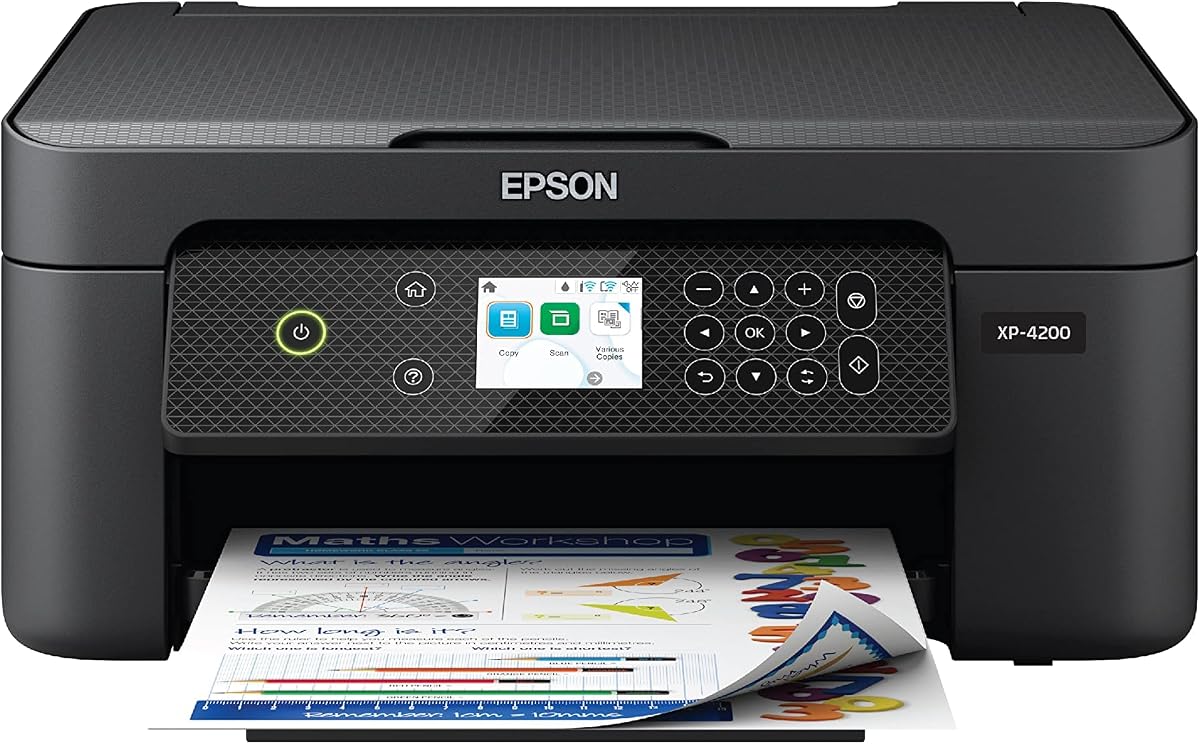
The Epson Expression Home XP-4200 is a well-rounded home printer with a 3.8 rating, a 2.4-inch color display, and automatic two-sided printing. It supports printing, copying, and scanning, while Epson imaging technology is designed for crisp documents and vibrant borderless photos. The large display offers straightforward navigation for a home all-in-one.
We may earn a commission when you buy through this link, at no additional cost to you.
Epson Smart Panel provides app-based setup, operation, printing, and scanning from a smartphone or tablet. Mopria Print Service and Mopria Scan offer additional mobile compatibility, and the printer supports Android and iOS devices. Individual ink cartridges let users replace only the color they need, which can simplify ongoing maintenance and reduce unused ink waste.
The scanner can create searchable PDFs through the included Epson ScanSmart software. Automatic duplexing saves paper, while voice-activated printing through Alexa offers an alternative for users who prefer not to handle a device for every job. The trade-offs are the absence of an automatic document feeder and the restriction to Epson's designed genuine cartridge system, with non-genuine ink potentially causing damage that is not covered by the limited warranty.
The XP-4200 is a good fit for a senior who wants a visible control screen, phone-based management, and dependable color output at home. It works especially well for users who prefer replacing individual ink colors and want both duplex printing and searchable document scanning without moving to a larger office model.
Epson Smart Panel supports setup, printing, and scanning from a phone or tablet. Mopria support provides another familiar route, making the printer easier to manage outside a traditional desktop workflow.
Individual cartridges make it possible to replace only the ink color needed. Automatic two-sided printing helps reduce paper waste, while a permanent printhead is designed to last for the printer's lifetime.
We may earn a commission when you buy through this link, at no additional cost to you.
The best simple printer is the one whose setup, controls, and maintenance fit the user's home routine. Consider visibility, wireless access, ink handling, document volume, and the kinds of files that need to be printed before deciding.
A visible display can reduce uncertainty by showing ink status, printer readiness, and selected settings directly on the device. Small icon panels are simple for basic tasks, segment LCDs provide limited status information, OLED screens offer sharper monochrome feedback, and color touchscreens present more detailed menus. A larger screen may help users with reduced visual acuity, although menu complexity can also make an advanced model less approachable.
Look for setup that can be completed from a phone or without a computer. Canon PRINT, HP App, Brother Mobile Connect, Epson Smart Panel, Apple AirPrint, and Mopria support offer common mobile routes. Dual-band Wi-Fi is useful because the printer can connect on either 2.4GHz or 5GHz. A portable printer with wireless direct mode may be preferable when a router is unavailable.
Most home users benefit from a printer that can print, copy, and scan rather than a print-only device. Photo capabilities matter for family pictures, crafts, and borderless prints, while color touchscreens may help with creative projects. A senior who never copies or scans should avoid paying attention to controls for functions that will not be used.
Automatic two-sided printing removes the need to manually turn each sheet over. It is particularly helpful for long letters, reports, recipes, and medical or financial documents. Several compact Canon and Epson models include it, while the HP DeskJet 2923, HP DeskJet 2955, and Canon PIXMA TS3720 do not. For frequent multi-page work, duplexing can be more valuable than a larger display.
An automatic document feeder accepts multiple pages for copying, scanning, or routine document workflows. The HP OfficeJet Pro 8125 and Brother Work Smart 1360 include a 20-sheet single-sided feeder. Models without one require each original to be placed separately on the scanner glass. A feeder is useful for records, but it adds size and may not be necessary for light use.
Two-cartridge systems can be easier to understand because there are fewer supplies to manage, while individual cartridges let users replace only one color. Canon models in this guide use two-cartridge configurations, and the Epson XP-4200 supports individual replacement. HP Instant Ink enrollment can simplify replenishment, but users should review the terms before choosing the service.
The HP DeskJet models include 60-sheet input trays, the Brother Work Smart 1360 has a 150-sheet tray, and the HP OfficeJet Pro 8125 holds 225 sheets. A modest tray is sufficient for infrequent printing, while a larger capacity reduces refills during multi-page jobs. Look beyond the tray size and consider duplexing, feeder support, and print speed together.
A fixed all-in-one printer is better for regular documents, copying, scanning, and automatic duplexing. A portable model is more appropriate for travel, shared family spaces, or occasional use away from a desk. The Canon PIXMA TR160 is the dedicated portable choice here, with wireless direct mode and a compact body. Consider whether portability matters more than scanning and paper automation.
Begin by unpacking the printer, installing the supplied ink or toner components, and placing it on a stable, level surface near the intended network. Load plain paper into the main tray and power it on. Follow the manufacturer's setup flow using the printer display and its mobile app, choosing the correct home Wi-Fi network. Portable models can also use a direct wireless connection when no router is available.
For each print job, confirm that the correct printer and paper type are selected in the app. Use the display to check ink or toner status, choose single-sided or automatic duplex output when applicable, and confirm the number of copies. For scans, place one page at a time on a flatbed scanner or load the document feeder without exceeding its stated capacity. Keep originals clean and aligned to avoid crooked scans.
Maintain the printer by keeping the paper tray stocked with suitable sheets, replacing supplies only when needed, and following the cartridge guidance for the specific model. Clean the scanner glass gently, avoid placing moisture near vents and electrical connections, and review wireless or USB connections if a job will not begin. Periodic test prints and timely cartridge replacement help maintain consistent quality and reduce interruptions.
The Canon PIXMA TS6520 is a strong all-around choice because its 1.42-inch OLED clearly shows status and settings without presenting a large, complex menu. The HP DeskJet 2923 and 2955 are also straightforward with icon LCD controls. The easiest model ultimately depends on familiarity with the brand, the user's vision, and whether they need duplexing or scanning.
The Canon PIXMA TS3720 can connect to Wi-Fi without a computer, and the other models support mobile setup through their respective apps. Canon PRINT, HP App, Brother Mobile Connect, and Epson Smart Panel can guide initial configuration and everyday printing. A computer is optional for most users when a compatible phone or tablet is available.
Most current models simplify the process with guided mobile apps and established services such as Apple AirPrint and Mopria. Dual-band Wi-Fi can also improve network compatibility by supporting both 2.4GHz and 5GHz. Choosing a printer with a clear status display makes it easier to confirm readiness and diagnose connection issues without opening multiple menus.
The Canon PIXMA TS6520, Canon PIXMA TS4320, HP OfficeJet Pro 8125, HP Envy 6155, Brother Work Smart 1360, and Epson Expression Home XP-4200 support automatic duplex printing. The HP DeskJet 2923, HP DeskJet 2955, and Canon PIXMA TS3720 are single-sided. Users who routinely print long reports may prefer a model with both duplexing and a document feeder.
Copying creates a printed duplicate of an original document, while scanning converts an original into a digital file. Most all-in-one printers in this guide support both functions. The Canon PIXMA TR160 is the exception because it is designed primarily as a portable printer and does not include a scanner or copier.
A portable printer is practical when travel, shared spaces, or occasional printing away from a home desk are important. The Canon PIXMA TR160 supports full-size color documents, borderless prints, an OLED status display, and direct wireless connection. For frequent copying, scanning, and multipage handling, a conventional all-in-one model is more versatile.
An ink delivery service may reduce the chance of running out unexpectedly, but enrollment terms should be reviewed carefully before opting in. Several HP models include trial enrollment periods, and the supplied information notes that a monthly fee applies after the trial unless canceled. Printers using standard cartridges can also be maintained without enrolling in any delivery plan.
For occasional use, the 60-sheet trays in the HP DeskJet models are generally sufficient for short print runs.
A 100-sheet tray offers more flexibility for routine household printing.
The 150-sheet Brother tray and 225-sheet HP OfficeJet Pro tray are better suited to recurring or multi-page jobs.
Regardless of tray size, automatic duplexing and a document feeder may reduce interruptions more than capacity alone.
The Canon PIXMA TS6520 is the most balanced selection in this guide, combining a clear OLED, automatic duplexing, mobile printing, copying, and scanning in a compact body. The HP DeskJet 2923 is the best budget-oriented option for basic documents, while the Canon PIXMA TR160 stands apart for portable use and direct wireless printing.
The right choice depends on everyday habits rather than feature count alone. Frequent two-sided paperwork favors automatic duplexing, multi-page records favor an automatic document feeder, and travel favors a portable design. A visible display, guided app, dual-band Wi-Fi, and an ink system the user understands can make a greater difference than advanced creative features.
Before purchasing, check the printer's current specifications, compatibility, included accessories, warranty, and ink or toner requirements. Promotions and pricing can change, so compare current offers and confirm that the model supports the device and connection method used at home. Choose the printer that makes the most common tasks feel reliable, visible, and uncomplicated.