
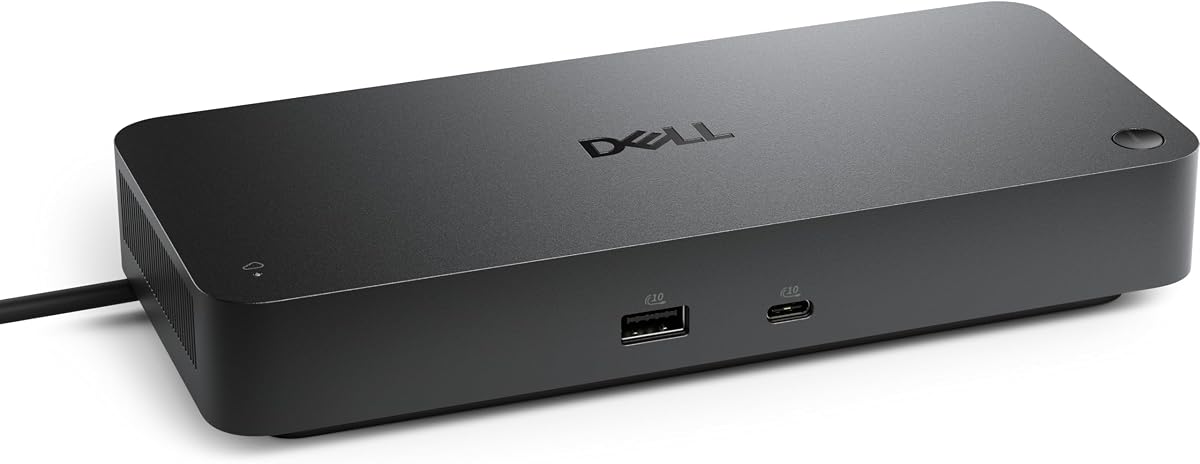
Dell Pro Dock WD25
4.4Editor score
100W Dell charging
Up to four WQHD displays
2.5GbE wired networking
Docking Station for Dell Pro 14 Plus guide compares ten docks for charging, multi-display support, USB connectivity, networking, management, and productivity.
A docking station can transform a Dell Pro 14 Plus from a portable notebook into a practical desktop workstation. The right model adds display options, wired networking, faster USB connections, and a cleaner way to power your laptop, provided its charging and display capabilities match your setup.
This guide compares ten USB-C and Thunderbolt docking stations by examining power delivery, display support, USB configuration, Ethernet speed, management features, included accessories, and value. It covers Dell Pro options, an Anker alternative, and bundles that add cables, adapters, or a three-year warranty.
Each review highlights the most relevant benefits and limitations for a Dell Pro 14 Plus workspace. The top selections represent practical choices for different priorities, while ratings and availability can change. Check current product details and compatibility before making a final purchase.
4.4Editor score
4.5Editor score
4.2Editor score
The comparison below places all ten docking stations side by side, emphasizing the features most likely to affect daily work with a Dell Pro 14 Plus: laptop power, external displays, wired networking, USB expansion, remote management, and bundled accessories.


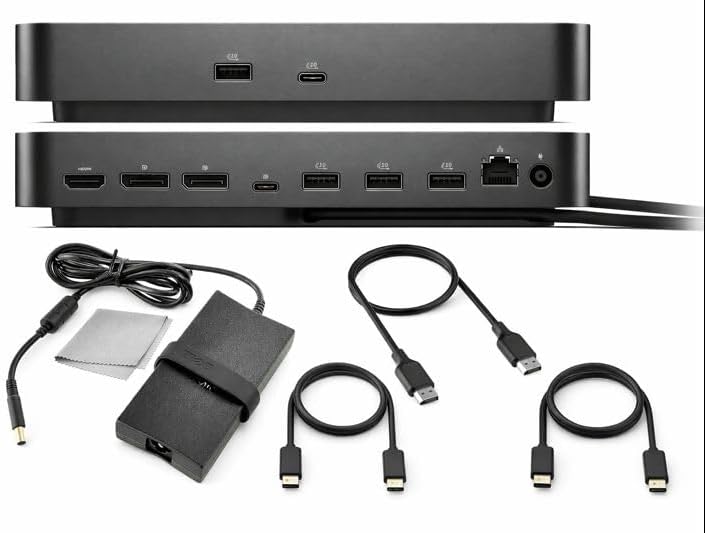


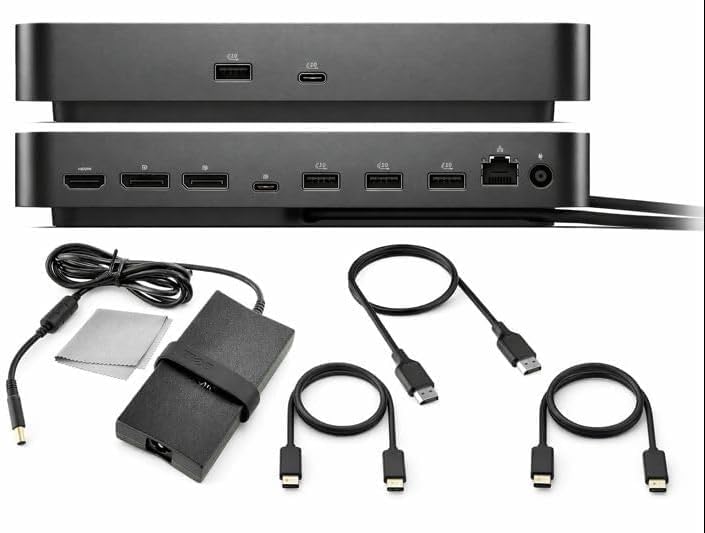

The Dell Pro Laptop Docking Station WD25 combines 100W USB-C charging with support for up to four high-resolution displays, making it a strong all-around choice for a Dell Pro 14 Plus. Its 4.5 rating reflects a favorable balance of desktop expansion, power delivery, and enterprise-oriented design, although exact monitor limitations should be checked for your preferred resolution and refresh-rate combination.
We may earn a commission when you buy through this link, at no additional cost to you.
The standout benefit is the breadth of the connection platform. A Dell Pro 14 Plus owner can connect multiple displays, wired internet, USB peripherals, and storage while receiving substantial laptop power through one host connection. The dock's ambidextrous cable can be routed from either side, which makes it easier to position neatly on a compact desk or in a standing workstation.
Dell also emphasizes faster USB and network performance, remote management, and compatibility with both newer Dell AI PC systems and non-Dell PCs. These are meaningful advantages for hybrid offices, but they do not guarantee flawless operation with every display, adapter, or legacy peripheral. Monitor support can depend on the laptop's USB-C capabilities and the selected display configuration.
This is the most sensible recommendation for someone who wants a conventional Dell desktop experience without moving to a specialized Thunderbolt ecosystem. It supplies the core elements of a productive workstation—charging, displays, networking, and USB—in one device. Choose it over simpler docks if you routinely work with multiple screens, and verify display support before configuring a large four-screen arrangement.
With up to 100W delivered to compatible Dell laptops, the WD25 can power your Dell Pro 14 Plus while also handling displays, Ethernet, and peripherals. This reduces desk clutter and makes it easier to move between a laptop-only setup and a full desk arrangement.
Native support for up to four high-resolution displays is useful for spreadsheet-heavy work, monitoring dashboards, editing timelines, or keeping communication visible beside a primary application. The included DisplayPort and HDMI options provide flexibility, though users should confirm exact resolution limits for their screens.
We may earn a commission when you buy through this link, at no additional cost to you.
The Dell Pro Smart Dock SD25 is built around remote administration, giving it a distinct advantage for offices that deploy shared or remotely managed workstations. It carries a 4.5 rating and combines an ambidextrous USB-C connection with Wi-Fi-based fleet management, secure communication, and scheduled maintenance features.
We may earn a commission when you buy through this link, at no additional cost to you.
Its most unusual capability is the ability for administrators to configure, deploy, and update compatible smart docks through the Dell Device Management Console without requiring the end user to be present. Scheduling updates during off-hours can reduce interruptions, while firmware management helps maintain consistency across a larger deployment.
Security-conscious organizations may also value WPA-3 192-bit encryption, tamper-resistant hardware-based encryption, and support for off-hours updates. Those features are most valuable when the dock belongs to a managed fleet. A household user with one computer and no remote administration needs may not receive enough extra value from them.
For IT teams provisioning Dell-based workspaces, the SD25 stands out as the most management-focused product in this list. It is a strong choice when remote support, centralized configuration, and consistent maintenance are priorities. For a single user, the same practical benefits may be less visible, so compare its management tools against the simpler WD25 before buying.
The SD25 can be managed over Wi-Fi through the Dell Device Management Console. This is particularly useful for distributed teams or shared desks where administrators need to update compatible docks without coordinating an in-person setup session.
WPA-3 192-bit wireless encryption, tamper-resistant hardware encryption, and scheduled maintenance support a more controlled deployment. These features help organizations treat docking stations as managed endpoints rather than simple accessory boxes.
We may earn a commission when you buy through this link, at no additional cost to you.
The Dell Pro Thunderbolt 4 Smart Dock SD25TB4 is the most technically advanced option in the guide, with up to 130W charging for Dell systems, dual Thunderbolt 4 ports, and support for as many as four 4K monitors. Its 4.2 rating is still favorable, but it represents a specialized choice for demanding mobile workstations rather than a simple desk accessory.
We may earn a commission when you buy through this link, at no additional cost to you.
Thunderbolt 4 is the defining feature. The two data ports can support high-speed peripherals, dual 4K video, and chaining of up to six devices, while the dock also provides DisplayPort 1.4, HDMI 2.1, USB-C, 2.5GbE Ethernet, and Wi-Fi. That breadth makes it relevant to creative, data, and AI-heavy users who need more bandwidth than a conventional USB-C dock can offer.
The SD25TB4 also includes serious enterprise controls: remote Wi-Fi management through Dell Console and Intel AMT, WPA3 encryption, PXE boot, MAC filtering, DMA protection, and a secure enclosure. Its sustainable, compact design uses 65% recycled plastic and 100% recycled packaging, while the ambidextrous layout helps with cable routing.
This dock is best for users who regularly transfer large files, connect demanding storage arrays, or want a high-end four-monitor workstation. It may be excessive for standard office tasks centered on documents and browser windows. Confirm that your Dell Pro 14 Plus supports the required USB-C and display capabilities, then choose the SD25TB4 when your workload can exploit Thunderbolt's bandwidth.
Dual Thunderbolt 4 connectivity supports high-speed data movement, dual 4K video, and device chaining. It is a meaningful upgrade for users who regularly work with large media files, fast storage, or multiple advanced peripherals.
Up to 130W power delivery for Dell systems provides ample headroom for a powerful workstation notebook. The dock also lists 96W for other devices, making it a versatile central power hub for compatible accessories.
We may earn a commission when you buy through this link, at no additional cost to you.
The Anker Prime Docking Station offers a broad third-party alternative for a Dell Pro 14 Plus, with 14-in-1 connectivity, 160W aggregate charging, and a 4.3 rating. It is particularly attractive for users who want many USB ports and the ability to charge several devices at once, although its dual-monitor ceiling is more modest than the advanced Dell models.
We may earn a commission when you buy through this link, at no additional cost to you.
Three USB-C ports can provide up to 100W each, while a USB-A port adds up to 12W of charging output. The included 3.3-foot USB-C upstream cable supports 100W power and 10Gbps data transfer. Fourteen total connections and data speeds of up to 10Gbps make the unit useful for keyboards, mice, storage, charging, networking, and displays in one hub.
Display limitations require careful attention. The dual HDMI outputs can handle two displays at up to 2K and 60Hz with a DisplayPort 1.4 laptop, while a DisplayPort 1.2 system is limited to 1080p and 60Hz. The product does not support a 5120×1440 monitor, and its macOS external-monitor output is identical. Linux is not supported.
Choose the Anker Prime if your priority is abundant ports, multi-device charging, and compatibility across Windows, ChromeOS, and modern USB-C systems rather than high-end four-monitor output. For a Dell Pro 14 Plus owner using high-resolution displays, the reduced display ceiling is the main reason to favor a native Dell Pro dock instead.
The broad port count is ideal for users who routinely attach several USB peripherals, storage devices, and displays. It reduces the need to move individual accessories between a laptop and a fixed desk setup.
The 160W aggregate output can charge as many as four devices through three USB-C connections and one USB-A port. That makes the dock useful as both a workstation hub and a centralized charging base.
We may earn a commission when you buy through this link, at no additional cost to you.
The Dell Pro Dock WD25 Universal Docking Station Bundle focuses on convenience by supplying the WD25, a 100W adapter, and several common connection cables. Its 3.9 rating is the lowest in this group, so buyers should consider it primarily as a complete accessory package rather than assuming it represents the strongest standalone specification.
We may earn a commission when you buy through this link, at no additional cost to you.
The bundle includes an original Dell cable along with HDMI, DisplayPort, and USB-C cables. This should simplify setup for a new Dell Pro 14 Plus desk because essential display and peripheral leads are already present. A microfiber cleaning cloth is also included for routine maintenance of screens and laptop surfaces.
The included 100W Dell AC adapter is designed to support demanding connected equipment such as external drives, displays, keyboards, and mice. The seller also advertises a 30-day return guarantee, which can make the package less risky for first-time docking-station buyers. Detailed port counts and display resolution limits are not provided in the supplied product information.
This bundle is best for someone who wants a straightforward all-in-one purchase and does not already own suitable cables. It may appeal to home-office builders assembling a workstation from scratch. Those who care most about maximum charging headroom, extensive management, or clearly documented multi-display specifications should examine one of the more specialized Dell Pro Smart Dock options.
The inclusion of the dock, 100W adapter, Dell cable, HDMI cable, DisplayPort cable, and USB-C cable simplifies the first connection. It is especially helpful for buyers who do not know which leads their chosen display and laptop require.
The package emphasizes an immediately usable desk setup, but its published information does not provide the same depth of port and display detail as the main Dell Pro listings. Check the final product documentation before committing to demanding multi-monitor arrangements.
We may earn a commission when you buy through this link, at no additional cost to you.
The Dell Pro Dock WD25Z is a high-power USB-C docking option listed at 180W, giving it the greatest nominal charging figure among the products in this guide. Its 4.9 rating is exceptional, but the supplied information is limited to the product name, manufacturer number, and EAN, so buyers should confirm its full port and display layout before ordering.
We may earn a commission when you buy through this link, at no additional cost to you.
For a Dell Pro 14 Plus owner, the principal attraction is the combination of Dell Pro positioning and substantial power delivery. A dock with generous charging headroom can serve a demanding laptop and several connected accessories without creating as many concerns about power demand. Its 180W figure also distinguishes it from the more common 100W and 130W models in the list.
However, a high charging rating does not tell you whether the dock supports the number, resolution, or refresh rates of monitors you intend to use. Nor does the limited listing explain its USB configuration, Ethernet speed, management tools, or included host cable. Those omissions make product-page verification especially important for this selection.
The WD25Z is a compelling prospect for a user who prioritizes maximum charging capability and already favors a native Dell Pro accessory. Its excellent rating adds confidence, but the specification record is too brief to position it as the universal best. Compare the final port layout, display support, warranty, and host connection details against the standard WD25 before making a choice.
The listed 180W output separates the WD25Z from the 100W and 130W alternatives. That headroom can be attractive for power-hungry laptops and connected peripherals, subject to device-level charging compatibility.
The model's strong rating does not replace detailed compatibility checks. Review the manufacturer's documentation for display modes, USB ports, power requirements, and the exact USB-C connection needed by your Dell Pro 14 Plus.
We may earn a commission when you buy through this link, at no additional cost to you.
The Dell Pro Dock WD25 USB-C Docking Station bundle is a well-rounded choice for a Dell Pro 14 Plus, combining 100W laptop charging, multiple display outputs, six USB 3.2 Gen 2 ports, and 2.5GbE Ethernet. Its 4.5 rating and included HDMI, DisplayPort, and USB-C cables make it particularly convenient for assembling a complete desk setup.
We may earn a commission when you buy through this link, at no additional cost to you.
Display connectivity includes one HDMI 2.1 port, two DisplayPort 1.4 ports, and one USB-C multifunction display output. The product is described as supporting dual 4K displays, giving users flexibility to choose between different connector types. As with other docks, the exact simultaneous resolution and refresh-rate combinations should be confirmed for the chosen monitors.
The USB hub offers four USB-A 3.2 Gen 2 connections and one USB-C 3.2 Gen 2 port, while the 2.5GbE Ethernet connection provides a fast wired alternative to Wi-Fi. Power delivery reaches up to 100W for laptops and 96W for other devices, while the included three-year warranty adds long-term reassurance.
This package is a strong match for an office user who wants standard Dell compatibility, a useful port selection, fast Ethernet, and cables ready for installation. It is less compelling when you need four displays or more than 100W charging, but for a typical two-monitor productivity desk it offers a broad and practical feature set.
The 2.5GbE Ethernet port provides a stable, high-speed wired connection for large transfers, video calls, and busy networks. It can be especially useful in offices where wireless performance varies or security policies favor wired access.
Four USB-A and two USB-C connections give a Dell Pro 14 Plus owner room to attach storage, keyboards, mice, webcams, and other accessories. The USB 3.2 Gen 2 designation supports faster data transfer than basic older USB connections.
We may earn a commission when you buy through this link, at no additional cost to you.
The Dell Pro Smart Dock SD25 Bundle earns a perfect 5.0 rating in the supplied data and offers 130W charging, support for up to four displays, and 2.5GbE Ethernet. It is an attractive complete package because it includes HDMI, USB-C, and DisplayPort cables, along with a cleaning cloth for routine equipment care.
We may earn a commission when you buy through this link, at no additional cost to you.
The display system supports up to four screens simultaneously, with configurations including a single 6K display or dual WQHD displays through HDMI 2.1 and dual DisplayPort 1.4 outputs. Multiple USB-A and USB-C ports, audio output, and wired networking make this more than a display adapter, providing a broad fixed-workstation connection hub.
Its 130W charging provision gives the Dell Pro 14 Plus ample power while leaving room for demanding work. The included cables reduce setup friction, although users who already own suitable leads may find the bundle redundant. The advertised 30-day return guarantee also provides some flexibility for buyers who are still finalizing their desk configuration.
This SD25 bundle is an excellent choice for a professional building a multi-display Dell workstation with fast Ethernet and high charging capacity. It is especially convenient because the main connection leads are included. Before ordering, confirm the exact display resolutions and refresh rates supported by your monitors and the configuration offered by the dock.
HDMI 2.1 and dual DisplayPort 1.4 outputs support demanding arrangements such as a single 6K screen or two WQHD displays. The four-display ceiling makes the bundle relevant to analysts, designers, and multitaskers who need more visible workspace.
HDMI, USB-C, and DisplayPort cables are included, reducing the need to identify and purchase separate leads. A microfiber cloth adds a small but useful maintenance accessory for keeping screens and the laptop clean.
We may earn a commission when you buy through this link, at no additional cost to you.
The WD25 Dell Pro Dock USB-C Docking Station pairs a strong 4.8 rating with a three-year warranty and a familiar collection of workstation connections. It provides up to 100W to Dell laptops, 96W to other USB-C devices, dual 4K display support, 2.5GbE Ethernet, and six USB 3.2 Gen 2 ports.
We may earn a commission when you buy through this link, at no additional cost to you.
Its display section uses one HDMI 2.1 port, two DisplayPort 1.4 ports, and one USB-C multifunction display port. This gives a Dell Pro 14 Plus user several ways to connect monitors, while the six-port USB hub supports peripherals and fast data transfer. The 2.5GbE Ethernet connection is also a meaningful upgrade over many simpler docks.
The three-year warranty makes this listing especially attractive for business deployment, where long-term support and predictable replacement terms matter. Power delivery remains sufficient for many mainstream professional workflows, although it offers less charging headroom than the 130W and 180W models elsewhere in this roundup.
Choose this WD25 when you want a conventional, well-equipped Dell Pro dock with strong networking, multiple USB ports, and a lengthy warranty. It is a particularly sensible option for a permanent desk that supports one or two external monitors. Users who routinely need four screens or higher charging capacity should consider the SD25 or SD25TB4 instead.
A three-year warranty gives professional buyers more confidence in a dock intended for daily use. It is especially useful for company deployments where maintenance and replacement planning matter.
The combination of USB 3.2 Gen 2 ports and 2.5GbE Ethernet supports fast file movement and stable network access. It creates a more capable desk environment without requiring a Thunderbolt-specific workflow.
We may earn a commission when you buy through this link, at no additional cost to you.
The Dell Pro Dock WD25 Docking Station is a strong choice for a Dell Pro 14 Plus user who wants four high-resolution work displays without moving to a specialized Thunderbolt dock. It supports up to four WQHD screens at 3440×1440, delivers 100W to Dell systems, and carries a 4.4 rating.
We may earn a commission when you buy through this link, at no additional cost to you.
Video connectivity comes from HDMI 2.1, two DisplayPort 1.4 outputs, and a multifunction USB-C port. The USB hub includes four USB-A 3.2 Gen 2 ports and two USB-C ports, while the 2.5GbE RJ45 Ethernet connection handles fast, stable networking. This is a generous desktop expansion for a notebook that remains portable.
Its management features include pass-through MAC, PXE boot, power button synchronization, and updates through Dell Display Manager. The 0.8-meter ambidextrous host cable can face left or right, and the dock is made with 65% post-consumer recycled plastic. A claimed 72% reduction in standby power consumption adds another efficiency-oriented feature.
The WD25 is best for display-heavy productivity using WQHD resolution, not for a four-4K creative workstation. Its combination of four-monitor support, fast Ethernet, abundant USB ports, and practical management tools makes it an excellent general-purpose option. If your screens are 4K rather than WQHD, review the SD25TB4 or a native Dell Pro Smart Dock bundle.
Support for four 3440×1440 displays creates a large canvas for research, financial analysis, engineering dashboards, and general multitasking. The stated WQHD ceiling is important because it distinguishes this dock from models aimed at multiple 4K screens.
PXE boot, pass-through MAC, power button synchronization, and Dell Display Manager updates make the dock easier to incorporate into managed workspaces. Its ambidextrous host cable also supports tidier placement on either side of a desk.
We may earn a commission when you buy through this link, at no additional cost to you.
The right docking station depends on your monitors, peripherals, power needs, network, and deployment environment. Review the following factors to narrow the field before choosing a model for a Dell Pro 14 Plus.
A Dell Pro 14 Plus should support USB-C power delivery and video over USB-C, but the exact features depend on the laptop configuration. Display output can also vary by operating system, application, resolution, and refresh rate. Review the dock's supported display modes and the specifications of your monitors before assuming that every output can run at the desired setting.
Docks in this roundup range from 100W laptop charging to as much as 180W. Higher power delivery can provide useful headroom for demanding notebooks and connected accessories, but it does not guarantee faster charging. Check whether the advertised wattage applies to the laptop, individual USB-C ports, or total dock output.
Two-monitor docks suit typical office setups, while four-display models help analysts, designers, and multitaskers. Resolution matters as much as count: some docks support four WQHD screens, while others are designed for as many as four 4K monitors. Check each output's exact limitations and avoid assuming that a four-screen claim applies to every combination.
Count the number and type of peripherals you already use. USB-A remains useful for keyboards, mice, and legacy accessories, while USB-C can support data, charging, and display functions. Models with USB 3.2 Gen 2 ports are helpful for fast storage, but additional ports do not compensate for a missing connector that your setup requires.
A 2.5GbE Ethernet port can provide a faster and more stable connection than Wi-Fi, especially for large transfers, cloud applications, and video calls. It is a meaningful benefit for a permanent workstation but may be unnecessary if your office network or home connection is limited. Confirm that your location offers an Ethernet outlet and appropriate network hardware.
Smart Dock features can matter greatly in a company environment. Remote configuration, over-the-air updates, off-hours scheduling, PXE boot, pass-through MAC, WPA3 encryption, and hardware-based protections support centralized administration. A household buyer with one dock and no fleet management may receive little practical value from these enterprise-oriented functions.
A bundle that includes the correct host cable, display leads, and power adapter can make setup much easier. Check whether the dock includes its own power supply and whether the included cables support both data and video. A microfiber cloth is convenient, but it should not replace a comparison of the dock's actual charging, display, and networking specifications.
A multi-year warranty is valuable for equipment used every day in an office. Physical design also affects usability: an ambidextrous host cable allows better routing, while a compact enclosure can fit more easily on a small desk. Consider cable direction, available space, sustainability claims, and the possibility of adding a monitor arm or docking-station mount.
Begin by identifying the dock's host connection and the output used by your first display. Connect the appropriate HDMI, DisplayPort, or USB-C video cable to the monitor, then attach the host USB-C cable to the Dell Pro 14 Plus. Add Ethernet and essential USB peripherals before powering up the arrangement, and consult the display documentation if more than one monitor is involved.
For a cleaner setup, route the ambidextrous host cable toward the side with the most open space. Keep frequently used USB-A devices on the front-facing ports when the dock design permits, while reserving rear connections for less portable accessories. Use the included power adapter with a grounded outlet, and avoid bending the host cable sharply near either connector.
To maintain the dock, disconnect the host cable before moving the Dell Pro 14 Plus or rearranging displays. Keep the enclosure away from dust, liquid, and prolonged direct heat, and use a soft dry cloth when needed. Periodically update compatible management software or firmware, inspect connectors for debris, and confirm display, charging, Ethernet, and USB functions after any major setup change.
A compatible USB-C dock should work with a Dell Pro 14 Plus when the laptop supports the required power delivery, DisplayPort Alt Mode, or Thunderbolt capabilities. The exact experience can depend on the laptop configuration, operating system, and selected display mode. Check the dock's compatibility information and your monitor requirements before connecting multiple high-resolution screens.
The WD25 and several related docks provide up to 100W to Dell laptops, while other options list 130W or 180W. A 100W dock is generally intended to keep mainstream compatible notebooks charged during normal use, while greater headroom can benefit demanding systems. Confirm the laptop's charging requirements and whether the quoted wattage applies to the host connection or another port.
Several docks in this guide list support for as many as four displays, but resolution and refresh-rate limits vary. The Dell WD25 Multi-Display Dock specifically lists four WQHD screens, while the SD25 and SD25TB4 target more demanding multi-display arrangements. Verify simultaneous display modes, connector combinations, and the capabilities of your Dell Pro 14 Plus configuration.
Yes, particularly for a fixed office desk. A 2.5GbE connection can offer more consistent throughput than Wi-Fi and may reduce transfer delays during large backups, video calls, and heavy cloud use. You will also need a compatible network switch or router and an Ethernet outlet, and your internet plan must support the higher connection.
It depends on the listing and your equipment. Several bundles include HDMI, DisplayPort, or USB-C cables, while individual dock packages may include only a host cable or power adapter. Check whether each cable supports video as well as data, and make sure you have the correct connector for every monitor and the Dell Pro 14 Plus.
The main distinction in this list is management and advanced connectivity. Dell Pro Smart Docks emphasize remote configuration, firmware maintenance, Wi-Fi fleet management, and business security, while standard WD25 models emphasize straightforward charging, display, USB, and wired networking. A managed office may benefit more from Smart Dock features, whereas a personal setup may not need them.
The Anker Prime can be suitable because it supports USB-C, USB4, and Thunderbolt connections when connected through a compatible host setup. Its main limitation is display capability: the listed dual-monitor support reaches up to 2K and 60Hz under the specified conditions and does not support a 5120×1440 monitor. Confirm operating-system and display requirements before choosing it over a native Dell Pro option.
Keep the dock away from liquids, excessive heat, and heavy dust, and disconnect the host cable before moving the laptop. Route the host cable without sharply bending it near the connector, and periodically inspect the ports. For managed models, install available firmware and software updates, then verify charging, networking, display, and peripheral functions after maintenance.
The Dell Pro Laptop Docking Station WD25 is the strongest all-around recommendation because it combines 100W charging, multi-display support, USB expansion, networking, and enterprise-oriented management. The Dell WD25 Multi-Display Dock stands out for four WQHD screens, while the SD25TB4 is the advanced option for Thunderbolt bandwidth, higher charging, and four-4K-oriented workflows.
Prioritize the connections you use every day. Consider charging capacity, exact monitor resolution and refresh rate, USB connector mix, wired networking, and whether remote management will add value. Bundles can simplify setup, but the included accessories should not distract from confirming that the underlying dock supports your intended devices and workstation arrangement.
Product details, ratings, and availability can change, so review the current listing and manufacturer compatibility information before purchasing. Also verify whether a power adapter and all necessary video or data cables are included. With those checks complete, you can choose a Dell Pro 14 Plus dock that creates a comfortable, connected, and productive desk.