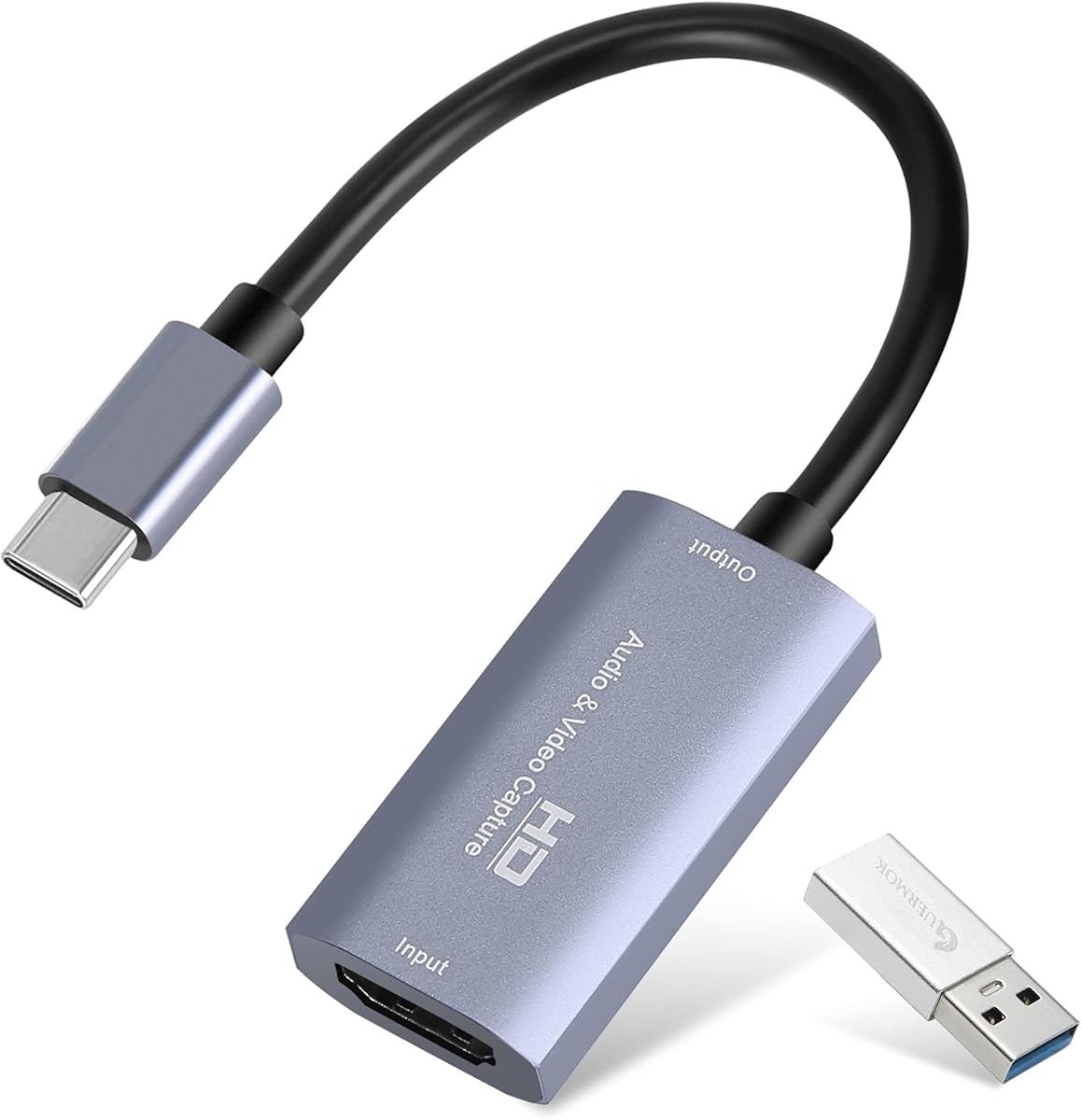
Guermok Video Capture Card
4.4Editor score
1080p at 60fps
4K HDMI input
Dual USB connections
Our Capture Card for YouTube guide compares 10 options for resolution, latency, passthrough, audio, compatibility, portability, and easy OBS setup to your
A capture card for YouTube can turn a console, camera, or computer into a dependable recording source, but the best unit depends on your resolution, frame rate, software, and connection needs. The right choice balances useful passthrough features with simple setup and stable performance.
We compared the supplied 10 models by examining their capture and passthrough resolutions, frame-rate support, latency claims, audio connections, operating-system compatibility, and suitability for OBS, Streamlabs, Zoom, and similar tools. The list covers budget USB devices, premium enthusiast options, and portable capture cards.
Each review identifies the strongest use case, practical limitations, and relevant technical features so you can choose confidently. Product availability and configurations can change, so confirm the current listing, included accessories, and system requirements before making a purchase.
4.4Editor score
4.5Editor score

4.2Editor score
The comparison below highlights the major differences in capture format, passthrough capability, audio support, and platform compatibility, helping you match each card to a particular YouTube production workflow.

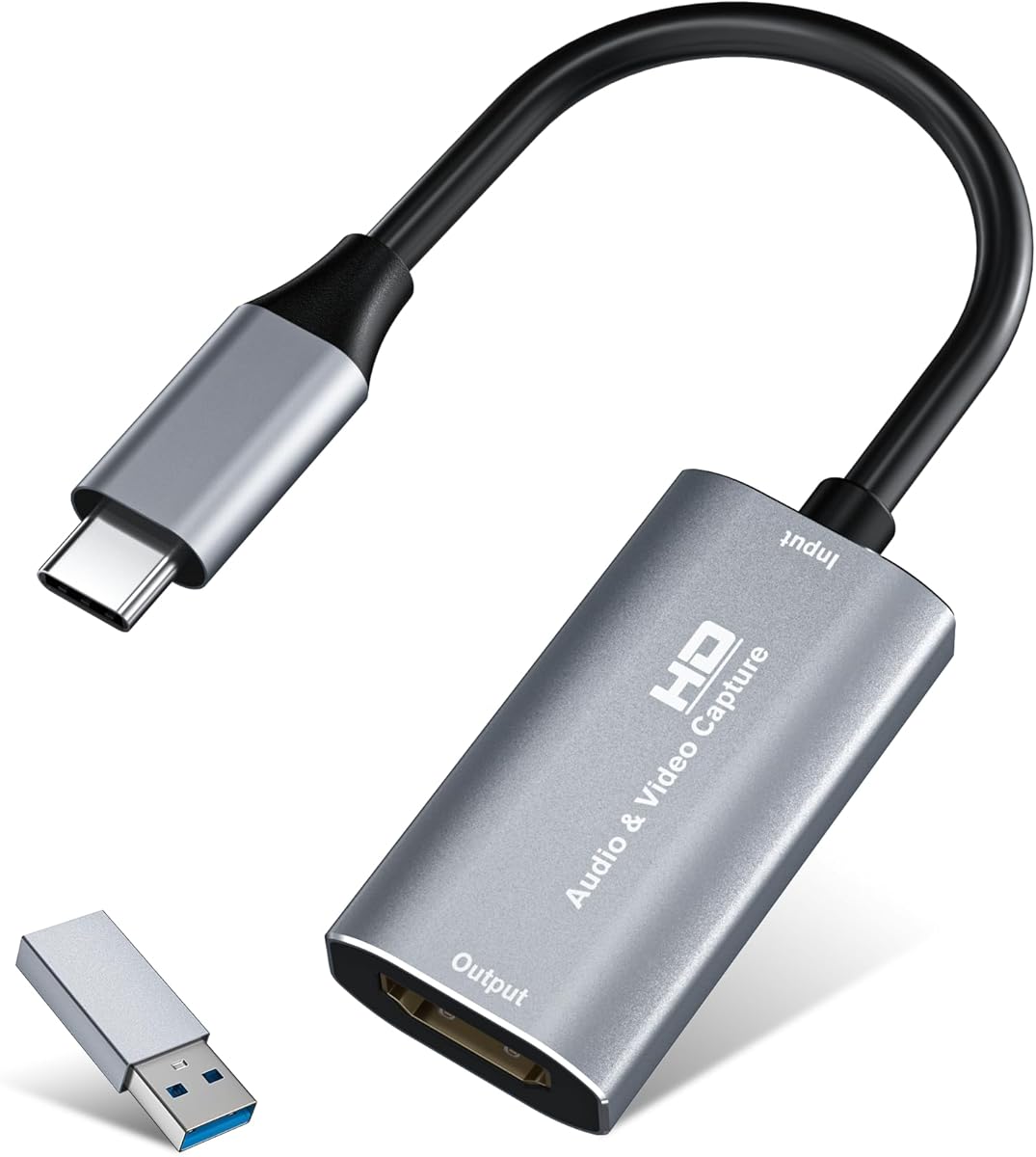
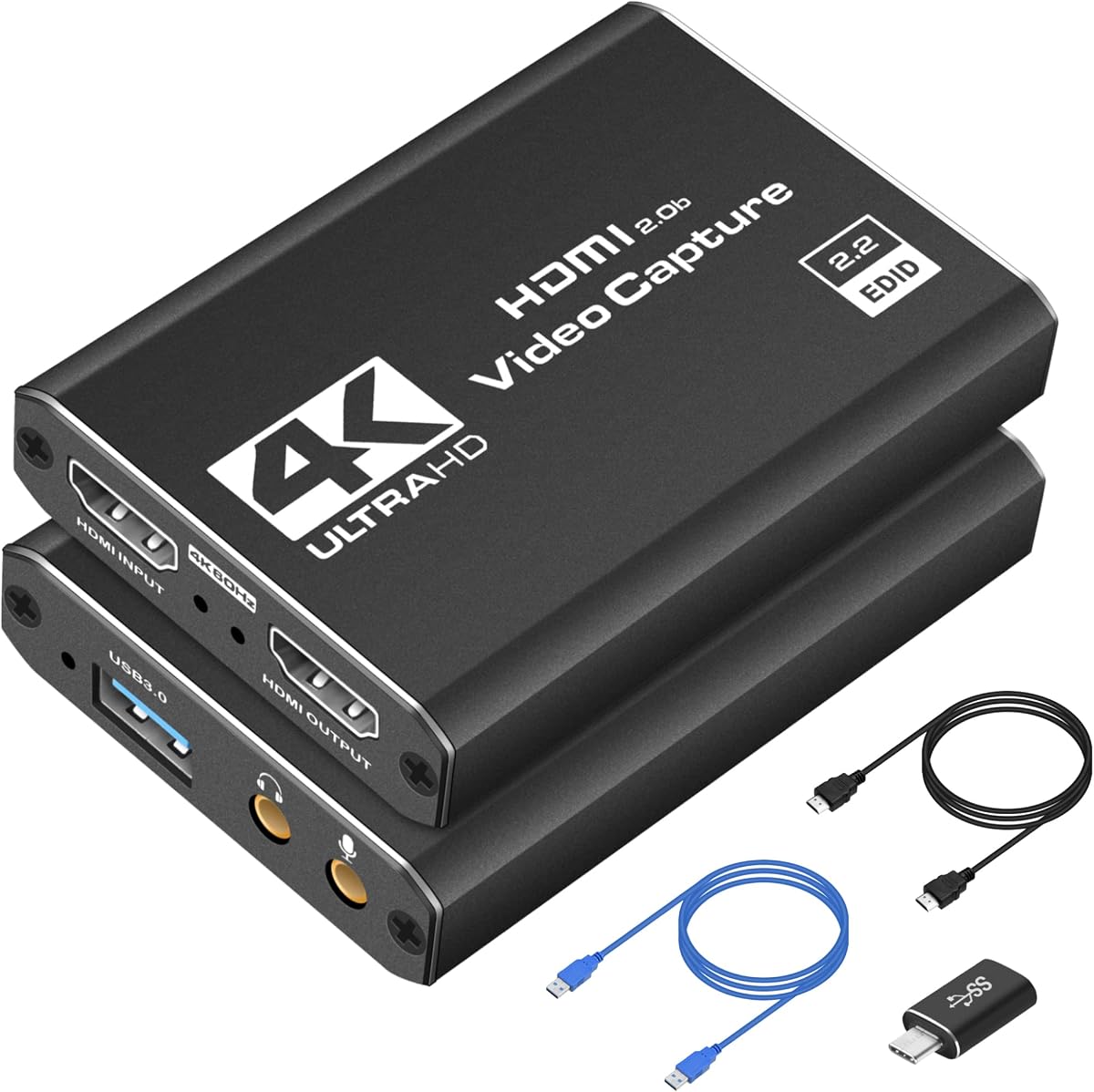
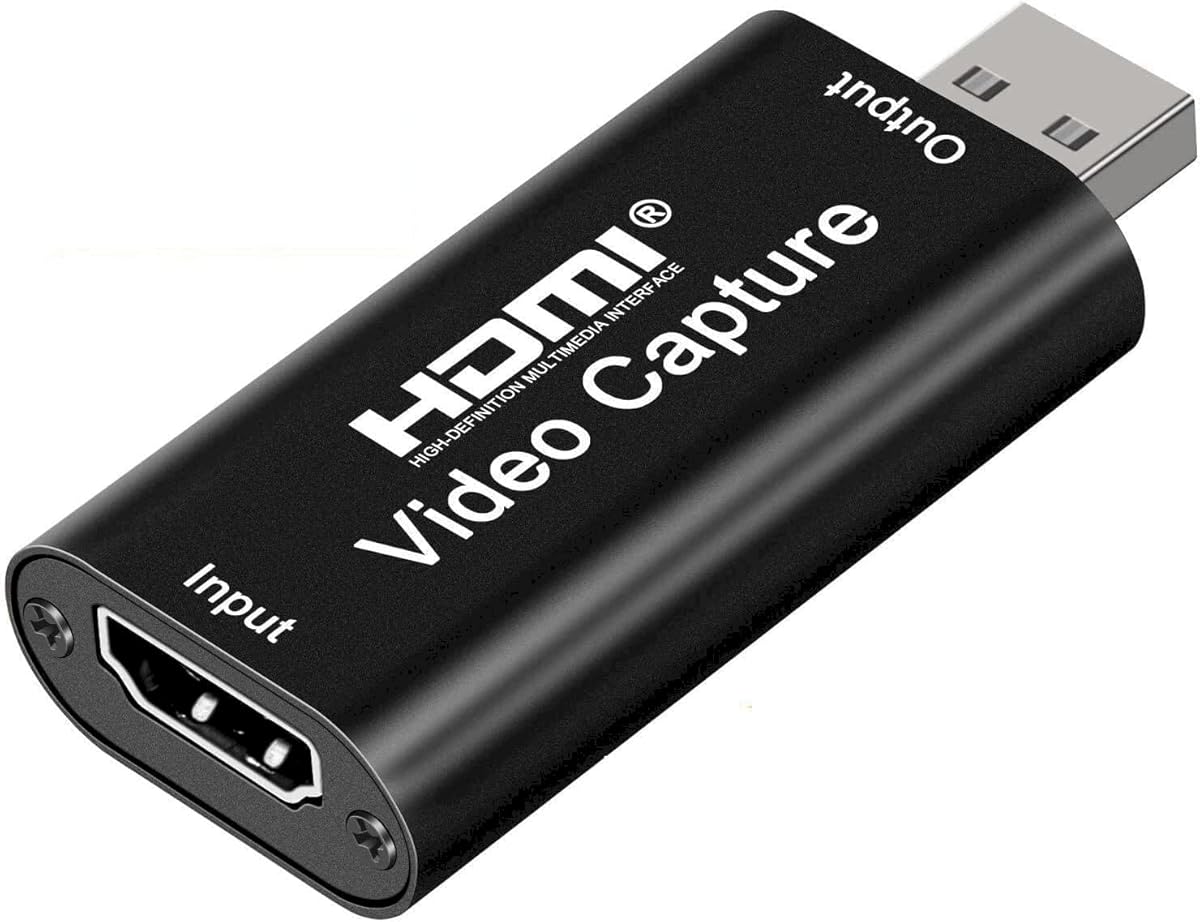


This compact capture card pairs a 4.3 rating with a straightforward feature set for creators who want to send console, camera, and computer video into a USB-based recording setup. Its headline capture capability is 1080p at 60fps, while the HDMI input can accept 4K30/60Hz, 1080p120, and 1080p144 signals.
We may earn a commission when you buy through this link, at no additional cost to you.
One of its most useful traits is true plug-and-play operation. It needs no external power or additional driver, and the computer recognizes it as a webcam, simplifying initial configuration in OBS or another compatible application. The HDMI loop-out permits a local display while recording, and the 3.5mm microphone input allows commentary to be mixed into the presentation.
The main limitation is that output tops out at 2K30, so a source feeding a 4K60 display cannot necessarily be recorded at that same resolution through the USB connection. The microphone socket also accepts a standard 3.5mm TRS headset rather than every professional microphone arrangement, meaning some creators will still need separate audio routing.
This is a sensible choice for a first YouTube capture system, console channel, classroom demonstration, or portable setup where 1080p60 recording, simple installation, and passthrough matter more than maximum fidelity. For creators who need 4K recording, 144fps passthrough, HDR, or VRR, one of the more specialized cards in this guide is the better fit.
Connecting the HDMI source to the card and then the card to the computer requires no separate driver or power supply. After the device appears as a webcam-style input, the capture software can select it and begin a preview or recording.
The HDMI loop-out lets the creator monitor the source on a local display while the computer captures the feed. A 3.5mm headset microphone input adds basic commentary without requiring the source device itself to handle that audio.
We may earn a commission when you buy through this link, at no additional cost to you.
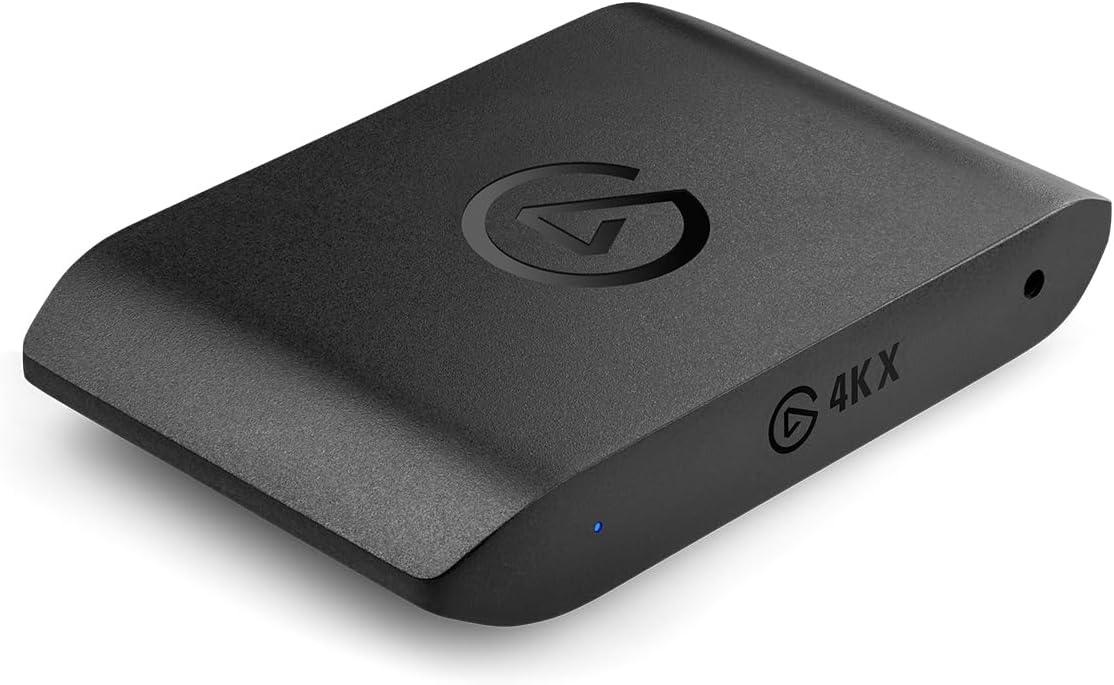
The Elgato 4K X is the most ambitious mainstream entry in this comparison, combining a 4.5 rating with support for 4K144 capture and HDMI 2.1. It is designed for creators whose source hardware, computer, and software can take advantage of high frame rates rather than merely offering a basic 1080p workflow.
We may earn a commission when you buy through this link, at no additional cost to you.
Its HDMI 2.1 input and output support modern consoles, high-refresh displays, and demanding 1080p streams. The supplied information also highlights VRR passthrough, ultra-low latency over USB 3.2 Gen 2, and seamless use with OBS, Streamlabs, Twitch Studio, Restream, Zoom, Teams, and major streaming platforms.
The trade-off is that top-end performance requires a suitably capable setup. Recording at 4K144 can place heavy demands on the host computer, storage, encoder, and graphics hardware. The card also sits at the premium end of this guide, making it more rational for a serious channel than for a first experiment.
For high-refresh gaming channels, competitive streams, and creators producing 4K or high-frame-rate material, the 4K X offers the most convincing blend of current features. It is our Editor's Choice because the feature set goes meaningfully beyond basic HDMI-to-USB conversion while remaining broadly compatible with standard YouTube workflows.
Supporting 4K144 and 1080p at up to 240fps makes this card relevant to modern gaming hardware and high-speed cameras. The actual recorded result still depends on the source, computer, storage, and selected software format.
VRR passthrough and HDMI 2.1 support are especially valuable for newer consoles and displays. These features help preserve a smooth local viewing experience while a captured version is delivered to the computer.
We may earn a commission when you buy through this link, at no additional cost to you.
With a 4.4 rating, the Guermok Video Capture Card offers one of the strongest combinations of capability and portability in the list. It supports 4K30 HDMI input, 2K30 output, and 1080p at 60fps, giving YouTube creators a practical path to smooth Full HD recordings.
We may earn a commission when you buy through this link, at no additional cost to you.
The aluminum housing is designed for heat dissipation, while the USB 3.0 and USB-C connections offer flexibility across laptops and desktops. It needs no extra driver or external power, and its compatibility list covers Windows, macOS, Linux, Android, common consoles, cameras, TVs, and applications such as OBS Studio, VLC, PotPlayer, and Zoom.
This is a capture-only device, not a general-purpose HDMI output adapter. Some USB-C links can operate at reduced USB 2.0 bandwidth, which may lower the available resolution or frame rate. The instructions also advise restarting OBS Studio after completing the audio setup to ensure sound is recognized.
For most new gaming channels, it delivers the key essentials without advanced passthrough features: 1080p60 capture, broad source compatibility, portable construction, and driver-free operation. It is our Best Budget pick for creators who want more flexibility than a basic USB 2.0 model without moving to a premium card.
A maximum 1080p60 recording output is ideal for standard YouTube live streams and high-quality edited videos. It offers a smoother frame rate than 30fps capture while remaining broadly manageable on typical creator computers.
Both USB 3.0 and USB-C options make it easier to work with different computers. When bandwidth matters, the included USB 3.0-to-USB-C adapter should be oriented correctly and connected to a genuine USB 3.0 port.
We may earn a commission when you buy through this link, at no additional cost to you.
The Silver USB 3.0 Capture Card is a 4.4-rated, compact option for creators who record gameplay, events, online meetings, or camera footage across several types of hardware. It accepts 4K30 HDMI input and records at up to 2K30 or 1080p60 through its USB 3.0 interface.
We may earn a commission when you buy through this link, at no additional cost to you.
The aluminum shell is described as aiding heat dissipation, and the device supports real-time video and dual-channel audio without a separate driver or power supply. Its software list includes OBS, Zoom, VLC, and Twitch Studio, while its source compatibility includes Switch, PS4, PS5, Xbox, DSLR cameras, and other HDMI devices.
It is less advanced than premium models because it does not advertise high-refresh HDMI 2.1 passthrough, VRR, or HDR. Tablet use also requires enabling the tablet's OTG function, and the manufacturer recommends testing the source with a monitor first to verify that video and audio are being produced correctly.
This is a practical choice for mobile recording and cross-platform use. Its small size, straightforward installation, and solid 1080p60 ceiling make it appealing for a creator who values portability and simple operation over enthusiast gaming features.
The lightweight enclosure is easy to pack for an event, class, or remote session. Once the target device supports the required connection and OTG behavior, the card can serve as a compact bridge between an HDMI source and recording software.
Dual-channel audio support is valuable when the source supplies stereo sound through HDMI. OBS, VLC, Zoom, and other compatible tools can then handle the captured audio alongside the video feed.
We may earn a commission when you buy through this link, at no additional cost to you.
This capture device offers a clear 1080p60 proposition for gaming creators. Its 4.4 rating aligns with the practical needs of most YouTube channels, and the supplied information positions it as a straightforward bridge between HDMI game consoles, cameras, PCs, and streaming software.
We may earn a commission when you buy through this link, at no additional cost to you.
The device uses USB 3.0, requires no additional drivers, and works with popular software including OBS Studio, Streamlabs, and XSplit. Its passthrough allows the creator to continue playing while viewers see the stream, and the low-latency design is aimed at live broadcasts, gameplay recording, and podcast sessions.
The specifications are less detailed than those of the premium HDMI 2.1 models, particularly regarding high-refresh passthrough, VRR, HDR, and maximum output combinations. As a result, the product makes more sense for a creator whose priority is dependable 1080p60 video than a studio producing demanding 4K240 or 4K144 streams.
Its portable design also suits creators who move between home and event setups. For a console channel or straightforward recording system, it covers the essentials with little complication and can be a sensible middle ground between basic USB 2.0 capture and high-end enthusiast hardware.
Connecting the console to the capture device and the device to the computer avoids a separate driver installation. OBS, Streamlabs, or XSplit can then recognize the card as a video source for live output or local recording.
The passthrough function allows the source to remain visible locally while its feed is captured. This is important for gamers who want immediate feedback rather than relying entirely on the preview window in their recording software.
We may earn a commission when you buy through this link, at no additional cost to you.
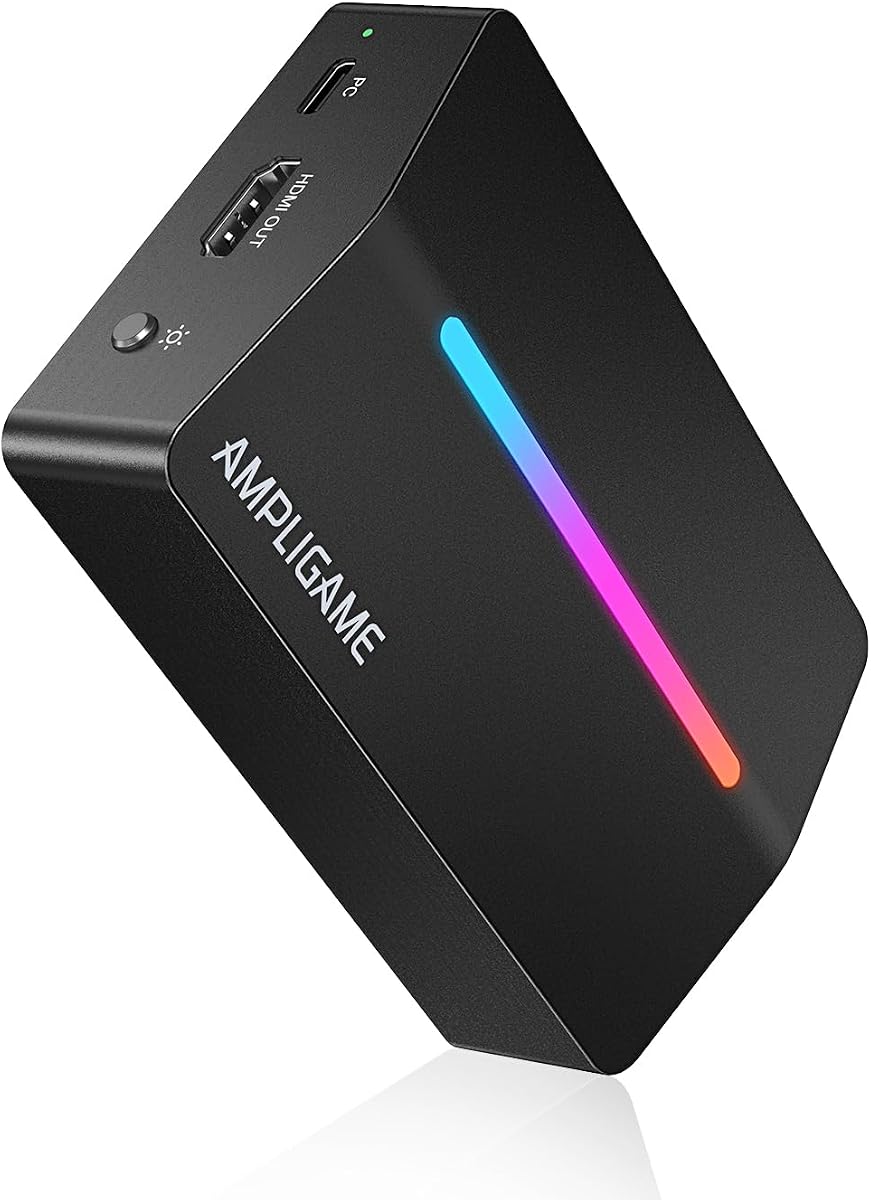
The Fifine AmpliGame stands out visually with nine RGB lighting modes while retaining the core functionality required for a gaming-focused YouTube channel. It captures 1080p at 60fps over USB 3.0 and provides a 4K30 HDMI loop-out for local monitoring.
We may earn a commission when you buy through this link, at no additional cost to you.
Its connectivity is more extensive than many similarly compact cards. The device includes HDMI output, line-in, and headset ports, allowing a creator to bring in external audio or communicate with teammates. It works with Windows and Mac computers and is listed for use with PS4, PS5, and other console sources.
The 3.9 rating is the lowest among the ten products, so buyers should pay particular attention to current listing information and the included accessories. The supplied specifications focus on 1080p60 capture rather than high-end 4K recording, and the product does not advertise high-refresh passthrough comparable to the Elgato or PORTTA options.
The visual lighting and audio connections make it appealing to a creator building a recognizable streaming desk. It is best for PS4, PS5, and mainstream console content where 1080p60, loop-out, and flexible commentary audio are more important than advanced refresh-rate support.
The controllable RGB lighting adds visual personality to a broadcast desk and gives the card a more deliberate appearance than a generic USB capture adapter. The effect is cosmetic, but it helps distinguish a creator's on-camera setup.
Line-in and headset ports offer more options for commentary, music, or team communication than a model limited to HDMI audio. The original USB cable is recommended for best performance, and the manufacturer provides troubleshooting guidance for display issues.
We may earn a commission when you buy through this link, at no additional cost to you.
The Audio Express AXHDCAP is a basic capture solution for teachers, presenters, remote workers, and beginner streamers. Its 4.4 rating reflects a useful package with a 4K30 maximum HDMI input, 1080p30 USB output, stereo sound, and a driver-free setup.
We may earn a commission when you buy through this link, at no additional cost to you.
It supports Windows, macOS, and Linux, along with popular applications including OBS, Zoom, Twitch, YouTube, PotPlayer, and VLC. Compatible source equipment includes DSLR cameras, camcorders, action cameras, computers, and other devices that provide an HDMI signal.
The significant limitation is that it is a USB 2.0 device. The supplied information explicitly states that it cannot use USB 3.0 recording speeds or formats beyond 1080p at 30fps. It is also not designed to add an HDMI output to a computer that lacks one, a point made clear in the product details.
For a creator who needs a simple 1080p30 feed, the AXHDCAP may be sufficient. Smooth 60fps gaming capture, 4K recording, high-refresh passthrough, and advanced audio routing all point toward a USB 3.0 or premium model instead.
A camera, presentation source, or HDMI-equipped computer can be recorded through OBS or Zoom without installing a dedicated driver. That simplicity makes the card relevant to classrooms, remote presentations, and compact work areas.
USB 2.0 bandwidth constrains the output to 1080p at 30fps. A creator who expects 60fps gameplay or 4K recording should avoid assuming that the 4K input headline equals 4K recording capability.
We may earn a commission when you buy through this link, at no additional cost to you.
The acer USB 3.0 HDMI Capture Card combines a 4.4 rating with a practical 1080p60 output target and 4K HDMI input. It is positioned for gamers, teachers, and vloggers who want a simple connection between an HDMI source and a Windows or macOS recording workflow.
We may earn a commission when you buy through this link, at no additional cost to you.
YUY2 support is a notable technical detail because the listing describes it as delivering richer colors than MJPEG. A 3.5mm microphone input allows a headset or microphone to be connected directly, while the HDMI loop-out allows local viewing while the source is captured.
The card needs no extra driver or external power and is small enough for mobile use. It supports major streaming and recording applications, including OBS, XSplit, VLC, YouTube, Facebook, and Twitter, along with Switch, PS5, PS4, Xbox, cameras, PCs, macOS, and Android sources.
Compared with premium options, it does not list HDMI 2.1, HDR, VRR, or extreme high-refresh passthrough. It is therefore most appropriate for conventional 1080p streaming and recording. Within that category, its color format, direct microphone jack, and easy installation create a well-rounded package.
YUY2 is highlighted as a format that can provide richer color than MJPEG. Creators should still test their chosen settings and source because storage use, encoding support, and real-time performance can vary between computers and applications.
The built-in 3.5mm microphone input reduces the need for extra adapters when recording commentary. It is a practical feature for gaming narration, teaching, live demonstrations, and vlogging where spoken audio must accompany the HDMI picture.
We may earn a commission when you buy through this link, at no additional cost to you.
The XIIXMASK USB 3.0 capture card is aimed at creators seeking higher capture and recording frame rates than a conventional 1080p60 card. It supports up to 4K60 capture, 4K HDMI passthrough, and recording at 1920 by 1080 at 120fps.
We may earn a commission when you buy through this link, at no additional cost to you.
Several formats are listed, including MJPEG, YUY2, NV12, and XRGB, giving the creator more options when configuring OBS or another capture application. It works without drivers or external power and supports Windows, macOS, Linux, Android 5.0 and later, and iPadOS 17 or later through its USB A/C connection.
The source list is extensive, covering Switch and Switch 2, PS5 and PS4, Xbox Series X/S, Quest 3 and 3s, DSLRs, webcams, TV boxes, and DVDs. A 3.5mm audio input and microphone output support integrated commentary, while compatibility includes OBS Studio, Streamlabs, VLC, PotPlayer, Zoom, YouTube, and Twitch.
The 4.2 rating and unspecified latency details mean it does not lead this list on evidence alone. However, its combination of 4K60 capture and 1080p120 recording makes it compelling for a capable computer that can encode those formats. It is a solid middle ground between basic 1080p cards and premium HDMI 2.1 hardware.
Recording at 4K60 or 1080p120 gives creators flexibility to produce smoother footage than a 30fps workflow. The host CPU, graphics processor, storage speed, and software encoder must all be able to keep pace with the selected format.
Real-time monitoring through HDMI passthrough makes the card practical for gameplay and camera work. Separate 3.5mm audio input and microphone output ports allow external sound and commentary to be incorporated into the production.
We may earn a commission when you buy through this link, at no additional cost to you.
The PORTTA DX20R is the most feature-forward premium option in the comparison, with a 4.2 rating and a broad set of modern display technologies. It captures at up to 4K60 and provides passthrough for 1080p240 and 2K120, making it suitable for demanding console and high-refresh display setups.
We may earn a commission when you buy through this link, at no additional cost to you.
HDR and VRR support represent important additions for creators who want local gameplay to look as close as possible to the source experience. YUY2, NV12, and RGB24 formats are supported, and a smart switch provides control over the display and ring light. A press-and-hold action lasting two to three seconds is used for that control.
The PORTTA CapHub utility for Windows and macOS allows deeper configuration of video settings, audio mixing, firmware, and EDID or VRR modes. This level of control is valuable for experienced creators, although it also means the card is less approachable than a simple capture adapter.
Its 4.2 rating is not the highest in the list, but the advanced specifications justify consideration for a premium YouTube gaming setup. Choose the DX20R when HDR, VRR, high-refresh passthrough, and configurable display behavior justify the additional investment; a simpler card will be easier to operate.
HDR and VRR passthrough are especially relevant to newer consoles, graphics cards, and high-end displays. These features preserve advanced picture and refresh behavior on a local screen while the computer receives a separate capture feed.
The CapHub utility gives creators control over audio mixing, firmware, EDID behavior, video settings, and VRR modes. This is helpful for fine-tuning a repeatable broadcast setup, though beginners should first understand what each setting changes.
We may earn a commission when you buy through this link, at no additional cost to you.
The right capture card is the one that matches your source output, recording resolution, computer, and need for passthrough or external audio. These factors determine whether a card feels smooth and dependable or introduces avoidable limitations.
Begin by distinguishing HDMI input resolution from the resolution the card can actually record over USB. A card may accept a 4K signal while outputting only 1080p, and a headline such as 4K60 may describe input, capture, or passthrough rather than all three simultaneously. For standard YouTube gaming content, 1080p at 60fps is a practical target that balances clarity, motion smoothness, processing load, and storage needs.
Choose a resolution and frame rate that your source, computer, software, and storage can handle together. A higher specification offers more room for future production, but it is not useful if the host cannot encode the feed smoothly.
Passthrough sends the source image to a local display while the computer receives a separate signal for capture. It is essential for comfortable console play and can also help when monitoring a camera. Gamers should additionally consider HDMI 2.1, high refresh rates, VRR, and HDR when using recent displays and consoles.
Match passthrough capabilities to the resolution and refresh rate of your monitor. A card that records 1080p60 may still need to pass through 4K120 or 4K144 so that local gameplay remains smooth.
USB bandwidth determines the volume of video data transferred from the card to the computer. USB 3.0 and newer interfaces are preferable for high-resolution, high-frame-rate capture, while USB 2.0 models are generally limited to lighter workloads. Low latency is valuable for interactive use, but the total experience also depends on the source, software, computer, and display pipeline.
Prefer a true high-speed USB connection and avoid relying on an adapter that may fall back to slower USB 2.0 speeds. Test the complete setup before a scheduled stream to confirm that the desired resolution remains stable.
Consider whether the source supplies audio through HDMI or whether you need a microphone, headset, line input, or mixer. HDMI audio is convenient for consoles and cameras, while commentary often comes from a headset, USB microphone, or audio interface. A built-in 3.5mm jack can simplify a simple setup, while OBS gives advanced users more control over mixing sources.
Check the connector type before buying. A 3.5mm TRS headset input is not the same as a professional XLR connection, and some cards provide separate audio-in and mic-out ports rather than one universal jack.
The card must be recognized by your operating system and capture application. OBS Studio is the most common choice, but Streamlabs, Twitch Studio, Zoom, VLC, PotPlayer, XSplit, and other tools may also appear in the compatibility list. The supplied data for these products covers combinations of Windows, macOS, Linux, Android, and iPadOS.
Look for explicit support for the operating system and software you plan to use. Confirm whether OBS must be restarted after audio configuration and whether the included instructions cover the specific source and connection arrangement.
The source must output the type of signal the card expects. Most gaming cards use HDMI, but the exact version, maximum resolution, and refresh rate can vary. Some consoles and PCs can also disable HDCP, while cameras and capture cards may have different output behavior. The listed source compatibility provides a starting point, but it does not replace checking the manual for the exact device generation.
For a console, compare supported HDMI modes with your television or monitor. For a camera, check output resolution, frame rate, clean HDMI availability, and whether the supplied cable meets the required bandwidth.
A compact aluminum enclosure is useful for creators who record at different locations. Portable cards are easier to pack with a laptop and camera, while a larger desktop setup may be acceptable for a permanent studio. Thermal management matters because video decoding and high-speed data transfer generate heat during extended sessions.
Choose a compact design if mobility is important, and check whether a USB-C adapter is included. At a fixed desk, prioritize the connection features and controls you will actually use rather than choosing solely on size.
EDID management, firmware updates, audio mixing, VRR modes, and smart display controls can improve a sophisticated production setup. These features are most valuable to creators who understand the relationship between a source, display, and capture computer. A basic card with fewer options may be easier to maintain for occasional use.
Prioritize configuration tools only when you have a specific need for them. Read the supplied documentation, confirm that the relevant utility supports your operating system, and keep a simple tested configuration as a backup.
Begin by confirming that your source, display, and computer support the intended resolution and refresh rate. Connect the HDMI source to the capture card, connect the card to the computer with the specified USB cable or adapter, and connect the card's HDMI output to your monitor when passthrough is needed. Avoid changing cables or ports during the first test.
Open OBS Studio or another compatible application, select the capture card as the video source, and confirm that the image appears. Configure the desired output resolution and frame rate, then set up the game or camera as the source rather than a display-capture method when possible. Add microphone and other audio sources, check the audio meter, and test a short recording before beginning a live broadcast.
For a live stream, copy the tested recording settings into the streaming software, confirm the YouTube channel and stream key through the platform's current instructions, and begin with a private or unlisted test when possible. After the session, disconnect the card safely, keep the ports covered when it is not in use, and store cables without sharp bends. Periodically update the relevant utility software and retest the setup after changing hardware or operating-system settings.
A capture card is not required for every kind of gaming video. OBS can capture a game window directly, but a card is useful when you want a dedicated feed, console support, cleaner compatibility, or local passthrough. It can also capture cameras and other HDMI sources. The best choice depends on whether your recording workflow already works reliably without one.
No. The input specification tells you which source signals the card can accept, while the output and capture specifications determine what is sent to the computer. Some cards accept 4K30 or even 4K60 input but record at 2K30 or 1080p60. Always check the output resolution, frame rate, and supported encoding format before purchasing.
Any capture process can introduce some delay because the signal must be decoded, transferred, and processed by the computer. The products in this guide advertise low-latency operation, but the total delay also depends on the source, software settings, computer, display, and streaming platform. Passthrough is usually used for local monitoring because it can provide a more immediate playing experience.
USB 3.0 is the better choice for modern creators because it provides more bandwidth for higher resolutions and frame rates. A USB 2.0 card may be sufficient for basic 1080p30 use, but it cannot support USB 3.0 recording speeds. Also check that any USB-C adapter preserves the required high-speed connection.
HDMI 2.1 is mainly necessary for modern high-refresh gaming, advanced passthrough, VRR, or HDR. A creator recording standard 1080p60 content may be well served by a simpler USB 3.0 card. If you use a recent console, high-refresh monitor, or want room for future hardware, an HDMI 2.1 model is more future-oriented.
Many capture cards in this guide list cameras, DSLRs, and camcorders as compatible sources. The camera must output a clean HDMI signal and support the resolution and frame rate you intend to capture. Check the camera manual for clean HDMI settings and use an appropriate cable before setting up the software.
First confirm that the source is sending audio through HDMI and that the capture card appears as an audio device in your operating system. Select the correct audio source and monitor in OBS, then check the application mixer. The Guermok instructions specifically advise restarting OBS Studio after completing audio setup, and similar verification can help with other cards.
Many models in this comparison list macOS or Linux compatibility, while most also support Windows. Support can still depend on the USB connection, capture format, and software version. Confirm the exact operating-system requirements in the current listing and test the chosen format before relying on it for a scheduled YouTube broadcast.
The Guermok Video Capture Card is the best-value starting point for most creators, offering 1080p60 recording, 4K30 HDMI input, portable construction, and broad source compatibility. The Elgato 4K X is the stronger all-round recommendation for high-refresh and advanced gaming production, while the PORTTA DX20R leads the premium group with 4K60 capture, HDR, VRR, and detailed configuration options.
Prioritize the features your channel actually uses. A straightforward 1080p60 card may be perfect for tutorials, console sessions, and occasional streams, while 4K recording, high-refresh passthrough, VRR, and HDR become increasingly relevant for modern gaming content. Software compatibility, audio connections, USB bandwidth, and host-computer capability deserve as much attention as the largest resolution printed on the box.
Before buying, check the current product listing, included cables and adapters, system requirements, and source-device compatibility. Product configurations and availability can change, so verify the present details and test the complete setup with your camera, console, computer, display, and recording software before going live.