
Reborn USB to HDMI Adapter
4.1Editor score
1080p at 60Hz
Windows and macOS
Mirror and extend modes
Best Flash Drive to HDMI Adapter guide comparing 10 options for compatibility, resolution, portability, display modes, driver setup, and everyday use needs.
A flash drive to HDMI adapter can add a wired display connection to a laptop, desktop, tablet, or other compatible device without requiring a traditional graphics card. The right model depends heavily on connector type, operating system, display resolution, driver support, and whether you need charging, audio, or multiple screens.
This guide compares ten USB-to-HDMI and USB-C-to-HDMI adapters using the supplied product specifications. It covers Windows and macOS support, maximum resolution, refresh rate, mirrored or extended display modes, installation requirements, portability, extra ports, and compatibility with modern phones and computers.
Each pick highlights a different use case, from a straightforward Windows converter to a multi-monitor DisplayLink adapter and a native USB-C option for media. Ratings and product details reflect the available listings, while prices and availability can change, so verify the current listing before purchasing.
4.1Editor score

4.4Editor score
4.5Editor score
The table below compares all ten adapters by connection type, operating-system support, maximum display capability, and installation model, helping you identify the option that best matches your devices and workflow.


The Reborn USB to HDMI Adapter is a budget-oriented converter for users who want to connect a USB-equipped computer to an HDMI display without replacing the computer's internal graphics. Its listed rating is 4.1, but the more useful distinction is its combination of USB-A connectivity, support for Windows and macOS, and mirrored or extended desktop support. It is designed primarily for everyday display expansion rather than high-end media creation.
We may earn a commission when you buy through this link, at no additional cost to you.
The strongest feature is its flexible 1080p output. When connected through USB 3.0, the adapter supports 1920 by 1080 at 60Hz, which is a useful match for many office monitors, televisions, and presentation screens. A USB 2.0 connection or an unsupported receiving device reduces the output to 800 by 600, so using a USB 3.0 port is important when smooth full-resolution playback or responsive cursor movement matters.
Installation is less convenient than with a native USB-C DisplayPort Alt Mode adapter. The driver comes from the included removable storage rather than a CD-ROM, and the computer must be restarted after installation. Existing USB-to-VGA or conflicting display drivers should be removed first. The adapter also cannot be used in BIOS mode, and its driver installation may require temporarily closing antivirus software, which should only be done with appropriate caution.
This is a sensible pick for a Windows or macOS user who needs a second screen, a larger presentation display, or a simple way to test an HDMI-equipped monitor. It is less suitable for someone requiring immediate plug-and-play operation, four-resolution output, or broad operating-system support. Within the basic USB-to-HDMI category, however, it delivers the features most buyers need at a straightforward entry point.
At 1920 by 1080 and 60Hz through USB 3.0, the Reborn adapter is well suited to document work, browser windows, video calls, presentations, and ordinary media viewing. Extended mode can reduce constant application switching, while mirrored mode is convenient for sharing a screen with a larger screen nearby.
Plan to install the supplied driver before the first important presentation. Connect the adapter, open its removable drive, run the installer, restart the computer, and avoid operating it in BIOS mode. Subsequent use on the same computer does not require repeating the installation.
We may earn a commission when you buy through this link, at no additional cost to you.
The WAVLINK USB 3.0/USB C to HDMI Universal Video Adapter stands out as the most flexible option in this group. It combines USB-A and USB-C connectivity with support for Windows, multiple macOS releases, Ubuntu, ChromeOS, and Android devices with USB On-The-Go. Its 4.4 rating reflects a broadly useful product, while its ability to support as many as six additional monitors on a PC makes it more relevant than a simple one-screen dongle.
We may earn a commission when you buy through this link, at no additional cost to you.
For display quality, the adapter supports resolutions up to 2048 by 1152 at 60Hz or 2560 by 1440 at 50Hz. That makes it appropriate for productivity displays, shared workspaces, financial dashboards, editing timelines, and more than one additional monitor. Each connected display needs its own adapter, but users can combine several units when their computer and operating system permit the required multi-monitor configuration.
The built-in 2.1-channel microphone input and headphone output improve its usefulness for calls and focused work sessions. A USB 3.0 GPU is built in, and the enclosure includes a status LED that helps indicate operating state. It also connects to USB-C, USB-A, Thunderbolt 3, 4, and 5, and USB 4 devices, giving it a useful connection range across current and recent hardware.
WAVLINK is the strongest choice for a mixed-device household, a traveling professional carrying both USB-A and USB-C equipment, or a user who may expand from one extra display to several. The main condition is accepting DisplayLink driver installation. Users who need truly instant operation, however, should compare it with a native USB-C DisplayPort Alt Mode adapter.
The universal connection approach reduces the need to maintain several different adapters. USB-A systems, USB-C laptops, Thunderbolt-equipped devices, ChromeOS hardware, and compatible Android devices can use the same core product, subject to their own operating-system and display-output limitations.
Support for up to six additional monitors on compatible PCs makes the adapter relevant to control rooms, trading stations, creative desks, and shared offices. Start with one unit if a single extra screen is needed, then add adapters only after confirming that the host computer and driver configuration support the intended display arrangement.
We may earn a commission when you buy through this link, at no additional cost to you.
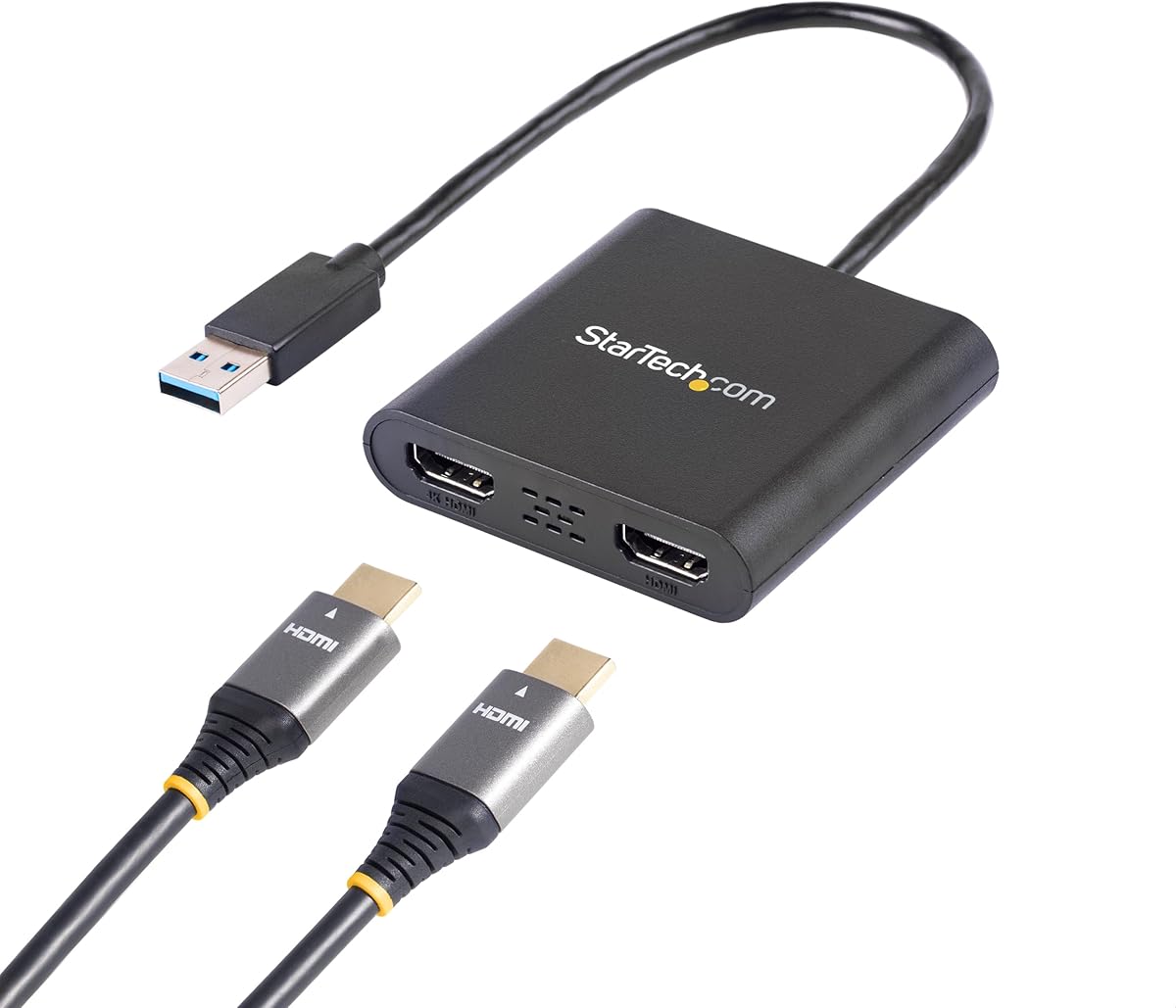
The StarTech USB-A 3.0 to Dual HDMI Adapter is a premium workstation option for Windows users who want one USB connection to serve two HDMI displays. Its 4.5 rating is among the highest in the group, and the dual-output design is considerably more specialized than the common single-screen dongle. It is aimed at office productivity, home workstations, and professional configurations that need extended desktop space.
We may earn a commission when you buy through this link, at no additional cost to you.
One output can deliver 3840 by 2160 at 30Hz, while the other supports 1080p at 60Hz. This mixed-resolution arrangement is useful when one display is a detailed 4K reference screen and the other is a standard Full HD productivity monitor. The adapter also supports two-channel audio through HDMI and HDCP 1.4 protected content.
Its construction is tailored for professional deployment. The device connects through a 9.8-inch integrated cable, uses a USB 5Gbps connection, and is powered entirely through USB bus power, eliminating the need for a separate power supply. StarTech also lists administrator rights as necessary for driver installation and describes the product as intended for IT professionals.
This is the right choice for a Windows workstation that needs two wired monitors and can accept 30Hz on the 4K panel. It is not a universal travel adapter because it excludes macOS, ChromeOS, and Linux, and it does not provide the broad mobile-device compatibility of the WAVLINK. For a fixed dual-screen office setup, however, it offers a strong and focused feature set.
Two HDMI outputs reduce the need for separate display adapters when the computer has a limited number of suitable video ports. The arrangement is especially useful for pairing a 4K editing or reference display with a Full HD communications and document screen.
USB bus power removes an extra cable from the installation, while the stated three-year coverage and lifetime technical assistance make the adapter more appropriate for managed offices than a basic dongle. Test the driver and target monitors before relying on the setup in a critical presentation.
We may earn a commission when you buy through this link, at no additional cost to you.
The USB to HDMI Monitor Adapter is a general-purpose converter designed to connect PC images to a television, monitor, or projector through a USB port. Its 3.8 rating is the lowest in this comparison, so potential buyers should pay particular attention to the stated compatibility and warranty details. It does, however, cover several common needs in a simple and approachable package.
We may earn a commission when you buy through this link, at no additional cost to you.
The adapter supports 1920 by 1080 resolution whether the source uses USB 3.0 or USB 2.0. Once the driver is installed, it can synchronize two displays or extend the desktop with an additional screen. That flexibility makes it suitable for a laptop connected to a large television, a desktop gaining a second monitor, or a projector used for a presentation.
Hot-plugging lets a user connect or disconnect the adapter after the initial driver setup without rebooting each time. The listing states a 12-month unconditional return period and a 36-month warranty, adding some reassurance for a product that depends on software support. The driver remains the essential first step, so this is not a completely driver-free experience.
Choose this adapter if its listed system support matches your equipment and you want a straightforward way to add a Full HD display. Its lower rating makes it less compelling when compared with highly rated options offering stronger documented performance, wider multi-monitor capability, or more specific platform support. Verify the current driver, operating-system requirements, and return terms before ordering.
Hot-plugging is helpful in offices where a laptop moves between a desk dock, meeting room, and presentation cart. After installing the driver once, the user can reconnect the adapter to different displays without restarting for every change.
Because the output is standard HDMI, the same adapter can be used with compatible monitors, televisions, and projectors. The source device and display must support the intended resolution, and the supplied driver remains necessary for normal operation.
We may earn a commission when you buy through this link, at no additional cost to you.
The StarTech USB-A to HDMI Adapter is a compact, certified solution for extending a Windows or Chrome workspace. Its 4.4 rating reflects a well-regarded product, and the DisplayLink certification provides a useful sign that the adapter has been designed around an established display-management platform. It is a natural fit for office users who need one additional screen.
We may earn a commission when you buy through this link, at no additional cost to you.
The adapter supports 1920 by 1200 resolution, two-channel or 5.1-channel audio through HDMI as listed, and HDCP 1.4 protected content. Its integrated cable measures 6.3 inches, keeping the overall unit relatively easy to carry. USB bus power means no separate power brick is required, while USB 3.0 and 3.1 device support helps maintain a practical data path for display traffic.
Setup is described as automatic for Windows and Chrome, which makes it more convenient for users who do not want to hunt for a separate installer. The adapter can add a display in extended mode and can be paired with additional USB-A ports and compatible adapters to create a larger workspace. That scalability is useful, although a single unit remains the core product here.
This is a good option for a business laptop, Ultrabook, desktop, or small-form-factor PC that lacks an accessible HDMI output. It suits users who value automatic setup, certified technology, and compactness more than 4K resolution or macOS support. Confirm that your chosen display and application combination benefits from USB graphics rather than relying on a direct native video port.
Automatic driver installation is particularly helpful for managed Windows and Chrome environments. The adapter can be introduced more easily to employees who need a second display but are unlikely to troubleshoot display drivers manually.
DisplayLink certification and support for additional adapters create a path beyond one screen. Start with a single display, then add more only when the host device, graphics driver, and workstation arrangement can support the additional display load.
We may earn a commission when you buy through this link, at no additional cost to you.
The Kinhaly USB-C HDMI Adapter is built for people who want to send a phone, tablet, or computer image to a television while keeping the USB-C device charged. Its 4.2 rating is supported by a straightforward set of features: 4K at 60Hz, a dedicated charging port, and plug-and-play operation without a separate driver or app.
We may earn a commission when you buy through this link, at no additional cost to you.
The adapter supports a broad list of USB-C devices, including recent iPhone 15 and 16 series models, numerous iPad Pro versions, MacBook Pro and Air models, and several Samsung Galaxy devices. Compatibility depends on the source having a USB-C port with DisplayPort Alternate Mode, so physical connector similarity alone does not guarantee video output.
For mirrored viewing, the process is largely automatic. The user connects the USB-C device, plugs in the charging cable, approves the trust prompt where applicable, and waits briefly for the display. The aluminum alloy housing and nylon-braided cable are designed for heat dissipation and durability, while the compact shape is easy to carry between home, office, and travel.
The most important limitation involves content protection. The listing says protected streaming services such as Netflix, Prime Video, Amazon Video, and HBO Go may not display because their apps enforce HDMI video copyright protection. This adapter is still a strong fit for downloaded videos, supported streaming applications, presentations, live content, and other compatible sources.
The integrated charging port is the key advantage for phone and tablet users. It reduces charging anxiety during long videos, meetings, or presentations while the connected device sends its image to a larger television or projector.
No driver installation separates this adapter from most USB-A DisplayLink products. Just confirm DisplayPort Alternate Mode, connect the appropriate cables, accept any requested trust prompt, and allow a few seconds for the display to appear.
We may earn a commission when you buy through this link, at no additional cost to you.
The USB 3.0 to HDMI Adapter is a silver USB-A converter focused on clear Full HD output and flexible desktop use. Its 4.3 rating places it in the stronger half of the group, while the advertised 1920 by 1080 at 60Hz capability makes it relevant to common office and home displays. It supports both mirrored and extended screen modes.
We may earn a commission when you buy through this link, at no additional cost to you.
The listing also highlights 3D display support, video and audio synchronization, and use with HDTVs, projectors, and multi-monitor arrangements. A USB 3.0 Type-A connection is needed to reach the full 1080p60 output. The adapter's driver can be installed through on-screen prompts, and the product description says it runs locally without accessing internet or user data.
Compatibility is broader than some Windows-only options because Windows 11, Windows 10, Windows 7, and macOS 10.15 or later are listed. Older Windows editions, Android, Linux, and earlier macOS versions are expressly excluded. That makes the operating-system floor important to verify before purchase, especially for an older computer or a managed device that cannot be upgraded.
This adapter is a practical choice for a current Windows or macOS laptop that needs a second Full HD screen without changing its internal hardware. It works particularly well for document-heavy work, remote meetings, and presentations. It is less appropriate for buyers seeking four-resolution output, driver-free setup, or support for Linux and Android.
The 1080p60 target is a practical match for mainstream monitors and televisions. Use the USB 3.0 port when possible, since it provides the bandwidth needed to maintain the full specified resolution and a more natural cursor experience.
Windows users can use the Win+P shortcut, while macOS users can use System Preferences to choose mirroring or extension. This makes it convenient to move between a focused laptop view and a larger shared or presentation display.
We may earn a commission when you buy through this link, at no additional cost to you.
The BENFEI USB-C to HDMI Adapter is a compact native USB-C video adapter for modern laptops, tablets, and phones. Its 4.4 rating is among the strongest in the comparison, and the combination of 4K at 60Hz, 2K at 144Hz, and broad hardware compatibility distinguishes it from driver-based USB-A converters. It is especially appealing to users who want high refresh rates without installing display software.
We may earn a commission when you buy through this link, at no additional cost to you.
The built-in conversion chip supports 3840 by 2160 at 60Hz, 3840 by 2160 at 30Hz, 2K at 144Hz, 1080p, 720p, 1600 by 1200, and 1280 by 1024. A plated USB-C connector and molded strain relief are intended to preserve signal performance and cable durability. The source must support USB Type-C DisplayPort Alternate Mode, which is the essential technical requirement.
Compatibility includes recent MacBook Pro and Air models, multiple iMac versions, iPads, iPhone 15 Pro models, Google Chromebooks, Yoga systems, Dell XPS notebooks, HP devices, Acer systems, Samsung tablets and phones, and other USB-C equipment. Thunderbolt 3, 4, and 5 compatibility broadens its appeal, although the physical source still needs to negotiate a compatible video mode.
This is a strong choice for a modern USB-C computer that lacks HDMI, a high-refresh gaming display, or a presentation setup requiring 4K60. Unlike the Kinhaly option, it does not provide a separate charging port, so video-only use is its clearest purpose. There is no DisplayLink driver requirement, making setup as simple as plugging in the adapter and display.
Native signal conversion allows the adapter to support 4K60 and 2K144 where the source device, display, and cable path support those modes. This is valuable for fast motion, detailed graphics, and high-refresh monitors that may not benefit from a compressed USB graphics stream.
The adapter's small enclosure makes it convenient for presentations, client meetings, and hybrid work. Confirm DisplayPort Alternate Mode on the source and select the correct input and resolution on the destination display before relying on it in a critical setting.
We may earn a commission when you buy through this link, at no additional cost to you.
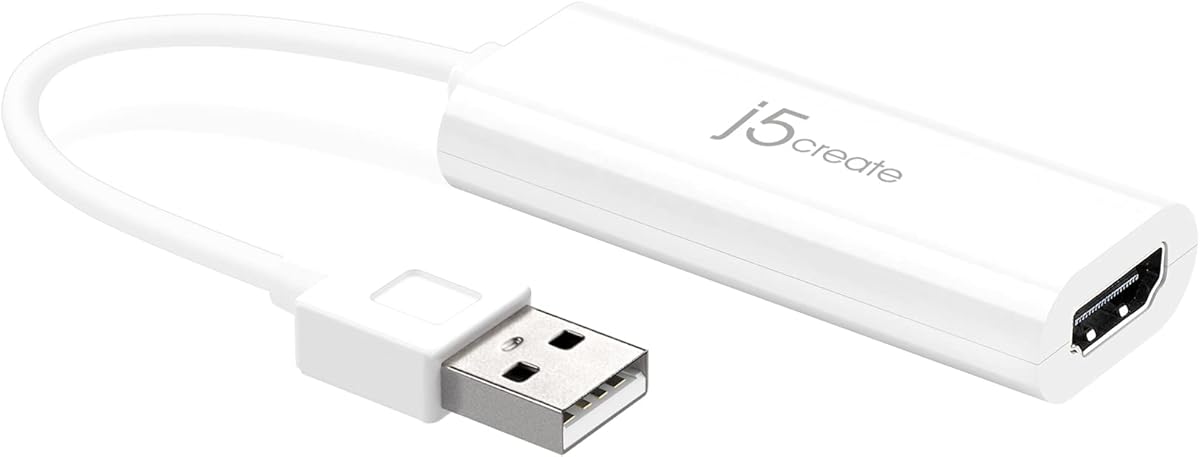
The j5create USB to HDMI Display Adapter is a 1080p converter intended to add a second display without installing an internal graphics card. Its 4.5 rating is tied for the highest among the products reviewed, making it a notable option for users who need a straightforward productivity adapter. It is designed especially for viewing large spreadsheets and several tasks across two screens.
We may earn a commission when you buy through this link, at no additional cost to you.
Its primary convenience is hot-swappable USB, which allows a display to be added or removed without rebooting the system. That feature suits hot desks, shared workstations, and people who move between several computers. The adapter can also support multitasking in workplaces such as phone centers, stock markets, hospitals, graphic design, video editing, and accounting.
The product follows a driver-based approach, so the appropriate driver should be installed before the first connection. The listing's wording refers to a USB-C to HDMI display adapter despite the broader product naming, so buyers should carefully verify the physical connector included in the package. Confirming the connector type is particularly important for a purchase made specifically to connect a flash drive or USB port to HDMI.
This adapter makes the most sense for a Windows-centric user who regularly works with large spreadsheets, multiple applications, or detailed editing timelines. Its high rating and hot-swapping support are positive signs, but the less detailed platform information warrants checking the current documentation. As with any USB graphics converter, confirm driver support and display resolution before a critical assignment.
A second 1080p display gives large spreadsheets, editing timelines, and communication tools more room. Users can compare information side by side without shrinking every window or constantly moving between applications.
Hot-swappable USB makes the adapter convenient for shared desks and multi-computer workflows. Install the driver in advance and confirm that the adapter's physical USB connector matches the ports available on each host system.
We may earn a commission when you buy through this link, at no additional cost to you.
The StarTech USB-A 3.0 to HDMI Converter is a focused Windows solution for adding an HDMI monitor to a laptop or desktop. Its 4.5 rating reflects a favorable reception, while the TAA designation and broad Windows platform support make it relevant to professional and institutional purchasing environments. The design is simple, compact, and powered directly through USB.
We may earn a commission when you buy through this link, at no additional cost to you.
The adapter provides 1920 by 1200 output at 60Hz, two-channel audio through HDMI, and an integrated 2.4-inch cable. It works with Intel, AMD, and Snapdragon X Copilot+ PC platforms across Windows X86, X64, and ARM architectures. Because the device is restricted to Windows, it does not support macOS, ChromeOS, or Linux.
Installation requires drivers and administrator rights, which should be expected in a professional environment. The user must also use a compatible USB 3.0 port and connect the target display with its own HDMI cable. USB bus power eliminates the need for a separate charger, while the short integrated cable keeps the adapter easy to place between the computer and display.
Choose this converter for a Windows workstation that needs one additional Full HD display, particularly in an office where administrator access and consistent driver support are available. It is less suitable for a mixed-platform household or a traveler who cannot install software. Its combination of 1080p60, bus power, and a compact form nevertheless makes it a dependable choice for focused Windows use.
The 1920 by 1200 at 60Hz target works well for productivity monitors and presentation screens. Windows users can extend the desktop to place documents, communication tools, and browser windows on a second display.
The compact housing, short integrated cable, and lack of an external power supply reduce the number of items needed for mobile work. Carry a compatible HDMI cable with the adapter because the destination display connection is not incorporated into the unit.
We may earn a commission when you buy through this link, at no additional cost to you.
Choosing the right adapter starts with the exact device and connector you need, followed by operating-system support, display resolution, driver requirements, and intended use. A native USB-C option differs substantially from a USB-A adapter that relies on display-management software.
Begin by identifying the physical port on the source device. A traditional USB-A adapter suits computers with a full-size USB socket, while a USB-C adapter suits modern laptops, tablets, and certain phones. A USB-C shape alone is not enough: the phone, tablet, or computer must support DisplayPort Alternate Mode for an adapter to transmit video. Some USB-C ports handle data or charging only.
Also examine the adapter's source-end connector rather than assuming the product title is comprehensive. The j5create listing in particular uses both USB and USB-C language, so the physical package should be checked. If you carry several devices, a universal adapter with both USB-A and USB-C inputs may reduce clutter, while a native USB-C adapter usually offers simpler setup and better refresh-rate potential.
Compatibility extends beyond the connector. Some products in this guide support only Windows, while others cover Windows, macOS, ChromeOS, Linux, and Android with USB OTG. Native USB-C DisplayPort adapters can often work without an operating-system driver, whereas USB-A converters generally require one. The product documentation may also list a minimum macOS version or exclude older Windows releases.
Think about the current system and any likely upgrade path. A Windows-only adapter can be ideal for a managed business laptop but frustrating for a household that also uses a Mac. A broad multi-platform unit provides flexibility, although its driver and maximum resolution may differ from those of a focused native adapter. Confirm administrator access, required drivers, and restart behavior before making a final choice.
Resolution and refresh rate determine whether the adapter is suitable for ordinary office work, detailed media, or fast gaming. Most models target 1920 by 1080 at 60Hz, which is suitable for most Full HD monitors. The StarTech dual-output adapter reaches 4K at 30Hz, while the BENFEI and Kinhaly USB-C adapters support 4K at 60Hz under compatible source and display conditions.
Do not treat a listed maximum as a guarantee for every port, device, or application. USB 2.0 can reduce the Reborn adapter's output to 800 by 600, and higher modes depend on the computer, graphics path, display, and driver. For a 144Hz gaming display, verify native support and avoid assuming that a 4K60 specification includes high-refresh 144Hz.
Driver-based adapters offer more flexible USB graphics expansion but require setup and administrator access. Some installers launch automatically, while others require opening a supplied removable drive, running an installer, and restarting the computer. Existing conflicting display drivers may need to be removed, and the adapter will not be useful until its software is installed correctly.
Native USB-C adapters are generally simpler because the operating system negotiates the display directly. They avoid a separate driver and are preferable for travel, presentations, and users without administrative rights. Driver-based devices remain valuable for older USB-A computers, multi-monitor workspaces, and systems that need more displays than their native hardware can support.
Mirrored mode copies the source screen onto the HDMI display, which is useful for presentations, client meetings, and watching content on a television. Extended mode creates a separate desktop area for arranging applications and documents side by side. Several adapters support both modes, while the StarTech dual-HDMI model specifically emphasizes extension for a two-screen workstation.
Some native phone and tablet adapters automatically mirror content after the trust prompt. Applications that enforce content protection may refuse to output video to an external display, regardless of the adapter's technical capability. Confirm that the apps and files you intend to show support the relevant connection method before an important event.
Additional features can make an adapter more convenient than a basic video converter. The Kinhaly model includes a charging port, allowing a compatible phone or tablet to remain powered while it sends video to a television. The WAVLINK model includes a 2.1-channel microphone input and headphone output, which are useful for calls and focused computer use.
Other audio details vary. The StarTech converters support HDMI audio, but channel counts and exact behavior differ by model. A second HDMI output is valuable for a fixed two-monitor desk, while it adds weight and complexity to travel. Decide whether those extras solve a real need rather than paying attention to features that will remain unused.
A single extra monitor and a six-monitor workstation require very different hardware. The WAVLINK supports as many as six additional monitors on compatible PCs when one adapter is used per display. The StarTech dual-HDMI adapter connects two screens through one USB-A host connection, offering 4K30 and 1080p60 outputs. Other converters are primarily intended for one additional display.
Before expanding, check the computer's available high-speed USB ports, operating-system limits, graphics driver, power budget, and desk space. Adapters can add processing demand, and every extra display consumes resources. Test the full arrangement rather than assuming that each unit will independently reproduce a high-end multi-monitor workstation.
Travel users should compare total size, integrated cable length, and the need for extra power. USB bus-powered units avoid another cable, while native USB-C adapters are typically small enough for a laptop bag. The WAVLINK includes a status LED, the BENFEI has a molded strain relief, and the Kinhaly combines an aluminum alloy housing with a nylon-braided cable.
Construction does not guarantee reliability, so the operating-system and protocol requirements remain more important. Choose a compact model for travel, a dual-output model for a permanent desk, and a more rugged enclosure for equipment that is handled frequently. Always inspect connectors for secure fit and avoid forcing them into a source port.
Before connecting the adapter, confirm that the source device supports the required connector and video protocol. For native USB-C models, check for DisplayPort Alternate Mode; for driver-based USB-A models, verify operating-system support and install the current driver before the first display connection. Connect the adapter to the computer, connect the HDMI display or television, power on the display, and select the correct HDMI input.
For Windows display adapters, use the system's display settings to choose extension or duplication. The Win+P shortcut provides quick access on many Windows versions, while macOS users can change the arrangement in System Preferences. On supported phones and tablets, accept any trust prompt and wait a few seconds for the mirrored image. If the image is absent, reconnect the HDMI cable, try another input, and confirm that the display is detected as the active screen.
To care for the adapter, keep the USB and HDMI connectors clean and dry, and avoid sharply bending the cable near either plug. Do not pull directly on the connector when unplugging it. Store the unit in a small case, keep any supplied driver media accessible, and check the current compatibility documentation before connecting it to a new operating-system version or an unfamiliar device.
It depends on the adapter. A native USB-C adapter that uses DisplayPort Alternate Mode usually works without a separate driver, while most USB-A display converters require software. Driver-based models also often require a restart after installation. Check the product instructions and operating-system requirements before purchasing if immediate plug-and-play operation is essential.
Only compatible models that support the device's video output and connection requirements will work. Recent USB-C-equipped iPhone and iPad models are listed as compatible with the Kinhaly adapter, while the BENFEI product includes the iPhone 15 Pro family in its stated device list. An adapter that merely fits physically may still lack the appropriate video protocol.
A black screen can result from an unsupported display mode, a missing driver, an incompatible operating system, or an active application preventing external output. Start by changing the source resolution to 1920 by 1080, confirming the display input, and reinstalling the appropriate driver. On supported Apple devices, also check that the required trust prompt was accepted and review any content-protection restriction.
No. A reliable 1080p60 adapter is sufficient for a Full HD monitor and may be the better fit for a simpler setup. A 4K-capable adapter is valuable when the target display exceeds 1080p, when you want higher desktop space, or when your workflow requires 4K video. The source device and display must both support the desired mode.
Yes, but only a model with dual HDMI outputs can connect two displays through one adapter. The StarTech dual-HDMI product provides one 4K30 output and one 1080p60 output, specifically for Windows. For larger setups, the WAVLINK supports up to six additional monitors on compatible PCs, but it requires one adapter per display.
Many of the adapters in this guide support audio through the HDMI connection. The StarTech models list HDMI audio, and the WAVLINK adds a microphone input and headphone output. Support can still depend on the source computer, operating system, application, and display, so test the complete chain if audio is important.
The Reborn USB to HDMI Adapter explicitly cannot be used in BIOS mode. Other products may also be limited because the necessary display driver or video negotiation is unavailable before the operating system loads. If you need to change BIOS or recovery settings, use a native display port on the computer when possible.
60Hz is the better general choice for office work, presentations, scrolling, and typical video playback because motion appears smoother. A 30Hz 4K mode can be sufficient for static documents or less demanding uses. If a device and display support 4K60 or a high refresh rate, use the higher mode for a more responsive experience.
The Reborn USB to HDMI Adapter is the practical budget choice for Windows and macOS users who want 1080p60, mirror and extend modes, and a compact converter. The WAVLINK Universal Video Adapter is the most versatile option because it spans several operating systems, connector types, and multi-monitor configurations, while the StarTech dual-HDMI model leads the premium selection for a dedicated Windows workstation with 4K30 and 1080p60 outputs.
Prioritize compatibility before every other feature. Confirm the source connector, native video protocol, operating system, desired resolution, and driver process. Native USB-C adapters are usually simplest and can provide the strongest refresh rates, while driver-based USB-A adapters are more useful for older computers and flexible multi-screen expansion. Consider charging, audio, and additional ports only when they improve a real workflow.
Finally, check the current listing, documentation, availability, and price before ordering. Ratings can change, operating-system support evolves, and product details may be revised. Treat the specifications in this guide as a starting point, then verify the exact adapter and source device together to avoid a mismatch at setup time.