
AOOSTAR MACO Ryzen 7 6850H
4.5Editor score
Ryzen 7 6850H processor
24GB fast LPDDR5 memory
OCuLink external PCIe support
Three PCIe 4.0 M.2 slots
This guide compares 10 Mini PC with Oculink 2 options across CPU, graphics, memory, storage, networking, cooling, displays, and expansion capability today.
A Mini PC with Oculink 2 is a compact computer designed to connect to high-bandwidth external PCIe hardware without relying on a conventional internal graphics card. The interface is especially useful for external GPUs, but buyers should also examine processor power, memory, cooling, networking, storage, and display support before choosing a model.
The ten systems in this guide were compared using the specifications and feature descriptions supplied for each product. We looked at CPU architecture, integrated graphics, RAM, SSD capacity, Oculink implementation, network options, display outputs, cooling, power controls, storage expansion, and intended workload rather than relying on one isolated specification.
Each review identifies the strongest use case and the compromises that may matter to a particular buyer. The list includes value-oriented Ryzen systems, Intel AI mini PCs, expandable storage configurations, and a high-end local-AI workstation. Product availability and pricing can change, so confirm the current listing and complete system configuration before purchasing.
4.5Editor score

4.6Editor score
4.1Editor score
The table below places all ten systems side by side, highlighting their processors, memory, storage, and Oculink positioning. It makes clear which options favor general productivity, gaming, AI workloads, networking, or extensive local expansion.


The GMKtec M8 combines a Ryzen PRO 6650H processor, Radeon 660M integrated graphics, 16GB of LPDDR5-6400 memory, and a 512GB NVMe SSD in a compact enclosure. Its most relevant feature for this guide is the dedicated Oculink port, which offers a direct path for compatible external GPUs or other PCIe expansion devices. No customer rating is supplied, so the decision should be based on the listed specifications and intended workload rather than an aggregate review score.
We may earn a commission when you buy through this link, at no additional cost to you.
The processor has six cores and 12 threads, with a listed base speed of 3.30GHz and boost speed up to 4.50GHz. Radeon 660M graphics provide a capable baseline for media playback, office applications, mainstream games, and lighter creative work. The system also provides USB4 with data, display, and power-delivery functions, along with HDMI 2.0 and DisplayPort 1.4 for up to three simultaneous displays.
Networking is unusually comprehensive for a small computer. Two 2.5GbE Ethernet ports can serve separate networks, support link aggregation, or provide dedicated connections for server and management use. Wi-Fi 6E, USB 3.2 Gen2, and three selectable power modes add flexibility. The main compromise is the 16GB memory capacity, which is adequate for everyday productivity but can become restrictive when running large editing projects, many browser tabs, virtual machines, or local AI models.
This M8 is a sensible choice for a buyer who wants Oculink expansion without moving to a large desktop. It is particularly attractive for office users, developers, homelab enthusiasts, and media-oriented systems that will benefit from the dual wired-network ports. Choose it when external GPU potential, quiet operation, and compact networking matter more than having a large installed memory pool.
The Ryzen PRO 6650H and Radeon 660M pairing gives the system enough capability for productivity, high-resolution media, and mid-range integrated-graphics gaming. Oculink then creates a route to substantially stronger external graphics when the workload requires it.
Dual 2.5GbE interfaces make this configuration more relevant to homelab and small-office use. They can separate traffic, connect to NAS equipment, or be combined when the network and operating system support link aggregation.
We may earn a commission when you buy through this link, at no additional cost to you.
This GMKtec M8 shares the Ryzen PRO 6650H platform but is presented as a performance-oriented configuration for demanding office work, content creation, multitasking, and mid-range gaming. The six-core, 12-thread processor can boost to 4.50GHz, while Radeon 660M graphics with 12 compute units handle mainstream visual workloads. Because no customer rating is available, it is best evaluated as a specification-led compact workstation rather than a proven review aggregate.
We may earn a commission when you buy through this link, at no additional cost to you.
Its Oculink interface is designed to connect compatible external GPUs through a direct high-speed PCIe path, avoiding some of the bandwidth limitations associated with display-output-style expansion. USB4 provides an additional route for compatible docks and peripherals, while dual 2.5GbE ports support advanced networking, virtualization, and home-server arrangements. Storage starts with a 512GB NVMe SSD and includes two M.2 2280 positions with a listed combined capacity of up to 8TB.
The cooling design uses larger top and bottom fans, copper heat pipes, and a 360-degree airflow path. Quiet, Balanced, and Performance modes allow the owner to choose between lower power use and greater sustained performance. Other professional features include VRAM allocation, Auto Power On, and Wake-on-LAN. The trade-off is that the 16GB of soldered LPDDR5 cannot be upgraded, although a high data rate helps offset its limited capacity in ordinary use.
Pick this M8 for business desktops that may later gain an external GPU, compact network appliances, and users who value remote-management features. It is less attractive for memory-heavy AI development or heavily concurrent virtualization. For those jobs, a model with 32GB or more installed memory would be a more practical foundation.
Auto Power On and Wake-on-LAN make the system easier to deploy as an unattended office or home-server computer. Combined with dual wired networking and configurable power limits, these features support practical remote-access setups.
Oculink and USB4 provide two complementary expansion paths. Oculink targets bandwidth-sensitive PCIe devices, while USB4 offers broader dock compatibility and can also carry display and power-delivery functions.
We may earn a commission when you buy through this link, at no additional cost to you.
The K16 raises the performance ceiling with a Ryzen 7 7735HS processor featuring eight cores, 16 threads, and boost clocks up to 4.75GHz. Its Radeon 680M integrated graphics are suitable for light gaming and media creation, while the dedicated Oculink port creates a clear upgrade path to compatible desktop-class graphics. The product carries a 4.4 customer rating, giving it more visible buyer feedback than several of the other listings in this guide.
We may earn a commission when you buy through this link, at no additional cost to you.
Thirty-two gigabytes of LPDDR5-6400 memory makes this a better starting point for intensive multitasking, creative applications, and development than a 16GB system. The supplied 512GB SSD may be the main storage limitation, but three M.2 2280 positions offer substantial expansion, with the listing describing support for up to 8TB per slot and 16TB total. That makes it easier to build a large local library without replacing the base drive.
Dual 2.5GbE Ethernet, Wi-Fi 6E, USB 3.2 Gen2, USB4, HDMI, and DisplayPort make the K16 suitable for a compact gaming, media, or networking setup. A dual-fan cooling design and top-and-bottom airflow are intended to manage sustained loads. The main limitation is that the 32GB LPDDR5 is soldered to the board, so buyers should confirm their memory needs before purchase. Storage expansion is more practical than memory expansion on this model.
This K16 fits buyers who want a capable compact computer now and may add an external GPU later. It is a strong option for a gaming setup, a developer workstation, or a multi-display office system. Choose it over a smaller-memory M8 when multitasking and future workload growth are more important than the most compact footprint.
Thirty-two gigabytes of LPDDR5-6400 provides more room for applications, browser sessions, editing timelines, and development tools. The higher data rate also helps the platform feel responsive when it is not relying on an external graphics card.
Three M.2 positions separate this configuration from systems with only one or two internal storage locations. Buyers can add high-capacity drives for projects, games, media libraries, or a RAID-oriented storage arrangement, subject to device and software support.
We may earn a commission when you buy through this link, at no additional cost to you.
The defining advantage of this M8 configuration is its 1TB NVMe SSD, twice the starting capacity of the 512GB versions in the guide. It retains the Ryzen PRO 6650H, Radeon 660M graphics, 16GB of LPDDR5-6400 memory, Oculink, USB4, and dual 2.5GbE networking. Since no customer rating is supplied, the configuration is most attractive to buyers who prioritize storage and expansion over an established review history.
We may earn a commission when you buy through this link, at no additional cost to you.
For a creator storing footage, a developer keeping projects locally, or a user building a large application and game library, 1TB of initial capacity reduces the need for immediate storage upgrades. Two M.2 2280 slots still allow further expansion, with a listed maximum of 4TB per slot and 8TB in total. The Oculink port can add a more powerful GPU for tasks that exceed Radeon 660M capabilities.
Its networking and display provisions are practical. Two 2.5GbE ports can be used for separate network segments, and Wi-Fi 6E provides wireless connectivity. HDMI 2.0, DisplayPort 1.4, and USB4 with display capability support up to three displays. Quiet, Balanced, and Performance modes let the system adapt to office, balanced, or demanding workloads.
The limitation is again the installed memory. Sixteen gigabytes is sufficient for daily productivity and many games, but heavier editing, numerous virtual machines, or local model work will benefit from more capacity. This M8 is best for buyers who want a storage-ready compact system with Oculink potential and excellent networking rather than a heavily memory-saturated workstation.
A 1TB NVMe drive gives applications, media, and project files more room without requiring an immediate second drive. The remaining M.2 position preserves a path for later capacity increases.
Dual 2.5GbE makes the system suitable for direct NAS connections, segmented office networks, and small servers. The exact throughput still depends on the attached storage, cables, network equipment, and operating system configuration.
We may earn a commission when you buy through this link, at no additional cost to you.
The K15 uses the Intel Core Ultra 5 125U, a 15-watt processor built on the Meteor Lake architecture. The supplied description lists six performance cores, eight efficient cores, two low-power efficient cores, and support for up to 14 hardware threads, with boost capability up to 4.30GHz. It also highlights an Intel AI Boost NPU rated at up to 13 TOPS for INT8 operations, making this a more explicitly AI-oriented compact system.
We may earn a commission when you buy through this link, at no additional cost to you.
The 32GB of DDR5-4800 is installed as two 16GB SO-DIMMs, allowing memory upgrades rather than forcing users into soldered memory. The 512GB PCIe 4.0 SSD is joined by three M.2 2280 expansion positions, each listed as capable of handling up to 8TB for a maximum of 24TB. Oculink operates at PCIe x4 speeds, enabling compatible external GPUs and other PCIe devices with more bandwidth than a display-output-based alternative.
Display support is broad for a compact system. HDMI 2.1 can provide 8K output at 60Hz, DisplayPort 1.4 supports 4K at 60Hz, and the USB Type-C connection includes PD 3.0, DisplayPort 1.4, and data functions. The system can operate four displays. Dual 2.5GbE, Wi-Fi 6E, and Bluetooth 5.2 make it suitable for a broad range of office and network roles.
Cooling uses a CPU fan and a separate memory or storage cooling fan, with heat pipes, 360-degree airflow, and a listed 35dB result in Quiet Mode. RGB lighting adds visual customization. The main concerns are the lack of a published customer rating and the relatively small 512GB starting drive. This K15 is a strong choice for buyers who value upgradeable memory, AI hardware, and extensive display support.
Unlike soldered LPDDR5 configurations, the dual-SODIMM arrangement can be expanded after purchase. That makes the K15 more suitable for workloads whose memory requirements may increase over time.
The Core Ultra 5 processor combines CPU, integrated graphics, and an AI NPU in one package. Four-display support and high-resolution HDMI output also make it attractive for trading, editing, monitoring, and command-center style setups.
We may earn a commission when you buy through this link, at no additional cost to you.
This 1TB K15 configuration combines the Core Ultra 5 125U, 32GB of DDR5-4800, and a 1TB PCIe 4.0 SSD. Its 4.2 customer rating indicates some level of customer feedback, though the system should still be evaluated against the exact workload. The processor provides 12 cores and 16 threads, reaches up to 4.30GHz, and includes an Intel AI Boost NPU capable of up to 13 TOPS for INT8 calculations.
We may earn a commission when you buy through this link, at no additional cost to you.
Graphics are provided by Intel Arc 140T with eight Xe cores. The supplied feature description also identifies DirectX 12, OpenGL 4.5, OpenCL 3, Quick Sync Video, and AV1 encoding and decoding support. This is a useful combination for content pipelines, compact gaming, and systems that benefit from hardware-accelerated media work without a discrete graphics card.
The Oculink port supplies a direct PCIe x4 path for compatible external hardware, making it more appropriate for high-bandwidth expansion than a generic USB connection. Two 16GB SO-DIMMs provide 32GB of memory and allow upgrades. A 1TB SSD is included, while three M.2 2280 positions can support up to 8TB each according to the listing. HDMI 2.1, DisplayPort 1.4, and USB Type-C support four-screen 4K or 8K output.
Triple cooling, including dual CPU fans and a separate memory and storage fan, is designed to control heat. Thirteen RGB lighting modes add customization. The network specification lists one 2.5GbE Ethernet port, Wi-Fi 6, and Bluetooth 5.2, which is less dual-NIC-oriented than the K16 and M8 models. This K15 is best for AI-assisted productivity, media creation, and a large local drive.
Quick Sync and AV1 support can reduce the processing burden of common encoding and decoding tasks. These features are particularly relevant to editors, streamers, and users producing media in compact spaces.
The direct PCIe x4 interface can connect a compatible external GPU when integrated Arc performance is insufficient. The external enclosure, graphics card, power delivery, and thermal requirements all affect the practical result.
We may earn a commission when you buy through this link, at no additional cost to you.
The AOOSTAR MACO pairs a Ryzen 7 6850H with 24GB of LPDDR5-6400, a 1TB PCIe 4.0 NVMe SSD, and a 64Gbps Oculink interface. The eight-core, 16-thread processor can reach 4.70GHz and operates with Radeon 680M integrated graphics. Its 4.5 customer rating gives it a positive visible history, and the broad port selection makes it one of the most flexible compact systems in this comparison.
We may earn a commission when you buy through this link, at no additional cost to you.
Three M.2 2280 PCIe 4.0 x4 positions are the standout internal feature. The listing describes support for up to 24TB in total and RAID 0, 1, and 5 arrangements using NVMe drives. That storage capability is valuable for creators, homelab builders, and users who want fast local storage rather than a single larger but less flexible drive.
Oculink runs on an independent channel and does not consume an M.2 slot. The listing describes minimal performance loss with certain external GPUs, particularly for cards below the referenced 4070 Ti class, although actual results depend on the complete system. Two USB4 ports, two 2.5GbE LAN ports, Wi-Fi 6, and Bluetooth 5.2 provide ample connectivity. The system can drive four 4K displays through DisplayPort, HDMI 2.1, and the USB4 outputs.
The enclosure uses recycled aluminum with a plastic bottom cover, a vapor-chamber cooling system, and dual turbo fans. A fingerprint reader supports Windows Hello. Two limitations deserve attention: the 24GB LPDDR5 is soldered, and Oculink does not support hot-swapping, so the system should be powered off before connecting or removing a device. Overall, this is the most well-rounded value-oriented option in the guide.
The three PCIe 4.0 x4 M.2 slots offer more internal flexibility than a typical two-slot mini PC. RAID support can also appeal to builders seeking resilience or higher throughput, provided the chosen drives and configuration are compatible.
Dual 2.5GbE, dual USB4, and Oculink cover networking, docking, and high-bandwidth expansion. This makes the MACO a strong core for a compact workstation or a central node in a more complex desk setup.
We may earn a commission when you buy through this link, at no additional cost to you.
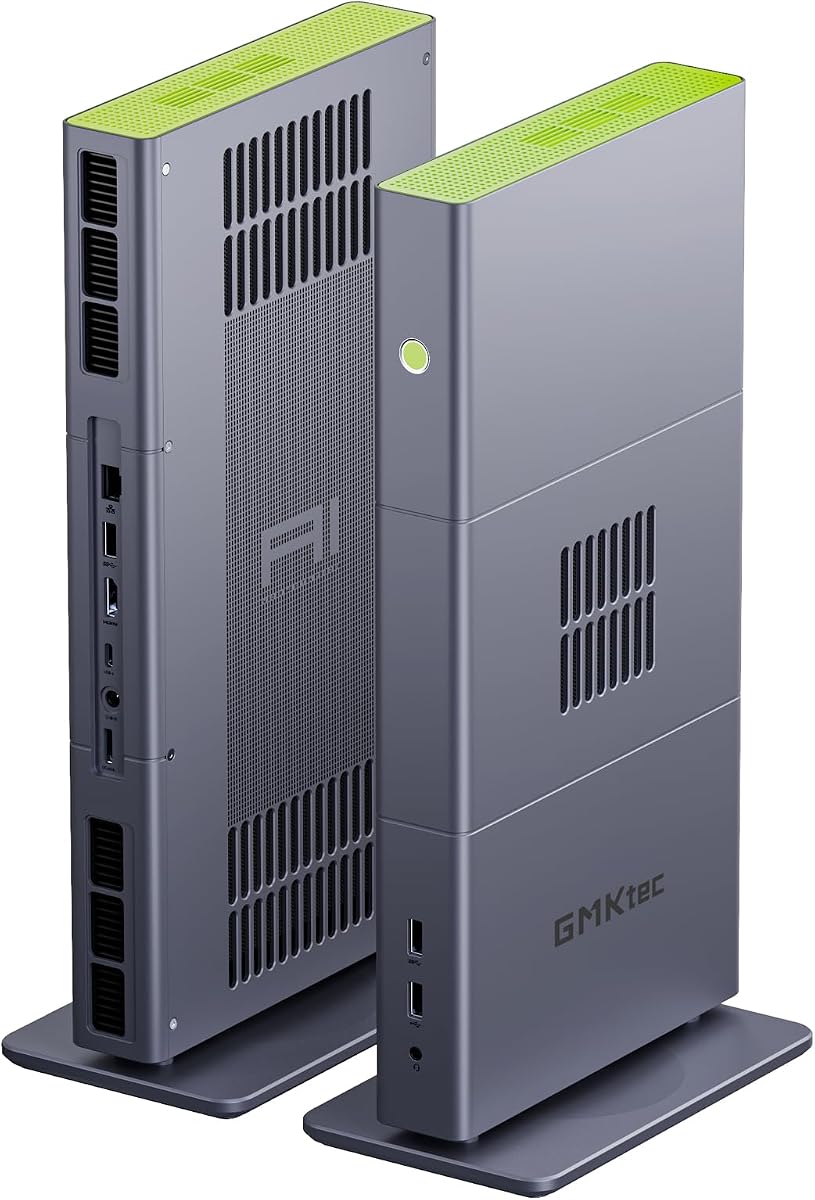
The GMKtec X3 is the specialist in this group, built around the Ryzen AI Max+ 395 with 16 Zen 5 cores, 32 threads, boost clocks up to 5.10GHz, and an integrated AI engine listed at up to 126 TOPS. Its 4.1 customer rating is solid, while the 128GB LPDDR5X pool and Radeon 8060S graphics distinguish it sharply from conventional office mini PCs.
We may earn a commission when you buy through this link, at no additional cost to you.
The major advantage is memory capacity for local AI and other unified-memory workloads. The listing specifically discusses applications such as LM Studio and large language models, including a DeepSeek 70B Q8 example. It also highlights the ability for the integrated graphics to use the full memory pool. These claims position the X3 as a compact system for model development, inference, content creation, 8K video work, and advanced applications rather than a typical browsing-only computer.
OCuLink provides PCIe 4.0 x4 expansion for a compatible external GPU, dock, or accelerator. The system includes a 2TB PCIe 4.0 SSD, 2.5GbE Ethernet, Wi-Fi 7, and Bluetooth 5.4. Eight-channel LPDDR5X is listed at speeds up to 8000MT/s, with claimed gains in video conferencing, photo editing, productivity, and digital-content workloads. Wi-Fi 7 offers a theoretical link rate of up to 46Gbps, while real-world performance remains dependent on routers and other devices.
Its compromises reflect its position at the premium end. The 128GB memory is onboard and cannot be replaced if a different capacity is needed later. The design also demands careful attention to cooling and power because it combines a high-performance CPU, large graphics array, and substantial memory capacity. Choose the X3 when local AI or a workstation-class memory pool is central to the purchase rather than a secondary possibility.
The 128GB LPDDR5X pool can accommodate workloads that exceed the memory capacity of most mini PCs. That makes the X3 particularly relevant to local model experimentation, inference, image processing, and other applications that benefit from a large shared memory space.
Radeon 8060S integrated graphics already provide strong capability, while Oculink adds a path to compatible external graphics. The final configuration should be chosen with enclosure, power, cooling, and budget requirements in mind.
We may earn a commission when you buy through this link, at no additional cost to you.
This K15 is the entry configuration among the Core Ultra 5 125U models in the guide. It provides 16GB of DDR5-4800, a 512GB PCIe 4.0 SSD, and a 64Gbps Oculink interface. The processor has 12 cores and 16 threads across performance, efficient, and low-power efficient cores, with boost speed up to 4.30GHz and an AI Boost NPU listed at 13 TOPS.
We may earn a commission when you buy through this link, at no additional cost to you.
The major advantage is upgrade latitude. The listing describes dual-channel DDR5-4800 support up to 128GB and three PCIe 4.0 x4 M.2 positions with a combined maximum of 24TB. A buyer who starts with the 16GB configuration can potentially add memory and storage rather than accepting the 16GB limit permanently. This is useful for buyers who know they will need more capacity but want to stage their purchases.
OCulink is listed at 64Gbps, twice the stated bandwidth of Thunderbolt 4, and can serve compatible external GPUs or 10G network adapters. The system supports four displays through HDMI 2.1, DisplayPort 1.4, and dual USB4 Type-C connections. Intel Arc 140T graphics include eight Xe cores, hardware-accelerated AV1, and Quick Sync Video, which makes the platform suitable for compact gaming and media tasks.
Network support includes dual 2.5GbE Ethernet, Wi-Fi 6E, and Bluetooth 5.2, making it well equipped for NAS access, routing, soft-routing, or server experiments. The 16GB starting memory and lack of a published customer rating are the main limitations. This model is best for a buyer who values the Oculink and AI platform but expects to upgrade memory shortly after setup.
The listed 128GB memory ceiling gives the system room to grow with changing workloads. Upgrading early can prevent memory limitations from becoming the deciding factor in later creative or development work.
The 64Gbps Oculink implementation offers a dedicated expansion path for compatible hardware. Unlike USB-only docking, it can support lower-latency external graphics or high-speed network adapters when paired with suitable equipment.
We may earn a commission when you buy through this link, at no additional cost to you.
The 1TB K16 is the strongest all-around configuration in the comparison. Its Ryzen 7 7735HS has eight cores, 16 threads, a 3.20GHz base clock, and boost speed up to 4.75GHz, while Radeon 680M graphics provide a capable integrated baseline. The product carries a 4.6 customer rating, the highest visible rating among the ten listings, making it an encouraging choice when social proof matters alongside specifications.
We may earn a commission when you buy through this link, at no additional cost to you.
Thirty-two gigabytes of LPDDR5-6400 and a 1TB M.2 2280 PCIe SSD provide a strong foundation for office work, programming, research, video calls, content creation, livestreaming, education, and mainstream PC gaming. Storage can be expanded through two M.2 2280 PCIe 4.0 x4 positions, with the listing describing support for up to 8TB per drive and 16TB total. The installed memory itself is soldered and not user-replaceable.
A front OCuLink PCIe 4.0 x4 port provides a direct expansion path for compatible PCIe devices, while the front USB4 port supports 40Gbps data, DisplayPort 1.4 video, and 100W USB-C power input. It is not hot-swappable, so the computer should be shut down before connecting or removing an OCuLink device. Dual 2.5GbE Ethernet with Realtek controllers adds flexibility for NAS access, file transfers, router projects, and separated networks.
Display support covers up to three screens through HDMI 2.0, DisplayPort 1.4, and USB4. Silent, Balanced, and Performance modes operate at 35W, 45W, and 50W, respectively, with dual fans and copper heat pipes. At approximately 4.21 by 4.37 by 2.48 inches and 1.23 pounds, it is also notably compact. This is our Editor's Choice for buyers seeking the most complete balance of memory, storage, networking, performance, and expansion.
The combination of 32GB memory and a 1TB drive avoids the most common limitations of compact PCs. It provides enough capacity for simultaneous applications, current projects, and a meaningful local media or application library without immediate upgrades.
Placing OCuLink and USB4 on the front improves access to expansion equipment while keeping the enclosure compact. Dual wired networking, three display outputs, and high-speed USB create a broad foundation for daily productivity and compact workstation use.
We may earn a commission when you buy through this link, at no additional cost to you.
The right Oculink-equipped mini PC depends on whether you need stronger external graphics, more memory, extensive local storage, multiple displays, advanced networking, or local AI acceleration. Compare the complete configuration rather than focusing on the presence of the Oculink connector alone.
Oculink is a high-bandwidth PCIe expansion interface, but the exact implementation and intended device still matter. Several systems in this guide describe a PCIe x4 connection, while the AOOSTAR MACO and 16GB K15 listing specifically identify 64Gbps Oculink. Oculink is not interchangeable with every USB4 or Thunderbolt dock, so check the enclosure, adapter, and external device for protocol and lane compatibility before buying.
Oculink is especially useful for external graphics because it provides a more direct PCIe path than a display-output-based USB connection. It can also support compatible high-speed network adapters, storage controllers, and other PCIe devices. However, the mini PC, graphics card, enclosure, power supply, and cooling system all influence the final result. An external GPU that performs well on one compact system may face power or thermal limitations on another.
Choose Oculink primarily for a planned expansion, not merely because the label appears in a specification sheet. Confirm that the external hardware supports the appropriate protocol, that the power arrangement is adequate, and that the intended workload benefits from a dedicated PCIe connection.
The processors here span AMD Ryzen 5 PRO 6650H, Ryzen 7 6850H, Ryzen 7 7735HS, Intel Core Ultra 5 125U, and Ryzen AI Max+ 395. Core count, boost clock, integrated graphics, and power limits influence different tasks. The Ryzen 7 chips offer eight cores and 16 threads, while the Core Ultra 5 125U combines performance, efficient, and low-power efficient cores for a potentially favorable power-to-performance balance.
Integrated graphics should be matched to the task rather than treated as a substitute for a full desktop GPU. Radeon 680M and Radeon 660M configurations are suitable for mainstream games, media playback, and many productivity tasks. Intel Arc 140T adds Quick Sync Video and AV1 support, which can be useful in editing and encoding workflows. The X3's Radeon 8060S is aimed at substantially more demanding local graphics and AI work.
Prioritize the processor that matches your software. General office users need less than an AI developer, editor, or gamer. If Oculink will provide the final graphics upgrade, prioritize CPU performance, memory, storage, and cooling over the sophistication of the integrated graphics.
Memory is one of the most consequential long-term specifications in a compact computer. The guide includes 16GB, 24GB, 32GB, and 128GB configurations. LPDDR5 memory is fast and efficient but usually soldered to the motherboard, while the K15's dual-SODIMM design can be upgraded. A 32GB system is generally more comfortable for heavy multitasking, large project files, and multiple applications than a 16GB model.
Local AI workloads can require far more memory than typical browser or office use. Large language models, image workflows, and other unified-memory applications benefit from the X3's 128GB pool. If you do not need that capacity, paying for it may be unnecessary, and 32GB with faster storage may offer a better balance. Check whether the listed maximum memory specification is supported by the exact board and configuration.
Choose 16GB for light productivity and constrained budgets, 24GB or 32GB for a broader range of work, and large unified-memory configurations for specialized AI or content-creation tasks. Treat soldered memory as a fixed decision rather than an upgradeable component.
Storage capacity affects everything from operating-system headroom to project imports and game libraries. The starting capacities here range from 512GB to 2TB, while the number of M.2 positions ranges from two to three. A 1TB or 2TB drive is more convenient for modern applications, large media collections, and local models, while multiple slots can be valuable for RAID-oriented or segmented storage arrangements.
PCIe generation and lane width should also be checked. Several systems include PCIe 4.0 positions, and the MACO specifies three PCIe 4.0 x4 M.2 slots with RAID 0, 1, and 5 support. The 1TB K16 begins with a PCIe 3.0 SSD but provides two PCIe 4.0 x4 expansion positions. Confirm whether an additional drive is included, how many total slots exist, and whether the operating system or intended storage task needs specific RAID support.
Prioritize a 1TB or larger starting drive if the system will host creative files or a broad game library. Multiple M.2 slots are useful when you want fast scratch storage, separate application volumes, or mirrored data. Always back up important files even when RAID is used.
Several systems include dual 2.5GbE Ethernet, a significant advantage for homelab, NAS, router, and small-office use. Two ports can provide separate network segments, dedicated management access, or link aggregation where supported. The M8, K16, and MACO configurations are particularly relevant to these scenarios. Actual transfer speed depends on the target storage, network equipment, cable quality, and operating system configuration.
Wireless connectivity ranges from Wi-Fi 6 to Wi-Fi 6E and Wi-Fi 7, with Bluetooth 5.2 through 5.4. Faster wireless standards can be useful for peripherals and local transfers, but their headline theoretical throughput does not guarantee equivalent real-world performance. Match the wireless standard to your router and internet connection rather than selecting a system only by its maximum link rate.
Choose dual wired networking for infrastructure roles or frequent large transfers. For a conventional desk, one Ethernet port may be sufficient, particularly when Wi-Fi 6E or Wi-Fi 7 is available. Remote-access features such as Wake-on-LAN and Auto Power On are also useful for systems intended to operate unattended.
The systems support different combinations of HDMI, DisplayPort, and USB4 display outputs. Some list three simultaneous displays, while the K15 and MACO support four. Resolution claims are meaningful only with compatible monitors and cables, and the maximum mode supported by an individual port may differ from the maximum supported by the whole system.
For a productivity desk, three displays can provide room for a main application, communication windows, and reference material. Creators may benefit from the K15's high-resolution HDMI 2.1 output and multiple USB4 connections. Users adding an external GPU should also verify which display outputs are connected directly to the graphics card versus the mini PC, because the available arrangement can change with the eGPU dock.
Check the number of displays, supported refresh rates, and resolutions your actual monitors require. Do not assume that every output supports the headline 4K or 8K mode at the same refresh rate. USB4 video also depends on the connected dock, display, and host configuration.
Compact processors can sustain useful performance when cooling and power limits are managed well. The systems here use combinations of dual fans, triple fans, copper heat pipes, vapor chambers, and 360-degree airflow. Quiet, Balanced, and Performance modes give users a way to balance energy use, noise, and sustained output, although actual acoustics depend on the workload, room, and nearby surfaces.
Consider sustained performance rather than short benchmark bursts. Content creation, gaming, compiling, and local AI inference can keep a processor and external GPU loaded for extended periods. A system with a suitable cooling path and sufficient enclosure airflow is more important than a mode label. Leave the intake and exhaust areas unobstructed, and avoid placing a heavily loaded system inside a closed cabinet.
Choose a quiet mode for office or background use, a balanced mode for most daily work, and a performance mode when maximum throughput is more important than noise or energy consumption. For an external graphics setup, cooling in the graphics enclosure remains a separate and equally important consideration.
A mini PC is normally chosen to occupy less space than a conventional tower, but dimensions and materials still vary. The 1TB K16 is listed at approximately 4.21 by 4.37 by 2.48 inches and 1.23 pounds, making it straightforward to place on a desk or shelf. The MACO uses a recycled aluminum-alloy chassis, while the K16 describes a gray metal C-frame with anodized finishing.
Consider where the system will live. A compact computer beside a monitor may benefit from front-facing OCuLink and USB4 access, while a network appliance may prioritize screwless or tool-free maintenance, but neither feature is universal. Also think about power-adapter placement, cable management, and whether a vertical mount is included or compatible.
Choose a smaller system when desk space, portability, or tidy placement matters most. Favor a metal enclosure and accessible ports when the computer will be moved frequently or remain in service for years.
Begin by identifying the purpose of the Oculink connection before installing any expansion hardware. Confirm compatibility with the port's PCIe generation and lane configuration, prepare the required enclosure or adapter, and check the graphics card or device's power requirements. For external graphics, use the power arrangement recommended by the enclosure manufacturer and avoid connecting or removing Oculink devices while the computer is running.
After the first boot, install the operating system, updates, and the software needed for your workflow. Configure the desired BIOS performance mode, network connections, display arrangement, and remote-access features such as Wake-on-LAN or Auto Power On if needed. If using multiple M.2 drives, initialize and format them according to your intended storage layout, and maintain an independent backup of important information.
Keep the intake and exhaust paths clear, use the system on a stable surface, and avoid placing it inside a closed enclosure while running demanding workloads. Periodically clean dust from vents, check that storage and memory remain within their operating-temperature ranges, and back up important data. For troubleshooting external graphics, test the display connections, power supply, cables, and eGPU enclosure separately before assuming the mini PC itself is at fault.
No. Oculink is designed as a dedicated high-bandwidth PCIe expansion interface, while USB4 and Thunderbolt combine data, display, and power functions in a more general-purpose connector. They are not automatically interchangeable, so an eGPU enclosure must explicitly support Oculink and the intended bandwidth. Even with Oculink, the enclosure, power supply, cooling, and graphics card can determine the final result.
Not on the systems whose supplied information says Oculink is not hot-swappable. That includes the AOOSTAR MACO and the 1TB K16. Power the mini PC down completely before connecting or removing an Oculink device. Even where a product does not explicitly prohibit hot-swapping, safe practice is to follow the enclosure and device manufacturers' instructions.
No, but the answer depends on the workload. Integrated Radeon 680M, Radeon 660M, or Intel Arc 140T graphics can handle mainstream games, media, and productivity applications. A dedicated external GPU is more useful for demanding games, 3D rendering, intensive editing, or AI acceleration. Oculink makes that upgrade possible without replacing the entire compact computer.
It is generally sufficient for browsing, office work, video calls, media playback, and many mainstream applications. It becomes less comfortable with large editing projects, many simultaneous applications, virtual machines, and local AI models. Buyers with heavier workloads should favor 32GB, upgradeable SO-DIMM memory, or a large unified-memory platform such as the 128GB X3.
Two wired ports can connect a mini PC to two separate networks, support a dedicated management or transfer link, or participate in link aggregation when the hardware and software support it. They are particularly useful for NAS access, small servers, routing projects, and office networks. Real transfer speed still depends on the target device, switches, cabling, and configuration.
Yes. The systems in the guide support either three or four simultaneous displays, depending on the model and connected equipment. Available outputs include HDMI, DisplayPort, and USB4 with DisplayPort capabilities. Verify the exact resolution and refresh rate of each port, use compatible cables and monitors, and consider how an external GPU dock may change the display arrangement.
The GMKtec X3 is the most specialized because its Ryzen AI Max+ 395 platform combines a large 128GB LPDDR5X memory pool with high integrated graphics capability and an AI engine. The K15 models also include Intel AI Boost NPUs and may suit lighter acceleration tasks. The best choice still depends on the model, software, and size of the workload involved.
Replaceable SO-DIMM memory provides more flexibility because capacity can be increased later. Soldered LPDDR5 is often faster and more compact, but it fixes the memory configuration for the life of the system. A buyer who already knows that 16GB will be insufficient may prefer to start with 32GB, while buyers confident in their requirements can benefit from the compactness of onboard memory.
The AOOSTAR MACO stands out as the best budget-oriented all-rounder, combining an eight-core Ryzen processor, 24GB of fast memory, a 1TB SSD, three high-speed M.2 positions, dual 2.5GbE, two USB4 ports, and Oculink. The 1TB GMKtec K16 takes our Editor's Choice for its more balanced 32GB and 1TB configuration, three display outputs, dual networking, front expansion, and strong 4.6 customer rating.
For premium local AI and workstation use, the GMKtec X3 is the clear specialist thanks to 128GB of LPDDR5X, the Ryzen AI Max+ 395, Radeon 8060S graphics, and a 2TB drive. Buyers prioritizing a conventional office platform can choose the M8, while those who value Intel's NPU and replaceable memory can select a K15. Prioritize the processor, memory capacity, storage, cooling, and exact external device compatibility before focusing on the Oculink label.
Remember that product listings, configurations, warranty terms, and prices can change. Check the current retailer listing, compare the exact model and memory configuration, and confirm that your planned eGPU or PCIe accessory is supported before ordering. That final compatibility check can make the difference between a smooth expansion and a costly mismatch.