
Logitech Ergo M575S
4.6Editor score
Space-saving thumb-operated trackball
Three customizable control buttons
Bluetooth or Logi Bolt connection
Ergonomic forearm support
Discover the best Mouse for Drafting options, comparing ergonomic designs, precision controls, fast scrolling, connectivity, and compatibility for workspaces.
A drafting mouse should combine precise pointer control, comfortable long-session use, and controls that support detailed technical work. The best option depends on whether you prioritize a conventional grip, trackball efficiency, 3D navigation, or seamless movement between applications and devices.
This guide compares ten Logitech and 3Dconnexion mice using the specifications and feature details supplied for each model. It examines precision sensors, scroll mechanisms, programmable controls, connection methods, hand support, battery life, and platform compatibility without claiming hands-on testing.
Each pick demonstrates a different route to accurate drafting work, from a compact trackball to a six-degrees-of-freedom controller. The rankings reflect practical feature value, while current availability, included accessories, system requirements, and prices should always be checked before purchasing.
4.6Editor score

4.6Editor score
4.4Editor score
The table below compares all ten options by control approach, navigation technology, connectivity, and workspace suitability. These differences help distinguish everyday precision mice, ergonomic vertical designs, trackballs, and a dedicated six-axis drafting controller.
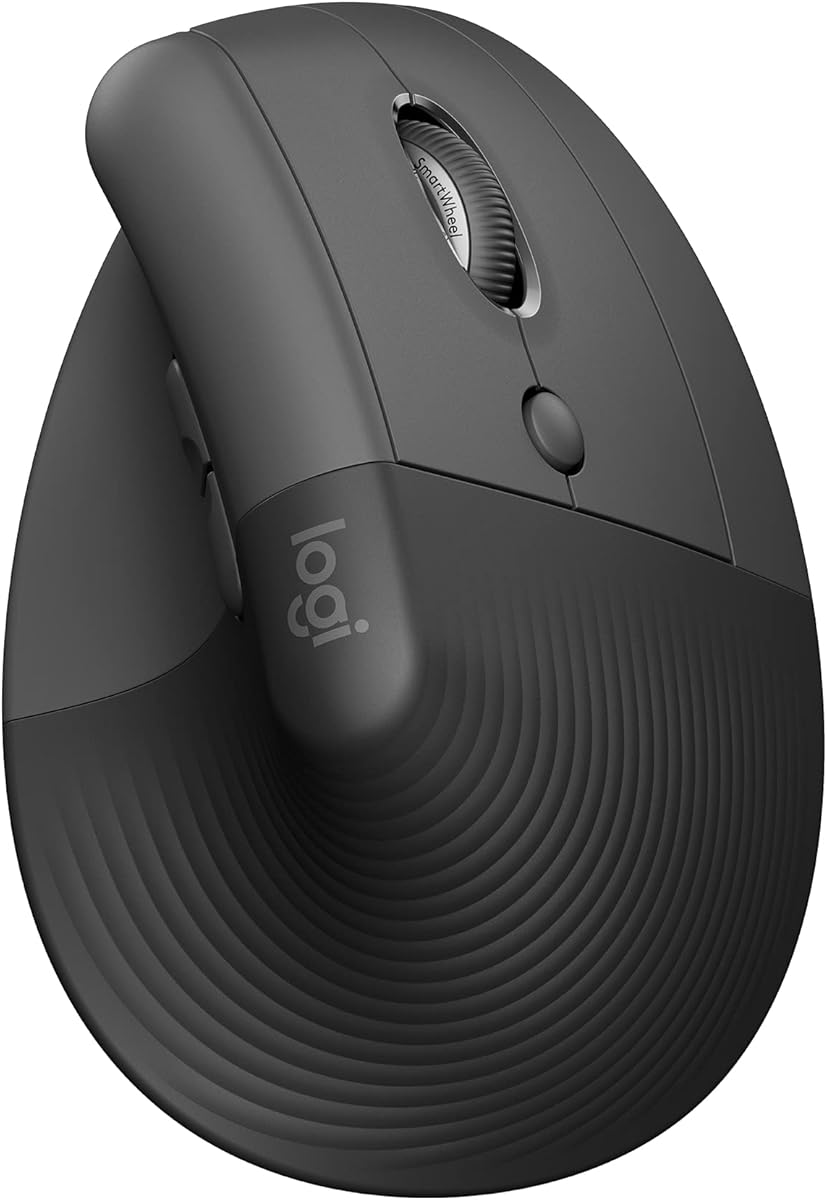


The Logitech Lift is a compact vertical wireless mouse rated 4.4 out of 5. Its 57-degree shape places the hand in a more natural position, while the softly textured grip, thumb rest, and close-fitting form make it a practical choice for drafting desks where conventional movement creates wrist discomfort.
We may earn a commission when you buy through this link, at no additional cost to you.
Its standout feature set extends beyond the vertical shell. Easy-to-reach customizable buttons support workflow shortcuts, the SmartWheel shifts between smooth and faster scrolling, and whisper-quiet clicks help maintain concentration. Connectivity through Bluetooth Low Energy or a Logi Bolt USB receiver supports Windows, macOS, iPadOS, Chrome OS, and Linux.
The main limitation is fit. Logitech describes Lift as best suited to small and medium right hands, so buyers with larger hands may find the compact body less accommodating. The supplied specifications also do not state a numerical sensor resolution, making it less attractive when maximum DPI is the overriding priority.
This mouse is a sensible recommendation for drafters who want an ergonomic shape, quiet operation, and flexible connectivity without moving to a trackball. It works especially well for general CAD navigation, document annotation, and repetitive selection tasks, provided the smaller vertical format feels comfortable for the intended user.
The 57-degree vertical angle encourages a more natural forearm position and keeps the wrist from remaining bent toward a flat mouse. That geometry can make long annotation, drawing, and selection sessions feel more manageable.
Customizable buttons, a thumb rest, and the SmartWheel provide practical ways to accelerate drafting actions while preserving a centered workflow. Silent switching also helps in shared or quiet offices.
We may earn a commission when you buy through this link, at no additional cost to you.
The Logitech MX Master 4 Pale Gray is a feature-rich wireless mouse rated 4.3 out of 5. It combines an ergonomic natural tilt, high-speed precision scrolling, a thumb wheel, customizable haptics, and an Actions Ring, making it suitable for intensive drafting and production workflows.
We may earn a commission when you buy through this link, at no additional cost to you.
The Actions Ring places frequently used filters, adjustments, and shortcuts near the cursor and can adapt to each application. Its MagSpeed wheel can scroll as many as 1,000 lines per second while stopping precisely, a useful combination when moving through long drawings, specifications, or model properties.
Haptic Sense Panel feedback can mark specific actions, shortcuts, and notifications, while Quiet Clicks reduce noise by 90 percent compared with the referenced standard. These features improve feedback and focus but create a learning curve, especially for users who prefer a simple three-button mouse.
This is a strong recommendation for experienced drafters who want configurable controls and fast navigation in one device. It is less suitable for occasional users who will not customize the mouse or for anyone requiring a traditional shape without a thumb wheel and an action ring.
The Actions Ring acts as a contextual control surface that can expose app-specific tools near the cursor. This reduces menu travel and can make repeated CAD operations faster once the configuration is tuned.
The MagSpeed wheel shifts from rapid line-by-line movement to pixel-level positioning. That range lets users cross long documents quickly and then make fine corrections around dimensions or geometry.
We may earn a commission when you buy through this link, at no additional cost to you.
The Graphite version of the Logitech MX Master 4 is a 4.3-rated ergonomic wireless mouse built for detailed, control-heavy work. It retains the same Haptic Sense Panel, Actions Ring, MagSpeed wheel, Quiet Clicks, and thumb wheel as the Pale Gray edition.
We may earn a commission when you buy through this link, at no additional cost to you.
For drafting, the most useful combination is rapid scrolling and precise stopping. The wheel reaches 1,000 lines per second but can also settle on a single pixel, while the thumb scroll wheel provides an additional axis for navigation. Customizable feedback confirms actions without requiring visual attention.
Its trade-off is complexity. The dynamic Actions Ring, haptic settings, and multiple controls take time to configure, and the large sculpted body may not suit users with smaller hands. Buyers seeking a simple, portable pointer may find more specialized options easier to manage.
This graphite model is well suited to professional drafters and technical artists who value adaptable controls and strong scrolling performance. Choose it over the Pale Gray version primarily for aesthetic preference, while verifying supported software and workflow requirements before buying.
Customizable haptic feedback can mark particular commands or notifications. The result is a more immediate response during repetitive drawing, zooming, or selection workflows.
The primary wheel handles rapid vertical movement, while the thumb wheel supports fluid lateral navigation. This separation can reduce repeated repositioning in wide drawings.
We may earn a commission when you buy through this link, at no additional cost to you.
The Logitech MX Ergo S is a 4.4-rated trackball mouse offering switchable speed and high-precision tracking. Its sculpted form, soft rubber grip, and 20-degree tilt support forearm posture, while the trackball eliminates the need to move the entire hand for pointer control.
We may earn a commission when you buy through this link, at no additional cost to you.
Six customizable buttons and Smart Actions through Logi Options+ can streamline repetitive drafting tasks. A one-minute charge is stated to provide up to 24 hours of use, and a full charge can last up to 120 days, reducing the need for routine charging during active projects.
The primary drawback is adaptation. Trackball movement feels different from rolling a conventional mouse, and some users initially struggle with controlled cursor movement. The stated 27 percent muscle-strain reduction is a product claim rather than an individual guarantee, so personal comfort remains essential.
The MX Ergo S is ideal for drafters with medium to large hands who want accuracy without clearing desk space. It also suits people managing wrist fatigue from repeated arm movement, provided they are willing to learn trackball control and configure the available buttons.
The mode switch lets users move between faster cursor travel and high-precision tracking. The slower setting is valuable when aligning nodes, selecting tiny objects, or positioning annotations.
Keeping the hand in place reduces desk requirements and can leave more room for keyboard shortcuts, reference drawings, or a graphics tablet. This makes the model attractive in compact drafting environments.
We may earn a commission when you buy through this link, at no additional cost to you.
The Logitech MX Vertical is an established ergonomic wireless mouse rated 4.4 out of 5. Its 57-degree angle places the hand in a handshake-like position, reducing wrist pressure while preserving conventional mouse operation for drafting and design tasks.
We may earn a commission when you buy through this link, at no additional cost to you.
The 4000 DPI optical sensor is a meaningful advantage for detailed work. A dedicated cursor speed switch changes sensitivity instantly, and the supplied description states that the sensor requires four times less hand movement than a traditional 1000 DPI mouse. A textured rubber surface improves grip and control.
Compared with newer models, its feature set is relatively focused. It lacks the rapid MagSpeed wheel, contextual Actions Ring, and extensive wireless options associated with MX Master models. The vertical shape also occupies more surface area than a compact ergonomic mouse.
This is a compelling choice for drafters who prioritize a defined sensor resolution, vertical comfort, and straightforward operation. It works well for CAD, vector illustration, and document markup, especially for users who understand their preferred sensitivity but do not need extensive app-specific customization.
The dedicated DPI control can be reached without opening software. Drafters can move quickly across a drawing and then reduce sensitivity when editing smaller dimensions or detailed geometry.
Unlike a trackball, the mouse still rolls and requires less behavioral adjustment. Its vertical shell changes wrist orientation without changing the basic pointing method.
We may earn a commission when you buy through this link, at no additional cost to you.
The Space Black Logitech MX Master 4 for Mac is a 4.4-rated ergonomic mouse designed around Apple workflows. Its Logi Options+ functions for macOS, matching finish, USB-C charging, and broad software support make it a natural choice for Mac-based drafting users.
We may earn a commission when you buy through this link, at no additional cost to you.
The MagSpeed wheel offers rapid scrolling and pixel-level stopping, while the Actions Ring can surface filters, adjustments, and shortcuts within compatible applications. The Haptic Sense Panel adds configurable feedback, and the thumb wheel helps navigate wide drawings without changing cursor direction.
Users should account for the ecosystem effect. Although the title also lists iPadOS and Windows, the strongest integration is with macOS and Logi Options+ on that platform. The USB-C charging cable is not included, so a compatible cable may need to be sourced separately.
This model is best for drafters using Macs or iPads who want comprehensive software integration and polished hardware. It is also suitable for mixed-platform users, although those with equal cross-platform demands may prefer the standard MX Master 4.
Dedicated macOS functions in Logi Options+ make button assignments and app-specific controls easier to organize. This reduces setup friction for users who already depend on the Logitech software ecosystem.
The tilted body, thumb controls, and natural grip support extended work. Quiet Clicks also reduce mechanical distraction while the MagSpeed wheel handles movement between distant drawing regions.
We may earn a commission when you buy through this link, at no additional cost to you.
The Logitech MX Master 3S Bluetooth Edition is a 4.6-rated mouse that stands out as the most balanced option in this guide for detailed drafting. Its 8000 DPI sensor, customizable sensitivity, precise MagSpeed scrolling, ergonomic silhouette, and programmable controls cover the essential needs of CAD and design work.
We may earn a commission when you buy through this link, at no additional cost to you.
The sensor can track on any surface, including glass, giving users flexibility when workspace conditions change. MagSpeed scrolling is stated to be 90 percent faster, 87 percent more precise, and nearly silent, while Quiet Clicks reduce click noise by 90 percent. Together, these features balance speed with control.
Its connection format deserves attention. This edition is Bluetooth only and does not include a Logi Bolt receiver, adapter, or charging cable. It can connect to up to three devices across Windows, macOS, Chrome OS, and Linux and supports cross-computer transfer of text, images, and files.
For drafters who want high precision, fluid navigation, quiet operation, and multi-computer flexibility without the newest haptics and Actions Ring, the MX Master 3S is the strongest all-around recommendation. It is particularly effective for users comfortable configuring app-specific profiles in Logi Options+.
The 8000 DPI sensor provides a high-resolution foundation for detailed selection and positioning. Tracking on glass adds flexibility when the usual drafting surface is unavailable.
Up to three Bluetooth devices and Flow cross-computer control let users move text, images, and files between systems. This is valuable for teams alternating between local workstations and remote setups.
We may earn a commission when you buy through this link, at no additional cost to you.
The Logitech Ergo M575S is a 4.6-rated ergonomic trackball offering a practical balance of value, compactness, and comfort. Its thumb-operated ball moves the cursor without requiring broad hand movement, making it well suited to small drafting workspaces and users who want to reduce arm movement.
We may earn a commission when you buy through this link, at no additional cost to you.
The sculpted shape supports the hand and realigns the forearm into a better posture. Three customizable buttons, shortcuts, and Smart Actions provide a manageable amount of workflow customization without the dense control layout of larger MX devices.
Connection options are unusually flexible for this class. The mouse can operate over Bluetooth or through the included Logi Bolt USB receiver, and an AA battery is included. Its simpler feature set means fewer advanced navigation controls than the MX Ergo S or MX Master models.
The Ergo M575S is an excellent recommendation for budget-conscious drafters who work in compact spaces, value longevity, or want a trackball that suits most hand sizes. The main adjustment period involves learning to roll the ball with the thumb without rotating the whole hand.
The stationary trackball needs far less surface area than a rolling mouse. Drafters can preserve room for reference sheets, keyboards, or tablet space while retaining precise pointer access.
Bluetooth and the included Logi Bolt receiver provide useful setup options. The included AA battery also avoids the need to source a proprietary rechargeable cell.
We may earn a commission when you buy through this link, at no additional cost to you.
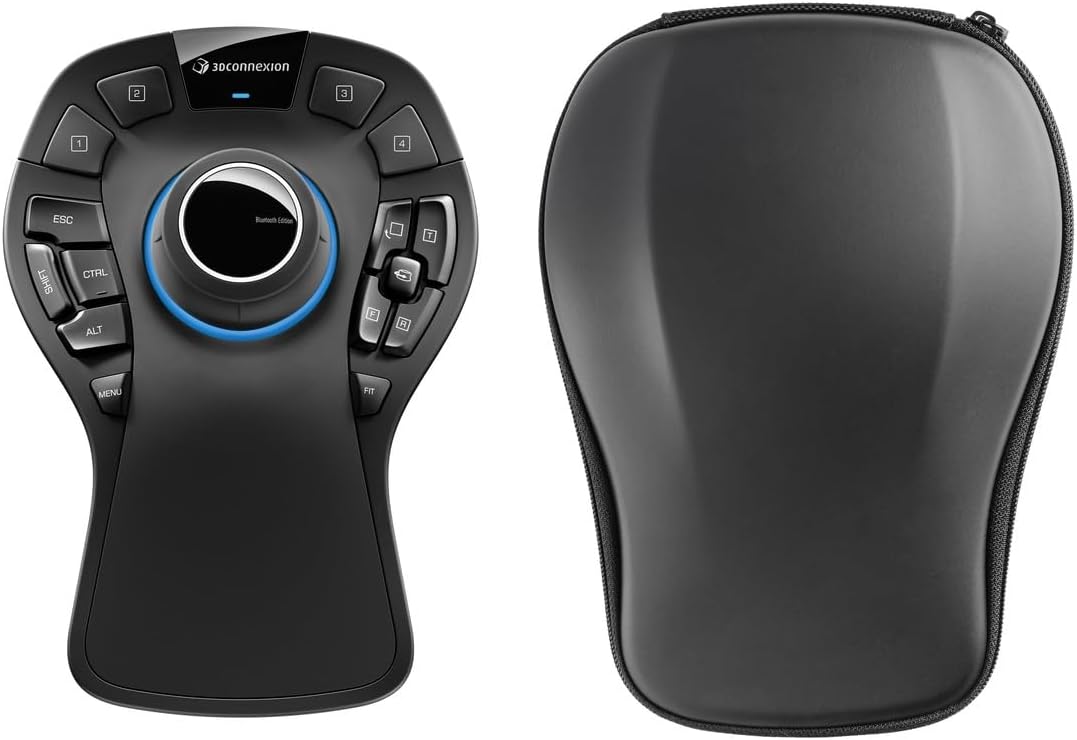
The 3Dconnexion SpaceMouse Pro Wireless BT is a 4.4-rated dedicated controller built around six-degrees-of-freedom navigation. Instead of limiting drafting interaction to a flat plane, it enables users to pan, zoom, rotate, and orient objects in three-dimensional space.
We may earn a commission when you buy through this link, at no additional cost to you.
Its six-axis sensor is the defining feature for CAD, 3D modeling, and technical visualization. A rechargeable 1100 mAh lithium-polymer battery supports wireless use, while USB-C and Bluetooth Low Energy connectivity provide modern connection choices.
This is not a conventional mouse and should not be treated as a universal replacement for one. Its value depends on compatible applications recognizing its motion axes, and standard clicking, text entry, or ordinary pointing may still require another input device. The specialized workflow also carries a higher acquisition commitment.
The SpaceMouse Pro is the premium recommendation for drafters who regularly manipulate complex 3D models and want direct spatial navigation. It is especially valuable alongside a conventional mouse or keyboard rather than as the sole pointing device.
Six-axis control maps physical hand movement to movement across multiple software axes. This can make camera positioning and model inspection feel more direct than repeatedly manipulating conventional screen controls.
Bluetooth Low Energy supports wireless operation, while USB-C offers a wired path. The rechargeable battery removes the need for disposable cells during extended design sessions.
We may earn a commission when you buy through this link, at no additional cost to you.
The White Silver Logitech MX Master 4 for Mac is a 4.4-rated ergonomic mouse designed to complement Apple workspaces. Its light finish, macOS-aware Logi Options+ functions, and USB-C charging make it visually and functionally suited to recent Mac-based drafting setups.
We may earn a commission when you buy through this link, at no additional cost to you.
Drafting controls include an Actions Ring, Haptic Sense Panel, MagSpeed wheel, thumb scroll wheel, and Quiet Clicks. The wheel can move through as many as 1,000 lines per second while stopping on a pixel, allowing quick transitions between drawing areas and precise local adjustments.
As with the Space Black version, a USB-C charging cable is not included, and the included complimentary software subscription is a temporary purchase benefit rather than a permanent feature. The control density also calls for some configuration before it reaches its full potential.
This model is ideal for Mac-centric drafters who prefer a lighter visual finish but want the same advanced productivity controls as the darker edition. It combines Apple compatibility with high-speed navigation, configurable feedback, and a comfortable, tilted form.
The White Silver finish and macOS functions create a consistent look across an Apple desk. Logi Options+ support also makes it easier to tailor controls to design and drafting applications.
The Haptic Sense Panel can signal selected actions, shortcuts, and notifications. Combined with Quiet Clicks, it provides useful feedback without the repetitive noise of a standard mechanical mouse.
We may earn a commission when you buy through this link, at no additional cost to you.
The right drafting mouse depends on your software, display setup, hand size, and tolerance for specialized controls. Sensor precision, navigation methods, programmable buttons, connectivity, and long-session comfort deserve attention before making a selection.
Precision determines how smoothly a user can select small objects, align geometry, or position annotations. The Logitech MX Master 3S provides an 8000 DPI sensor, while the MX Vertical has a stated 4000 DPI sensor. The Logitech Lift, MX Master 4 models, and SpaceMouse Pro do not include a numerical DPI specification in the supplied information, so their suitability should be evaluated around their specific controls and intended applications.
Choose the highest practical resolution that remains controllable, rather than assuming the largest number is always best. Sensitivity customization is also useful because screen resolution and personal hand movement affect the ideal setting.
Rolling mice, vertical mice, trackballs, and six-axis controllers serve different needs. A conventional mouse supports familiar pointing, a trackball reduces desk movement, and the SpaceMouse Pro is built for translation and rotation through multiple spatial axes. For 2D drafting, a precision wheel and adjustable sensitivity may matter more than 3D motion.
Select a navigation method that matches the software and your habitual input style. Trying a trackball or spatial controller before committing can prevent frustration caused by an unfamiliar movement model.
Drafting often involves moving between distant details and then aligning a small feature. The MX Master 4 family and MX Master 3S use MagSpeed wheels that support very fast scrolling and pixel-level stopping. The MX Vertical uses a conventional wheel, while the trackball products provide different navigation approaches.
Prioritize a wheel that can move rapidly but also stop predictably. A thumb wheel can add useful horizontal navigation in wide drawings, although it may require practice before it becomes part of an efficient workflow.
Programmable buttons can assign commands such as pan, zoom, undo, tool switching, or view rotation. The MX Master 4 family uses an Actions Ring, Haptic Sense Panel, and thumb wheel, while the MX Ergo S provides six customizable buttons and the Ergo M575S provides three.
Look for controls that can be reassigned within supported applications. More buttons are not automatically better; the ideal layout matches the commands used most often and remains easy to reach without looking away from the drawing.
Drafting sessions can last for hours, making wrist angle, grip, hand support, and overall fit central considerations. The Lift and MX Vertical use a 57-degree vertical form, the MX Ergo S has a 20-degree tilt, and the Ergo M575S uses a trackball design that supports the forearm while limiting arm movement.
Match the design to hand size and personal preference. The Lift is specified for small to medium right hands, the MX Ergo S for medium to large hands, and the M575S for most hand sizes. Comfort should be assessed over a realistic workday rather than during a brief initial session.
Connection requirements can determine whether a mouse fits a particular workstation. The MX Master 3S Bluetooth Edition is Bluetooth only and excludes both a Logi Bolt receiver and charging cable. Other models support Bluetooth, Logi Bolt, or USB-C, but users should verify whether a receiver or cable is included.
Choose the model that matches the available ports and preferred switching method. Wireless connectivity improves desk flexibility, while a receiver can offer a straightforward dedicated connection on systems where Bluetooth configuration is inconvenient.
Drafting workflows often span operating systems and multiple applications. The Lift supports Windows, macOS, iPadOS, Chrome OS, and Linux, while the MX Master 3S supports Windows, macOS, Chrome OS, and Linux. Mac-specific MX Master 4 models provide Logi Options+ functions designed for macOS.
Check the operating system, applications, and any required configuration utility before purchasing. The SpaceMouse Pro also depends on software support for its six-axis input, making compatibility more important than its physical specifications alone.
Battery behavior affects long projects and travel. The Lift is stated to last up to two years, the MX Ergo S up to 120 days after a full charge, and the SpaceMouse Pro uses a rechargeable 1100 mAh lithium-polymer battery. The Ergo M575S includes an AA battery and can also use the included Logi Bolt receiver.
Consider charging access, included cables, and battery logistics. Rechargeable convenience may be preferable for a fixed workstation, while a replaceable battery can be useful for users who keep one system away from a charging cable.
Begin by installing the manufacturer's configuration software and updating the mouse firmware if the chosen model supports that process. Assign the primary buttons for selection and context actions, then map secondary controls to commands used frequently in your drafting or design application. Keep application profiles specific so that each tool opens with the appropriate functions.
Adjust the cursor sensitivity and scroll behavior before beginning a detailed project. Use high sensitivity for broad navigation, then reduce it for precise alignment, small-object selection, and fine annotation. Trackball users should begin with moderate tracking and practice moving the ball with the thumb rather than pushing the entire mouse.
Keep the mouse or trackball surface clean and free of dust, adhesive residue, and metal particles. Clean removable parts according to the manufacturer's instructions, avoid aggressive liquids, and recharge wireless models before long sessions. If pointer movement becomes irregular, test the device on another surface and verify that its sensor is unobstructed.
A useful drafting mouse should offer accurate pointer control, predictable scrolling, configurable commands, and a shape that remains comfortable over long sessions. Resolution, button placement, and sensor tracking can all affect precision. The best drafting mouse also depends on whether you work mainly in 2D, use large drawings, or manipulate 3D models.
A trackball can be excellent when desk space is limited or frequent arm movement causes fatigue. It requires less desk room because the device stays still while the ball rotates. However, users generally need an adjustment period, and models with speed and precision modes may provide more control than a basic trackball.
A six-degrees-of-freedom controller is most useful when you regularly rotate, pan, zoom, or orient objects in three-dimensional space. It is not necessarily a complete replacement for a standard pointing mouse. Many designers use a SpaceMouse-style controller alongside a conventional mouse and keyboard for complementary navigation.
The MX Master 4 adds a Haptic Sense Panel and an app-aware Actions Ring to the feature set associated with the MX Master 3S. Both families emphasize high-speed MagSpeed scrolling, quiet clicks, ergonomic shapes, and customizable workflows. The 3S Bluetooth Edition is Bluetooth only, while the Master 4 options also describe USB-C receiver connectivity.
A vertical mouse can reduce the degree to which the wrist bends while preserving a familiar rolling interface. The Logitech Lift and MX Vertical both use a 57-degree angle, but they differ in size, listed sensor resolution, and intended hand fit. Personal comfort and hand size should guide the decision.
No. The supplied product information specifically states that this Bluetooth Edition does not include a Logi Bolt USB receiver, adapter, or charging cable. It can connect to multiple supported devices through Bluetooth, but users who require a dedicated receiver should choose a different configuration.
Start with the commands you use in every project, such as zoom, pan, undo, or tool switching. Assign them to controls that are easy to reach without moving the cursor and avoid placing essential functions where accidental presses are likely. Application-specific profiles can provide a more useful setup than one universal configuration.
Most of the listed Logitech models support both Windows and macOS, while the Mac editions emphasize Logi Options+ functionality for macOS. The Lift also lists iPadOS, Chrome OS, and Linux, and the MX Master 3S lists Windows, macOS, Chrome OS, and Linux. Confirm application-level support before purchase.
The Logitech MX Master 3S is the strongest overall choice because it combines an 8000 DPI sensor, fast and precise MagSpeed scrolling, quiet clicks, app-specific customization, and three-device Bluetooth support. The Logitech Ergo M575S offers a more compact and economical trackball experience, while the 3Dconnexion SpaceMouse Pro is the premium option for direct 3D navigation.
Prioritize the factors that match your actual work. 2D drafting may benefit most from a high-resolution sensor and precise wheel, long sessions may justify a vertical shape or tilted trackball, and 3D modeling can justify a dedicated six-axis controller. Software compatibility, included accessories, hand size, and comfort should be checked before finalizing a choice.
Current prices, availability, and product configurations can change, so confirm the latest listing and included components before buying. Comparing the final specifications with your drafting software, workstation ports, and preferred pointing method will help ensure that the selected mouse remains useful throughout the project.