
Logitech G PRO X2 SUPERSTRIKE
4.6Editor score
44,000 DPI tracking sensor
Haptic inductive trigger system
8 kHz wireless polling
Best Mouse for Lightroom compares ten ergonomic, wired, and wireless models for precise photo editing, comfortable workflows, fast scrolling, and control.
A mouse for Lightroom should make large photo catalogs, detailed selections, and precise corrections feel controlled rather than cumbersome. Sensor accuracy, comfortable grip, responsive buttons, and efficient scrolling matter more than gaming-oriented extras. The ideal model balances accurate tracking with the control needed for long editing sessions.
The ten mice in this guide were compared using their documented specifications, including sensor sensitivity, connection type, button layout, scroll-wheel design, ergonomic shape, battery features, and programmable controls. The list covers wired and wireless gaming models as well as productivity-focused options suited to image selection, retouching, and catalog management.
Each review explains how a mouse handles Lightroom's most common tasks, from moving the cursor through a dense grid of images to holding modifier keys and scrolling through long sequences. Product features may evolve, availability can change, and current prices fluctuate, so readers should verify the latest specifications and deal terms before purchasing.
4.6Editor score
4.6Editor score

4.6Editor score
This side-by-side comparison highlights the sensors, connectivity, scroll mechanisms, programmable controls, and ergonomic features that matter most when editing photographs in Lightroom.


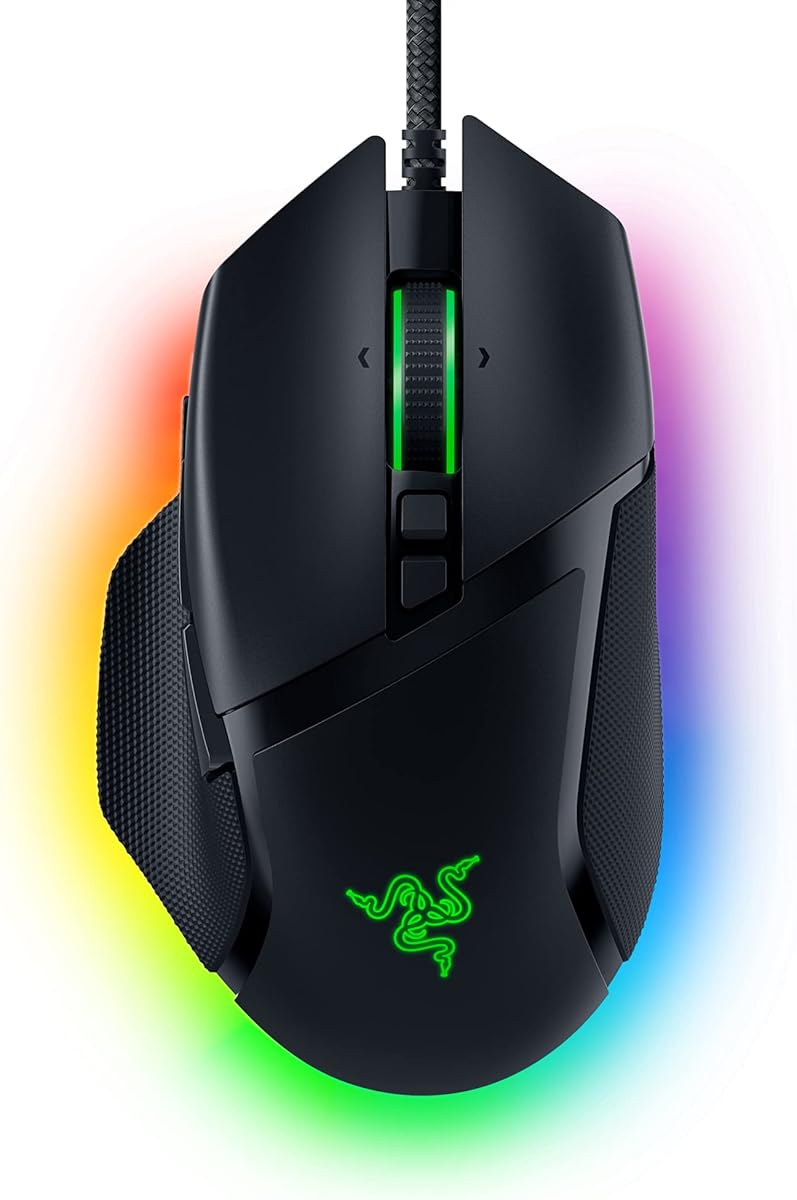
The Razer Basilisk V3 combines an ergonomic thumb-rest design with a 26,000 DPI optical sensor, making it a strong all-around choice for Lightroom. Its 4.6 rating reflects a favorable balance of precision, build-oriented features, and responsive controls. The wheel is especially useful when moving quickly between image sequences, while the wired connection provides a direct, dependable editing experience.
We may earn a commission when you buy through this link, at no additional cost to you.
Its most valuable Lightroom feature is the combination of a 26K sensor, 11 programmable buttons, and a HyperScroll wheel that can free-spin or provide tactile feedback. Photographers can assign frequently used commands to side buttons, while the wheel handles both measured adjustments and rapid movement across long timelines. Razer also supports extensive Chroma customization across 11 lighting zones, although that feature is secondary for photo editing.
The main limitation is its wired design. There is no need to recharge the mouse or manage a wireless receiver, but the cable can occupy space and may not match a completely uncluttered workspace. The 11-button layout may also feel excessive for users who only want standard navigation, and Razer Synapse configuration adds a software layer compared with a basic plug-and-play mouse.
Despite those considerations, the Basilisk V3 is recommended for editors who value precise movement, a comfortable hand-supported shape, and fast scrolling. It is particularly well suited to photographers managing large selections in Develop and Library views, provided their desk arrangement can accommodate a wired mouse comfortably.
The Focus Plus 26K optical sensor is designed for accurate movement without smoothing, which helps editors position masks, crop edges, and color-pick targets consistently. Razer recommends disabling Windows pointer acceleration for the intended behavior and using Synapse to fine-tune sensitivity.
A thumb rest supports the hand while the wheel switches between free-spinning and tactile scrolling. This makes the Basilisk V3 useful for both rapid library browsing and small, deliberate adjustments within a single photograph.
We may earn a commission when you buy through this link, at no additional cost to you.
The Logitech G502 Lightspeed is a versatile wireless mouse with a 4.6 rating and a strong combination of tracking accuracy, programmable controls, and fast scrolling. Its 25,600 DPI maximum sensor and zero-smoothing, zero-filtering, zero-acceleration behavior suit tasks that demand predictable cursor placement.
We may earn a commission when you buy through this link, at no additional cost to you.
For Lightroom, the 11 customizable buttons allow shortcuts and macros to be assigned through Logitech G HUB. The wheel can move quickly through menus, long web pages, and image libraries, while the sensor maintains stable tracking. LIGHTSPEED wireless connectivity removes cable clutter from the editing desk and gives the mouse flexibility to work across different positions.
The design does carry a few trade-offs. It is a substantial, button-heavy mouse, so users who prefer a minimalist shape may find it busy. The USB receiver must be connected, although it can be stored inside or alongside the mouse according to the supplied product information. The optional PowerPlay charging system would add convenience but requires a separate purchase.
This is an excellent recommendation for a Lightroom user who wants wireless freedom without giving up a high sensor ceiling or an extensive control layout. It is particularly appropriate for editors who move frequently between catalog browsing, Develop-module adjustments, and application switching.
Logitech's LIGHTSPEED technology gives the mouse freedom from a fixed cable while retaining a high-resolution sensor. The 1:1 tracking behavior and configurable sensitivity are useful for consistent movement around precise editing targets.
Eleven customizable buttons can carry commands that would otherwise require repeated keyboard shortcuts. G HUB profiles make it possible to organize controls around different applications or parts of the Lightroom workflow.
We may earn a commission when you buy through this link, at no additional cost to you.
The Logitech G PRO X2 SUPERSTRIKE delivers the most technically advanced control package in this guide. Its 4.6 rating is supported by a HERO 2 sensor rated up to 44,000 DPI, tracking above 888 IPS, and compatibility with an 8 kHz wireless polling rate. These specifications give demanding Lightroom users exceptional control over cursor movement.
We may earn a commission when you buy through this link, at no additional cost to you.
The Haptic Inductive Trigger System is the most distinctive feature. It provides real-time feedback when a trigger is pressed and allows ten levels of actuation adjustment plus five levels of rapid-trigger reset. Although developed for gaming, this customization can translate into a controlled editing experience where users choose how far a button must travel before Lightroom receives the input.
There are practical compromises. The most demanding wireless mode shortens battery life, and advanced configuration depends on Logitech G HUB. The mouse also emphasizes performance-oriented design rather than the broad app-specific automation found in Logitech's productivity line. As a result, some of its advanced controls may go unused in a standard photo workflow.
It is best suited to a technically engaged editor who values immediate feedback, very fast polling, and fine-grained control over input behavior. Those who simply need a comfortable mouse for basic catalog browsing may find a more productivity-focused model easier to justify.
A 44,000 DPI ceiling and 8 kHz polling rate provide considerable tracking headroom. While many editors will not need maximum sensitivity, the hardware offers room for different working styles and future demanding applications.
The Haptic Sense System gives each trigger configurable resistance and travel. Lightroom users can use that feedback to confirm an action without repeatedly checking onscreen state, making subtle edits feel more deliberate.
We may earn a commission when you buy through this link, at no additional cost to you.
The Logitech G502 X Plus is a refined version of a well-known gaming design, with a 4.4 rating and a feature set that works well for extended creative work. Its 25,000 DPI HERO 25K sensor provides high-resolution tracking without smoothing, filtering, or acceleration.
We may earn a commission when you buy through this link, at no additional cost to you.
The redesigned dual-mode wheel is especially relevant to Lightroom. Users can select free-spinning movement for large catalog jumps or ratcheted movement for controlled panel navigation, while horizontal tilt adds another pair of programmable inputs. A reversible, removable DPI-shift button also lets users adapt the layout to their grip and preferred sensitivity adjustments.
LIGHTSPEED wireless connectivity and LIGHTSYNC RGB lighting add flexibility, while hybrid optical-mechanical switches promise crisp response and reliability. The drawback is that the mouse's size and dense control layout can feel cumbersome for someone who only wants basic navigation. The optional PowerPlay charging system is also sold separately.
The G502 X Plus is a good fit for editors who want accurate tracking, customizable controls, and adaptable scrolling in one package. It is especially appealing to users who already understand gaming-style button layouts and want to take that familiarity into a Lightroom workflow.
The wheel changes from fast free-spinning to precise ratcheting, making it easy to move between broad timeline navigation and fine-grained adjustments. The removable DPI button can be repositioned to match the user's grip.
The HERO 25K sensor and updated LIGHTSPEED protocol provide a stable combination for photo editing. RGB lighting and PowerPlay compatibility expand the mouse's utility without altering the core editing workflow.
We may earn a commission when you buy through this link, at no additional cost to you.
The Razer Basilisk V3 X offers a flexible mix of Razer HyperSpeed wireless, Bluetooth, and multi-device support. Its 4.4 rating reflects a comfortable ergonomic shape, long advertised battery life, and an 18,000 DPI sensor capable of accurate Lightroom work.
We may earn a commission when you buy through this link, at no additional cost to you.
Nine customizable controls give photographers room to build a personal shortcut system, while the Razer Focus Pro 18K sensor supports responsive, pixel-precise movement. The signature Basilisk form is designed to accommodate different grips, making it useful for editors who move between palm, claw, and fingertip styles during a long day.
Its strongest practical benefit is connection flexibility. HyperSpeed is intended for low-latency performance, while Bluetooth offers another way to connect, and multi-device support can suit a setup that spans several computers. Against that flexibility, the 18,000 DPI ceiling is lower than several competing models, and configuring the controls requires Razer Synapse.
For a Lightroom user who values a comfortable shape, wireless freedom, and long battery life, the Basilisk V3 X is a balanced recommendation. It is less oriented toward extreme gaming specifications than the Pro models, which makes it a plausible long-term creative tool rather than merely an accessory.
HyperSpeed wireless prioritizes responsive movement, while Bluetooth adds broader device flexibility. Multi-device support makes the mouse easier to move between computers without maintaining separate habits.
The thumb-supported Basilisk shape is designed to remain comfortable across several grip styles. Its customizable buttons place frequently used Lightroom commands within easy reach during extended catalog sessions.
We may earn a commission when you buy through this link, at no additional cost to you.
The Logitech MX Master 4 is a productivity-first mouse with features that translate unusually well to Lightroom. Its 4.3 rating reflects a comfortable design, fast MagSpeed scrolling, modern connectivity, and two particularly useful interfaces: the Actions Ring and Haptic Sense Panel.
We may earn a commission when you buy through this link, at no additional cost to you.
The Actions Ring presents a dynamic overlay that adapts to the active application and places filters, adjustments, and shortcuts near the cursor. For editing, that can reduce the distance between the pointer and frequently used tools. The Haptic Sense Panel adds configurable feedback for specific actions, shortcuts, and notifications, offering a discreet confirmation that a command has registered.
The mouse also supports up to 1,000 lines per second, a thumb wheel for lateral movement, quiet clicks, and either a USB-C dongle or Bluetooth. One drawback is that its angle and broad body are intentionally ergonomic, so users seeking a small symmetrical shape may prefer something else. Haptic feedback also has a polarizing effect, and the mouse's 4.3 rating is slightly lower than the top-rated alternatives.
This is the strongest recommendation for a Lightroom editor who wants application-aware shortcuts, fast navigation, and a comfortable productivity setup. It feels more purpose-built for creative work than many of the gaming-focused models in the list, even though its gaming specifications are not the main attraction.
The Actions Ring changes with the active application, placing relevant controls near the cursor. That proximity can shorten repetitive editing steps and reduce reliance on keyboard shortcuts without cluttering the interface permanently.
MagSpeed scrolling handles rapid movement through long libraries while retaining enough precision for panel adjustments. The separate thumb wheel provides an additional axis of navigation for wide interfaces.
We may earn a commission when you buy through this link, at no additional cost to you.
The Razer Basilisk V3 Pro combines a 30,000 DPI Focus Pro sensor, wireless connectivity, and the ergonomic Basilisk form. Its 4.4 rating reflects strong performance and extensive customization, making it a premium option for editors who want both precise cursor behavior and a feature-rich control surface.
We may earn a commission when you buy through this link, at no additional cost to you.
Ten programmable buttons, a HyperScroll tilt wheel, and 13-zone underglow provide extensive ways to shape the mouse around a workflow. The Gen-3 optical switches offer a stated 90-million-click lifecycle and 0.2 ms actuation, while the sensor can track across a wider variety of surfaces, including glass.
The advanced wireless features also create caveats. Battery life is strongest with standard wireless use and Bluetooth; adding the optional high-polling dongle or Mouse Dock Pro changes endurance. Those accessories also require separate purchases. As with other Razer models, Synapse provides the control needed to configure buttons, lighting, and sensitivity.
The Basilisk V3 Pro is a compelling recommendation for a user who wants the Razer Basilisk workflow without a cable. It fits editors who appreciate detailed tracking settings, abundant programmable commands, and a hand-supported shape, but it is unnecessary for straightforward navigation that can be handled by a simpler productivity mouse.
The 30,000 DPI sensor offers a high ceiling for fine cursor placement. Its broad surface support also makes it less dependent on one specific desktop surface than simpler optical sensors.
Ten programmable buttons and a tilt-capable HyperScroll wheel provide ample shortcuts for library and Develop navigation. Users can assign commands for the tools they use most often rather than repeating complex key combinations.
We may earn a commission when you buy through this link, at no additional cost to you.
The Razer DeathAdder Essential is a straightforward wired option with a 4.5 rating. Its 6,400 DPI optical sensor, dedicated sensitivity buttons, and five programmable controls cover the essentials without introducing wireless software, rechargeable batteries, or an elaborate button layout.
We may earn a commission when you buy through this link, at no additional cost to you.
The ridged rubberized scroll wheel provides tactile feedback and greater grip during controlled scrolling. That makes the mouse useful when navigating Lightroom's long vertical lists or making frequent selections in the Grid view. Five programmable buttons can be remapped through Razer Synapse for shortcuts that are worth keeping close at hand.
Its 6,400 DPI ceiling and mechanical switches rated for up to 10 million clicks are modest compared with the advanced models in this guide. The wired cable adds desk clutter, and the sensor specification does not suggest the same headroom for very fast or highly sensitive movement. On the other hand, these limitations can make the mouse easier to understand and maintain.
The DeathAdder Essential is recommended for budget-conscious editors who want a familiar ergonomic form, tactile scrolling, and direct control without a receiver or charging routine. It is best for standard-resolution editing and catalog work rather than users seeking extreme sensitivity or highly specialized shortcut systems.
The small ridges on the rubberized wheel create a secure, controlled feel. That tactile feedback can help editors make deliberate selections while moving through dense grids or long lists.
Dedicated DPI buttons allow users to change sensitivity without leaving the task at hand. Razer Synapse can also reprogram those controls and assign the remaining buttons to editing shortcuts.
We may earn a commission when you buy through this link, at no additional cost to you.
The Logitech MX Master 3S is a proven productivity mouse with a 4.6 rating, quiet operation, and an 8,000 DPI sensor. Its MagSpeed wheel, quiet clicks, and ergonomic silhouette make it particularly natural for lengthy Lightroom sessions and shared workspaces.
We may earn a commission when you buy through this link, at no additional cost to you.
The sensor can track on glass as well as conventional surfaces, and its high resolution supports careful cursor placement. MagSpeed scrolling is advertised as fast, precise, and nearly silent, so users can move quickly through long catalogs without the noise of a conventional wheel. Quiet Clicks also reduce distractions when reviewing many images.
Logi Options+ adds app-specific profiles, customizable buttons, and Flow cross-computer control for transferring text, images, and files between Windows and macOS systems. The mouse can connect to three devices over Bluetooth, although the Logi Bolt receiver is not included. This particular Bluetooth edition also lacks a charging cable, which buyers should account for if they do not already own a compatible USB-C cable.
The MX Master 3S is recommended for users who value quiet operation and productivity-focused customization more than extreme sensor specifications. It is particularly attractive for photographers who edit on multiple systems, work in shared offices, or prefer a mouse that does not need a USB receiver.
Quiet Clicks reduce mechanical noise while preserving a familiar tactile response. MagSpeed adds controlled, near-silent movement through lengthy image sequences, which is helpful in offices or during client review sessions.
Up to three Bluetooth connections and Flow support simplify multi-computer work. Users can move between Windows and macOS systems and transfer selected content without repeating the same connection routine.
We may earn a commission when you buy through this link, at no additional cost to you.
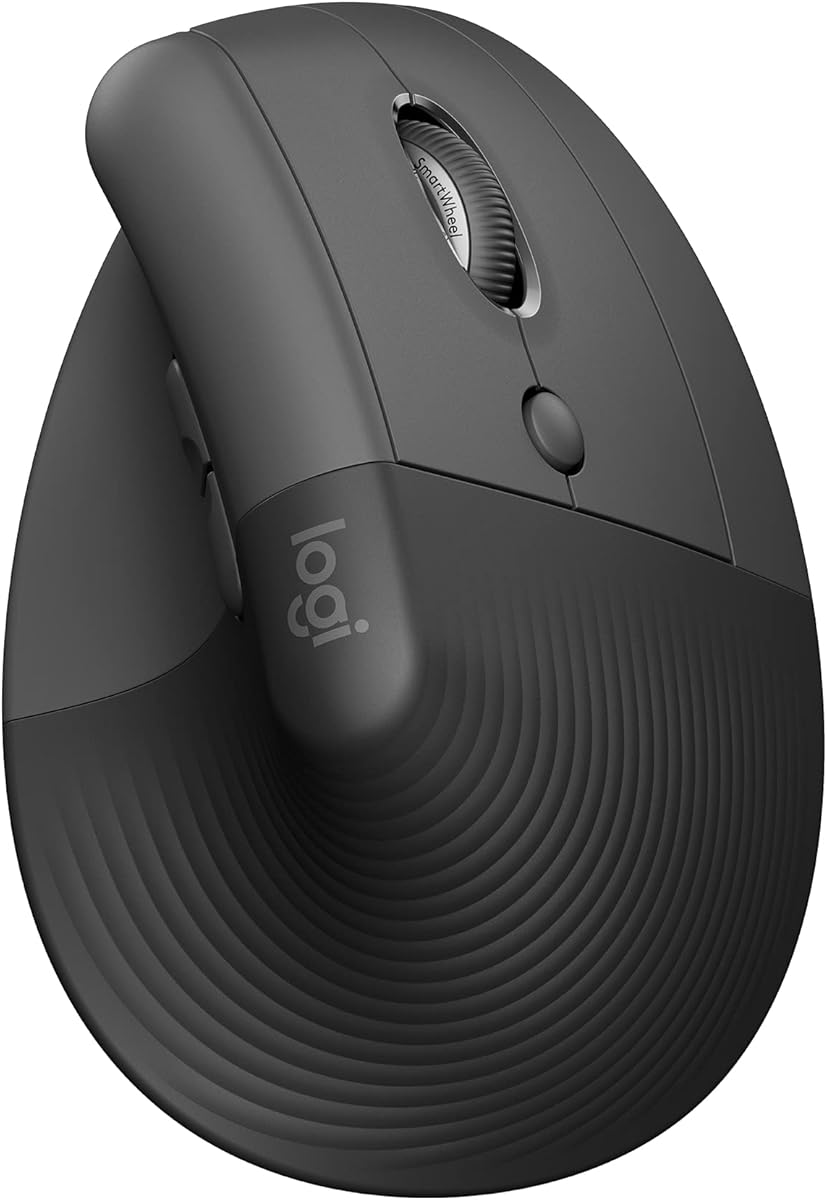
The Logitech Lift Vertical is the most ergonomically distinctive model in the guide. Its 4.4 rating and 57-degree vertical shape prioritize a more natural forearm position, while its smaller proportions are specifically intended for right hands in the small-to-medium size range.
We may earn a commission when you buy through this link, at no additional cost to you.
The upright form rests the hand at a different angle from a conventional mouse, which can reduce wrist extension during prolonged computer work. A softly textured grip, thumb rest, quiet clicks, and easy-to-reach customizable buttons support focused editing. The SmartWheel transitions between smooth and ratcheted scrolling to handle both long catalogs and short, precise adjustments.
The important caveat is fit. Users with larger hands may find the compact vertical body uncomfortable, and people accustomed to a standard mouse may need time to adjust their movement. The mouse supports Bluetooth Low Energy and Logi Bolt across major operating systems, with an advertised battery life of up to two years.
The Lift is best recommended for editors with smaller right hands who prioritize posture and long-session comfort over gaming-oriented controls or extreme sensor specifications. It can be an especially thoughtful choice for users who already feel wrist strain with conventional horizontal mice.
The 57-degree vertical shape changes the relationship between the forearm, wrist, and hand. That geometry is intended to promote a more natural posture and reduce the degree of wrist extension found in traditional mouse designs.
SmartWheel scrolling adapts between smooth movement and ratcheted feedback. Editors can travel quickly through a catalog and then switch to controlled scrolling when reviewing a smaller selection of images.
We may earn a commission when you buy through this link, at no additional cost to you.
The best mouse for Lightroom combines predictable tracking, comfortable handling, useful controls, and a wheel suited to both long catalogs and precise adjustments. Connection style and workspace conditions should also guide the decision.
Choose a sensor with enough sensitivity headroom for your display and editing habits, then verify that acceleration and smoothing are disabled if precise, direct movement is important.
Match the mouse to your hand size and preferred grip, then consider how it feels after a long session rather than only during the first few minutes.
Prioritize a wheel that switches between rapid travel and precise feedback. Additional thumb scrolling is useful when working with wide panels or horizontal timelines.
Choose button count based on workflow complexity, and use the companion software to create a layout you will actually remember.
Choose wired for simplicity and constant availability, or wireless for desk flexibility. Confirm the required receiver, charging cable, and polling features before buying.
Compare advertised battery figures in the context of polling rate, lighting, and wireless mode. A feature-rich mouse may need more frequent charging than a simple productivity model.
Test the mouse on your normal work surface, and favor models with broad-surface tracking if you work on glass or varied materials.
Verify operating-system support, required software, receiver inclusion, and charging accessories. Choose a configuration that works with your devices without unnecessary setup.
Begin by installing the mouse and its companion software, then set the pointer speed to a level that allows controlled movement across the display without requiring large hand motions. If the mouse has onboard sensitivity controls, establish a baseline for general navigation and use the controls when moving between image grids, precise masks, and larger panels. Razer also recommends disabling Windows Enhance Pointer Precision for more direct tracking.
Create a small set of button assignments rather than assigning every available control at once. Useful commands may include switching views, revealing flagged images, toggling a comparison, changing the active module, or opening frequently used panels. Use the wheel in fast mode for moving through long catalog sequences and switch to its ratcheted mode for slower navigation through small interface elements. Testing the layout in a non-critical catalog can prevent accidental changes while the assignments become familiar.
Keep the mouse and sensor surface clean, and avoid pulling the wired models by their cables. For wireless models, follow the manufacturer's charging guidance and keep the receiver unobstructed when the mouse is in use. Replace the surface mat when it becomes worn, and periodically review sensitivity and button assignments after software updates. These simple habits help preserve consistent tracking and prevent the mouse from becoming a source of interruption during demanding photo workflows.
A gaming mouse can be excellent for Lightroom because many models combine precise optical sensors, programmable buttons, and fast scroll wheels. The most useful features are accurate tracking, a comfortable grip, and controls that reduce repetitive keyboard shortcuts. Gaming extras such as dramatic lighting, extreme polling rates, and very fast click actuation are optional rather than necessary for most photo editing.
Wired mice are convenient because they require no charging and provide a consistent connection, while wireless mice offer a cleaner desk and easier repositioning. The best choice depends on workspace preferences and how often you want to manage batteries or receivers. High-end wireless models can provide very responsive performance, but a reliable wired option remains perfectly suitable for Lightroom.
There is no single ideal DPI because the best setting depends on monitor size, resolution, desk space, and personal movement habits. A high-resolution sensor provides more adjustment headroom, but consistency matters more than reaching the maximum specification. Start with a moderate setting that allows you to cross the screen without losing control, then refine it while working on precise selections and masks.
Extra buttons can be useful when they are assigned to commands you use frequently, such as changing views, comparing images, or moving between modules. They are less valuable if the layout is confusing or forces awkward finger placement. Start with a few clear assignments, test them in a separate catalog, and avoid assigning commands that would be risky to trigger accidentally.
A vertical mouse may feel more comfortable during long sessions because it positions the forearm and wrist differently from a traditional horizontal mouse. It is not universally better, and users with larger hands may find compact vertical models unsuitable. The Logitech Lift is specifically designed for small-to-medium right hands, so fit should take priority over the vertical concept alone.
Polling rate can affect how frequently the mouse reports movement to the computer, but it is usually less important for Lightroom than sensor quality, pointer settings, and comfort. Very high rates may appeal to users who also play competitive games or want the lowest possible input delay. For typical catalog browsing and retouching, a responsive standard mode is generally sufficient.
Compatibility depends on the individual model and the software used to configure it. The Logitech G PRO X2 SUPERSTRIKE is explicitly listed as compatible with PC and Mac, while other models may support basic functions across both systems but offer reduced customization. Check the manufacturer's operating-system requirements and verify that your preferred Lightroom buttons and sensitivity profiles can be assigned.
Disabling pointer acceleration is advisable for users who want direct, predictable cursor movement, particularly when making small adjustments or dragging selection boundaries. It prevents the pointer from speeding up as movement becomes faster, which can improve consistency. You can disable the relevant setting in your operating system's mouse controls and then tune sensitivity in the mouse's companion software.
The Razer Basilisk V3 is the strongest all-around recommendation because it combines a precise 26,000 DPI sensor, an ergonomic thumb rest, 11 programmable buttons, and a versatile HyperScroll wheel. The Logitech G502 Lightspeed provides an effective wireless alternative, while the Logitech MX Master 3S serves users who prioritize quiet operation, cross-computer productivity, and app-specific customization.
Your priority should determine the winner. Choose a wired model for dependable operation and zero charging management, a wireless model for a cleaner and more flexible workspace, and a vertical design for posture when the hand size fits. For Lightroom specifically, verify sensor behavior, scroll-wheel modes, button placement, software compatibility, and whether the necessary receiver or charging cable is included.
Product specifications, software features, bundle contents, and prices can change, so check the current listing before buying. Read recent customer feedback, confirm system compatibility, and use the available customization software to tailor the mouse to your editing habits rather than paying attention only to the headline specifications.