
Logitech MX Master 4 Ergonomic Wireless Mouse with Haptics – Graphite
4.3Editor score
Customizable haptic feedback panel
App-aware Actions Ring controls
MagSpeed precision scrolling wheel
Discover the best Mouse for Solidworks options for CAD modeling, comparing precision, ergonomics, programmability, scrolling, connectivity, and workflow fit.
A mouse for SolidWorks must translate precise gestures into accurate CAD commands while remaining comfortable through long modeling sessions. Sensor quality, button access, scrolling behavior, programmable controls, and ergonomic support can materially affect how smoothly an engineer creates sketches, manipulates assemblies, inspects geometry, and navigates dense feature trees.
This guide compares ten general-purpose, productivity, spatial, and gaming mice for their relevance to SolidWorks workflows. We considered precision specifications, physical controls, connectivity, customization, comfort-oriented design, and useful features such as fast scrolling, haptics, macros, and multi-device support rather than treating every mouse as interchangeable.
Each selection reveals which type of CAD user it may suit best, from engineers who want a 3D navigation controller to others who prefer a conventional office mouse or a highly configurable gaming device. Product details and availability can change, so readers should verify current specifications, software support, and pricing before purchasing.
4.3Editor score
4.4Editor score

4.4Editor score
The comparison below highlights the principal differences among precision mice, a spatial controller, wireless productivity models, and configurable gaming options, helping SolidWorks users match navigation style and control features to their preferred CAD workflow.




The Logitech MX Master 4 Pale Gray combines a conventional pointing experience with controls that are especially useful in demanding desktop applications. Its 4.3 rating reflects a strong overall reception, while the ergonomic shape, customizable Haptic Sense Panel, Actions Ring, and MagSpeed wheel distinguish it from ordinary office mice. For SolidWorks users, it offers enough advanced functionality without requiring an entirely different way of navigating three-dimensional space.
We may earn a commission when you buy through this link, at no additional cost to you.
The Actions Ring is perhaps the most relevant feature for CAD work because it places app-dependent filters, adjustments, and shortcuts near the cursor. That can reduce repeated trips to menus or toolbars while the model is open. The Haptic Sense Panel adds confirmation through configurable feedback for specific actions, shortcuts, and notifications, which may be useful when the engineer is watching the screen closely or working in a busy environment.
Scrolling is another strength. MagSpeed is advertised as capable of handling 1,000 lines per second while stopping precisely, a combination that can help when moving through long feature trees, part lists, or configuration tables. The ergonomic tilt, thumb scroll wheel, and Quiet Clicks are also relevant to extended design sessions. The trade-off is that users must learn the Actions Ring and configure the software before they can make full use of the mouse.
This is an excellent general recommendation for SolidWorks engineers who want one mouse to handle sketching, assembly work, document navigation, and ordinary desktop tasks. It is especially attractive to users who appreciate rich customization but do not need a dedicated six-degrees-of-freedom controller. Buyers should check included accessories and confirm their preferred connectivity arrangement before buying.
The Actions Ring can surface app-specific tools directly where the cursor is positioned. In SolidWorks, that makes it easier to keep frequently used commands accessible without leaving the viewport or relying on a crowded ribbon.
The natural tilt, thumb wheel, and quiet clicks create a more relaxed control surface for lengthy sketching, assembly, and inspection work. Its wireless design also reduces cable interference around a crowded desk.
We may earn a commission when you buy through this link, at no additional cost to you.
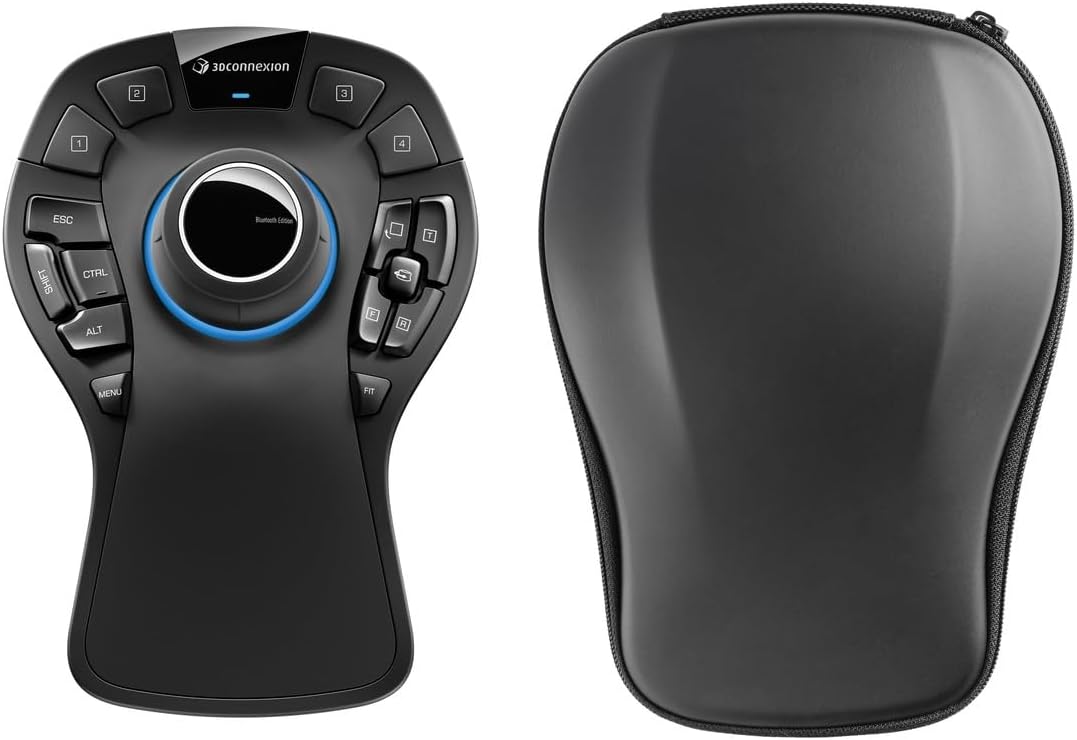
The 3Dconnexion SpaceMouse Pro Wireless BT is the most purpose-specific option in this guide for navigating 3D models. Its six-degrees-of-freedom sensor translates hand movement into multidimensional input, making it a natural companion for rotating, panning, and zooming around a SolidWorks part or assembly. The 4.4 rating indicates solid user satisfaction for those who value spatial control.
We may earn a commission when you buy through this link, at no additional cost to you.
The key advantage is the way the device separates three-dimensional navigation from conventional cursor work. Applying modest pressure moves the view in multiple directions, helping engineers inspect geometry from different angles without repeatedly reaching for view commands. This is particularly helpful when examining interference, relationships, large assemblies, or geometry that is difficult to understand in a single orientation.
Its trade-offs are equally important. A SpaceMouse does not replace a normal pointing device for selecting dimensions, editing sketches, or clicking dense toolbars. It is therefore most effective as a companion to a conventional mouse rather than as the only input device. Users also need to learn the amount of force required for each axis, and the stated product data does not specify a configurable button count beyond the central six-degrees-of-freedom sensor.
SolidWorks professionals who spend substantial time orbiting models, reviewing assemblies, or working with spatial design problems should give this model serious consideration. It is the premium choice in this list for dedicated 3D navigation, while the Logitech options offer a more familiar all-purpose experience. Prospective buyers should confirm their preferred SolidWorks environment and driver setup before purchase.
Six-degrees-of-freedom control is the defining feature. It enables simultaneous movement across axes, so users can navigate a part or assembly with hand-driven spatial input instead of repeating separate view operations.
The strongest setup is often a dedicated mouse for sketches and dialogs alongside a SpaceMouse for view navigation. This pairing lets engineers retain precise selection while making model inspection feel more direct.
We may earn a commission when you buy through this link, at no additional cost to you.
The Graphite edition of the Logitech MX Master 4 is a feature-rich choice for SolidWorks users who want more control than a basic three-button mouse provides. It shares the 4.3 rating and advanced control set of the Pale Gray version, including the Haptic Sense Panel, Actions Ring, MagSpeed wheel, quiet clicks, and an ergonomic tilted design.
We may earn a commission when you buy through this link, at no additional cost to you.
Its main appeal is the combination of familiar pointing behavior and app-aware access to tools. The Actions Ring can place commonly used filters, adjustments, and shortcuts near the pointer, which may be useful in SolidWorks as well as other engineering applications. The thumb wheel provides an additional axis for navigation, while the main wheel can move quickly through long lists before settling on a precise position.
Connectivity is flexible, with support for a USB-C dongle and Bluetooth, and the product data highlights a more powerful connection configuration. The quiet switches reduce noise by 90 percent according to the supplied description, a useful trait for offices and shared studios. However, advanced features are not automatically valuable in every workflow, so users should assign controls deliberately rather than assigning every available option.
This model is a strong all-rounder for engineers who sketch, assemble, inspect, and regularly switch between SolidWorks and other productivity applications. The Graphite finish is also more understated than brighter alternatives. It may not provide the same dedicated spatial input as the SpaceMouse, but its combination of comfort, scrolling, haptics, and contextual controls makes it a flexible CAD companion.
The MagSpeed wheel is suited to long feature trees, parts lists, and specification tables. Its ability to scroll quickly and stop precisely gives users more control than a standard wheel when alternating between broad browsing and targeted selection.
Configurable haptics can provide physical confirmation for selected actions or notifications. The feature is most valuable when it is assigned selectively to operations where confirmation improves flow and reduces uncertainty.
We may earn a commission when you buy through this link, at no additional cost to you.
The Logitech MX Master 4 for Mac is tailored for Apple-oriented workspaces and carries a 4.4 rating, the highest among the conventional Logitech models in this list. It retains the Haptic Sense Panel, Actions Ring, MagSpeed scrolling, quiet clicks, and ergonomic thumb controls that make the MX series useful for technically demanding applications.
We may earn a commission when you buy through this link, at no additional cost to you.
Its distinguishing feature is the emphasis on Logi Options+ for macOS, including matching Apple finishes and a layout designed around the Mac environment. That matters for engineers who work in macOS alongside other Apple devices or want the mouse to integrate naturally into a mixed desktop setup. The supplied data also lists compatibility with iPadOS and Windows, providing some flexibility beyond a single platform.
The absent charging cable is a notable caveat because the mouse supports USB-C charging while in use. Users should not assume a cable is included and should verify their existing accessories before ordering. As with the other MX Master 4 versions, the Actions Ring and haptics require intentional setup; out-of-the-box convenience does not reveal their full potential.
This version is best suited to SolidWorks users whose primary desktop environment is macOS, particularly those who value coordinated software integration and a refined physical design. It can also serve mixed-platform users because Windows compatibility is stated. If the user is predominantly on Windows, the closely matched Graphite or Pale Gray editions may be the more straightforward choices.
Logi Options+ functions specifically for macOS allow supported actions and workflows to be integrated into the system preferences engineers already use. This is more relevant than generic customization when the mouse is part of a carefully organized Apple workstation.
The tilted form, thumb wheel, and MagSpeed main wheel support both ordinary selection and long document navigation. These qualities remain valuable when moving between SolidWorks commands, spreadsheets, and written specifications.
We may earn a commission when you buy through this link, at no additional cost to you.
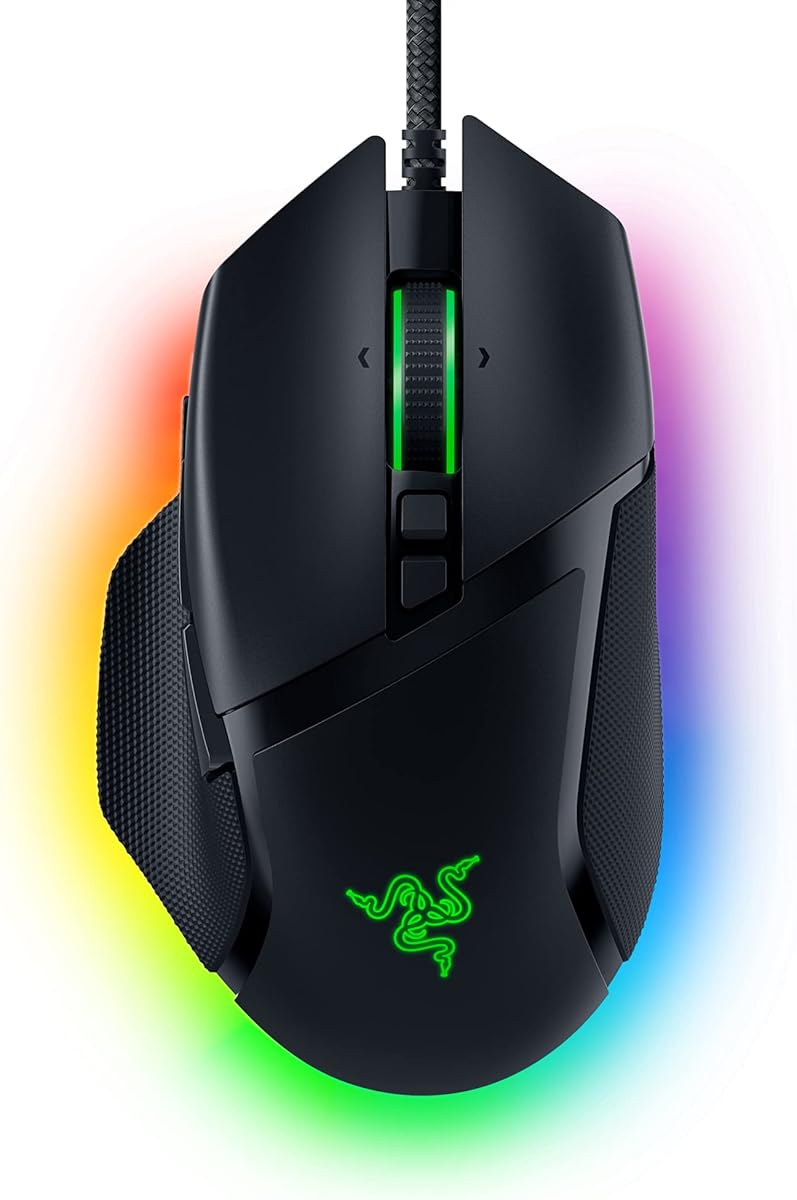
The Razer Basilisk V3 Customizable RGB is a high-control wired mouse with a 4.6 rating, making it one of the strongest-rated products featured here. Its ergonomic form, thumb rest, 11 programmable buttons, 26K Focus Plus sensor, and HyperScroll tilt wheel provide a capable control surface for SolidWorks users who like to personalize commands.
We may earn a commission when you buy through this link, at no additional cost to you.
The abundance of buttons is the central benefit. Users can assign macros and secondary functions to reduce repetitive command sequences, while the HyperScroll wheel can shift between rapid free-spinning and tactile movement. That flexibility is useful for long feature trees, long parts lists, and other scroll-heavy areas of a CAD interface. The Focus Plus sensor offers a selectable sensitivity range up to 26,000 DPI for users who value fine pointer control.
The trade-off is the wired design and strong gaming orientation. There is no stated wireless flexibility, and the 11-button layout may feel excessive for users who only need selection and orbit commands. Optical Gen 2 switches offer crisp response and a stated actuation speed of 0.2 milliseconds, but SolidWorks users should focus primarily on comfort, click feel, and command layout rather than gaming latency alone.
The Basilisk V3 is a good fit for an engineer who values a stationary, highly configurable setup and does not mind a gaming-oriented appearance. It can serve as a general productivity mouse as well as a CAD device. Razer Synapse can be used for button assignments and performance settings, while Windows pointer settings may require optimization for the most accurate response.
Eleven programmable buttons allow users to place secondary actions and macros within easy reach. A restrained layout can accelerate common operations without changing the way SolidWorks itself behaves.
HyperScroll gives users a choice between rapid movement and tactile feedback. This makes it easier to traverse very long trees or lists and then make more controlled adjustments in compact dialogs.
We may earn a commission when you buy through this link, at no additional cost to you.
The Lenovo Yoga Pro Mouse is a restrained, right-handed productivity option with a 4.4 rating. It provides a comfortable full-sized shape, soft side materials, a thumb rest, programmable side and top buttons, silent left and right buttons, and a configurable two-way metal scroll wheel—enough flexibility for many SolidWorks tasks without the extreme control count of a gaming mouse.
We may earn a commission when you buy through this link, at no additional cost to you.
Its sensor can be adjusted on the fly through three DPI stages or configured in software up to 4,000 DPI. That is more than enough for many engineering tasks, although it does not match the headline sensitivity figures of the Razer models. The blue optical sensor is designed for multi-surface tracking, which adds flexibility when a suitable work area is not consistently available.
Wireless convenience is another strength. Bluetooth 5.1 dual-host pairing allows a quick transition between two devices, and the supplied information states that a full charge takes less than two hours and can last two to three months depending on use. The 4.4 rating suggests that users are generally pleased with the balance of comfort, features, and everyday operation.
This mouse suits SolidWorks professionals who want a traditional productivity experience, a right-handed ergonomic shape, and basic programmability. It is not intended to solve three-dimensional navigation, and its maximum sensitivity is more modest than several alternatives. It works best for users who prioritize comfort, simple wireless switching, and a conventional button arrangement.
Programmable side and top buttons can be assigned to frequently used actions, while the two-way wheel supports horizontal or vertical scrolling. These controls provide useful flexibility without requiring a dense gaming-style layout.
The full-sized, nearly symmetrical body, soft side material, and thumb rest are designed for balanced hand support. These attributes are especially helpful during continuous sketching and assembly work.
We may earn a commission when you buy through this link, at no additional cost to you.
The Logitech MX Master 3S Graphite is a proven productivity mouse with a 4.6 rating, tying for the highest rating in this selection. Its 8,000 DPI sensor, MagSpeed wheel, Quiet Clicks, app-specific profiles, and cross-computer Flow control make it a natural fit for CAD work that combines precise selection with heavy document navigation.
We may earn a commission when you buy through this link, at no additional cost to you.
The any-surface tracking specification allows use on surfaces including glass, giving the mouse more flexibility than a conventional desk-bound model. The MagSpeed wheel is advertised as 90 percent faster, 87 percent more precise, and ultra quiet compared with the referenced standard, which can be valuable when moving rapidly through large part libraries and long feature trees.
Its main limitation is the absence of both a USB receiver and charging cable. The product is Bluetooth-only, and the stated multi-device capability covers up to three devices. Users who prefer a receiver-based connection or want to charge immediately out of the box should account for those omissions. The absence of a dedicated Actions Ring also makes its interface less context-oriented than the MX Master 4.
The MX Master 3S is a strong all-round choice for SolidWorks users who value precision, quiet operation, and smooth switching between computers. It is particularly attractive for engineers working across Windows and macOS systems because Flow can transfer text, images, and files between them. Its established feature set and strong rating make it an effective alternative to the newer MX Master 4 models.
The 8,000 DPI sensor offers broad sensitivity options and can track on any surface, including glass. That flexibility helps users maintain consistent pointer control across different workspaces.
Bluetooth connection to up to three devices and Flow transfer between Windows and macOS can simplify a desk built around several computers. Users can move between platforms without losing the feel of their preferred mouse.
We may earn a commission when you buy through this link, at no additional cost to you.
The Razer Naga V3 Pro Wireless is the most structurally customizable mouse in the group, with a 4.2 rating and three magnetic side plates offering 12-, 6-, and 2-button arrangements. Additional edge buttons and a lockable ring-finger button make it especially versatile for users who alternate between broad gaming control layouts and a more compact productivity setup.
We may earn a commission when you buy through this link, at no additional cost to you.
Its Focus Pro 50K Optical Sensor Gen 3 provides sensitivity up to 50,000 DPI, while the Gen-2 HyperScroll wheel supports dual tactile modes, free-spinning, and Smart-Reel auto switching. Those features are not limited to games: the product information specifically identifies inventory management, spreadsheet navigation, and content creation as suitable uses, which maps reasonably well to parts lists and specification tables.
The abundance of controls is also the main drawback. Some SolidWorks users will appreciate having many commands under their fingers, but others may accidentally press buttons while working in dense toolbars. Customization is richest on Windows, while macOS supports core mouse functions and onboard settings. Users should verify that their operating system and desired workflow are fully supported before relying on advanced assignments.
Wireless users can choose Razer HyperSpeed for low-latency gaming, Bluetooth for longer battery life, or USB-C wired operation for charging and connected play. The stated battery life reaches up to 155 hours on HyperSpeed and 280 hours on Bluetooth. This is a compelling choice for users willing to tailor the mouse extensively, but a simpler model may be more appropriate for conventional CAD work.
Magnetic side plates let the user switch between a dense 12-button arrangement, a six-button layout, or a simple two-button setup. This is useful when a heavy command layout is helpful for one task but excessive for another.
HyperSpeed prioritizes responsive wireless performance, Bluetooth prioritizes endurance, and USB-C provides a wired charging option. The three-mode design gives users flexibility across work and play.
We may earn a commission when you buy through this link, at no additional cost to you.
The Logitech G PRO X2 SUPERSTRIKE is a lightweight wireless gaming mouse with a 4.6 rating. Its most interesting CAD-relevant feature is the Haptic Inductive Trigger System, which provides real-time feedback, while the HERO 2 sensor and eight-kilohertz wireless polling deliver a strong precision and responsiveness foundation for detailed pointer placement.
We may earn a commission when you buy through this link, at no additional cost to you.
The mouse offers a 44,000 DPI maximum, more than 888 IPS tracking, and 88 g-force acceleration. Click performance can be tailored through ten actuation points and five rapid-trigger reset levels. These specifications will matter to users accustomed to gaming mice, while SolidWorks users may focus more on whether the shape, sensor, and click feel remain comfortable for precision modeling.
The design is still clearly gaming-oriented, and advanced features require Logitech G HUB software. The 60–90 hour battery estimate and included USB-A-to-USB-C charging cable make it suitable for extended work sessions, while the stated PC and Mac compatibility broadens its potential audience. The lightweight body and thin-wall case may reduce fatigue, although the overall shape is designed around gaming grips rather than office ergonomics.
This is a compelling option for SolidWorks users who enjoy gaming peripherals but want more than conventional gaming controls. The haptic trigger can provide immediate physical confirmation, and the precision sensor is well suited to exact positioning. Those who prefer a sculpted productivity shape, quieter office aesthetics, or extensive CAD-oriented controls may find a Logitech MX or 3Dconnexion alternative more appropriate.
The HITS system supplies real-time feedback through the trigger. In CAD work, that additional confirmation can be valuable for users who want a stronger sense of an input being registered.
The HERO 2 sensor, adjustable click actuation, and 8 kHz polling provide a highly responsive platform. The 0.7 mm thin-wall case and UHMWPE feet also support quick, smooth movement.
We may earn a commission when you buy through this link, at no additional cost to you.
The Razer Basilisk V3 X HyperSpeed is a wireless ergonomic mouse with a 4.4 rating, nine customizable controls, and an 18K advanced optical sensor. Although marketed as a gaming mouse, its comfortable shape and multi-device support make it a credible option for SolidWorks users who want programmable commands without a permanently wired desk setup.
We may earn a commission when you buy through this link, at no additional cost to you.
The Razer 5G Advanced 18K sensor provides sensitivity adjustments up to 18,000 DPI and is designed for responsive, pixel-precise movement. The Gen-2 mechanical switches offer a stated lifespan of up to 60 million clicks, while the nine customizable controls allow macros and secondary functions to be placed around the hand. These qualities support both general productivity and detailed CAD selection.
Connectivity choices are broad for this category. Razer HyperSpeed Wireless supports low-latency use, Bluetooth offers longer battery life, and multi-device support can streamline a workstation with several systems. The stated endurance reaches up to 535 hours on Bluetooth and 285 hours on HyperSpeed, although actual results vary with use. Chroma RGB lighting is customizable but does not directly improve a SolidWorks workflow.
This model is most compelling for users who want a wireless, ergonomic, highly programmable mouse at a more modest entry point than many specialty devices. It can be assigned shortcuts for repeated CAD operations through Razer Synapse, although users should verify macOS behavior and individual command assignments. It is less specialized than the SpaceMouse but more cord-free than the wired Basilisk V3.
HyperSpeed and Bluetooth modes address different priorities, while multi-device support simplifies switching between computers. This makes the mouse suitable for engineers who move between a desktop workstation and a laptop.
Nine customizable controls can be used for frequently repeated actions. The approach is straightforward compared with a 3D navigation device, making it a practical conventional mouse for CAD productivity.
We may earn a commission when you buy through this link, at no additional cost to you.
The most useful SolidWorks mouse is the one that supports your modeling habits, operating system, desk setup, and preferred navigation method. Consider sensor precision, control access, ergonomics, connectivity, and software before choosing a device.
SolidWorks often depends on careful pointer placement for selecting edges, dragging geometry, positioning dimensions, and interacting with compact dialog boxes. A sensor with adjustable sensitivity gives users more control over the relationship between physical hand movement and cursor travel. The selections in this guide range from the Lenovo Yoga Pro Mouse at up to 4,000 DPI to the Razer Naga V3 Pro at up to 50,000 DPI, with several options between those extremes.
Choose enough sensitivity to make fine adjustments without requiring exaggerated hand movements. A high maximum specification does not automatically make every mouse superior for CAD, because sensor behavior, switch feel, and surface compatibility influence the overall experience.
Engineering work can involve hours of sketching, assembly navigation, and documentation review. A sculpted body, natural tilt, supportive thumb rest, and comfortable side materials can reduce the strain associated with holding one device for long periods. The Logitech MX Master 4, Lenovo Yoga Pro, Razer Basilisk V3, and SpaceMouse Pro each take a different approach, so hand size and grip preference matter.
Look for a shape that supports the way you naturally rest your hand rather than relying solely on advertised features. If possible, compare dimensions and weight against a mouse you already use comfortably.
Extra buttons can reduce the number of trips between the mouse, keyboard, and SolidWorks ribbon. Models with programmable controls can map frequently used operations to accessible buttons, while scroll wheels that switch between free-spinning and tactile modes help with both long lists and exact positioning. More buttons are not automatically better, however; accidental activation and cramped layouts can reduce precision.
Prefer a moderate button count for regular CAD work. Dense layouts make more sense for users who routinely employ macros or alternate between demanding application profiles.
A normal mouse excels at pointing, clicking, scrolling, and dialog interaction. A six-degrees-of-freedom controller instead emphasizes natural movement through X, Y, and Z space, making it especially useful for orbiting, panning, and inspecting SolidWorks models. The SpaceMouse Pro Wireless BT is the dedicated spatial choice in this guide.
Engineers who spend much of their time navigating geometry may benefit from pairing a spatial controller with a conventional mouse. Users who mostly sketch and edit properties can usually remain with a standard pointing device.
Long feature trees, bill-of-material tables, configuration lists, and specification documents make scrolling a frequent CAD activity. MagSpeed wheels, Razer HyperScroll wheels, and configurable scroll directions offer different ways to move through these lists. Haptic feedback can also provide confirmation without requiring the user to look away from the model.
Look for both speed and control. A wheel that moves quickly is helpful for long lists, while tactile mode remains useful for short, precise movements and dialog fields.
Wired mice provide a straightforward connection, while wireless options can reduce desk clutter and make it easier to move between a laptop and desktop. The available connection styles include USB-C dongles, Bluetooth, and USB-C wired operation. Some products omit a receiver or charging cable, so the included-accessory details deserve careful attention.
Choose Bluetooth when convenience and multi-device use matter most. Choose a dongle or wired mode when a consistent connection is the priority, and verify compatibility with your SolidWorks workstation before ordering.
Logi Options+, Razer Synapse, and Logitech G HUB provide different levels of button remapping, sensitivity control, lighting, and profile management. App-specific profiles are particularly useful because one mouse can behave differently in SolidWorks, a browser, or a communication application. Mac users should verify the extent of support, as some advanced gaming controls are primarily designed for Windows.
Check whether the software supports your operating system and the shortcuts you actually need. A clean default interface is valuable, but customizable profiles are more useful when they map to a consistent workflow.
Wireless mice range from models designed for long intervals between charges to high-performance wireless options intended for low-latency interaction. The Yoga Pro Mouse states a battery life of two to three months, while the Razer Basilisk V3 X lists up to 535 hours on Bluetooth and 285 hours on HyperSpeed. Actual results depend on use, as the product information notes.
For a frequently used engineering workstation, reliable endurance and a convenient charging routine matter more than a headline figure. Include charging time, cable availability, and the possibility of continuous wired use in the decision.
Begin by connecting the mouse in the mode you intend to use, then install its supported customization software before assigning SolidWorks commands. Place the device so that you can reach every frequently assigned button without changing your grip. If you use app-specific profiles, activate them while SolidWorks is in the foreground and test each command in a non-critical file before relying on it during production work.
For 3D navigation, begin with small movements and gradually increase pressure until model rotation, panning, or zooming feels natural. A SpaceMouse and a standard mouse can work together effectively: use the conventional mouse for selecting geometry and editing values, and the spatial controller for broad inspection. Keep the mouse on a clean, suitable tracking surface and avoid abrupt changes in DPI while editing fine dimensions.
Clean the mouse regularly by unplugging it if it is wired, removing loose debris, and wiping the exterior with a soft, lightly dampened cloth. Avoid exposing the sensor or controls to excessive moisture, and check the battery or charge level before a long modeling session. Update the relevant configuration software periodically, especially after changing SolidWorks or operating-system settings.
A SpaceMouse is usually better for direct three-dimensional model navigation because its six-degrees-of-freedom sensor supports natural movement across multiple axes. It is less convenient than a standard mouse for precise sketch selection, text entry, and dialog-box work. Many engineers use a SpaceMouse alongside a conventional mouse so each device handles the tasks it is best suited for.
A higher maximum DPI does not automatically improve accuracy because CAD work also depends on control, comfort, surface conditions, and display settings. Adjustable sensitivity is useful because it lets you balance fast cursor travel with precise placement. Choose a mouse that feels controllable at the settings you use rather than focusing only on the largest headline number.
Programmable buttons can be worthwhile for commands you use repeatedly, particularly file operations, view changes, and other frequently repeated actions. They are most useful when assigned deliberately and kept in a consistent location. Avoid placing critical commands on buttons that are easy to press accidentally, and verify that the software supports your operating system.
A wired mouse offers a simple, consistent connection, while a wireless mouse offers a cleaner desk and easier movement between systems. Wireless performance is suitable for many CAD workflows, although users focused on latency may prefer a high-performance wireless mode or wired operation. Check whether a receiver and charging cable are included, because some models omit them.
Yes, many gaming mice offer precise sensors, configurable buttons, and fast scrolling that are useful in CAD applications. The main concern is whether the shape and button count suit long modeling sessions. A restrained gaming design can work very well, while an overly dense layout may be less comfortable for routine sketch editing.
The best choice is usually a comfortable, accurately tracking mouse with controls you can reach without changing grip. The Logitech MX Master 4 and Lenovo Yoga Pro emphasize ergonomic shaping, while the SpaceMouse Pro focuses on spatial navigation. Your hand size, grip style, and the mix of modeling versus model-inspection work should guide the decision.
Free-spinning or high-speed scrolling is useful when moving through long feature trees, parts lists, and other large data sets. It is less important if your work mainly involves short dialogs, sketch editing, and pointer selection. A wheel that switches between rapid and tactile modes offers the most adaptable behavior.
Install the manufacturer's software, adjust pointer sensitivity, and assign a small set of useful shortcuts before beginning serious work. Test the configuration in a copy of a model and create separate profiles for CAD and general desktop use if supported. You should also check scroll direction, button placement, multi-device switching, and charging routines.
The Logitech MX Master 4 Pale Gray is the strongest all-purpose recommendation, combining an ergonomic form, app-aware Actions Ring, haptics, and high-speed precision scrolling. The 3Dconnexion SpaceMouse Pro Wireless BT is the top choice for dedicated spatial navigation, while the Razer Basilisk V3 X HyperSpeed stands out as a wireless, programmable option with broad control capability.
Prioritize the interaction style that consumes most of your time. Choose a conventional ergonomic mouse for sketching and command selection, a spatial controller for model inspection, or a highly programmable model for users who want shortcuts and macros. Comfort, operating-system support, included accessories, and reliable sensor behavior should matter more than decorative features.
Before making a final purchase, check the current product details, software compatibility, connection requirements, and included accessories. Specifications and availability can change, and current prices vary, so comparison shopping is worthwhile. The right mouse for SolidWorks should make precise work feel more comfortable and efficient without forcing an unfamiliar workflow.