
Canon PIXMA TR7120
4.2Editor score
Automatic document feeder
Automatic duplex printing
Compact monochrome OLED display
A printer with the least problems should do more than produce acceptable pages. It should connect easily, handle everyday documents consistently, scan without fuss, and require little attention between jobs. The strongest choices balance dependable performance, understandable controls, useful wireless features, and manageable ink systems for homes and small offices.
We compared ten inkjet all-in-one printers using their published specifications, supported functions, user ratings, connectivity features, document handling, display design, and maintenance approach. The list covers compact models for occasional use, tank-based printers for higher-volume printing, and office-oriented units with automatic document feeders and touchscreen controls.
Each review shows which printer is most practical for a particular type of user, along with the features that can reduce everyday friction and the limitations worth considering. Product specifications, ratings, software behavior, and available offers can change, so readers should verify current details and compatibility before purchasing.
4.2Editor score

4.2Editor score

3.8Editor score
As an Amazon Associate we earn from qualifying purchases.
The comparison highlights the features that most directly affect printer reliability and convenience: wireless support, automatic duplexing, document feeding, scanning, display controls, and ink-management systems. It is designed to make functional differences easier to understand than the full product names alone.




The Canon PIXMA TS6520 is the strongest all-around choice in this guide for someone seeking a printer with the least problems. Its 4.2 rating is among the highest in the group, while its combination of automatic duplexing, a clear monochrome OLED display, dual-band Wi-Fi, and integrated scanning creates a balanced machine for a home or hybrid workspace. It avoids unnecessary complexity while still supporting the functions most households actually use.
We may earn a commission when you buy through this link, at no additional cost to you.
Setup is designed to begin quickly from a smartphone or computer, and mobile printing is available through Canon PRINT, Apple AirPrint, and Mopria Print Service. Dual-band connectivity gives the printer a useful advantage on crowded home networks because it can operate over either 2.4GHz or 5GHz Wi-Fi. The automatic two-sided function also removes a common source of user frustration by handling both sides of a document without manual page flipping.
The main compromises are visible in the hardware. There is no automatic document feeder, so multi-page scans or copies must remain on the flatbed. Canon also uses a two-cartridge hybrid ink system, which is simpler than a tank-based setup and appropriate for users who value a compact footprint. Those limitations are most relevant to an office that routinely copies lengthy documents or expects very high page volumes.
The TS6520 is most appropriate for households, students, and hybrid workers who want dependable wireless color printing, straightforward controls, and automatic duplexing without a large office footprint. It is also a sensible choice for buyers who are willing to replace conventional cartridges but do not want the refill process associated with an ink tank. Overall, its useful display, broad app support, and clear feature set make it the most complete low-friction recommendation here.
The 1.42-inch monochrome OLED display is large enough to provide a useful at-a-glance view of ink status and printer conditions. That visibility can prevent small maintenance issues from becoming larger interruptions, particularly for users who do not print every day.
Dual-band Wi-Fi and support for AirPrint, Mopria, and Canon PRINT offer several practical ways to send jobs. This makes the TS6520 more accommodating for mixed-device homes than a printer that depends on a single proprietary connection method.
We may earn a commission when you buy through this link, at no additional cost to you.
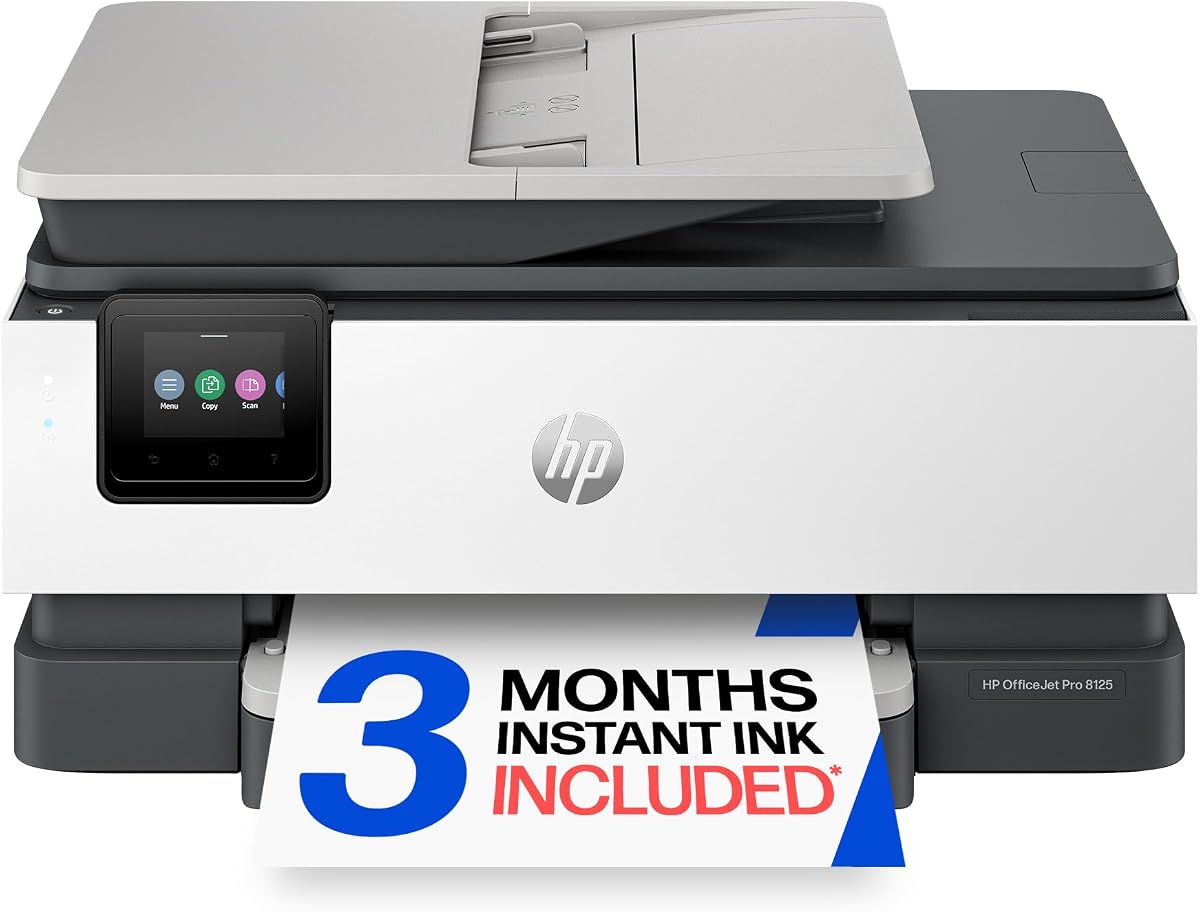
The HP OfficeJet Pro 8125 brings more document-handling capability than most entry-level all-in-one printers without becoming physically unwieldy. Its 3.9 rating, 225-sheet input tray, automatic document feeder, and automatic duplexing make it a solid choice for a home office that regularly handles reports, forms, schoolwork, and multipage color documents. The 2.7-inch color touchscreen is a particularly useful feature for users who want fewer repeated steps.
We may earn a commission when you buy through this link, at no additional cost to you.
Document workflow is a major strength. The automatic document feeder can receive multiple pages for scanning or copying, while automatic two-sided printing supports larger jobs with less paper waste. HP lists print speeds up to 20 pages per minute in black and 10 pages per minute in color, which should be sufficient for routine business and household use. HP AI features also work on web pages and emails to remove unwanted content and improve print formatting.
HP’s Instant Ink service includes a three-month trial, but users must review the enrollment terms carefully because a monthly fee applies after that period unless the subscription is canceled. The printer also uses cartridge-compatibility controls that require original HP chips or circuitry. Neither issue makes the device unreliable, but both deserve consideration if you prefer a cartridge-free ink system or unrestricted aftermarket cartridge choices.
Choose the OfficeJet Pro 8125 when a home office needs more than basic printing but does not require faxing or the higher paper capacity of a larger OfficeJet Pro model. It is particularly suitable for users who appreciate a touchscreen, automatic duplexing, and an integrated feeder. The combination creates a notably practical office package with fewer manual interventions than a basic compact printer.
The automatic document feeder and automatic duplexing are the features that separate this model from a basic home printer. They reduce manual page handling during recurring scan, copy, and print workflows.
A color touchscreen provides direct access to settings, while the HP app extends printing, scanning, copying, and fax-related functions to a smartphone. This creates a practical combination of physical and mobile control.
We may earn a commission when you buy through this link, at no additional cost to you.
The HP DeskJet 2923 targets a narrower need: reliable color printing, copying, and scanning for letters, recipes, financial documents, and to-do lists. Its 3.7 rating is tied for the lowest in this comparison, but the supplied specifications describe a focused and understandable basic printer. It may therefore be more suitable for occasional users than for people who expect rapid document production or advanced paper handling.
We may earn a commission when you buy through this link, at no additional cost to you.
The basic icon LCD keeps direct operation uncomplicated, and dual-band Wi-Fi improves the odds of a stable connection on modern home networks. The HP app provides mobile access to the printer’s print, copy, and scan functions. HP AI formatting tools can also help turn web pages and emails into cleaner printed layouts, a feature that gives this entry-level model a useful edge.
Its 60-sheet paper tray is the clearest practical limitation. Users who print long documents will need to load paper more frequently, and the listed specifications do not mention automatic duplex printing. A six-month Instant Ink trial is included, but the subscription must be managed according to its terms. The printer’s basic positioning is therefore better suited to short, occasional jobs than regular multi-page workloads.
The DeskJet 2923 is best for a student, renter, or light-use household that wants a compact wireless all-in-one without a large touchscreen. It makes sense when color documents, occasional copies, and simple scans are the dominant requirements. Users who routinely print lengthy reports, need automatic two-sided output, or send multi-page documents through a feeder should move to a more capable model.
Dual-band wireless connectivity and a simple icon display reduce the learning curve for casual users. A dedicated mobile app adds convenience when the printer is not conveniently located beside the computer.
Combining color printing, copying, and scanning in a home-sized unit avoids the need for separate devices. It is a straightforward solution for letters, recipes, forms, and other routine material.
We may earn a commission when you buy through this link, at no additional cost to you.
The HP DeskJet 2955 is a compact wireless all-in-one intended for users who want printing, copying, and scanning without a large office machine. It shares a 3.7 rating with the DeskJet 2923 and occupies a similar basic tier. The available product data confirms its wireless color inkjet format and all-in-one design, although it does not provide detailed tray, feeder, display, or speed specifications.
We may earn a commission when you buy through this link, at no additional cost to you.
Because those details are not supplied, buyers should treat the 2955 as a model to verify carefully before committing. Important questions include the paper capacity, whether duplex printing is automatic, whether a document feeder is included, the size of the control display, and which mobile printing services are supported. Its compact weight of 10.450 pounds may also be useful for users rearranging their workspace or storing the printer when it is not needed.
The limited specification set creates the main buying challenge. It would be inappropriate to assume that the 2955 includes the same features as the 2923, especially because paper capacity, automatic duplexing, and document feeding can materially change the user experience. Likewise, there is no supplied information here about ink service arrangements or cartridge restrictions.
The DeskJet 2955 may appeal to someone who prioritizes a small footprint, wireless access, and a combined printer-scanner-copier at a basic level of operation. It is best considered alongside models with more transparent specifications. If the complete manufacturer listing confirms the needed paper handling, display, and connectivity functions, it can be a practical solution for routine home tasks.
The all-in-one format and relatively compact weight are useful for desks, dorm rooms, and home offices with limited surface area. A single device can cover several basic document tasks.
Because the supplied data does not identify tray size, feeder availability, or duplex capability, check the full product listing. Confirming those specifications prevents an attractive compact design from causing workflow problems later.
We may earn a commission when you buy through this link, at no additional cost to you.
The HP OfficeJet Pro 9125 is the most office-focused conventional inkjet in the list. Its 4.0 rating is solid, and the combination of color printing, scanning, copying, faxing, automatic duplex printing and scanning, a 250-sheet input tray, and an automatic document feeder makes it suitable for active home offices and small workplaces. It offers more workflow capability than the 8125, though it also occupies more space.
We may earn a commission when you buy through this link, at no additional cost to you.
The 2.7-inch color touchscreen makes its broad feature set easier to manage. HP AI can improve the formatting of web pages and emails, while the HP app supports printing, scanning, copying, and fax functions from a mobile device. Listed print speeds reach 22 pages per minute in black and 18 pages per minute in color, and dual-band Wi-Fi is designed to identify and resolve connection issues automatically.
As with the 8125, the 9125 uses original HP chips or circuitry and blocks cartridges without them. Its Instant Ink offer also includes a three-month trial followed by a monthly subscription unless canceled. Users who prioritize simple ownership should evaluate those terms in advance. The larger paper capacity and full office functions also make the machine less suitable for users who only need occasional basic printing.
Choose the OfficeJet Pro 9125 for a home business, administrative office, or school environment that regularly prints presentations, brochures, flyers, and multipage documents. The document feeder and duplex scanning materially reduce manual work, while the touchscreen and app support make operation from a desk or mobile device convenient. It is a feature-rich alternative for users who value completeness more than a minimal footprint.
The document feeder, duplex scanning, and 250-sheet tray are particularly valuable when pages must be processed repeatedly. These features reduce the need to return to the machine for each stack of sheets.
The color touchscreen gives direct access to numerous functions, and HP AI helps simplify awkward web and email layouts. The companion app extends those controls to supported mobile devices.
We may earn a commission when you buy through this link, at no additional cost to you.
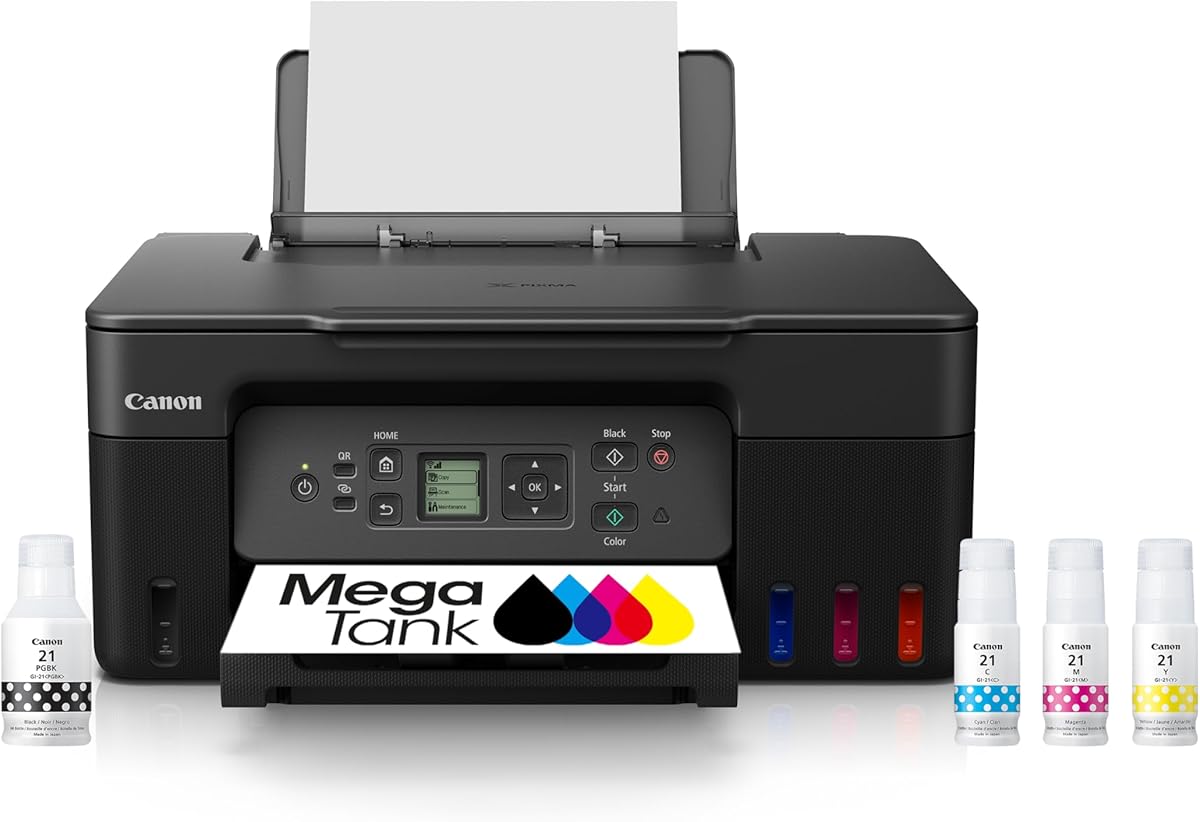
The Canon MegaTank G3270 is a compelling option for buyers who prioritize ink capacity over advanced paper handling. Its 4.1 rating is among the strongest in the comparison, and the refillable tank system can print up to 6,000 black-and-white pages or 7,700 color pages with one set of inks. That makes it well suited to households that print regularly without wanting to replace small cartridges throughout the year.
We may earn a commission when you buy through this link, at no additional cost to you.
Wireless printing, copying, and scanning are supported, while a 1.35-inch square LCD provides a straightforward way to check settings and manage basic functions. The high page yield is the main reason to consider this printer: fewer replacements can mean fewer interruptions and less ongoing management. Canon’s MegaTank approach also provides a clear alternative to cartridge-only inkjet models.
The major limitation is single-sided printing. The supplied specifications do not list automatic duplexing, so double-sided documents require manual intervention. There is also no supplied mention of an automatic document feeder, making it less suitable for continuous multipage copying. Buyers who often print reports, contracts, or long articles may find a duplex-capable model more convenient despite the G3270’s ink capacity.
The G3270 is a strong fit for high-volume home users, students, and small offices that print many standard pages and rarely need advanced scanning workflows. It combines a relatively compact footprint with wireless multifunction support and a substantial ink reserve. If automatic two-sided output and document feeding are not priorities, the tank system can deliver a comparatively low-maintenance ownership experience.
A stated yield of up to 6,000 black-and-white pages or 7,700 color pages per ink set suits users who print consistently. Fewer replacements mean fewer interruptions and less routine attention.
Printing, copying, and scanning are all available wirelessly, allowing the compact unit to serve more than one device in the home. The small square LCD remains useful for confirming settings.
We may earn a commission when you buy through this link, at no additional cost to you.
The Epson EcoTank ET-4800 combines a wireless color all-in-one design with a cartridge-free tank system, making it a practical option for buyers who want fewer conventional cartridge replacements. Its 3.8 rating reflects a balanced feature set, and the built-in flatbed scanner and copier allow the device to handle more than printing alone. A color display supports easier document copying and navigation.
We may earn a commission when you buy through this link, at no additional cost to you.
Epson’s Micro Piezo heat-free technology is designed to produce sharp text and capable color photos and graphics on a wide variety of paper. The EcoFit bottles make filling the high-capacity reservoirs easier than handling small cartridges, and the tank approach can also reduce cartridge waste. Wireless connectivity adds flexibility for printing from different devices throughout the home or office.
The supplied information does not mention automatic duplex printing or an automatic document feeder, so users who depend on those functions should verify the complete specification. A flatbed scanner requires each page to be placed manually, and the absence of listed automatic two-sided output means longer documents may need manual page flipping. Those are meaningful limitations for a busy office.
The ET-4800 is best for a user who values ink-tank convenience, sharp everyday output, and a compact three-function device. It is especially attractive for households or home offices that print frequently enough to appreciate a large reservoir but do not need advanced feeder-based workflows. Its cartridge-free approach is the central reason to choose it over a basic cartridge printer.
EcoFit bottles are designed to make the filling process straightforward. The high-capacity tanks remove the need for frequent small-cartridge changes and support more consistent output over time.
Micro Piezo heat-free technology supports clean text as well as color photos and graphics. That versatility makes the printer useful for school assignments, office documents, and occasional creative projects.
We may earn a commission when you buy through this link, at no additional cost to you.
The Canon PIXMA TR7120 is an excellent compact choice for a home office that needs more document handling than a basic printer can provide. It shares the highest rating in the comparison at 4.2 and adds an automatic document feeder to the automatic duplexing, dual-band Wi-Fi, and monochrome OLED display found in the Canon PIXMA TS6520. This combination makes it the more workflow-oriented of the two Canon models.
We may earn a commission when you buy through this link, at no additional cost to you.
The automatic document feeder is the feature that most directly reduces daily friction. It allows multipage documents to be scanned or copied without placing every page on the flatbed. Automatic two-sided printing further reduces paper consumption and manual effort. The 1.42-inch OLED display keeps ink levels and printer status visible, while Canon PRINT, Apple AirPrint, and Mopria support give users several mobile printing options.
Canon’s two-cartridge hybrid ink system keeps the machine relatively compact and straightforward, but it may not satisfy a high-volume user who prefers a tank. The monochrome display is also less elaborate than a large color touchscreen. However, these limitations are offset by the combination of an ADF, duplexing, and a small footprint, which makes the TR7120 particularly well suited to a dedicated but space-conscious work area.
Choose the TR7120 for a hybrid worker, home business, or student who regularly handles multipage forms and reports. It offers the most convincing low-friction balance in the list without making the device physically large. For users who only need occasional printing, the TS6520 may be sufficient, but the TR7120 earns its place when scanning and duplex output are recurring needs.
The automatic document feeder allows pages to be processed in sequence, saving time and effort during recurring scans and copies. It is the TR7120’s clearest advantage over simpler compact models.
Automatic two-sided printing helps with reports, notes, and web content by placing both sides on a single sheet. This lowers paper use while also eliminating one repetitive manual step.
We may earn a commission when you buy through this link, at no additional cost to you.
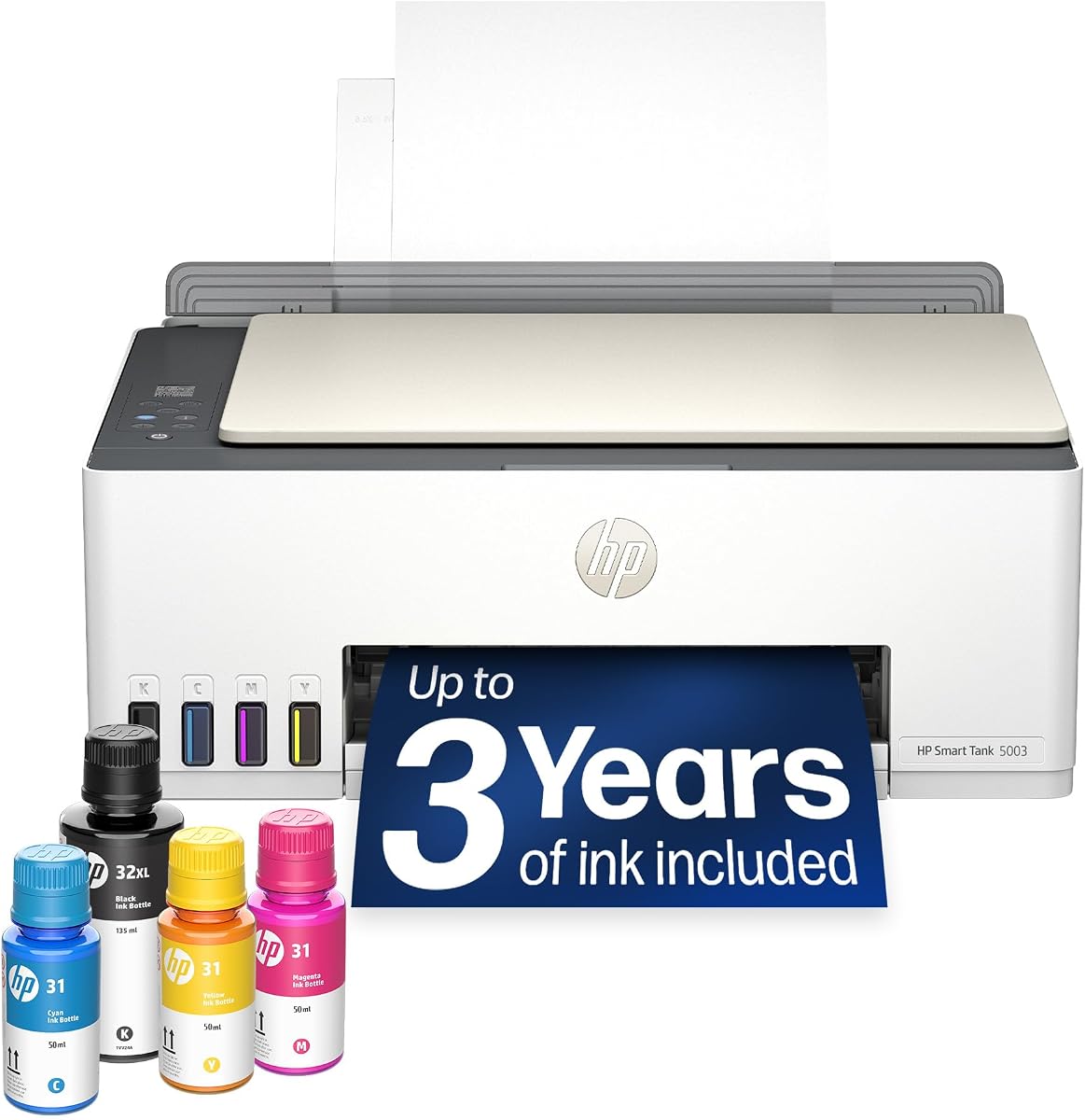
The HP Smart Tank 5003 is designed for users who want to minimize ink-management interruptions. Its 3.9 rating, support for up to three years of included HP ink, and capacity for up to 6,000 color or black pages out of the box make it a strong high-volume option. Unlike a conventional cartridge printer, it uses refillable tanks and an easy-access bottle system.
We may earn a commission when you buy through this link, at no additional cost to you.
The refill process is designed to be less messy and more predictable than replacing small cartridges. Users connect ink bottles to the cartridge-free tank and allow the ink to drain, with no squeezing required. Print, copy, scan, borderless printing, and wireless operation are all supported, giving the machine enough flexibility for schoolwork, household documents, reports, and photos.
Automatic duplexing and an automatic document feeder are not identified in the supplied specifications, which limits its advantage for office-style workflows. A flatbed scanner is adequate for routine pages but not ideal for uninterrupted multipage copying. The generous included ink supply also means users should consider storage and the timing of refills rather than assuming the tanks will need to be replenished immediately.
The Smart Tank 5003 is ideal for a busy household, student, or small workgroup that prints enough pages to value high initial capacity. Its main advantage is fewer early supply interruptions, while the wireless and borderless features broaden everyday use. It is less compelling for offices that specifically require an ADF or automatic two-sided output, so those needs should be confirmed before purchase.
Up to three years of HP ink and approximately 6,000 pages of initial output reduce the need for early cartridge-style replacements. This is particularly useful for households that print every day.
Bottles plug directly into the ink tanks and drain into place. The system is designed to minimize squeezing and spilling, making maintenance more approachable for first-time tank-printer users.
We may earn a commission when you buy through this link, at no additional cost to you.
The Brother Work Smart 1360 packs an unusual amount of practical capability into a compact home-office printer. Its 3.8 rating is supported by automatic duplex printing, a 150-sheet paper tray, and a single-sided automatic document feeder. Although it does not offer every feature found in larger office models, it can be a low-friction choice for users who need efficient printing, copying, and scanning in a smaller space.
We may earn a commission when you buy through this link, at no additional cost to you.
The 1.8-inch color display provides direct navigation, and Brother Mobile Connect extends printing, copying, scanning, and device management to a mobile device. Cloud connections include Google Drive, Dropbox, Box, and OneDrive, allowing supported documents to move between online services and the printer. Wireless and USB options also make the device adaptable to different workstation arrangements.
Print speeds are listed at up to 16 pages per minute in black and 9 pages per minute in color. Automatic duplexing is a major convenience, but the 20-sheet document feeder is single-sided, meaning multipage documents must be turned manually when scanning or copying. The absence of a listed fax function also makes it more suitable for users who do not need that traditional office capability.
The Work Smart 1360 is a strong recommendation for a home office, student, or remote worker who wants duplex printing and a feeder without purchasing a large business printer. Its compact design, color screen, and broad connectivity options help it feel approachable, while the generous paper tray reduces replenishment. It is a particularly balanced option for users who value the included office features without needing every professional function.
Automatic duplexing, a document feeder, and a 150-sheet tray are normally associated with larger machines. Including them here helps the printer serve routine home-office workflows without taking up excessive room.
Brother Mobile Connect provides menu navigation and device management from a mobile device. Connections to major cloud storage services also simplify retrieving and sending documents.
We may earn a commission when you buy through this link, at no additional cost to you.
The best low-problem printer is the one that matches your document volume, paper-handling needs, connectivity, and tolerance for ink management. Reviewing these factors before buying is more useful than focusing on a single specification, because reliability in daily use comes from the combined experience of setup, controls, connectivity, printing, scanning, and maintenance.
Begin by separating essential functions from optional ones. A color all-in-one with print, copy, and scan is enough for many households, while automatic duplexing, a document feeder, or fax becomes important when documents are processed regularly. The HP OfficeJet Pro 9125 is appropriate for a workflow-heavy office because it combines a feeder, duplexing, fax, and a large tray. The Canon PIXMA TS6520 covers the same everyday print, copy, and scan basics in a smaller form without an ADF.
Choose the smallest feature set that handles your normal work. Paying attention to capabilities you will never use adds unnecessary cost, setup, and opportunities for confusion. A basic model is usually easier to maintain, while office features become worthwhile when they remove repeated manual steps.
Inkjet ownership is shaped by whether the printer uses conventional cartridges, refillable tanks, or a manufacturer subscription. Cartridge models are familiar and compact, which makes them practical for occasional use. Tank-based systems such as the Canon MegaTank G3270, Epson EcoTank ET-4800, and HP Smart Tank 5003 offer larger supplies that can reduce replacement frequency. HP Instant Ink models add another model, using included trials and recurring subscription terms that must be understood before enrollment.
For a printer with the least problems, choose the system you will realistically maintain. Refilling a tank is usually straightforward with the supplied bottle systems, while conventional cartridges are simple to install. Check cartridge restrictions as well: some HP OfficeJet Pro models require original HP chips or circuitry.
Dual-band Wi-Fi is a useful feature on the Canon PIXMA TS6520, Canon PIXMA TR7120, HP OfficeJet Pro 8125, HP OfficeJet Pro 9125, HP DeskJet 2923, and other wireless models listed here. Supporting 2.4GHz and 5GHz gives the printer more flexibility on networks with different devices and interference levels. Mobile app support is also important if you want to print from a phone, tablet, laptop, or cloud-connected location.
Choose a printer with several supported connection methods and reliable wireless setup. Position the unit near the router if signal strength is weak, and use a secure network rather than an open guest connection. USB can serve as a useful fallback, as offered by the Brother Work Smart 1360.
Automatic duplex printing and an automatic document feeder remove common sources of frustration. Duplexing prevents manual page flipping, while a feeder handles multipage scans and copies. The Canon PIXMA TR7120 combines both features in a compact body, and the Brother Work Smart 1360 offers duplexing plus a 20-sheet, single-sided feeder. Larger HP OfficeJet Pro models add more paper capacity and office-oriented features.
More automation is most useful when you print long or repetitive documents. Occasional users can accept a smaller tray and manual feeder, while frequent users will save time with an ADF. If you need duplex scanning, check specifically for it rather than assuming a printer that scans duplex also prints duplex automatically.
A display can make setup and troubleshooting much easier by showing status, ink information, and settings without navigating a computer. The Canon PIXMA TS6520 and TR7120 use a 1.42-inch monochrome OLED, the HP DeskJet 2923 uses an icon LCD, and the Brother Work Smart 1360 and HP OfficeJet Pro models provide larger color displays. Touchscreens are convenient for feature-rich machines, while simpler displays can be preferable for a basic printer used by one person.
Match the interface to your comfort level. A straightforward display and companion app are often enough for basic jobs, while a touchscreen becomes valuable when there are more scan, copy, fax, duplex, and paper settings. The best control system is one you will actually understand and use without needing repeated instructions.
Paper capacity matters because a small tray must be refilled more often. The HP DeskJet 2923 has a stated 60-sheet input tray, the Brother Work Smart 1360 holds 150 sheets, the HP OfficeJet Pro 8125 has a 225-sheet tray, and the HP OfficeJet Pro 9125 expands that to 250 sheets. These differences are modest for occasional users but meaningful in a busy office.
Estimate how many pages you print in a typical week and choose a margin above that amount. Also consider ink yield. High-volume users may benefit more from a tank-based printer than from a larger paper tray, while light users can avoid oversizing the machine.
Reliable software improves the experience after the printer is unpacked. Canon supports mobile printing through Canon PRINT, Apple AirPrint, and Mopria Print Service. HP devices use the HP app, while the Brother Work Smart 1360 uses Brother Mobile Connect and supports several cloud services. HP AI features on the DeskJet 2923 and OfficeJet Pro models can improve the formatting of web pages and emails.
Confirm that your preferred devices and services are supported before purchasing. Look for clear mobile navigation, status information, and easy access to scanning or copying. Also verify that the operating system and network configuration are compatible with the printer’s current software requirements.
The best low-problem printer should fit its intended location and handle the media you expect to use. Compact models such as the Canon PIXMA TS6520, HP DeskJet 2923, and Brother Work Smart 1360 suit limited spaces. The Canon PIXMA models and HP Smart Tank 5003 support borderless output, while the broader photo support of tank and PIXMA systems may benefit creative projects. Always verify paper type, size, and tray compatibility for specialty media.
Treat physical dimensions as part of reliability, not just aesthetics. A printer that crowds your workspace can be difficult to refill, scan, or operate, while a machine placed in an inconvenient location may encourage rushed jobs. Choose a size and feature set that encourage correct, regular use.
Begin with careful unpacking and placement. Keep the printer upright, remove all packing material, and locate it on a level surface with enough room to open trays, use the document feeder, and access ink compartments. Before loading paper, confirm the supported sizes and types, adjust the guides, and use dry, clean media. For ink-tank models, read the bottle-filling instructions and keep the tanks correctly seated as ink drains into the reservoir.
Set up the printer using its manufacturer-supported software or mobile app, connect it to the intended wireless network, and install the correct cartridges or ink bottles before starting a test page. Adjust default paper settings to match what is loaded in the tray. This prevents wrong margins, unnecessary borderless output, and doubled pages. For duplex models, use the default setting for regular documents and confirm that both sides are appearing correctly.
For routine care, keep the scanner glass clean, remove dust from the feeder rollers, and avoid placing sticky materials near the mechanism. Use the printer’s alignment or cleaning cycle when print quality declines, and follow the exact prompts for paper jams and ink levels. Review subscription enrollment notices, update printer software when needed, and keep a small stock of the correct paper type to reduce jams, waste, and unexpected printing problems.
For most homes, a compact wireless all-in-one with automatic duplexing and a simple status display offers a strong balance of convenience and reliability. Light users may need little more than print, copy, and scan, while regular users benefit from an automatic document feeder. Tank-based models are worth considering when replacing small cartridges causes the most frequent frustration.
Tank-based printers can be easier to maintain when you print frequently because they hold more ink and require fewer cartridge replacements. They introduce a different maintenance process, however, involving refill bottles and adequate tank capacity. The Canon MegaTank G3270, Epson EcoTank ET-4800, and HP Smart Tank 5003 are all worth comparing for high-volume use.
Automatic duplexing is highly useful if you print reports, notes, web articles, or other multi-page documents. It reduces paper consumption and removes manual page flipping. The Canon PIXMA TS6520, Canon PIXMA TR7120, HP OfficeJet Pro 8125, HP OfficeJet Pro 9125, and Brother Work Smart 1360 all list this capability.
A document feeder becomes important when you scan or copy many pages at once. For occasional flatbed use, it may be unnecessary, but for school projects, remote work, or office paperwork, it substantially reduces supervision. Remember that the Brother Work Smart 1360 has a single-sided 20-sheet feeder, so pages still need to be turned for two-sided scanning.
An included trial does not mean the printer will stop working if you do not enroll, but the exact cartridge and service terms should be reviewed before relying on a subscription. Some models include a trial period and then a monthly fee unless canceled. Users who prefer predictable ownership may choose standard cartridges or a tank-based model instead.
The listed wireless models support mobile or network printing, commonly through the manufacturer’s app and services such as Apple AirPrint or Mopria. Compatibility depends on the device, operating system, network, and printer firmware. Establishing the wireless connection during initial setup and keeping the printer’s software current makes the experience more dependable.
The Canon PIXMA TR7120 is compact but includes both automatic duplexing and an automatic document feeder, making it especially practical for a space-conscious office. The HP OfficeJet Pro 8125 offers a larger touchscreen and more paper capacity, while the Brother Work Smart 1360 is an approachable alternative with duplexing, a feeder, and broad cloud connections.
Use supported paper, confirm that the tray settings match the loaded media, and update the printer software as requested. Clean the scanner glass and feed rollers periodically, address paper jams gently, and use the correct ink system. Review any cartridge or subscription restrictions before replacing supplies, and keep the printer in a stable, accessible location.
The Canon PIXMA TS6520 is the strongest general recommendation because it combines a 4.2 rating, automatic duplexing, dual-band Wi-Fi, mobile printing support, and a useful OLED display in a compact design. The Canon PIXMA TR7120 is the stronger office-oriented alternative because it adds an automatic document feeder, while the Brother Work Smart 1360 delivers a useful mix of duplexing, a feeder, and compact controls at a basic level.
Prioritize the features that remove work from your routine. Choose an ADF for multipage scanning, duplexing for long documents, a larger tray for regular printing, and a tank system if replacement interruptions concern you most. Simple controls, stable wireless connectivity, accurate paper settings, and a manageable ink supply are equally important because each can influence whether the printer feels dependable in daily use.
Before making a final decision, check the latest manufacturer specifications, supported ink details, subscription terms, and current availability. Ratings and product details can evolve, and office requirements may differ from those of a home user. The right printer with the least problems is ultimately the one that covers your daily workflow without features you will not use or maintenance routines you will not enjoy.
