
HUION H420X
4.4Editor score
8192-level pressure sensitivity
Compact seven-millimeter design
Works with major creative software
Battery-free two-button stylus
Plug-and-play computer connectivity
A tablet for CAD design must translate precise mouse-and-keyboard workflows into comfortable pen input without sacrificing line accuracy, screen clarity, or software compatibility. The best choice depends on whether you need a dedicated drawing surface, a display, or a fully portable computer for fieldwork and client presentations.
We compared all ten products by examining their input methods, pressure sensitivity, display characteristics, portability, included software, operating requirements, and suitability for drafting, technical illustration, architectural work, and 3D workflows. The list covers both computer-dependent graphics tablets and standalone tablets that can work without an external display.
Each review explains what distinguishes the device, who will benefit from its particular design, and where its compromises may matter. Ratings and specifications reflect the supplied product information, while current prices and availability can change, so shoppers should confirm the latest listing details before purchasing.
4.4Editor score

4.5Editor score

4.7Editor score
As an Amazon Associate we earn from qualifying purchases.
The comparison below separates each option by core design, input performance, portability, and practical suitability for CAD-oriented work, helping you distinguish pen-only tablets, pen displays, and standalone creative tablets.




The Wacom Intuos Medium carries a 4.5 rating and stands out as a balanced, dependable pen tablet for technical drawing, concept work, annotation, and digital design. Its EMR technology uses a battery-free pen designed to feel like writing or drawing on paper, while the medium active area offers enough room for room-scale technical sketches without requiring a large desk footprint.
We may earn a commission when you buy through this link, at no additional cost to you.
Connectivity is one of its most useful traits for CAD work. Bluetooth allows the tablet to operate away from the computer, while the included USB-A connection path supports a more consistent wired setup on a desk. The Wacom tablet can be used with drawing, painting, photo editing, video editing, design, and document-markup applications, giving it broader relevance than a single-purpose engineering pad.
Its main compromise is the lack of a built-in display. You must look at the computer display while drawing on the tablet, which may be less intuitive for users who want a more direct, pen-on-screen experience. It also occupies a position between compact models and large professional surfaces, so someone with very large drafting requirements may prefer a bigger active area.
Despite those limitations, the Intuos Medium is an excellent recommendation for students, architectural designers, engineers, and illustrators who value reliable pen tracking, wireless freedom, and broad software compatibility. It is especially attractive for users who already understand the traditional tablet-and-monitor setup and want a refined way to add precise freehand input.
The EMR pen requires no battery, eliminating a common source of interruption. Its pressure-responsive behavior and paper-like feel support freehand sketching, markup, and precise line work across a broad collection of creative programs.
Bluetooth makes the Intuos useful for field notes, client discussions, and presentations where a tethered tablet would be inconvenient. USB-A offers an equally straightforward option for a permanent workstation.
We may earn a commission when you buy through this link, at no additional cost to you.
The PicassoTab X14 has a 4.2 rating and differentiates itself with a large 14-inch standalone drawing surface. It does not require a computer, making it appealing for artists who want to sketch, paint, animate, and learn away from a workstation. The generous canvas offers a different scale of creative work from compact tablet-and-screen setups.
We may earn a commission when you buy through this link, at no additional cost to you.
Its fully laminated display is designed to reduce parallax and glare while creating a more paper-like drawing experience. The included active pen offers 4096 pressure levels, enough for varied line weight, shading, and detail. Because the tablet operates independently, it also comes with five preloaded applications covering drawing, painting, animation, tutorials, and guides.
Underneath the creative features, the tablet supplies an octa-core processor, 6GB of RAM, and 128GB of expandable storage. That configuration is described as suitable for drawing applications, schoolwork, streaming, and multitasking, although a full professional CAD package may require a more conventional computer-based workflow.
The X14 is best for mobile sketchers, students, and artists who value screen area and freedom from a cable. Buyers should verify that the preinstalled applications meet their specific technical requirements, while CAD users needing advanced desktop software may find the HUION Kamvas or Wacom options more adaptable.
The 14-inch panel gives technical illustrators more room for layered compositions than compact tablets. Its lightweight, travel-friendly design is intended to preserve that workspace when moving between locations.
Preloaded drawing, painting, and animation applications reduce the setup barrier for beginners. App upgrades and a bundled case, glove, power adapter, and screen protector add convenience for mobile use.
We may earn a commission when you buy through this link, at no additional cost to you.
The HUION Kamvas 13 Gen 3 earns a 4.5 rating and is the strongest all-around pen display in this group for professional CAD, technical illustration, architecture, and digital artwork. Drawing directly on its 13-inch screen removes the visual separation found on traditional pen tablets and supports a more natural line-placement workflow.
We may earn a commission when you buy through this link, at no additional cost to you.
Its PenTech 4.0 pen provides 16,384 pressure levels, a thin nib, tilt auto-alignment, three side buttons, and a dust-proof grip. Full lamination and a paper-textured anti-glare surface are intended to improve immersion and reduce parallax, while the two dials and five silent press keys can be mapped to brushes, opacity, flow, canvas controls, and other parameters.
Color performance is a major strength. The display covers 99% sRGB and Rec.709 plus 90% Adobe RGB, and each unit is factory calibrated to a stated Delta E below 1.5 with a calibration certificate. That level of control matters when visual decisions depend on accurate, consistent color across materials, renderings, and technical presentations.
The important limitation is explicit: this is not a standalone tablet. It needs a PC, laptop, or supported Android device. It is an ideal choice for professionals who want a dedicated, color-accurate pen display and will invest the time to configure suitable CAD and illustration software.
The combination of 16,384 pressure levels, tilt response, and a thin nib gives the pen substantial range for CAD linework, architectural sketching, and illustration. Full lamination also helps keep the apparent gap between pen tip and cursor under control.
Factory calibration and broad color coverage help artwork and presentations appear consistently. The calibration certificate adds useful documentation for teams that need repeatable visual output.
We may earn a commission when you buy through this link, at no additional cost to you.
The RubensTab T11 Pro has a 4.4 rating and focuses on portability without giving up a screen. Its 10.1-inch Full HD IPS panel delivers a 1920-by-1200 resolution, wide viewing angles, and a self-contained operating environment for sketching, illustrating, note-taking, and everyday productivity.
We may earn a commission when you buy through this link, at no additional cost to you.
The 5800mAh battery supports up to five hours of continuous use according to the supplied details. USB-C charging and compatibility with a mobile power bank make it convenient for travel or extended sessions away from an outlet. A pressure-sensitive, battery-free pen and multi-touch support cover drawing, zooming, panning, and scrolling.
The main limitation is its comparatively compact canvas. A 10.1-inch display is highly portable, but technical drawings requiring extensive detail may feel constrained compared with the 13-inch Kamvas or 14-inch X14. As a standalone product, it also depends on the capabilities of its installed software rather than the user's preferred desktop CAD suite.
It is a strong choice for students, consultants, and mobile creators who want a complete device rather than a peripheral. Buyers should confirm the compatibility of their preferred creative applications, while those who can maintain a computer connection may prefer a pen display with more specialized workflow features.
The self-contained design means you can power on the tablet and begin working without finding a computer. That convenience supports sketching during meetings, classes, travel, and client visits.
Full HD resolution and IPS color presentation provide a clear canvas for illustration, annotation, and review. Multi-touch controls add fluid navigation around the active area.
We may earn a commission when you buy through this link, at no additional cost to you.
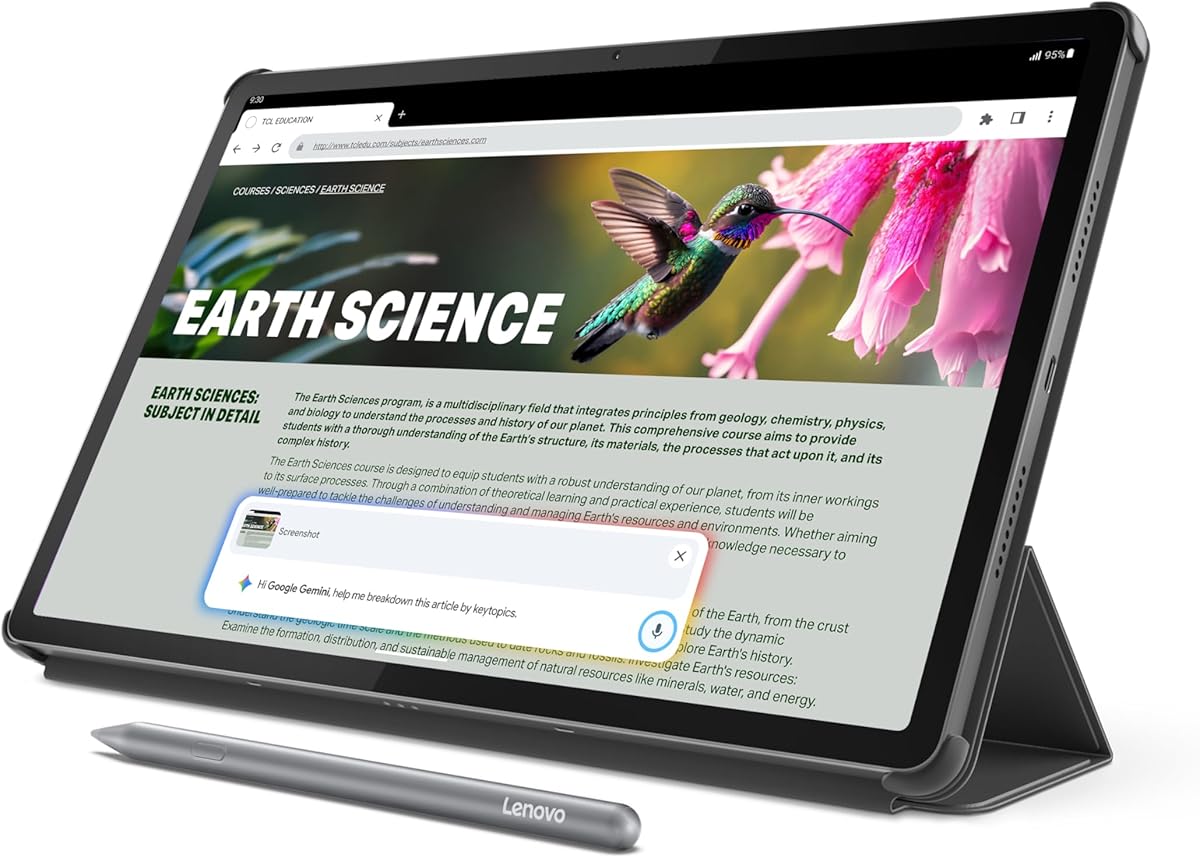
The Lenovo Idea Tab Pro carries a 4.6 rating and offers a strong combination of large-screen productivity, stylus support, and portable computing. Its 12.7-inch 3K LCD is well suited to reviewing drawings, reading technical material, presenting ideas, and working across multiple applications.
We may earn a commission when you buy through this link, at no additional cost to you.
The included Tab Pen Plus and folio case make it easier to begin using the tablet as a note-taking and ideation device. Google Gemini, Circle to Search, and reading modes add useful support for research, while the MediaTek Dimensity 8300, 8GB of memory, and 128GB of storage provide a capable general-purpose platform.
It is not designed like a specialist CAD pen display, and the supplied information does not specify pen pressure levels or dedicated CAD controls. Its strengths therefore lie in mobile productivity, study, annotation, and creative planning rather than detailed professional drafting on a calibrated display.
This tablet is a good fit for students, hybrid designers, and professionals who want one portable device for coursework, presentations, research, and lighter sketching. Those who need precision linework or a dedicated CAD application should verify software support and pen performance before committing.
The combination of a high-resolution display, Wi-Fi 6E, and a capable processor supports lectures, research, multitasking, and entertainment. It is particularly useful for users who want productivity beyond a dedicated drawing surface.
Circle to Search, Gemini, and monochromatic reading modes make it easier to extract information and review documents. The included pen also supports handwritten annotation and visual problem solving.
We may earn a commission when you buy through this link, at no additional cost to you.
The HUION H420X has a 4.4 rating and is the most approachable dedicated graphics tablet in the lineup. Its 8192 pressure levels and 300 PPS report rate provide responsive linework, while the battery-free stylus includes two customizable buttons for functions such as switching to an eraser or issuing a right-click command.
We may earn a commission when you buy through this link, at no additional cost to you.
At seven millimeters thick and 167 grams, the tablet is designed for limited desks and easy travel. Its active area measures 4.17 by 2.6 inches, making it best suited to sketches, diagrams, annotations, and compact technical work rather than room-filling architectural plans.
Compatibility is broad for a basic tablet. It works with Windows, Mac, and Android, supports major graphics programs such as Adobe Photoshop, Illustrator, Corel Painter, Sketchbook, Clip Studio Paint, and ZBrush, and is also suitable for applications including Zoom, Microsoft Teams, Word, Excel, and PowerPoint. It does not support iOS.
The H420X is an excellent budget recommendation for students, new designers, and occasional users who want a dedicated pen surface. The trade-off is obvious: no integrated display and a small work area. Those limitations are acceptable when affordability and simple setup matter more than expansive drafting.
High pressure sensitivity and a fast report rate make the H420X feel more capable than its simple design suggests. It handles fine strokes, shading, and editable marks with confidence for learning and everyday work.
The tablet works without driver installation and supports widely used creative and productivity software. That makes it useful for quickly moving between digital art, education, meetings, and document annotation.
We may earn a commission when you buy through this link, at no additional cost to you.
The Lenovo Idea Tab Pro Gen 2 has a 4.3 rating and shines as a high-resolution productivity and note-taking tablet. Its 13-inch 3.5K LTPS display reaches 800 nits, making it well suited to reviewing technical documents, studying diagrams, and presenting visual concepts in varied lighting.
We may earn a commission when you buy through this link, at no additional cost to you.
Lenovo's Smart Capture, Lenovo AI Live Transcript, Lenovo AI Notes, and Sketch to Image features are particularly relevant to design workflows that begin with research, meetings, and rough visual thinking. The included pen supports annotation, while the Snapdragon 8s Gen 4 platform and integrated Adreno 825 GPU aim to keep demanding study apps and multitasking responsive.
Although the 144Hz refresh rate and strong processor are impressive, this remains a general-purpose tablet rather than a calibrated professional pen display. The supplied details do not establish specialty CAD support, high pen-pressure specifications, or the same kind of direct-on-screen precision as dedicated drawing displays.
It is most appropriate for architecture and engineering students, design managers, and consultants who need excellent viewing, note organization, and portable computing. Creative teams can use it for concept capture, but professionals who rely on precise CAD drafting should check application availability and pen specifications first.
The combination of 3.5K resolution, high brightness, and LTPS technology supports fine document review and detailed visual inspection. Low Blue Light and Flicker Free certification also supports comfortable reading.
Live transcription and automatic summaries can turn lectures, consultations, and design reviews into structured records. Smart Capture can extract visuals into Lenovo Notepad for later refinement.
We may earn a commission when you buy through this link, at no additional cost to you.
The Samsung Galaxy Tab S10+ holds the highest listed rating at 4.7 and offers a premium combination of display quality, stylus integration, and intelligent productivity features. Its 12.4-inch Dynamic AMOLED 2X screen provides rich color and reduced glare for artwork, design references, and presentations.
We may earn a commission when you buy through this link, at no additional cost to you.
The included S Pen supports direct sketching, while Sketch to Image can turn basic concepts into developed visuals. Circle to Search and Note Assist streamline research and meeting documentation, with lecture and meeting transcription features that automatically organize notes and create summaries.
This is a high-end Android tablet rather than a workstation-class CAD display. Sophisticated desktop CAD applications may require specific compatibility, and the device does not claim the professional pressure, color-calibration, or shortcut-control specification of a dedicated graphics display.
The S10+ is best for premium mobile design, concept visualization, client presentations, and annotation across a large screen. Its high rating, polished display, 256GB of storage, and included stylus make it an attractive choice for users who value a complete premium mobile ecosystem.
Sketch to Image provides a quick path from a basic visual idea to a more developed result. The S Pen remains available for direct drawing, annotations, and refined edits.
The AMOLED panel is suited to reviewing color-rich design material, while the tablet is built to protect against bumps, dust, and splashes. That balance of visual quality and resilience suits mobile work.
We may earn a commission when you buy through this link, at no additional cost to you.
The Galaxy Tab S10 FE+ also carries a 4.7 rating and prioritizes a large 13.1-inch screen, dependable stylus support, and useful productivity features. It is an attractive Android option for viewing plans, annotating documents, taking handwritten notes, and presenting work away from a desk.
We may earn a commission when you buy through this link, at no additional cost to you.
Handwriting Assist can straighten, align, and adjust the spacing of notes, while Math Solver converts S Pen equations into text. Circle to Search provides quick visual research, and the included S Pen is designed to feel like writing on paper. These features are particularly helpful for students and multidisciplinary teams.
The tablet supports microSD expansion, which offsets the comparatively modest 128GB of built-in storage, and its water resistance covers droplets, splashes, and immersion. It is not a dedicated pen display, however, so users requiring extensive pressure sensitivity, calibrated color, or desktop-grade CAD drawing should choose more specialized hardware.
The S10 FE+ works best for mobile review, education, field documentation, and light creative work. Its large display, high rating, included pen, and durability make it a versatile companion for users who want an expansive canvas without committing to a professional pen-display workflow.
Handwriting Assist corrects the visual irregularity of quickly written notes without requiring users to preserve every uneven stroke. It is useful for classroom records, site notes, and client discussions.
Water resistance provides confidence in environments where spills, dust, and everyday knocks are likely. A 13.1-inch display keeps plans and reference material readable while remaining portable.
We may earn a commission when you buy through this link, at no additional cost to you.
The Wacom Intuos Pro Large has a 4.3 rating and is aimed at professional users who want a large, highly customizable control surface. Its 16:9 format is designed to complement modern monitors and wide displays, while the 14.8-by-9.9-inch footprint provides ample room for technical sketches, plans, and detailed illustration.
We may earn a commission when you buy through this link, at no additional cost to you.
ProPen 3 delivers 8192 pressure levels, tilt support, and lag-free tracking. Users can choose different grip shapes, adjust the balance, and reposition the button layout, allowing the pen to be tailored to different drawing habits. Ten ExpressKeys and two mechanical dials add direct access to frequently used tools and parameters.
The 4mm-thick magnesium body combines a small desk profile with sturdy construction. Bluetooth allows wireless use and simple switching between multiple computers, while USB provides a wired alternative for a fixed workstation. As with other pen tablets, however, the user must look toward a separate monitor rather than drawing directly on a display.
This model is a strong recommendation for experienced designers, architects, illustrators, and engineers who need more canvas and customization than a compact tablet provides. Its size may feel excessive for occasional note-taking, but it can reduce cramped hand movement and improve workflow efficiency for sustained professional work.
The large active area gives broad sketches and multi-part technical drawings more breathing room. Its 16:9 layout also visually corresponds with many professional monitor setups.
ExpressKeys, mechanical dials, configurable pen buttons, and adjustable ProPen 3 grips allow a highly personalized workflow. These controls can reduce reliance on repeated keyboard commands during intensive sessions.
We may earn a commission when you buy through this link, at no additional cost to you.
The right tablet for CAD design depends on your software, work environment, precision needs, and preferred balance between portability and desk-based control. Reviewing these factors before shopping can prevent an expensive mismatch between the device and your design process.
Choose standalone if field use and travel are priorities. Choose computer dependent if you need professional desktop CAD, familiar plugins, complex file structures, or a larger monitor.
Prioritize pressure levels, tilt, low latency, and smooth tracking together rather than focusing on a single specification.
Match the active area to the scale of your typical work, and favor larger surfaces for full-layout drafting.
Choose a calibrated, anti-glare display for professional color work; prioritize resolution and brightness for reading and presentations.
Compare battery life, weight, charging method, and carry protection before choosing a mobile workflow.
Verify your exact software, operating system, driver, and connection requirements before buying any tablet.
Choose programmable controls when you perform repetitive CAD actions; keep controls simple for occasional sketching.
Test pen feel and desk positioning whenever possible, and ensure the device suits your dominant hand.
Begin by confirming that the selected tablet, pen, computer, and software are compatible. Install the current driver and firmware when the manufacturer provides them, connect the pen or tablet as instructed, and complete a short test drawing with straight lines, curves, pressure changes, and zoom actions. For a pen display, set the drawing area to match the application, then calibrate color and display settings if the device supports calibration. For a standalone tablet, explore the included drawing and productivity applications before attempting a complex project.
Establish a stable workspace before starting detailed work. Place the tablet directly in front of you and align the active area with the direction of your dominant hand. Keep the screen and drawing surface free of dust, and avoid placing the pen where it can roll off the desk. Use layered CAD files, meaningful object names, and regular saves. For client work, create a clean presentation view and export a separate flattened copy when required, while retaining the editable source file.
Care for the pen nibs, screen, and cables gently. Replace a worn nib before it begins scratching the active surface, and clean the display with a soft, lint-free cloth rather than abrasive chemicals. Do not leave a battery-powered standalone tablet in extreme heat or allow its charge to remain depleted for long periods. Store wireless tablets in the supplied case, and route cables without creating sharp bends. Periodic calibration, driver updates, and backups help maintain consistent performance and protect the value of your design files.
A pen tablet is usually better when you already use a large calibrated monitor, need more desk flexibility, or want a lower-cost dedicated input surface. A pen display is better when direct hand-to-cursor alignment is important, especially for technical illustration, architectural sketching, and detailed freehand work. The best choice also depends on the available screen space and your preferred drawing posture.
Pressure sensitivity is not essential for conventional line-based CAD because most precision geometry relies on coordinates, object tools, and numeric dimensions. It is valuable for sketching, conceptual diagrams, annotations, illustration, and workflows that combine vector drafting with expressive freehand lines. If expressive drawing is secondary, a simpler tablet with a responsive pen may be sufficient.
That depends on whether the required engineering application and its plugins are available for the tablet's operating system. Standalone devices are excellent for field sketches, markups, presentations, and lightweight drafting, but desktop CAD can offer broader software, driver, and file-management support. Always verify the exact application, operating-system version, and file format before purchasing.
Look for full lamination, anti-glare treatment, wide color-gamut coverage, and documented factory calibration. The HUION Kamvas 13 Gen 3, for example, is stated to cover 99% sRGB and Rec.709, 90% Adobe RGB, and a Delta E below 1.5. Calibration reduces visible variation and helps decisions based on color align more closely with intended output.
No. A larger active area gives you more room for full layouts and reduces frequent hand repositioning, but it also requires more desk space and can become tiring for simple tasks. A compact tablet may be better for annotation or travel, while a wide professional surface is advantageous for architectural plans, technical drawings, and sustained precision work.
A display tablet is useful when you want to draw directly on a large screen, review plans with a client, or present concepts without switching between a tablet and a separate monitor. Standalone Android models add portability, while professional pen displays provide stronger calibrated color and more purpose-built drawing controls. Consider software availability and charging needs as well as screen size.
For sketching, illustration, and expressive CAD annotation, a higher level can make transitions smoother, although many artists can work effectively with 4,096 levels. The most important factors are stable tracking, low latency, accurate tilt, and a comfortable pen. The Kamvas 13 Gen 3 provides 16,384 levels, while several Wacom and HUION options provide 8,192.
Many models can support both, but the strength of each function depends on the device. The H420X is explicitly suited to graphics applications, document annotation, education, and conferencing, while the larger Lenovo and Samsung tablets emphasize note organization and presentations. For heavy professional CAD, a dedicated pen tablet or display is generally more focused.
The best choices in this guide serve different needs. The HUION H420X is the budget-friendly starting point, the Wacom Intuos Medium provides a balanced and familiar pen-tablet experience, and the HUION Kamvas 13 Gen 3 is the strongest dedicated pen display for professional precision and color-controlled work. Standalone options such as the PicassoTab X14 and RubensTab T11 Pro prioritize mobility, while the Samsung and Lenovo tablets serve broader study, annotation, and presentation needs.
Before buying, decide whether you will work primarily on a computer or need a self-contained device. Then prioritize the software you use, active area, pen tracking, pressure and tilt behavior, display quality, and ergonomic fit. A larger tablet is not automatically better, and a standalone device is not automatically more capable. The strongest purchase is the one whose hardware and operating environment support your actual CAD workflow.
Finally, verify the current product listing, included accessories, compatibility details, and latest specifications before ordering. Ratings, software versions, and prices can change, and promotions may affect which option is most practical at the time of purchase. Checking the live listing ensures that the selected tablet still matches your project, device, and mobility requirements.